New Features in Fabric Data Factory Import/Export
New Features in Microsoft Fabric Data Factory: Import, Export, and Use Templates in Data Pipelines
The latest enhancements in Fabric Data Factory that will significantly streamline your data integration processes. The new features—Import, Export, and Use Templates—are now available, making it easier than ever to manage and automate your data pipelines.

Import Data Pipelines
The Import feature allows you to bring in existing data pipelines from other workspaces or projects. This is particularly useful for teams that need to replicate successful data workflows across different departments or for those migrating from other data integration tools. With a few clicks, you can import your pipelines, ensuring consistency and saving valuable time.
How to Import a Data Pipeline:
- Navigate to the Data Pipelines section in Data Factory.
- Click on the “Import” button.

- Select the file or source from which you want to import the pipeline.
- Follow the prompts to complete the import process.

Export Data Pipelines
Exporting your data pipelines is now a breeze. This feature enables you to back up your pipelines, share them with colleagues, or move them to different workspaces. Exporting ensures that your data integration processes are portable and can be easily restored or replicated.
How to Export a Data Pipeline:
- Go to the Data Pipelines section.
- Select the pipeline you wish to export.
- Click on the “Export” button.

- Complete the export process by following the on-screen instructions.
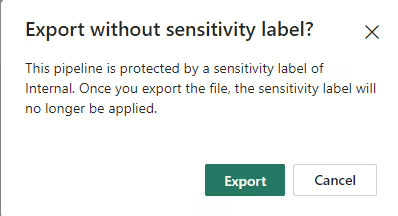
- Sensitivity labels will be removed
- Your Pipeline will be saved as .zip file in your default download folder.

Use Templates
Templates are a powerful addition to Data Factory, allowing you to standardize and accelerate the creation of data pipelines. Whether you are setting up a new ETL/ELT process or automating data transfers, templates provide a starting point that can be customized to meet your specific needs.
How to Use Templates:
- In the Data Pipelines section, click on the “Templates” button.
- Browse through the available templates or search for a specific one.
- Select a template and click “Use Template.”

- Configure the required inputs
- Click on Use this Template, the required activities will now be deployed to your pipeline.
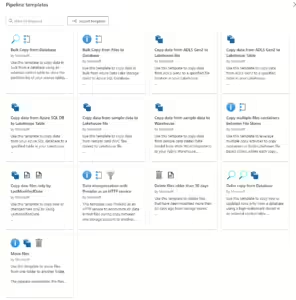
More on templates can be found here.
NOTE:
Import Data Pipelines from Azure Data Factory or Synapse Workspace is not supported. Migration steps will follow later.
The main difference between Microsoft Fabric and ADF or Synapse is, that we use in Fabric connections and ADF/Synapse datasets and Linked services

Conclusion
The new Import, Export, and Use Templates features in Data Factory are designed to enhance your productivity and ensure seamless data integration. By leveraging these tools, you can simplify your workflows, maintain consistency across projects, and accelerate the configuration of data pipelines.

Feel free to leave a comment
Discover more from Erwin | Data & Intelligence
Subscribe to get the latest posts sent to your email.

0 Comments