How Microsoft Purview and Microsoft Fabric work together to empower data discovery and governance
Microsoft Purview is a unified data governance service that helps you manage and govern your on-premises, multi-cloud, and software as a service (SaaS) data. Microsoft Fabric is a new cloud-based data platform that enables you to create, share, and collaborate on data-driven insights with your team. Together, Microsoft Purview and Microsoft Fabric offer a seamless integration that allows you to browse and search Fabric items, access metadata from Fabric items, and apply data policies and classifications to Fabric items.
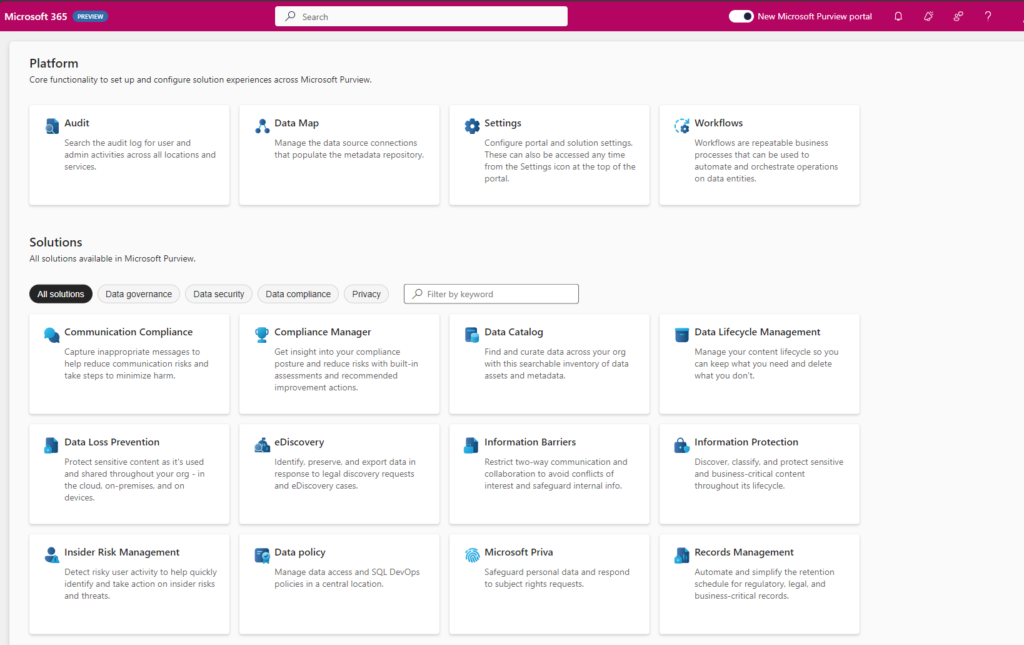
New Portal Experience
A few months ago, Microsoft announced the new portal Experience in Microsoft Purview as it offers a range of exciting new features and capabilities. Data Governance, Risk and Compliance are increasingly integrating into a unified experience. Microsoft Fabric will have a native integration with Microsoft Purview.
Browse and search Fabric items
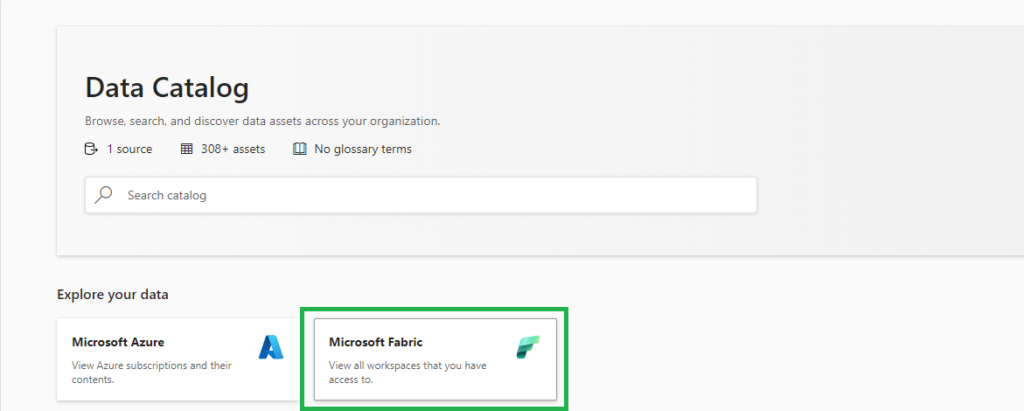
Just like Microsoft Azure, Microsoft Fabric is a new source for Microsoft Purview. Since Microsoft Purview is attached to every Fabric instance by default, you can click on the tile “Microsoft Fabric” on the front page of Microsoft Purview Data Catalog to start browsing your Fabric items. Automatically, any user can see the workspaces and Fabric items based on the permission setting they have in Fabric. You can also use the search bar to find Fabric items by keywords, filters, or facets.
Access metadata from Fabric items
In the coming weeks, Microsoft Purview Enterprise customers can provide broader access to metadata from Fabric items by scanning Fabric. When a Fabric is scanned, Microsoft Purview writes information about Fabric items to the Purview data map, and access to that metadata is governed by Microsoft Purview access control. This allows administrators to give users metadata access for data discovery or governance, without requiring those users to have read permissions on the underlying data sources.
Live view in Microsoft Purview
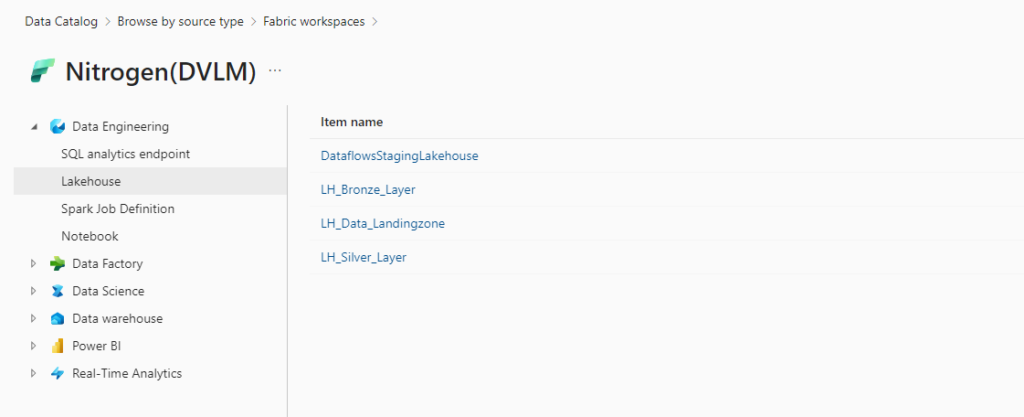
Resources in live view in the Microsoft Purview Data Catalog automatically have this metadata available:
Name
Properties
Schema
Lineage
Creating a new workspace in Fabric will automatically appear in Microsoft Purview.
Available resources
The following Fabric items will be available in Microsoft Purview as part of this public preview release.
Experiences
Fabric items
Real-Time Analytics
KQL Database
KQL Queryset
Data Science
Experiment
ML Model
Data Factory
Data pipeline
Dataflow Gen2
Data Engineering
Lakehouse
Notebook
Spark Job Definition
SQL analytics endpoint
Data Warehouse
Warehouse
Power BI
Dashboard
Dataflow
Datamart
Dataset
Report
Paginated report*
* Only available by scanning
Conclusion
Microsoft Purview and Microsoft Fabric are two powerful services that work together to empower data discovery and governance. By integrating Microsoft Purview and Microsoft Fabric, you can leverage the benefits of both services, such as:
Browse and search Fabric items in the Microsoft Purview Data Catalog
Access metadata from Fabric items without requiring data access permissions
If you want to learn more about Microsoft Purview and Microsoft Fabric, you can visit the following links:
Stay up-to-date with the latest and most valuable content about Microsoft Fabric, all in one place! From insightful articles and tutorials to engaging videos and community blogs, you’ll find a treasure trove of resources to deepen your understanding.
Get ready for data enrichement in Microsoft Fabric
Azure OpenAI is fun and exciting and we can use it to do amazing stuff. In combination with Spark on Microsoft Fabric or Azure Synapse Analytics, we can transform and generate large amounts of text data and make use of OpenAI’s flexibility in defining the transformation. The SynapseML library that comes pre-installed on all Synapse Spark pools and Fabric workspaces includes an OpenAI module that allows you to perform OpenAI transformations on spark dataframes, enabling OpenAI at scale. Azure OpenAI is fun and exciting and we can use it to do amazing stuff. In combination with Spark on Microsoft Fabric or Azure Synapse Analytics, we can transform and generate large amounts of text data and make use of OpenAI’s flexibility in defining the transformation.
Together with Floris Berends we had a look into the possibilities and wrote the post below
Requirements
To run this example you need to have:
An Azure OpenAI service
A model deployment
A Microsoft Fabric workspace Alternatively, a Synapse Analytics workspace
A Spark Notebook
Extracting text fields from raw social media posts
Let’s say we are scraping social media posts and are interested in some of the details. Usually, scraping text fields results in some pretty messy data. For this example, we are using the Scikit-Learn newsgroups open dataset.
Set up a Spark Dataframe
In order to load the open dataset into a spark dataframe, we first load it into a pandas dataframe. Of course if you are using your own data, you can load the data from anywhere, as long as it fits into a spark dataframe
import pandas as pd
from sklearn.datasets import fetch_20newsgroups
newsgroups = fetch_20newsgroups(subset="train", categories=['talk.politics.misc'])
pd_df = pd.DataFrame(newsgroups["data"], columns=["data"])
df = spark.createDataFrame(pd_df)
Set up our parameters
To prepare the OpenAI transformation, we need to provide the API with a number of connection and configuration parameters. These include the Azure OpenAI service name, the name of the model deployment, and a prompt that will specify our transformation. The parameters can be found in the Azure Portal, on your Azure OpenAI resource. If you have not yet deployed a model, do this now. Note that the prompt specifies what we want the model to do, but also specifies the format in which we want the model to respond. This is crucial in getting reliable results from the model and this is what enables us to use the transformation as part of a pipeline.
openai_service_name = "<YOUR SERVICE NAME>"
openai_deployment_name = "<YOUR DEPLOYMENT NAME>"
openai_key = "<YOUR SERVICE KEY>"
source_content_column = "data"
system_prompt = """
You will read the raw text of an e-mail and extract the senders e-mail
address and subject from the text. You will also list the topics of the email, provide a short one-sentence summary, and output the sentiment of the email. Ensure that the sentiment is one of the following: negative, neutral, positive.
Your response will be in the following format
{{
"EMAILADDRESS": "",
"SUBJECT": "",
"SUMMARY": "",
"SENTIMENT": "",
"TOPICS: []
}}
"""
Set up the prompt column
Because OpenAI needs a prompt in order to generate a completion, we need to setup a prompt column that includes both the instruction (system_prompt) we set up earlier and our data. The way that Azure OpenAI chat completions work, is that you can provide the ‘chat history’ as a message column. This column is what we will use as input for the transformation. Additionally, Azure OpenAI chat completion messages include a ‘role’ parameter. The role specifies who sent the message. In a normal chat interaction, there are 2 roles: the user and the assistant (i.e. the model). However, it is possible to provide a ‘system’ message that will instruct the model how to behave. We will use a ‘system’ message in order to instruct the model on how to transform our data. In order to do this, we need to set up the prompt column in the following way:
A message with the ‘system’ role and our instruction as content.
A message with the ‘user’ role and our data as content.
Now that we have the input dataframe with the data and prompt just how we want it, we can set up the call to the Azure OpenAI API. Note that Spark will not immediately execute the transformation, but will simply setup the plan for the dataframe. The API will only be called when we actually need the data (e.g. when we save or display the dataframe).
The OpenAIChatCompletion mehthod simply puts the completion results into the output column, but we want to have the results in separate columns. Before we can do this we need to define the output schema.
output_columns = "EMAILADDRESS,SUBJECT,SUMMARY,SENTIMENT,TOPICS"
prompt_schema = StructType(
[StructField(col, StringType(), True)
for col in output_columns.split(",")
])
df_result = completion.transform(df.limit(10)).withColumn(
"response",
F.from_json(
F.col("output.choices.message.content").getItem(0)
,prompt_schema)
).select("response.*","error")
Displaying and Verifying the results
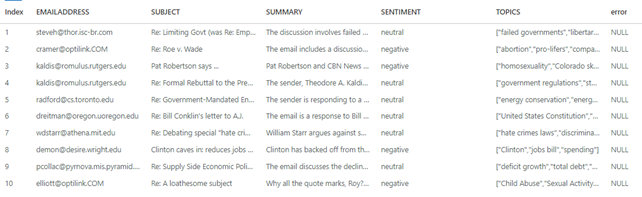
There are a number of things that can go wrong. For any row, errors returned by the API will be put into the error column that you provided by .setErrorCol. We can display the dataframe to inspect the results:
display(df_result)
Final
It might seem that this setup is so versatile that you can use it to apply any transformation you desire on any column in any dataset. Although this might not be far from the truth, there are a couple of things you need to consider:
Cost: Azure OpenAI transformations are more expensive then those that do not rely on external APIs (e.g. Spark Native transformation like map(), flatten(), explode(), or using regular expressions and the like).
Complexity: This example applies a transformation with a simple output schema. It might very well be the case that asking a LLM to output data in a very complex schema will not turn out well.
Language: This example applies a transformation that is primarily a language based transformation: extracting and summarizing information that is available as natural language. Using LLMs to apply math-based, logic-based, or code-based transformations might not show reliable results.
The main take-away is that using Azure OpenAI to transform text-fields though natural language operations like summarization, description and extraction can be done fast and reliable. We are looking forward to seeing where this technology will take us.
Get ready for the next enhancement in Microsoft Purview
Get ready for the next enhancement in Microsoft Purview, as it brings a range of exciting new features and capabilities. To ensure the best experience with Purview, it is recommended that you tag your existing Microsoft Purview accounts appropriately.
Mark your Purview accounts with the proper tags
In short, mark each Purview account with the following tags: Name: "Purview Environment," Value: "Production."
In the long story, you have several tag options available to you. The table below outlines the different tags and their purposes:
In all purposes the tag name is "Purview Environment"
Production - This tag signifies that the account is or will be used for cataloging and governance requirements in a production environment. It is a candidate to be selected as the primary account for the tenant.
Pre-production - This tag indicates that the account is or will be used to validate cataloging and governance requirements before making them available in production. It is a candidate to be merged as a domain or can be deleted.
Test - This tag suggests that the account is or will be used for testing capabilities in Microsoft Purview Governance. It is a candidate to be merged as a domain or can be deleted.
Dev - This tag signifies that the account is or will be used to test capabilities or develop custom code and scripts in Microsoft Purview Governance. It is a candidate to be merged as a domain or can be deleted.
Proof Of Concept - This tag indicates that the account is or will be used to test capabilities or develop custom code and scripts in Microsoft Purview Governance. It can be deleted in the future.
Deprecate - This tag is for accounts that were created a while back but are not in use today. They can be deleted in the future.
Create tag
The following instructions will allow you to successfully tag your Purview account(s) with the desired classification:
1. Sign in to the Azure portal using your Azure account credentials.
2. Use the search bar to find and select your Microsoft Purview account.
3. Locate the Tags (edit) section on the left of the Purview account overview page.
4. Click on the Tags (edit) link to open the tags editor.
5. Add a new tag with a Name and Value according to the provided options (e.g., Name: "Purview Environment," Value: "Production").
6. Click on Save to apply the tag to your Purview account.
What's Next!
The next Microsoft Purview enhancement is coming to you in a few weeks. Along with the features you've enjoyed with Microsoft Purview so far, this enhancement will provide these additional capabilities:
Centralized organization-wide data governance that automatically gives you visibility across your Microsoft Cloud.
Configuration and set up is no longer required to capture metadata for Microsoft Cloud - Microsoft Purview is auto-attached to Microsoft Fabric and Azure SQL.
A clean, crisp, and more intuitive user interface to navigate the platform and apps.
These new features will be turned on automatically and added to your existing capabilities.
How can you use our new experience?
These new features will be turned on automatically and seamlessly integrated with your existing capabilities. The new experience will be available once your organization has been enabled. The exact steps to get started will depend on your organization's current structure, and more information will be provided in the coming weeks.