Fabric Meta DataDriven Framework – New Release Highlights
I'm excited to announce a new release of the Fabric Metadata-Driven (FMD) Framework, now with full Fabric CLI integration and several powerful enhancements to streamline deployment and governance.
What’s New
Fabric CLI-Based Setup The entire setup process is now powered by the Fabric CLI, enabling faster, more consistent deployments. Special thanks to @Edgar Cotte for the collaboration and support!
Default Descriptions All deployed items now include default descriptions for improved clarity and documentation.
Lakehouse Schema Support Optionally enable Lakehouse schemas, unlocking support for:
Materialized Views
One Security model
Workspace Identity Enabled by Default Enhances security and simplifies access management by enabling workspace identity automatically.
Direct GitHub Deployment Items can now be deployed directly from GitHub — no need for a separate deployment file.
Open Source Hosting The full source code is now hosted on GitHub, making it easier for the community to contribute and collaborate.
Documentation
Refer to the updated README for setup instructions, configuration options, and usage examples.
Community
This release is dedicated to our amazing community — and yes, it’s open source! We welcome your feedback, issues, and contributions.
Microsoft Announces Public Preview of SQL Database in Microsoft Fabric
Microsoft has announced thePublic Previewof the SQL database in Microsoft Fabric, a significant step towards simplifying and accelerating AI app development. This new service is designed to be simple, autonomous, secure, and optimized for AI, making it easier for developers to build AI applications. Today i had a quick look and was very impressed.
Key Highlights:
Simplicity: The SQL database in Fabric is designed to be user-friendly, reducing the complexity typically associated with database management.
Autonomy: It offers autonomous features that handle routine tasks, allowing developers to focus more on innovation.
Security: Enhanced security measures ensure that data is protected, meeting the highest standards.
AI Optimization: The service is optimized for AI, providing the necessary tools and infrastructure to support AI-driven applications.
Benefits:
Faster Development: Developers can build AI apps up to 71% faster and more effectively.
Unified Platform: Fabric evolves from an analytics platform to a comprehensive data platform, integrating operational databases seamlessly.
Hands-On Experience:
Today, I took the opportunity to get some hands-on experience with this new database in my environment. Setting up the database was incredibly easy and took less than a minute. Here’s a quick guide to get you started:
Click on "New Item".
Select "SQL Database" and define a name (I always start with SQL_).
After 60 seconds, your database is ready to use.
To connect to the database, if you are using tools like SSMS, make sure to add the database name to the connection pane to avoid errors related to the master database.
Once connected, you can perform your day-to-day SQL server tasks with ease. Additionally, you can use the database as a source or sink in Data Flows and Pipelines with copy activity and stored procedures activities in Microsoft Fabric or start building an API on top of your data.
I deployed my database project file from Azure Data Studio to the newly created database and that took only like 5 seconds. Next is to copy the data over. I tried to restore a dacpac or bacpac file, but did not succeed yet so far. After that, I connected my database to Git and you know what, all my objects from the database are in there. Awesome!"
For more details, including demo videos and customer testimonials, check out the full blog post here.
Conclusion:
The Public Preview of the SQL database in Microsoft Fabric is a game-changer for developers looking to build AI applications. Its simplicity, autonomy, security, and AI optimization make it an invaluable tool for accelerating development and enhancing productivity. As Microsoft continues to innovate and expand its offerings, the SQL database in Fabric stands out as a testament to the company's commitment to providing cutting-edge solutions for the modern developer. I'm definitely going to use this new database for my Meta Data driven Framework, no Azure SQL Deployment, network setup, Private endpoint setup anymore, just start and connect.
SQL database in Fabric will be free until January 1, 2025, after which compute and data storage charges will begin, with backup billing starting on February 1, 2025.
This is a live learning session where you can ask questions and learn all of the basics of SQL database and Microsoft Fabric in one course, register here.
New Features in Microsoft Fabric Data Factory: Import, Export, and Use Templates in Data Pipelines
The latest enhancements in Fabric Data Factory that will significantly streamline your data integration processes. The new features—Import, Export, and Use Templates—are now available, making it easier than ever to manage and automate your data pipelines.
Import Data Pipelines
The Import feature allows you to bring in existing data pipelines from other workspaces or projects. This is particularly useful for teams that need to replicate successful data workflows across different departments or for those migrating from other data integration tools. With a few clicks, you can import your pipelines, ensuring consistency and saving valuable time.
How to Import a Data Pipeline:
Navigate to the Data Pipelines section in Data Factory.
Click on the “Import” button.
Select the file or source from which you want to import the pipeline.
Follow the prompts to complete the import process.
Export Data Pipelines
Exporting your data pipelines is now a breeze. This feature enables you to back up your pipelines, share them with colleagues, or move them to different workspaces. Exporting ensures that your data integration processes are portable and can be easily restored or replicated.
How to Export a Data Pipeline:
Go to the Data Pipelines section.
Select the pipeline you wish to export.
Click on the “Export” button.
Complete the export process by following the on-screen instructions.
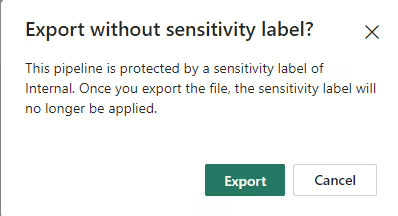
Sensitivity labels will be removed
Your Pipeline will be saved as .zip file in your default download folder.
Use Templates
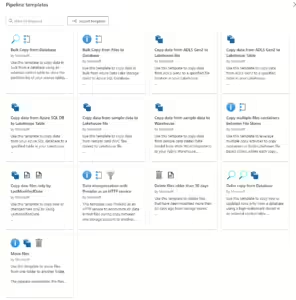
Templates are a powerful addition to Data Factory, allowing you to standardize and accelerate the creation of data pipelines. Whether you are setting up a new ETL/ELT process or automating data transfers, templates provide a starting point that can be customized to meet your specific needs.
How to Use Templates:
In the Data Pipelines section, click on the “Templates” button.
Browse through the available templates or search for a specific one.
Select a template and click “Use Template.”
Configure the required inputs
Click on Use this Template, the required activities will now be deployed to your pipeline.
Import Data Pipelines from Azure Data Factory or Synapse Workspace is not supported. Migration steps will follow later.
The main difference between Microsoft Fabric and ADF or Synapse is, that we use in Fabric connections and ADF/Synapse datasets and Linked services
Conclusion
The new Import, Export, and Use Templates features in Data Factory are designed to enhance your productivity and ensure seamless data integration. By leveraging these tools, you can simplify your workflows, maintain consistency across projects, and accelerate the configuration of data pipelines.
How to Use and Enable High Concurrency for Notebooks in Pipelines with Microsoft Fabric
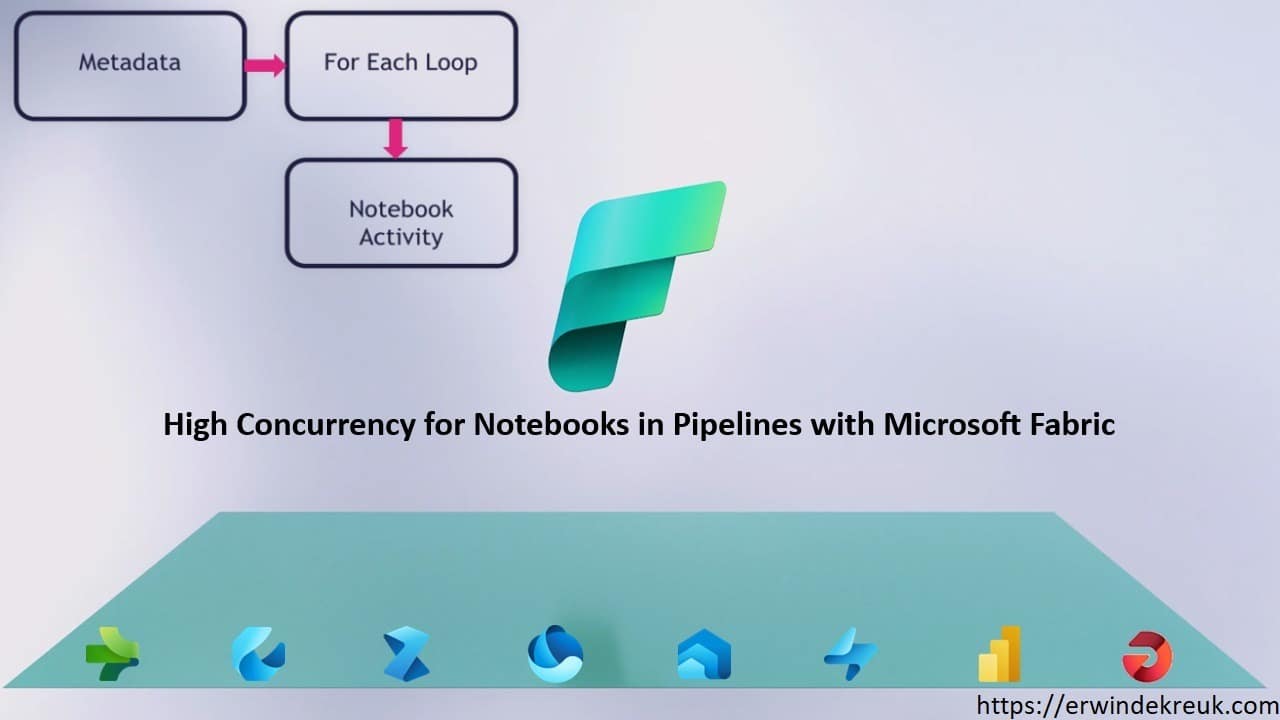
High Concurrency Mode for Notebooks in Pipelines is a game-changer for data engineers and data scientists using Microsoft Fabric. This feature allows multiple notebooks to share a single Spark session, significantly improving performance and reducing costs. One of the other advanced is as well that Microsoft Fabric is not running to all the capacity limits due to the fact that every Notebook was starting a new session. In one of my other blogpost I explained how you could solve this with notebookutils.notebook.runMultiple.
Here’s how you can enable and use this feature effectively.
Why Use High Concurrency Mode?
High Concurrency Mode offers several benefits:
Faster Session Start: Notebooks can attach to pre-warmed Spark sessions, reducing startup time to around 5 seconds.
Cost Savings: By sharing a single Spark session across multiple notebooks, you only pay for one session, which can lead to significant cost reductions.
Improved Efficiency: This mode optimizes pipeline execution, making it faster and more efficient.
Enabling High Concurrency Mode
To enable High Concurrency Mode in your Fabric workspace, follow these steps:
Access Workspace Settings:
Go to your Fabric workspace and select theWorkspace Settingsoption.
Navigate to High Concurrency Settings:
In the settings menu, go to theData Engineering and Sciencesection.
SelectSpark Computeand thenHigh Concurrency.
Enable High Concurrency:
In the High Concurrency section, enable the optionFor pipeline running multiple notebooks.
Save your changes.
Enable High Concurrency in WorkspaceOnce enabled, all notebook sessions triggered by pipelines will be packed into high concurrency sessions automatically.
Using High Concurrency Mode
After enabling High Concurrency Mode, you can start using it in your pipelines:
Create a Pipeline:
Open your Fabric workspace and create a new pipeline item from theCreatemenu.
Add Notebook Activities:
Navigate to theActivitiestab and add aNotebookactivity to your pipeline.
Create Pipeline with Notebook Activity
Configure Session Tags:
In the advanced settings of the notebook activity, specify a session tag. This tag helps group notebooks into shared sessions based on matching criteria.
Enable session tag on Notebook
Session Tags
When you define a Session Tag, the Notebook will use shared sessions. These sessions tags can be used across pipelines but not across workspaces, a new session will be created even if you use the same session tag. Just see a sort of grouping. You define a session on your own or create add dynamic content. But be aware Session tag can only contain letters, numbers, and underscores.
Monitoring
In the monitoring you will now see all the executed Notebooks one by one, while this was not the case notebookutils.notebook.runMultiple(DAG), you only saw the Main Notebook. This is a great step forwards while building monitoring solutions.
Below an overview in the Monitor before the session started:
Notebook Execution before session startedBelow an overview in the Monitor when the session started
Notebook Execution when session startedOverview of all the executed Notebooks
Notebook Execution when session was finishedThe Notebook name is extended with the Livy id.
Remark: It looks like that currently the Snapshots from the Notebooks are incorrect because every Notebook execution is showing the Snapshots(from the first Notebook), so debugging from the Monitor is not yet possible. I've already created a note to the PM team.
RunMultiple
With the notebookutils.notebook.runMultiple(DAG) you have some more options.
Define any dependency or order among them.
Define timeouts per Cell
Run multiple notebooks in a DAG, where each notebook can depend on the output of one or more previous notebooks.
Conclusion
High Concurrency Mode for Notebooks in Pipelines with Microsoft Fabric is a powerful feature that enhances performance, reduces costs, and improves efficiency. By following the steps outlined above, you can easily enable and start using this feature to optimize your data engineering and data science workflows. Personally I'm very happy with these new functionality, you can define easier outputs for every notebook for logging purposes.
Exciting enhancements were also revealed for Fabric Data Factory Pipelines, including new activities like Invoke Remote Pipeline and support for Fabric User Data Functions.These enhancements aim to make data workflows more robust and flexible. This new functionality makes it even easier to build Meta Data Driven Frameworks.
In the afternoon, I hosted my own session Microsoft Fabric: Building a Data Ingestion and Processing framework to Drive Efficiency in a packed room. Thank you all for attending, engaging, and asking questions. As promised, you can find the session code on my GitHub.
All released Blog post during the conference
I've made a collection of all the blogpost which have been released during the Conference, just to summarize:
The energy and enthusiasm at #FabConEurope were palpable. The event not only showcased the latest technological advancements but also fostered a sense of community and collaboration. In conclusion, #FabConEurope was a resounding success, setting the stage for future advancements in the Microsoft Fabric ecosystem. The announcements and discussions at the conference have paved the way for a more integrated, efficient, and responsible approach to data management and analytics.