How to check your SQL Server Quota in Azure?

Month: March 2019

by Erwin | Mar 21, 2019

Azure Subscription Usages for SQL Server


Last week we reached our Logical server Quota in Azure. By default you're only allowed to add 20 Logical Servers, but we wanted to have some more for testing purposes.

Microsoft Support

You can submit a support ticket trough the Azure Portal to request more SQL Servers. After replying some answers about the reason and the purpose of requesting more servers, they added the requested quota to our West Europe region.
So far so good, but then the question came back if I could check if these servers where added. I've been looking everywhere in the Azure Portal, but couldn't find it.

Powershell Command

The only way to check your SQL Server quota is by following the documentation(below) where you can find power shell command to check SQL server quota.

https://docs.microsoft.com/en-us/azure/azure-resource-manager/templates/error-resource-quota

Run the Command and you wil get the following result:

[ps]

Get-AzVMUsage -Location 'West Europe'

[/ps]
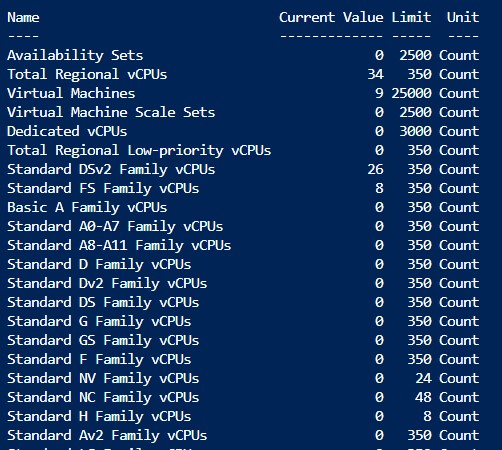
 

PS Quota

Hopefully this will help you the next time you need to find your quota's. Thank you for reading.
Feel free to leave a comment

Rerun Pipeline activities in Azure Data Factory

Rerun Pipeline activities in Azure Data Factory

Month: March 2019

by Erwin | Mar 7, 2019

Rerun Pipeline activities in ADF!

As of today you can rerun or partially, yes you’re reading it correct partially, rerun you Azure Data Factory pipeline.
Where you previously had to run the entire Pipeline again, you can now run a part of the Pipeline. This can save a lot of time if many different activities are created within one pipeline. Another nice step forward, I'm curious what else is coming in the next months.


Visualized

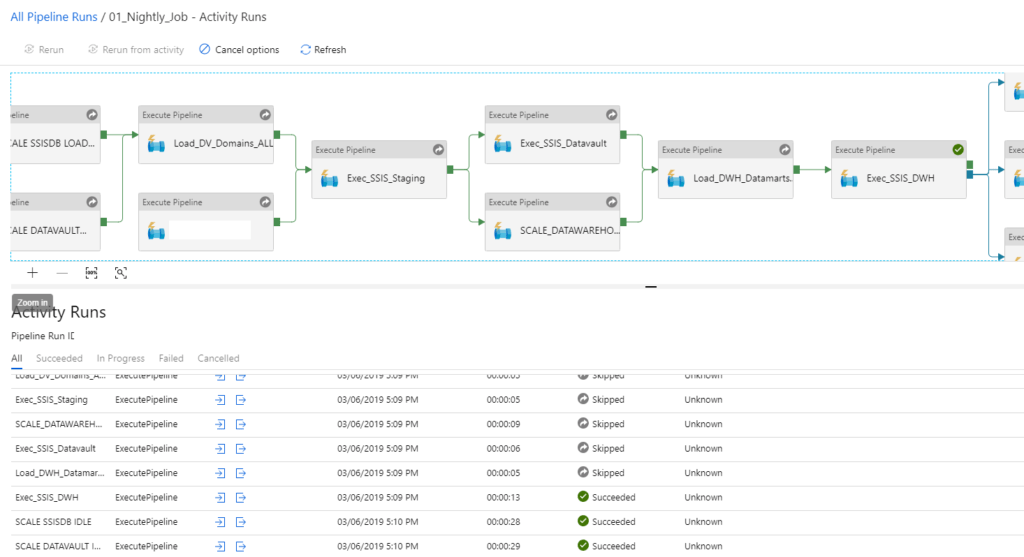
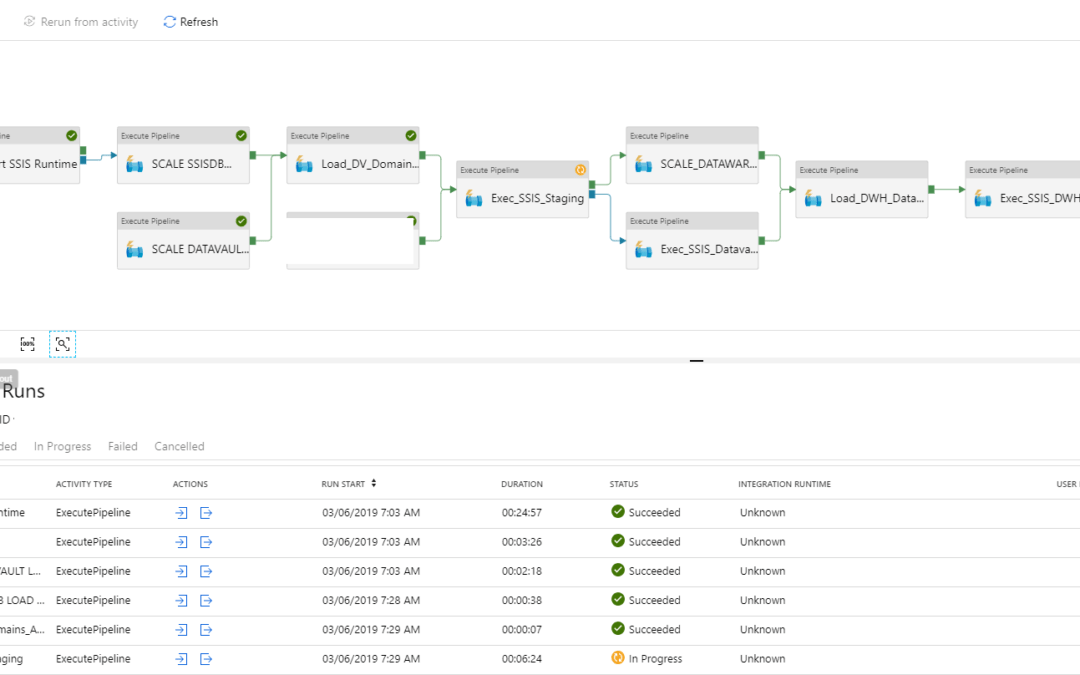
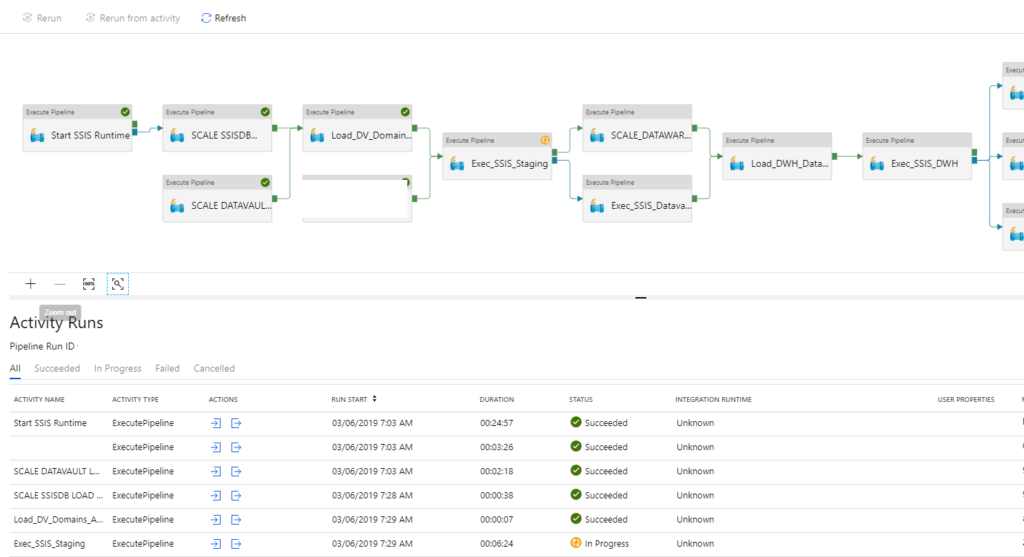
Besides that you can rerun your Pipeline in Azure Data Factory in a easy way, you also have the possibilities to see your run,  visualized in the Azure Data Factory Monitoring. This is a big improvement in my opinion.

Rerun a Pipeline

If you want to partially rerun a Pipeline, follow the steps below:
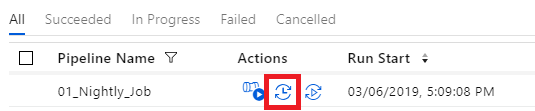
Select the Pipeline which has failed, go to the view activity runs and select the activity which failed.

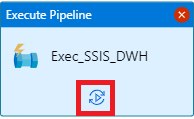
Click on the Rerun Icon


You need to confirm that you want to rerun this activity.

The Pipeline will start and will first skip all the activities(the grey new icons in the upper right corner of each activity) in the Pipeline before your selected Activity.
Your Pipeline will now finalize all the activities from your newly defined starting point.


What else is new?

Monitor Rerun History

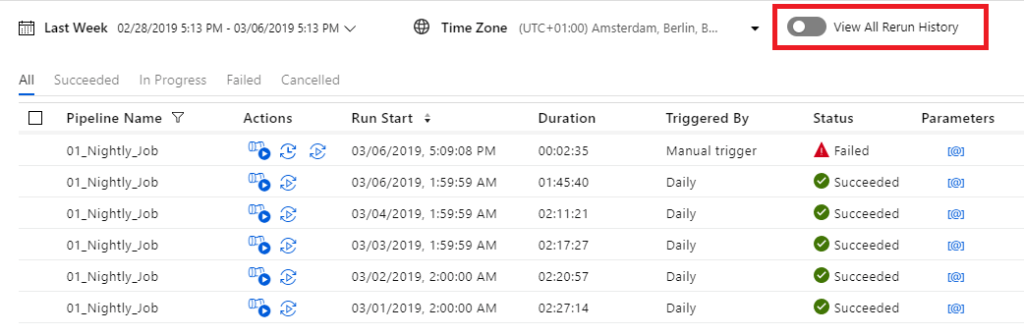
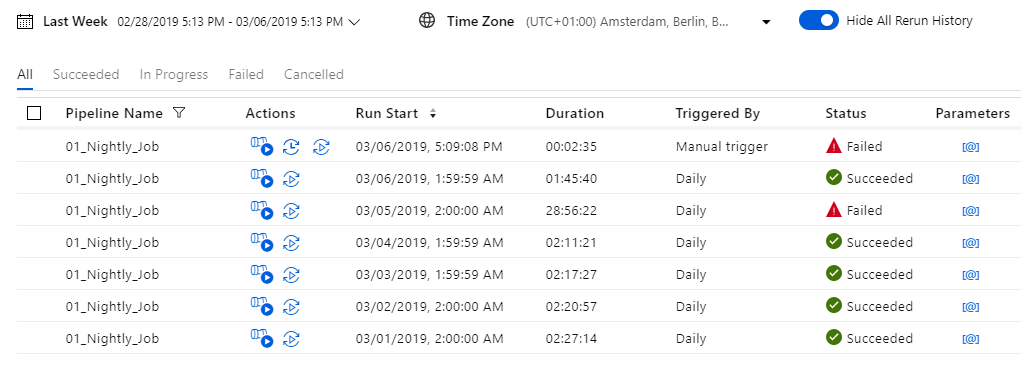
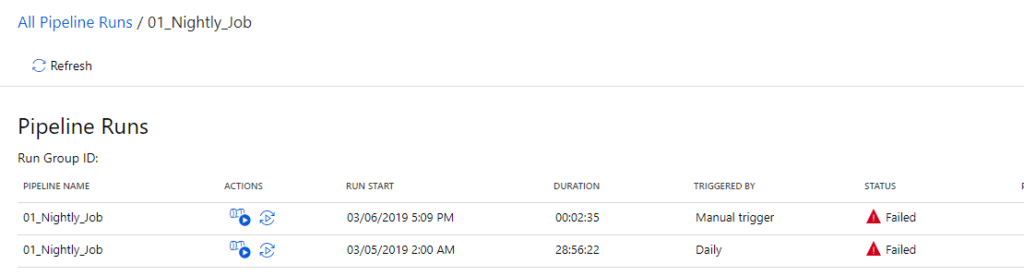
You can now view all the history reruns by clicking on the toggle to ‘View All Rerun History’.

By clicking on the red marked action, you can see all the History from an particular Pipeline run.


Thanks for reading.


Updated 10th of March:


Found a video on Channel9 which explains how to  "Rerun activities inside your Azure Data Factory pipelines"

https://channel9.msdn.com/Shows/Azure-Friday/Rerun-activities-inside-your-Azure-Data-Factory-pipelines?ocid=player

Feel free to leave a comment