Connecting Event Hubs in Microsoft Fabric

Connecting Event Hubs in Microsoft Fabric

Month: May 2023

by Erwin | May 26, 2023

Connecting Azure Event Hubs with Eventstream in Microsoft Fabric

In my previous blog I did give you an introduction of the possibilities of Real-Time Analytics in Microsoft Fabric.

In this blog we will have a closer look into how we can connect data from one of our existing Azure Event Hubs.

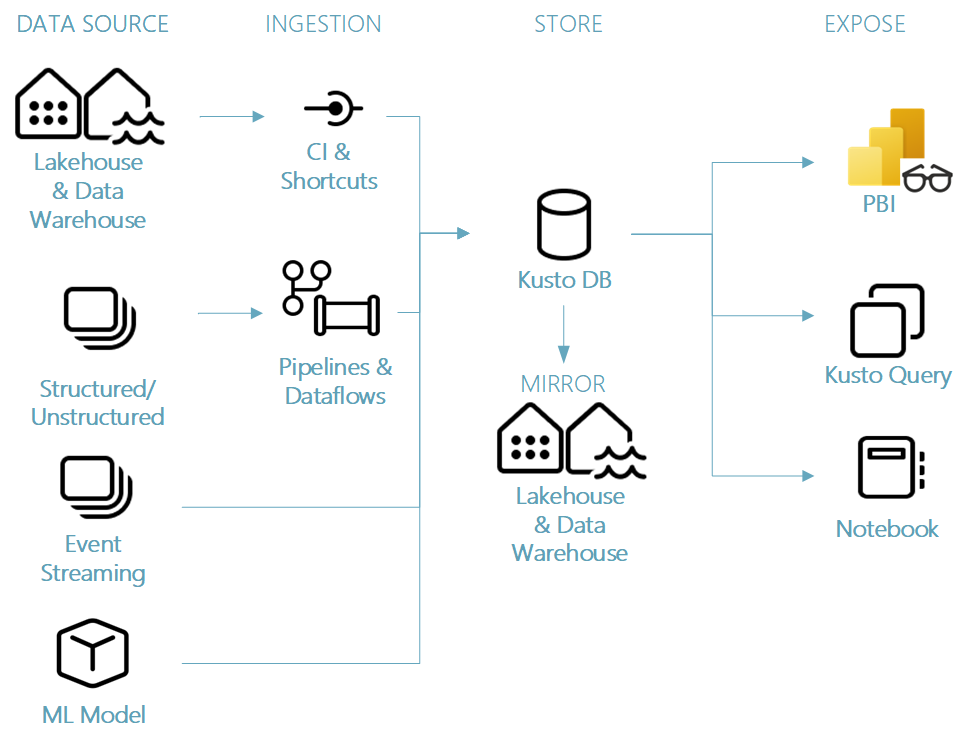
End to End scenario Microsoft Fabric Real-Time Analytics

Looking to the above picture, you see an end to end workflow for a Real-Time Analytics scenario. We can directly see which Fabric Artifact we need to use to build the solution. To build the complete solution below took me maximum 20 minutes,.

Loading data from Azure Event Hubs to Lakehouse

Requirements:

  • An existing Azure Event Hub.
  • New consumer group(never you use an existing). If you use an existing consumer group then it can happen that the event hub stop sending messages to your existing environment.
  • Fabric Workspace

Note:

Adding a consumer group is not available in the Basic tier but only in the Standaard Tier.

Creating a Shared Access Policy on the Event Hub

Create a new Shared Access Policy on the Event Hub, with the manage option enabled.

Event Hubs Shared Access Policy

Note down the SAS Policy name and the Primary Key. We will need this later to setup the Connection in Microsoft Fabric.

Create a Data Connection in Microsoft Fabric

In the menu bar(top right) open the settings toggle and open the Manage Connection option.
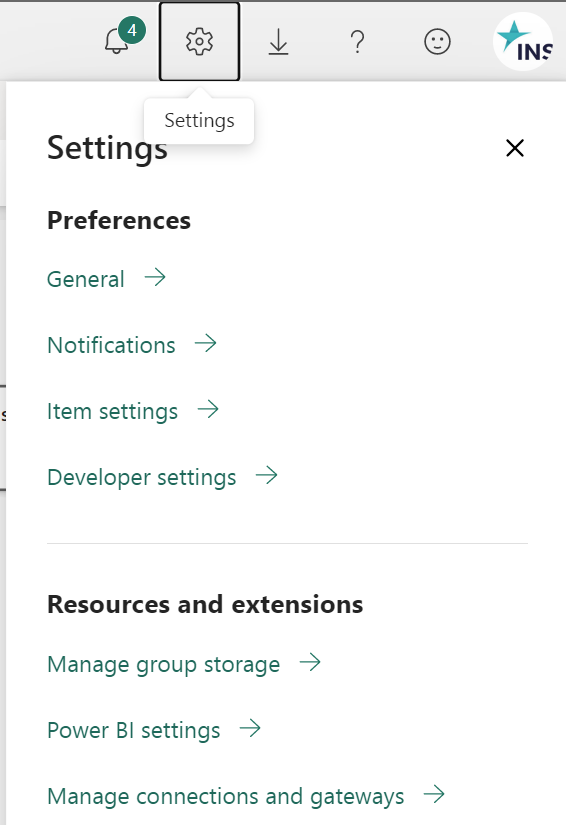
Microsoft Fabric Manage Connection

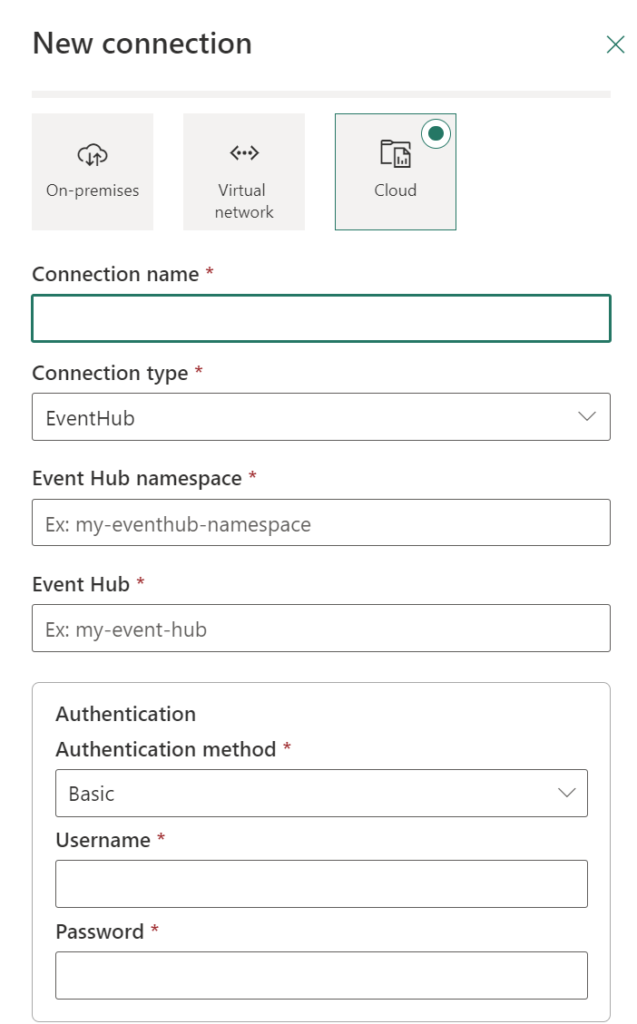
Search for Event Hub.

Microsoft Fabric add Event Hub connection

Connection name Name of the Connection
Event Hub Namespace https://xxxxxxx.servicebus.windows.net:443/
Authentication

Username: Name of the SAS Policy

Password: Primary Key of the SAS Policy

Now we have created a connection to our Azure Event Hub, we’re ready to receive our streaming data and to setup an Eventstream.

So lets start to open the the Synapse Real-Time Analytics Experience. This can be found in the left bottom corner of your Microsoft Fabric environment.
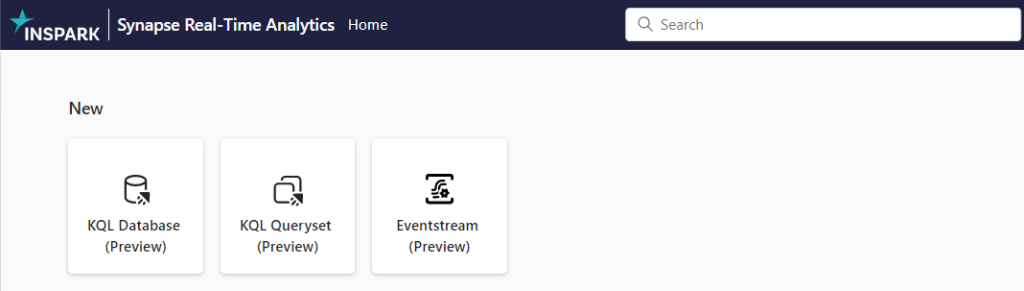
Microsoft Fabric

Microsoft Fabric Real-Time Analytics

Fabric Capacity

Make sure you have a Microsoft Fabric or Power BI Premium capacity assigned to this workspace. 

Create Eventstream in Microoft Fabric

Within our Fabric Workspace, select NEW on the left upper corner and select Eventstream.
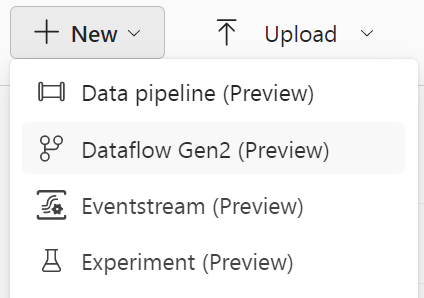
Microsoft Fabric Create Event Stream

Define a name for the Evenstream and click on create.
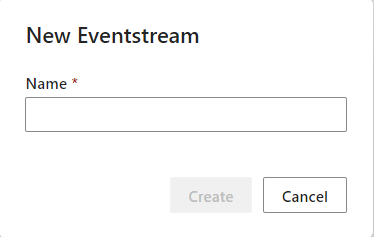
Microsoft Fabric Name Eventstream

This can take a couple of minutes to setup, but don’t worry there are a lot of things happening in the background. Microsoft Fabric is a SaaS application so things needs to be deployed for you.

The great advantage for you, things will much easier to setup.

So once everything is ready you will see this new screen:
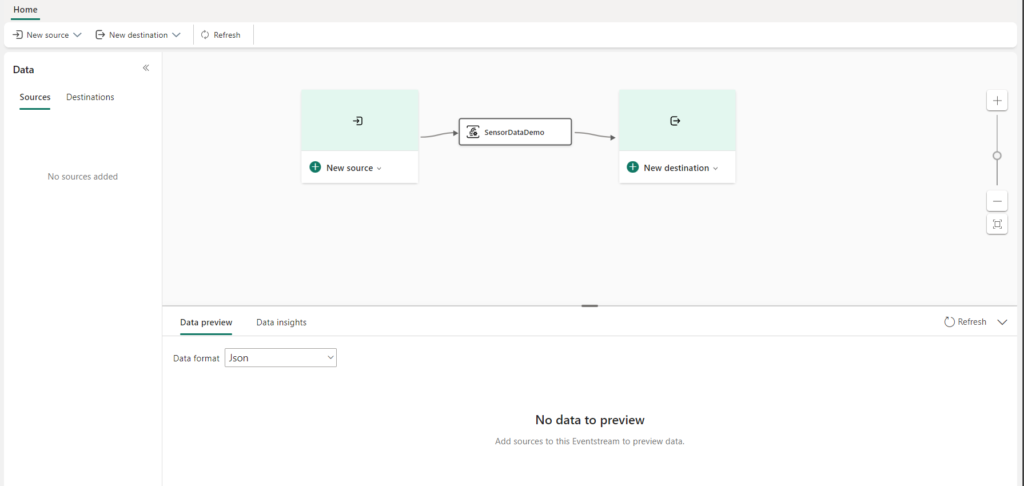
Microsoft Fabric Overview Eventstream

Create the Eventstream Source

Next step is to connect our Source, in this case the connection to the Event Hub.
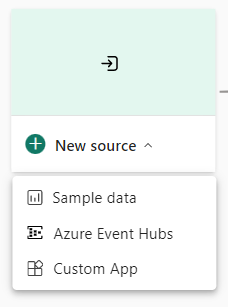
Microsoft Fabric create source Eventstream

Select the Azure Event Hubs, a new pane will open.
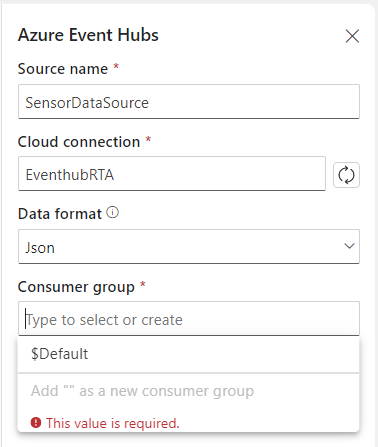
Microsoft Fabric configure source eventstream

   
Source name Define a name for your source, you can use the name of the Event Hub or a custom name
Cloud Connection Select the connection you’ve created in the beginning of this blog
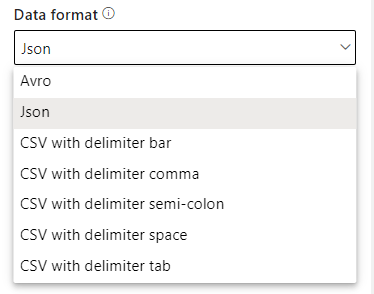
Data Format

Define the correct format based on your Event Stream

Microsoft Fabric Configure data format Eventstream

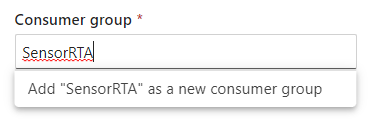
Consumper group

You can select a group you have a created in the beginning of this blog. Or you create a new one as well.

Microsoft Fabric set consumer group


Note: Never you use an existing Consumer Group, because your current application connected to this Consumer Group will stop receiving data.

Once all the required field are filled in, click on Create. Now the source of your Eventstream will be created.
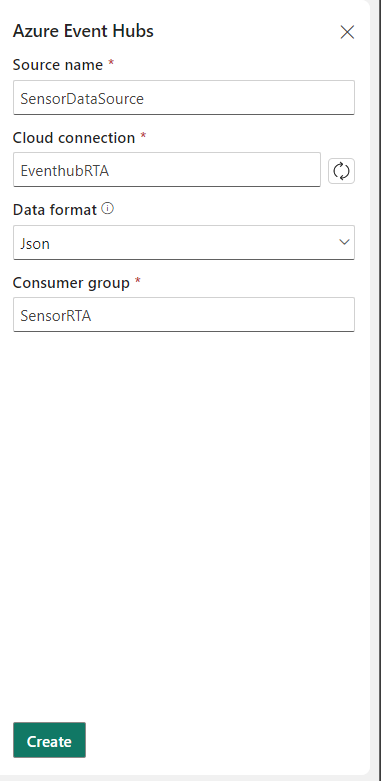
Microsoft Fabric Create Source

After the connection is setup successfully you can click on Data Preview, to see what kind of data is coming in and if this is the correct data.
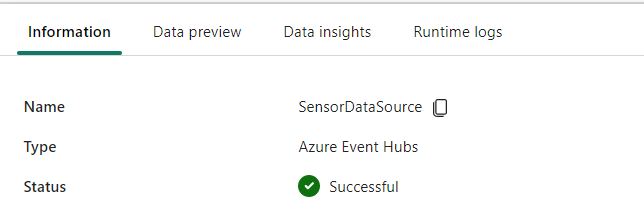
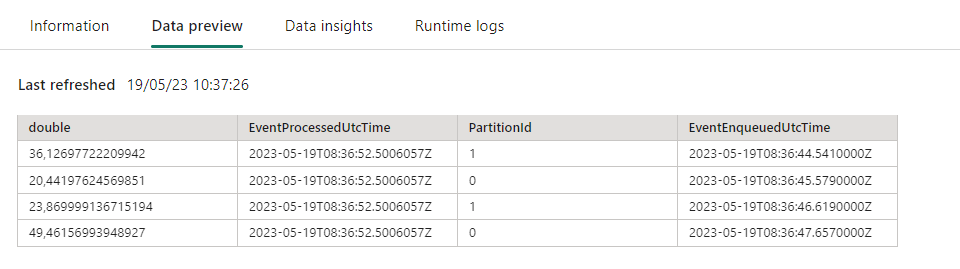
Microsoft Fabric Created Source SuccesfullMicrosoft Fabric Preview Source Eventstream

If you data is not shown the correct way, you can change data format to csv or avro.

Destination

One of our last steps in our configuration is to setup the destination for the Eventstream.

In this blog we will use a Lakehouse(more destination are available), so that we can store our data and use it in a later stadium to build reports on top of the data.

Lakehouse

You can choose if you want to create a new Lakehouse or use an existing one.

If you do not have created a Lakehouse , you need to create one.

Select in left bottom corner, the option Data Engineering.
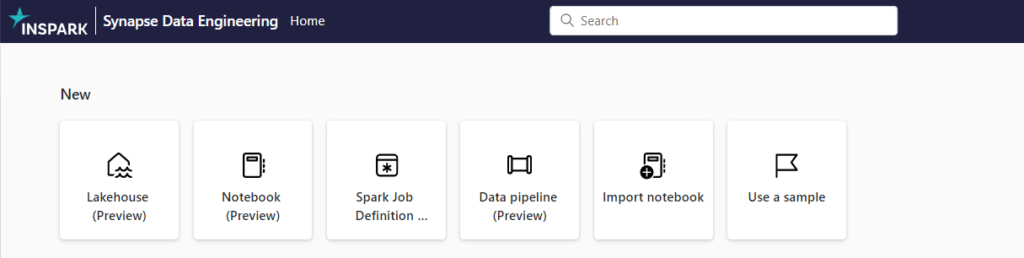
Microsoft Fabric Data Engineering

Create a New Lakehouse, define a name and click on create.
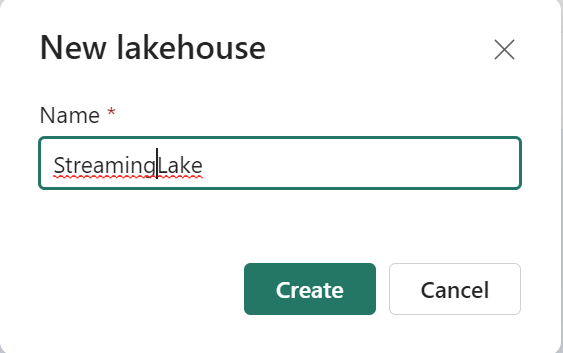
Microsoft Fabrics Create Lakehouse

After creating a Lakehouse, you will see that Automatically a Dataset and a SQL Endpoint are created by default. How easy is that!
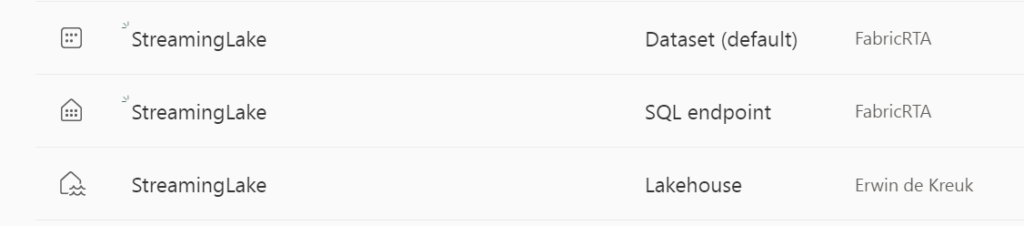
Microsoft Fabric Lakehouse artifact

Create the Eventstream Destination

Create Lakehouse as Eventstream Destination
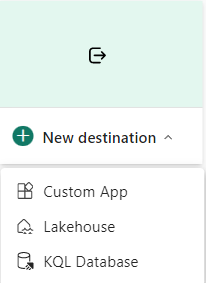
Microsoft Fabric Eventstream Destination

A new windows will open were we can configure the Lakehouse connection/destination.
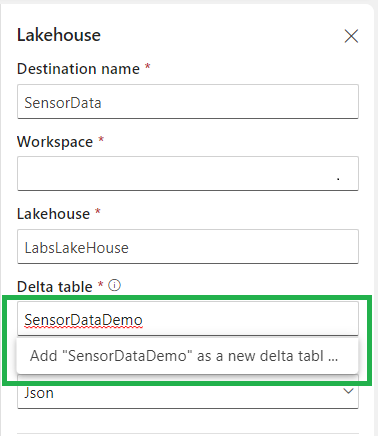
Microsoft Fabric create table in Lakehouse for Eventstream

Destination Name The name of the destination
Workspace The workspace were you’re Lakehouse is located
Lakehouse The Lakehouse you want to use(you can have more than 1 in the same workspace)
Delta table The Delta Table were you want to store the data, you can also create a new table from here.
Data format Mostly the same format as the data you added to in Source

Event Processing

Before you create the destination, you can transform and preview the data that is being ingested for the destination with the Event Processor. The event processor editor is a no-code experience that provides you with the drag and drop experience to design the event data processing logic.
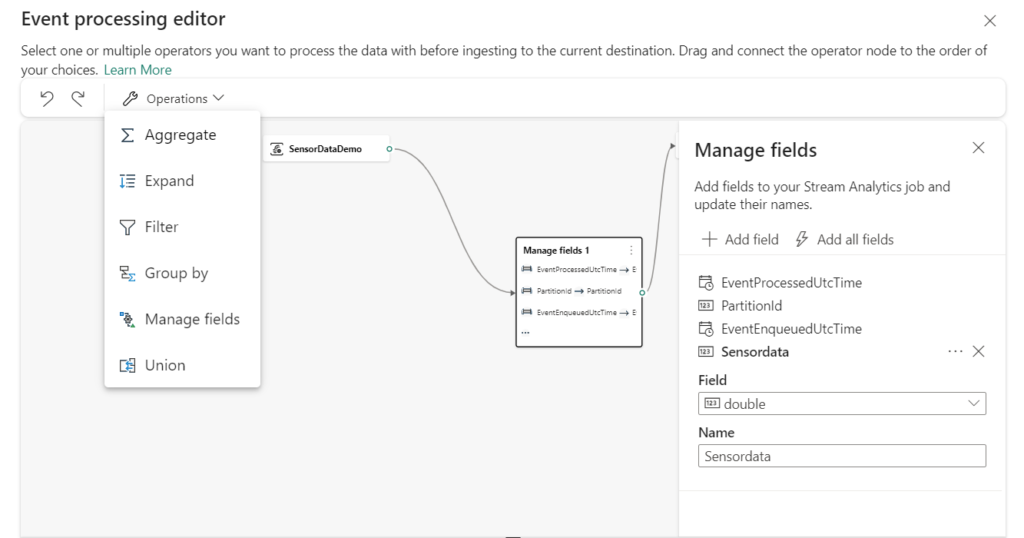
Microsoft Fabric Real-Time Analytics Event Processing detailed

As you can see there’re a lot of operations/transformation possible to transform your data in a correct way, renaming a field is a matter of seconds with a no-code experience.

The last step is to create the destination. It is just as easy as it is, click on Create.Microsoft Fabric Real-Time Analytics Eventstream working
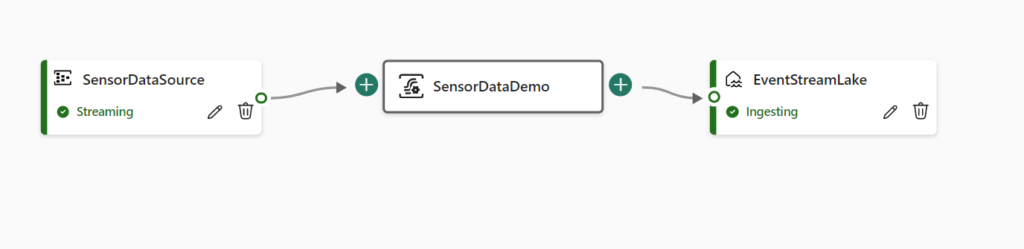
The Eventstream is ready, Source is streaming data and the destination is Ingesting data.

Navigate to your Lakehouse to verify  the ingested data.
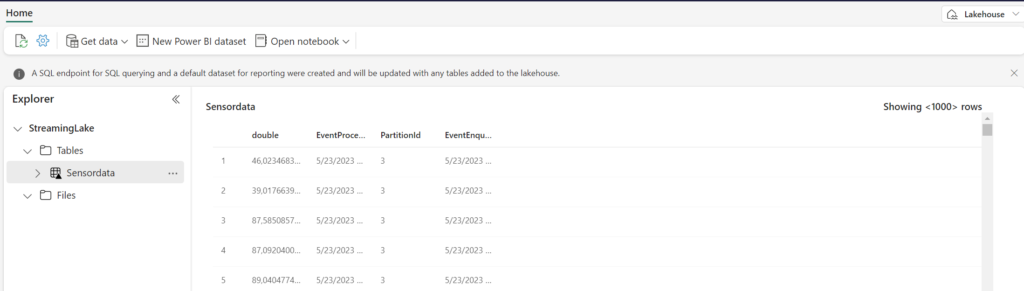
Microsoft Fabric Eventstream Lakehouse

If you prefer to verify with a TSQL command, you can easily switch to a SQL Endpoint mode, which is located in the upper right corner.
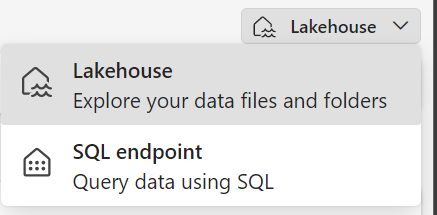
Microsoft Fabric switch to sql endpoint

And now you can run any type of query you want.

Microsoft Fabric Warehouse tsql querie


Next Steps

Build Power BI report with the ingested eventdata in the Lakehouse. As mentioned before a default dataset is already created.

In my next blog I will explain how we can start using the KQL database as a destination, so stay tuned.

Documentation

Click below to read more about Microsoft Fabric and Real-Time Analytics.

Microsoft Fabric Real -Time Analytics documentation

Exploring the Fabric technical documentation

OneLake in Fabric blog

Exploring the Fabric technical documentation

More information about Microsoft Fabric can be found at:

Microsoft Fabric Content Hub


Like always, I case you have some questions left, do hesitate to contact me.

Feel free to leave a comment

Introduction to Real-Time Analytics in Microsoft Fabric

Month: May 2023

by Erwin | May 24, 2023

Introduction to Real-Time Analytics in Microsoft Fabric

Real-Time Analytics is one of the data and analytical workloads/experiences available in Microsoft Fabric, the new platform currently in Public Preview at Microsoft. With Real-Time Analytics, companies and developers can gain valuable insights and analysis from real-time data streams.

A unified analytics solution for the era of AI

Microsoft Fabric brings a unified SaaS-based solution that stores all organizational data where analytics workloads operate. Microsoft Fabric brings together existing offerings such as Data Factory, Azure Synapse Analytics, and Power BI into one unified product for all data and analytics workloads.

Key pilars:

  • Complete analytics platform
  • Lake centric and open
  • Empower every Office user
  • AI Powered

When Microsoft Fabric is not yet activated in your tenant, you can activate it in the Admin Portal. Please note that Microsoft Fabric Capacity(Trial) or Power BI Premium Capacity is required to get started with Microsoft Fabric.

Microsoft Build

Now that we have seen the initial sessions during Microsoft Build, it's time to delve deeper into a topic. But what an announcement! We have all worked hard on this in the last couple of months. We have done a lot of testing and provided a lot of feedback. And personally, I can say that all feedback has been listened to carefully.

Microsoft-Fabric-Workloads

In this blog, I will delve deeper into Real-Time Analytics, one of the available experience in Microsoft Fabric. An experience is a look and feel of various Fabric Artifacts for a specific role such as a Data Engineer, Data Analyst or Data Scientist. For all available experiences see picture above.

Real-Time Analytics

Real-Time Analytics is critical in today's fast-paced business environment. It enables organizations to react immediately to events and trends as they happen, rather than reacting to historical data afterwards. The Real-Time Analytics workload allows users to monitor, analyze, and visualize data in real-time to make fast and data-driven decisions.

Here are some key features and functionalities of Real-Time Analytics in Microsoft Fabric:

  1. Real-time data processing: The workload supports processing large amounts of data in real-time, giving users instant access to up-to-date information.
  2. Advanced analytics: Built-in analytics capabilities enable users to apply complex calculations and statistical models to real-time data for deep insights.
  3. Flexible visualizations: The app offers a wide range of visualization options, such as graphs, charts, and dashboards, to present data in a clear and understandable manner.
  4. With Data Activator(coming soon): Users can set up custom notifications and alerts based on predefined criteria, keeping them informed of important events or anomalies in real-time.

As you can see, you can use Real-Time Analytics for a range of solutions, such as IoT analytics, Telemetry data, human and system logs and in many scenarios including manufacturing operations, cybersecurity, oil and gas, automotive and many more.

Benefits

One of the great benefits of using Real -ime Analytics in Microsoft Fabric is that you have a seamless integration with other artifacts in Fabric such as Lakehouse, Data Warehouse and Machine Learning Models for Predictive Analytics. One of the other benefits in Microsoft Fabric is that you don’t have to start from scratch, is very easy to connect to existing Event Hubs to load your streaming events into Fabric. Which I will explain in my next blog.

Real-Time Analytics Artifacts

Currently the Real-Time Analytics workload supports 3 different artifacts:

KQL Database:          A Kusto database exactly the same as you were used to in Azure Data Explorer

KQL Queryset:          Collection of queries which you can run on top of your KQL Database

Eventstream:            Capture, transform and route real-time event stream to various destinations with a no-code experience. Similar to Azure Stream Analytics

OneLake: The foundation for Microsoft Fabric

OneLake eliminates today’s pervasive and chaotic data silos by providing a data lake as a service without you needing to build it yourself. OneLake is the OneDrive for data and like OneDrive, OneLake is provisioned automatically with every Fabric tenant with no infrastructure to manage. All Fabric Artifacts, such as mentioned above for Real-Time Analytics are deployed/ provisioned automatically into the Onelake upon on creation. How easy is that?

Happy Path - Real-time Analytics

Having a closer look at the picture above, you see an end to end workflow for a Real-Time Analytics scenario.

  • Ingest the data from Event Hub, custom apps, structured and Unstructured data source with pipelines and Dataflows.
  • Store the data in a KQL Database or Lakehouse.
  • Expose the data in Power BI and/or make available in Notebooks and KQL Queriesets.
  • Train and test the data with Machine Learning Models and Experiments.

With this end to end workflow you can directly see which artifacts you need to use to build your Real-Time Analytics Solution.

Public Preview

It's important to note that as Microsoft Fabric is currently in Public Preview, additional functionality is still being developed, and feedback is being incorporated. This presents a great opportunity for users to get involved early, provide feedback, and contribute to the further development of Microsoft Fabric.

When you decide to start using Microsoft Fabric and encounter any issues with the Real-Time Analytics workload, please don't hesitate to reach out to me. I’m here to assist and appreciate your feedback to further enhance the platform.

Click below to read more about Microsoft Fabric and Real-Time Analytics.

Microsoft Fabric Real -Time Analytics documentation

Exploring the Fabric technical documentation

OneLake in Fabric blog

More information about Microsoft Fabric can be found at:

Microsoft Fabric Content Hub

In my next blog I will get a bit deeper how easily you can connect existing Event Hubs to Microsoft Fabric. So stay tuned(published on may 26th 2023)

Note:

Please be aware that Microsoft Fabric is currently not authorized for production use as it is still in the Public Preview phase. It's important to consider this when planning deployments or making critical business decisions.

In the video below, Tzvia Gitlin Troyna, a Principal Manager with Synapse Real-Time Analytics experience in Microsoft Fabric, shares a first look at what's included in the first release of Real-Time Analytics in Microsoft Fabric.

Feel free to leave a comment

Custom comments in Azure Synapse Analytics

Custom comments in Azure Synapse Analytics

Month: May 2023

by Erwin | May 16, 2023

Add custom comments to your Azure DevOps and Github commits

Finally

​Finally and secretly hidden, we can now add a Comment to our commits in Azure Synapse Analytics and Azure Data Factory to Azure Dev Ops.

How do you activate this custom comment option in your existing environment. Read below.

Existing environment

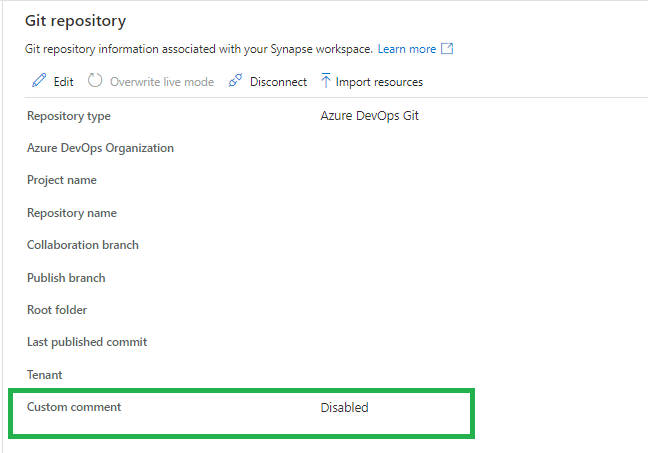
In Azure Synapse Analytics, go to the Git Configuration in the Management Activity Hub.

Synapse-overiview-custom-command

If the custom command is not enabled, you will see that this new feature is available.

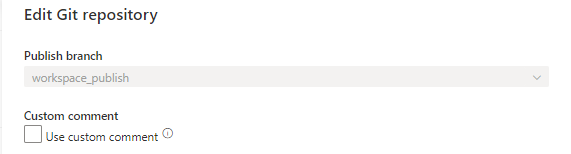
When you click on edit you can enable this new feature. Make sure you're are allowed to make changes to your current branch. Otherwise create a new feature and make the change in this feature before you merge(Pull request) it into your develop branch.

Enable-custom-command

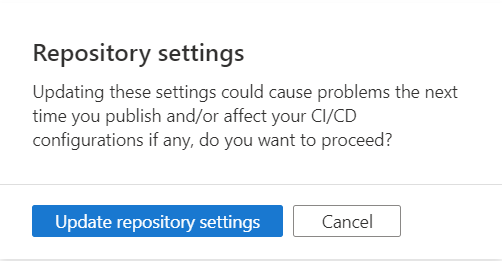
You will get a warning, this is mainly because you're updating a configuration file.

Update-repo-custom-comment

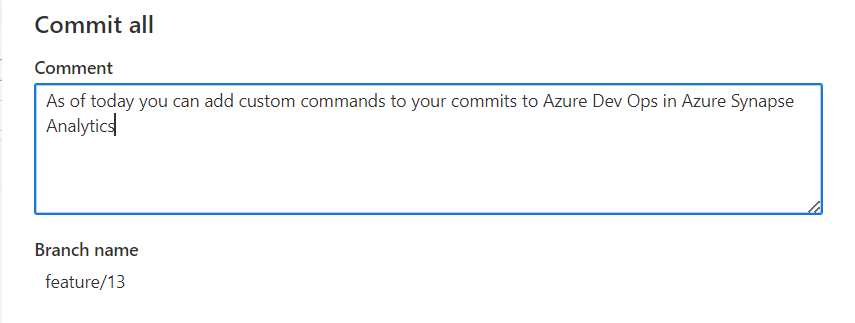
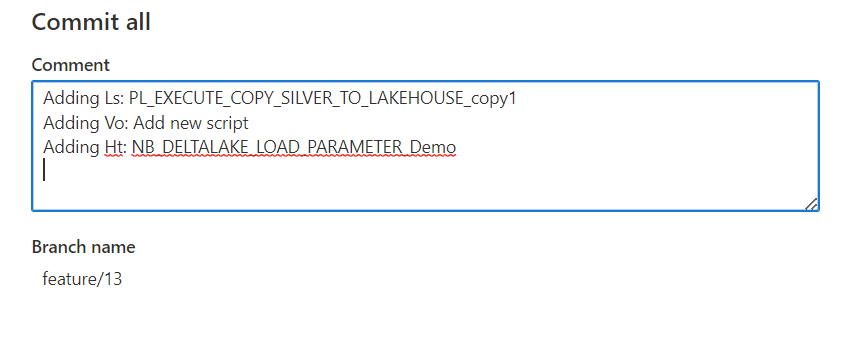
Once the option is enables, you will have the possibility to add a custom command on your commit. Which can be very useful.

add-custon-command-in-synapse

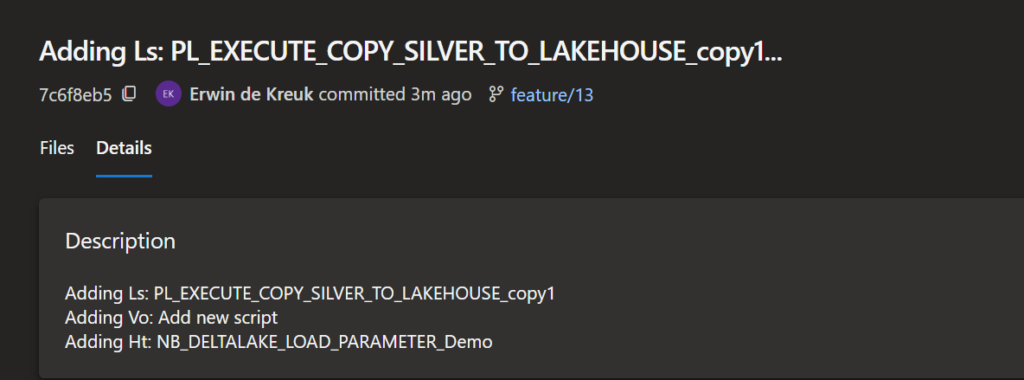
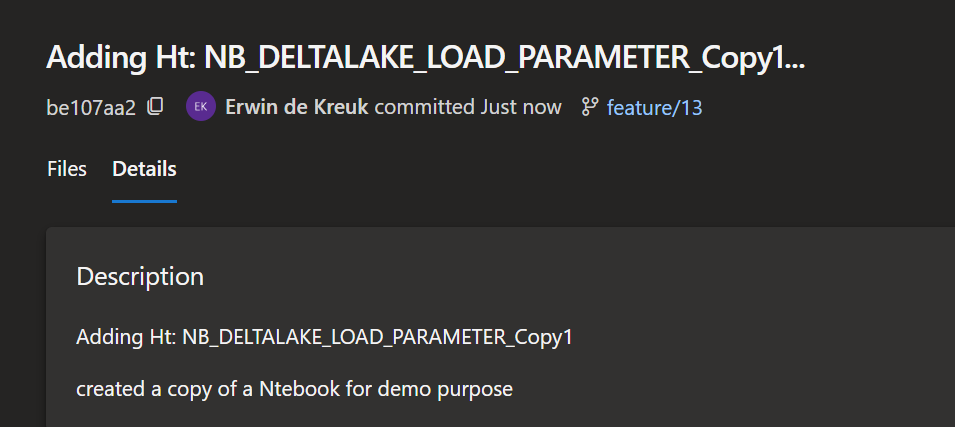
This message will be pushed to Azure DevOps as well and can be found on your commit, including the custom commands you added.

Overview-comments-in-DevOps

custom-command-synapse

New environment

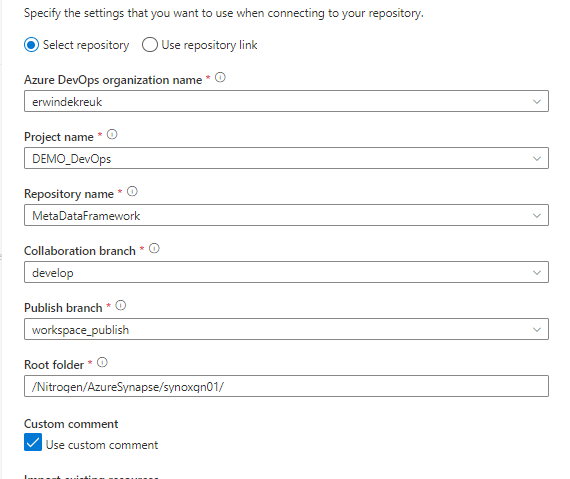
The new option is now also available when you connect Azure DevOps for the first time, just enable the option in the configuration pane.

custom-command-new-connection

Azure DevOps

You can enable this option also directly in Azure DevOps by adding the following option in enableGitComment":true  in de publish_config.json file, which is located in the root folder of you Azure Synapse repository.

Azure Data Factory

The above steps are working the same in Azure Data Factory

Github

Custom comments are also available in Github, works the same as Azure DevOps

Remarks

The custom comment option is only working when you apply the Commit All button, it is not working on a single artifact commit.

Have fun with it and let me now your findings!

It's a fairly simple process, but you just need to know it. And it will ultimately makes the collaboration with your team members much easier.

If you have any questions regarding the above, please let me know.

Documentation:

Source control in Synapse Studio

Feel free to leave a comment