New Features in Fabric Data Factory Import/Export

New Features in Fabric Data Factory Import/Export

New Features in Microsoft Fabric Data Factory: Import, Export, and Use Templates in Data Pipelines

The latest enhancements in Fabric Data Factory that will significantly streamline your data integration processes. The new features—Import, Export, and Use Templates—are now available, making it easier than ever to manage and automate your data pipelines.

Fabric Import/Export labels

Import Data Pipelines

The Import feature allows you to bring in existing data pipelines from other workspaces or projects. This is particularly useful for teams that need to replicate successful data workflows across different departments or for those migrating from other data integration tools. With a few clicks, you can import your pipelines, ensuring consistency and saving valuable time.

How to Import a Data Pipeline:

  1. Navigate to the Data Pipelines section in Data Factory.
  2. Click on the “Import” button.
  3. Select the file or source from which you want to import the pipeline.
  4. Follow the prompts to complete the import process.

Export Data Pipelines

Exporting your data pipelines is now a breeze. This feature enables you to back up your pipelines, share them with colleagues, or move them to different workspaces. Exporting ensures that your data integration processes are portable and can be easily restored or replicated.

How to Export a Data Pipeline:

  1. Go to the Data Pipelines section.
  2. Select the pipeline you wish to export.
  3. Click on the “Export” button.fabric-export
  4. Complete the export process by following the on-screen instructions.
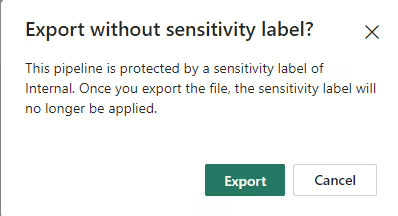
  5. Sensitivity labels will be removed
  6. Your Pipeline will be saved as .zip file in your default download folder.

Fabric Import/Export pipeline


Use Templates

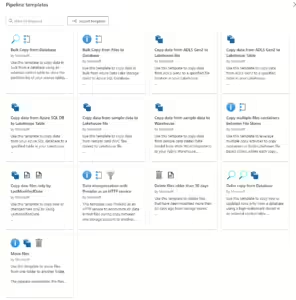
Templates are a powerful addition to Data Factory, allowing you to standardize and accelerate the creation of data pipelines. Whether you are setting up a new ETL/ELT process or automating data transfers, templates provide a starting point that can be customized to meet your specific needs.

How to Use Templates:

  1. In the Data Pipelines section, click on the “Templates” button.
  2. Browse through the available templates or search for a specific one.
  3. Select a template and click “Use Template.”
  4. Configure the required inputs
  5. Click on Use this Template, the required activities will now be deployed to your pipeline.

More on templates can be found here.

NOTE:

Import Data Pipelines from Azure Data Factory or Synapse Workspace is not supported. Migration steps will follow later.

The main difference between Microsoft Fabric and ADF or Synapse is, that we use in Fabric connections and ADF/Synapse datasets and Linked services

fabric-import-adf-synapse

Conclusion

The new Import, Export, and Use Templates features in Data Factory are designed to enhance your productivity and ensure seamless data integration. By leveraging these tools, you can simplify your workflows, maintain consistency across projects, and accelerate the configuration of data pipelines.


Feel free to leave a comment

High Concurrency for Notebooks in Pipelines with Microsoft Fabric

High Concurrency for Notebooks in Pipelines with Microsoft Fabric

Microsoft

by Erwin | Oct 13, 2024

How to Use and Enable High Concurrency for Notebooks in Pipelines with Microsoft Fabric

High Concurrency Mode for Notebooks in Pipelines is a game-changer for data engineers and data scientists using Microsoft Fabric. This feature allows multiple notebooks to share a single Spark session, significantly improving performance and reducing costs. One of the other advanced is as well that Microsoft Fabric is not running to all the capacity limits due to the fact that every Notebook was starting a new session. In one of my other blogpost I explained how you could solve this with notebookutils.notebook.runMultiple.

Here’s how you can enable and use this feature effectively.

Why Use High Concurrency Mode?

High Concurrency Mode offers several benefits:

  • Faster Session Start: Notebooks can attach to pre-warmed Spark sessions, reducing startup time to around 5 seconds.
  • Cost Savings: By sharing a single Spark session across multiple notebooks, you only pay for one session, which can lead to significant cost reductions.
  • Improved Efficiency: This mode optimizes pipeline execution, making it faster and more efficient.

Enabling High Concurrency Mode

To enable High Concurrency Mode in your Fabric workspace, follow these steps:

  1. Access Workspace Settings:
    • Go to your Fabric workspace and select the Workspace Settings option.
  2. Navigate to High Concurrency Settings:
    • In the settings menu, go to the Data Engineering and Science section.
    • Select Spark Compute and then High Concurrency.
  3. Enable High Concurrency:
    • In the High Concurrency section, enable the option For pipeline running multiple notebooks.
    • Save your changes.

Enable High Concurrency in Workspace Enable High Concurrency in WorkspaceOnce enabled, all notebook sessions triggered by pipelines will be packed into high concurrency sessions automatically.

Using High Concurrency Mode

After enabling High Concurrency Mode, you can start using it in your pipelines:

  1. Create a Pipeline:
    • Open your Fabric workspace and create a new pipeline item from the Create menu.
  2. Add Notebook Activities:
    • Navigate to the Activities tab and add a Notebook activity to your pipeline.
    • Create Pipeline with Notebook Activity Create Pipeline with Notebook Activity
    • Configure Session Tags:
      • In the advanced settings of the notebook activity, specify a session tag. This tag helps group notebooks into shared sessions based on matching criteria.
    • Enable session tag on Notebook Enable session tag on Notebook

Session Tags

When you define a Session Tag, the Notebook will use shared sessions. These sessions tags can be used across pipelines but not across workspaces, a new session will be created even if you use the same session tag. Just see a sort of grouping. You define  a session on your own or create add dynamic content. But be aware Session tag can only contain letters, numbers, and underscores.

Monitoring

In the monitoring you will now see all the executed Notebooks one by one, while this was not the case notebookutils.notebook.runMultiple(DAG), you only saw the Main Notebook. This is a great step forwards while building monitoring solutions.

Below an overview in the Monitor before the session started:

Notebook Execution before session started Notebook Execution before session startedBelow an overview in the Monitor when the session started

Notebook Execution when session started Notebook Execution when session startedOverview of all the executed Notebooks

Notebook Execution when session was finished Notebook Execution when session was finishedThe Notebook name is extended with the Livy id.

Remark: It looks like that currently the Snapshots from the Notebooks are incorrect because every Notebook execution is showing the Snapshots(from the first Notebook), so debugging from the Monitor is not yet possible. I've already created a note to the PM team.

RunMultiple

With the notebookutils.notebook.runMultiple(DAG) you have some more options.

  • Define any dependency or order among them.
  • Define timeouts per Cell
  • Run multiple notebooks in a DAG, where each notebook can depend on the output of one or more previous notebooks.

Conclusion

High Concurrency Mode for Notebooks in Pipelines with Microsoft Fabric is a powerful feature that enhances performance, reduces costs, and improves efficiency. By following the steps outlined above, you can easily enable and start using this feature to optimize your data engineering and data science workflows. Personally I'm very happy with these new functionality, you can define easier outputs for every notebook for logging purposes.

More detailed can be found on the official Fabric Blogpost


Feel free to leave a comment

My Reflections on the first European Microsoft Fabric Community Conference

My Reflections on the first European Microsoft Fabric Community Conference

Microsoft

by Erwin | Sep 29, 2024

#FabConEurope: A New Era for Microsoft Fabric in Stockholm

The inaugural #FabConEurope held in Stockholm from September 24-27, 2024, marked a significant milestone for the Microsoft Fabric community. This event brought together enthusiasts, experts, and innovators to explore the latest advancements in data, analytics, and AI. With over 130 sessions, 4 keynotes, and 10 workshops, attendees were immersed in a wealth of knowledge and networking opportunities.

Key Announcements and Highlights

One of the most surprising and exciting announcements at FabConEruope was the introduction of mirroring an Azure Databricks Unity Catalog within Microsoft Fabric. This feature allows users to seamlessly integrate Databricks’ popular governance solution for data and AI, reducing friction around data governance processes and enhancing security. This integration is a game-changer for organizations looking to streamline their data operations and governance.

The conference also saw the launch of the new Terraform Provider for Microsoft Fabric in public preview. This provider empowers users to automate and streamline their deployment and management processes in a declarative manner, enhancing governance and compliance.

Service principal support for Fabric APIs was also introduced, allowing for more secure and automated access to Fabric applications. This feature is a significant step forward in enhancing security and streamlining processes

In addition, the general availability of Fast Copy in Dataflows Gen2 was announced. This feature enables rapid and efficient ingestion of large data volumes, significantly reducing data processing times and improving cost efficiency.

Microsoft Purview also made headlines with its focus on responsible data activation in the era of AI. The new features aim to provide a business-friendly experience with AI-powered efficiencies, ensuring robust data governance and security. Great to receive an awesome shout out by the Purview team for all the work we did. Governance is so important in the world of AI.

The public preview of the Copy Job in Microsoft Fabric was announced, simplifying the data ingestion process from any source to any destination.This feature makes copying data easier and more efficient.

Exciting enhancements were also revealed for Fabric Data Factory Pipelines, including new activities like Invoke Remote Pipeline and support for Fabric User Data Functions.These enhancements aim to make data workflows more robust and flexible. This new functionality makes it even easier to build Meta Data Driven Frameworks.

Lastly, the introduction of high concurrency mode for notebooks in pipelines for Fabric Spark was a notable highlight.This feature allows for session sharing, improving performance and cost efficiency without compromising security.

Another notable announcement was the private preview of the Microsoft Fabric Capacity Calculator. This innovative tool is designed to provide precise capacity estimations tailored to individual business needs, helping organizations optimize their data operations.

The Native Execution Engine for Fabric Spark was another highlight, offering a groundbreaking enhancement for Apache Spark job executions.This vectorized engine optimizes performance and efficiency by running Spark queries directly on lakehouse infrastructure. On the last day of the conference I shared the stage with Estera and her team to show the attendees the testing results we have been gathering during the private preview. FabConEurope Nataive Execution

Personal Highlights

In the afternoon, I hosted my own session Microsoft Fabric: Building a Data Ingestion and Processing framework to Drive Efficiency in a packed room. Thank you all for attending, engaging, and asking questions. As promised, you can find the session code on my GitHub.


All released Blog post during the conference

I've made a collection of all the blogpost which have been released during the Conference, just to summarize:

Data Factory

Transform, Validate and Enrich Data with Python User Data Functions in Your Data Pipelines | Microsoft Fabric Blog | Microsoft Fabric

Announcing the General Availability of Fabric Data Pipeline Support in the On-Premises Data Gateway | Microsoft Fabric Blog | Microsoft Fabric

Introducing High Concurrency Mode for Notebooks in Pipelines for Fabric Spark | Microsoft Fabric Blog | Microsoft Fabric

Announcing Public Preview: Incremental Refresh in Dataflow Gen2 | Microsoft Fabric Blog | Microsoft Fabric

Integrate your SAP data into Microsoft Fabric | Microsoft Fabric Blog | Microsoft Fabric

Announcing the General Availability of Copilot for Data Factory in Microsoft Fabric | Microsoft Fabric Blog | Microsoft Fabric

Real Time Intelligence

Set alerts on KQL Querysets with Data Activator triggers | Microsoft Fabric Blog | Microsoft Fabric

Unlock faster insights with the new support for Copilot conversations in Real-Time Intelligence (Public Preview) | Microsoft Fabric Blog | Microsoft Fabric

Warehouse

Announcing improved JSON support in Fabric DW | Microsoft Fabric Blog | Microsoft Fabric

Working with large data types in Fabric Warehouse | Microsoft Fabric Blog | Microsoft Fabric

Copilot for Data Warehouse: Public Preview Update | Microsoft Fabric Blog | Microsoft Fabric

New editor improvements for Fabric Data Warehouse and SQL Analytics Endpoint | Microsoft Fabric Blog | Microsoft Fabric

Announcing Public Preview of T-SQL Notebook in Fabric | Microsoft Fabric Blog | Microsoft Fabric

Data Science

Using Microsoft Fabric for Generative AI: A Guide to Building and Improving RAG Systems | Microsoft Fabric Blog | Microsoft Fabric

Harness Microsoft Fabric AI Skill to Unlock Context-Rich Insights from Your Data | Microsoft Fabric Blog | Microsoft Fabric

Data Activator

Announcing Updates to Data Activator in Public Preview | Microsoft Fabric Blog | Microsoft Fabric

Data Engineering

Organizing your tables with lakehouse schemas and more (Public Preview) | Microsoft Fabric Blog | Microsoft Fabric

Announcing the Fabric Apache Spark Diagnostic Emitter: Collect Logs and Metrics | Microsoft Fabric Blog | Microsoft Fabric

OneLake

Google Cloud Storage shortcuts and S3 Compatible shortcuts generally available | Microsoft Fabric Blog | Microsoft Fabric

Announcing the General Availability of Mirroring for Snowflake in Microsoft Fabric | Microsoft Fabric Blog | Microsoft Fabric

Tag your data to enrich item curation and discovery | Microsoft Fabric Blog | Microsoft Fabric

Set alerts on KQL Querysets with Data Activator triggers | Microsoft Fabric Blog | Microsoft Fabric

Announcing the Private Preview of the Microsoft Fabric SKU Calculator at the European Fabric Community Conference | Microsoft Fabric Blog | Microsoft Fabric


I'm sure I've missed some but then we have still the monthly update: Fabric September 2024 Monthly Update | Microsoft Fabric Blog | Microsoft Fabric

Reflections on #FabConEurope

The energy and enthusiasm at #FabConEurope were palpable. The event not only showcased the latest technological advancements but also fostered a sense of community and collaboration. In conclusion, #FabConEurope was a resounding success, setting the stage for future advancements in the Microsoft Fabric ecosystem. The announcements and discussions at the conference have paved the way for a more integrated, efficient, and responsible approach to data management and analytics.


Feel free to leave a comment

How to use notebookutils.notebook.runMultiple in Notebooks in Microsoft Fabric?

How to use notebookutils.notebook.runMultiple in Notebooks in Microsoft Fabric?

Microsoft

by Erwin | Jan 31, 2024

In the previous blog post we explored how to use the PySpark Executor. However, sometimes you may need to run multiple notebooks in a specific order or in parallel, depending on the dependencies and logic of your data pipeline. For example, you may have a notebook that preprocesses the data, another notebook that trains a machine learning model, and another notebook that evaluates the model and generates a report. How can you orchestrate these notebooks in Microsoft Fabric?

The answer is notebookutils.notebook.runMultiple, a built-in function that allows you to run multiple notebooks in parallel or with a predefined topological structure. With notebookutils.notebook.runMultiple, you can:

  • Execute multiple notebooks simultaneously, without waiting for each one to finish.
  • Specify the dependencies and order of execution for your notebooks, using a simple JSON format.
  • Optimize the use of Spark compute resources and reduce the cost of your Fabric projects.

In this blog post, I will show you how to use notebookutils.notebook.runMultiple with DAG (Directed Acyclic Graph) in Notebooks in Microsoft Fabric to achieve high concurrency, flexibility, and scalability.

What is notebookutils.notebook.runMultiple()?

The method notebookutils.notebook.runMultiple() allows you to run multiple notebooks in parallel or with a predefined topological structure. The API is using a multi-thread implementation mechanism within a spark session, which means the compute resources are shared by the reference notebook runs. With notebookutils.notebook.runMultiple() , you can:

  • Run multiple notebooks in parallel, without any dependency or order among them.
  • Run multiple notebooks in a DAG, where each notebook can depend on the output of one or more previous notebooks.
  • Pass parameters to the notebooks, such as input data, configuration, or variables.
  • Get the output of the notebooks, such as return values, metrics, or logs.

How to use notebookutils.notebook.runMultiple()?

To use notebookutils.notebook.runMultiple() , you need to follow these steps:

  1. Create the notebooks that you want to run. You can use any language that is supported by Fabric, such as Pyspark(Python), Scala, or R. Make sure to save your notebooks in the same workspace or folder, and give them meaningful names. For example, you can create three notebooks: NB_LOAD_1, NB_LOAD_2 and NB_LOAD_3. Or you can just use 1 Notebook and execute the Notebook with different parameters.
  2. Define the DAG of your notebooks. You can use a Python dictionary to specify the dependency and order of your notebooks. The keys of the dictionary are the names of the notebooks, and the values are lists of the names of the notebooks that they depend on. For example, you can define a DAG like this:

Run multiple notebooks in parallel

Simple example of using notebookutils.notebook.runMultiple to run multiple notebooks in parallel, you can pass a list of notebook as input.

notebookutils.notebook.runMultiple(["NotebookSample1", "NotebookSample2"]) 

Run multiple notebooks with parameters sequential/in parallel

Run multiple notebooks with parameters sequential/in parallel

from notebookutils import notebookutils
DAG = {

    "activities": [

        {   "name": "NB_Bronze_Silver_Logging", # activity name, must be unique
            "path": "NB_Bronze_Silver_Logging", # notebook path
            "timeoutPerCellInSeconds": 90, # max timeout for each cell, default to 90 seconds

            "args": {"source_schema": "Application","source_name": "People","sourceLakehouse": "xxxxxxxxx",
			         "target_schema": "Application","target_name": "People","targetLakehouse": "xxxxxxxxxx",
                     "NotebookExecutionId": NotebookExecutionId,
                     'useRootDefaultLakehouse': True}, # notebook parameters

            #"workspace": "workspace1", # workspace name, default to current workspace
            "retry": 1, # max retry times, default to 0
            "retryIntervalInSeconds": 30, # retry interval, default to 0 seconds
            #"dependencies": [] # list of activity names that this activity depends on

        },
        {   "name": "NB_Bronze_Silver_Logging_1", # activity name, must be unique
            "path": "NB_Bronze_Silver_Logging", # notebook path
            "timeoutPerCellInSeconds": 90, # max timeout for each cell, default to 90 seconds

            "args": {"source_schema": "Application","source_name": "PaymentMethods","sourceLakehouse": "xxxxxxxxx",
			         "target_schema": "Application","target_name": "PaymentMethods","targetLakehouse": "xxxxxxxxxx",
                     "NotebookExecutionId": NotebookExecutionId,
                     'useRootDefaultLakehouse': True}, # notebook parameters

            #"workspace": "workspace1", # workspace name, default to current workspace
            "retry": 1, # max retry times, default to 0
            "retryIntervalInSeconds": 0, # retry interval, default to 0 seconds
            #"dependencies": [] # list of activity names that this activity depends on

        },
        {   "name": "NB_Bronze_Silver_Logging_2", # activity name, must be unique
            "path": "NB_Bronze_Silver_Logging", # notebook path
            "timeoutPerCellInSeconds": 90, # max timeout for each cell, default to 90 seconds
            "args": {"source_schema": "Application","source_name": "DeliveryMethods","sourceLakehouse": "xxxxxxxxx",
                     "target_schema": "Application","target_name": "DeliveryMethods","targetLakehouse": "xxxxxxxxxx",
                     "NotebookExecutionId": NotebookExecutionId,
                     'useRootDefaultLakehouse': True}, # notebook parameters

            #"workspace": "workspace1", # workspace name, default to current workspace
            "retry": 1, # max retry times, default to 0
            "retryIntervalInSeconds": 0, # retry interval, default to 0 seconds
            #"dependencies": [] # list of activity names that this activity depends on
        }

    ],

    "timeoutInSeconds": 43200, # max timeout for the entire pipeline, default to 12 hours
    "concurrency": 0 # max number of notebooks to run concurrently, default to unlimited
}

notebookutils.notebook.runMultiple(DAG)
 

Name: Name of the NotebookActivity, must be unique

Path: Name of the Notebook

Args: Notebook Parameters

Retry: Number of Retries when Notebook fails

Dependencies: List of NotebookActivity names that this activity depends on

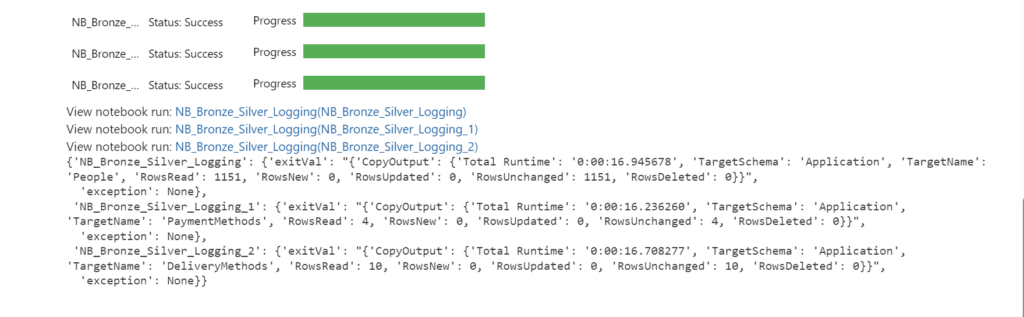
The great functionality of using  the RunMultiple is that you have a progress bar and a direct overview which Notebook has run successfully and which one has failed. When using the exitvalue

Fabric-HC-Notebooks

Conclusion

In this blogpost, I showed you how to use notebookutils.notebook.runMultiple() to run multiple notebooks in parallel or with a DAG in Fabric. This method can help you achieve high concurrency, flexibility, and scalability for your data processing workflows. I hope you found this blogpost useful and informative. If you have any questions or feedback, please feel free to leave a comment below. Thank you for reading! 

If you want to learn more from notebookutilscheck the following link NotebookUtils (former MSSparkUtils) for Fabric

NOTE

  • MsSparkUtils has been officially renamed to NotebookUtils. The existing code will remain backward compatible and won't cause any breaking changes. It is strongly recommend upgrading to notebookutils to ensure continued support and access to new features. The mssparkutils namespace will be retired in the future.
  • NotebookUtils is designed to work with Spark 3.4(Runtime v1.2) and above. All new features and updates will be exclusively supported with notebookutils namespace going forward.


Feel free to leave a comment

How to use the PySpark executor in Notebooks in Microsoft Fabric?

How to use the PySpark executor in Notebooks in Microsoft Fabric?

Microsoft

by Erwin | Jan 29, 2024

In this blog post, we will explore how to use the PySpark executor in Notebooks in Microsoft Fabric to leverage the power of Spark and achieve high concurrency, flexibility and scalability.

What is the PySpark executor?

The PySpark executor is a built-in kernel that allows you to run Python code on top of the remote Fabric Spark compute. This means that you can use the familiar PySpark API to interact with Spark and access its rich functionality, such as Spark SQL, Spark MLlib, Spark Streaming, and more. The PySpark executor also supports multiple languages in one notebook, so you can switch between Python, Scala, SQL, HTML, and R using magic commands.

The PySpark executor is designed to handle concurrent and parallel execution of notebook cells. This means that you can run multiple cells at the same time, without waiting for the previous ones to finish. This can improve the performance and efficiency of your notebook sessions, especially when you have long-running or complex tasks. The PySpark executor also allows you to share the same Spark session across multiple notebooks, which can reduce the overhead of creating and managing Spark contexts.

How to use the PySpark executor in Notebooks in Microsoft Fabric?

To use the PySpark executor in Notebooks in Microsoft Fabric, you need to do the following steps:

  1. Create a Fabric notebook. This is a web-based interactive environment where you can write and run code, visualize data, and document your analysis. You can create notebooks from scratch or use templates and samples provided by Microsoft Fabric.
  2. Set the primary language to PySpark (Python). This will make the PySpark executor the default kernel for your notebook. You can also use multiple languages in one notebook by specifying the language magic command at the beginning of a cell, such as %%pyspark, %%spark, %%sql, %%html, or %%sparkr.
  3. Write and run your PySpark code. You can use the PySpark API to interact with Spark and perform various data engineering and data science tasks. You can also use other Python libraries and packages, such as Pandas, NumPy, Matplotlib, and more. You can install and manage Python libraries using the mssparkutils package, which is a built-in utility that helps you perform common tasks in Fabric notebooks.
  4. Monitor and troubleshoot your notebook sessions. You can use the Fabric monitor to view the status and metrics of your Spark pool and notebook sessions. You can also use the Fabric debugger to debug your PySpark code and identify errors and issues.

Example: Using the PySpark executor to run multiple notebooks in parallel

In this example, we will use the PySpark executor to run multiple notebooks in parallel and collect their results. This can be useful when you have a set of notebooks that perform similar or related tasks, such as data preparation, feature engineering, model training, or evaluation. By running them in parallel, you can save time and resources, and also compare and analyze their outputs.

To run multiple notebooks in parallel, we will use the ThreadPoolExecutor class from the concurrent.futures module in Python. This class provides a high-level interface for asynchronously executing callables using a pool of threads. We will also use the mssparkutils.notebook.runNotebook function, which allows you to run a notebook and return its output as a JSON object.

The following cell needs to be defined in your Notebook as a Parameters cell:

path=[
{"path":"NB_Bronze_Silver","params":{"source_schema": "Application",
												"source_name": "People",
												"sourceLakehouse": "xxxxxxxxxxxxxxxxxxxxxxx",
												"target_schema": "Application",
												"target_name": "People",
												"targetLakehouse": "xxxxxxxxxxxxxxxxxxxxxxx",
												'useRootDefaultLakehouse': True}},
{"path":"NB_Bronze_Silver","params":{"source_schema": "Application",
												"source_name": "DeliveryMethods",
												"sourceLakehouse": "xxxxxxxxxxxxxxxxxxxxxxx",
												"target_schema": "Application",
												"target_name": "DeliveryMethods",
												"targetLakehouse": "xxxxxxxxxxxxxxxxxxxxxxx",
												'useRootDefaultLakehouse': True}}
												]

#Define Notebook to be executed
#Define Parameters to be passed through

The following code snippet shows how to use the PySpark executor to run multiple notebooks(above code snippet) in parallel and collect their results. We assume that we have a list of notebook names that we want to run, and a function called notebook_error_handle that handles any errors or exceptions that may occur during the execution.

# Import the modules
from concurrent.futures import ThreadPoolExecutor
from notebookutils import mssparkutils
timeout = 90

# Define the list of notebooks to run
notebooks = path

# Define a function to handle errors and exceptions
def notebook_error_handle(notebook):
    try:
        # Run the notebook and return the output as a JSON object
        result = mssparkutils.notebook.run(notebook["path"], timeout, notebook["params"])
        return result
    except Exception as e:
        # Print the error message and return None
        print(f"Error running {notebook}: {e}")
        return None

# Create an empty list to store the results
results = []

# Create a thread pool executor with the same number of threads as notebooks
with ThreadPoolExecutor(max_workers=len(notebooks)) as executor:
    # Submit the notebook tasks to the executor and store the futures
    notebook_tasks = [executor.submit(notebook_error_handle, notebook) for notebook in notebooks]
    # Iterate over the futures and append the results to the list
    for notebook_task in notebook_tasks:
        results.append(notebook_task.result())

# Print the results
print(results)

Fabic-HC-Executor

Conclusion

In this blog post, you have learned how to use the PySpark executor in Notebooks in Microsoft Fabric to achieve high concurrency, flexibility and scalability. You have seen how to use the ThreadPoolExecutor class to run multiple notebooks in parallel and collect their results. Ihope that this post has given you some insights and tips on how to leverage the power of Spark an concurrency in Microsoft Fabric. Happy coding!

Stay tuned

In my next blogpost I will explain the working of How to use mssparkutils.notebook.runMultiple in Notebooks in Microsoft Fabric?

Feel free to leave a comment