This Saturday I've been speaking during DataSaturday #4 Oslo. If you want to visit more Datasaturday events please visit the Data Saturdays event page.
Azure Purview
I presented a session on Azure Purview Microsoft's answer to Data Governance and Data Lineage
More clarity about pricing and when Azure Purview goes to GA is likely to become clear during the event on September 28. You can register for this event via the link below.
EVENT=>Achieve unified data governance with Azure Purview
As always, in case you have any questions, please feel free to contact me.
In case you have any questions left please feel free to ask them via the comment or Socials
This week the Azure Purview Product team added some new functionalities, new connectors(these connectors where added during my holiday), Azure Synapse Data Lineage, a better Power BI integration and the introduction of Elastics Data Map. Slowly we are on our way to a GA status, on September 2021, 28th there will be a Digital Event. Please find below some of announcements in detail.
New connectors in Azure Purview
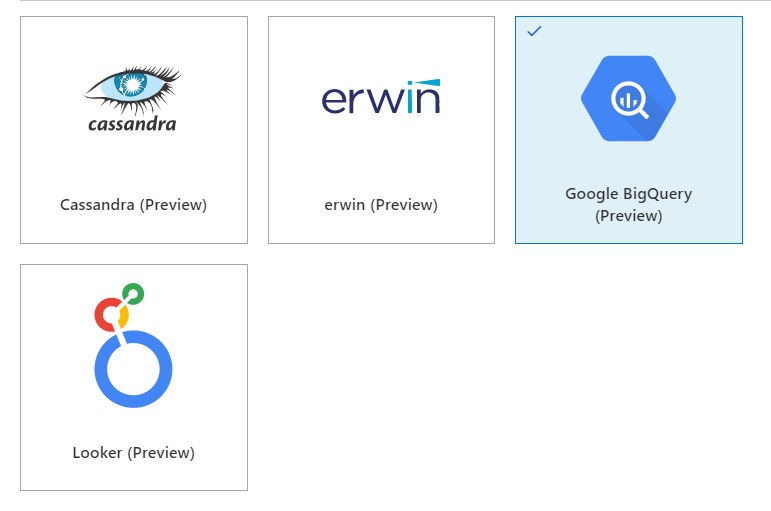
Over the past period, the Azure Purview team has worked hard, they have already added the necessary new connectors such as ERWIN, Looker, Cassandra and Google Big Query.
This week it was time for some new functionalities.
Azure Synapse Analytics Data Lineage:
This functionality currently only works for a copy activity, but the first step has been made. Where for Lineage from Azure Data Factory you still had to make a link in Azure Purview, for the Lineage from Azure Synapse, it is the other way around. You create the link to Azure Purview in Azure Synapse. How to create this link I described this a couple of months ago in one of my post and can be found here.
Some known limitations on copy activity lineage based on the docs.
Currently, if you use the following copy activity features, the lineage is not yet supported:
Copy data into Azure Data Lake Storage Gen1 using Binary format.
Copy data into Azure Synapse Analytics using PolyBase or COPY statement.
Compression setting for Binary, delimited text, Excel, JSON, and XML files.
Source partition options for Azure SQL Database, Azure SQL Managed Instance, Azure Synapse Analytics, SQL Server, and SAP Table.
Source partition discovery option for file-based stores.
Copy data to file-based sink with setting of max rows per file.
Add additional columns during copy.
In additional to lineage, the data asset schema (shown in Asset -> Schema tab) is reported for the following connectors:
CSV and Parquet files on Azure Blob, Azure File Storage, ADLS Gen1, ADLS Gen2, and Amazon S3
Power BI supports now automated discovery of columns, measures and datatypes of the Power BI.
To enable this functionality you much enable the following settings in the Power BI tenant setting page(be aware that you need to be a Power BI Admin)
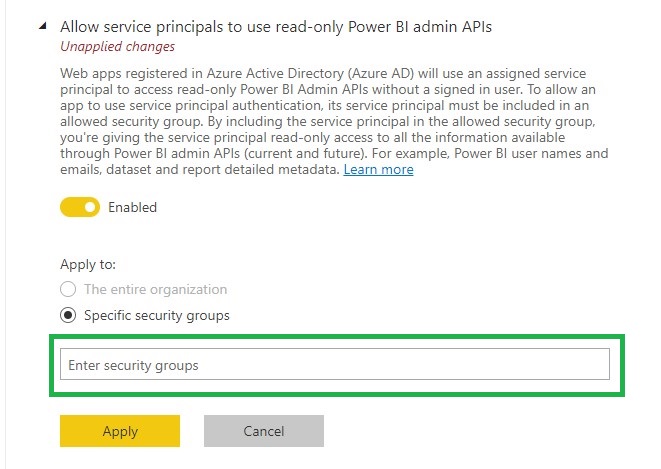
Allow service principals to use read-only Power BI admin APIs.
To use this setting create a Security group or use an existing one and add your Purview account to this SG.
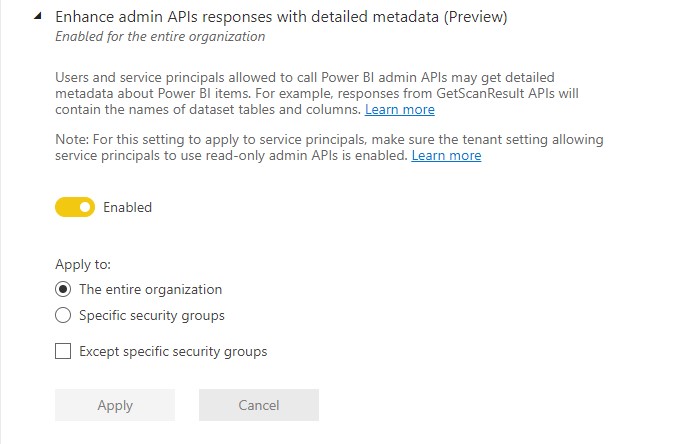
Enhance admin APIs responses with detailed metadata
Elastic data map in Azure Purview
All Purview account created after August 2021, 18th are now created with the new Elastic data map concept. With this new concept your Purview account will come by default with one capacity unit and elastically grow based on usage. Each Data Map capacity unit includes a throughput of 25 operations/sec and 2 GB of metadata storage limit. So now when you're not using Purview you're not paying the default value of 4 capacity units.
The Data Map is billed on an hourly basis. You are billed for the maximum Data Map capacity unit needed within the hour. At times, you may need more operations/second within the hour, and this will increase the number of capacity units needed within that hour. At other times, your operations/second usage may be low, but you may still need a large volume of metadata storage. The metadata storage is what determines how many capacity units you need within the hour. Please read the documentation for a more detailed explanation and some examples
All existing Azure Purview accounts will be migrated in September/October to the Elastics data map concept.
The big question that remains open is what exactly does this Capacity Unit cost? For the time being during the Preview, it is still free, which can be read from the updated price page of Azure Purview..
More clarity about pricing and when Azure Purview goes to GA is likely to become clear during the event on September 28. You can register for this event via the link below.
EVENT=>Achieve unified data governance with Azure Purview
As always, in case you have any questions, please feel free to contact me.
This Thursday May 13th 2021 I've been speaking during Cloud Lunch and Learn Marathon 2021. It was the first Cloud Lunch and Learn Marathon conference, more then 1200 registered attendees, 24hours Live and pre recorded sessions. Amazing. A big compliment to the organizers and thank you for having me.
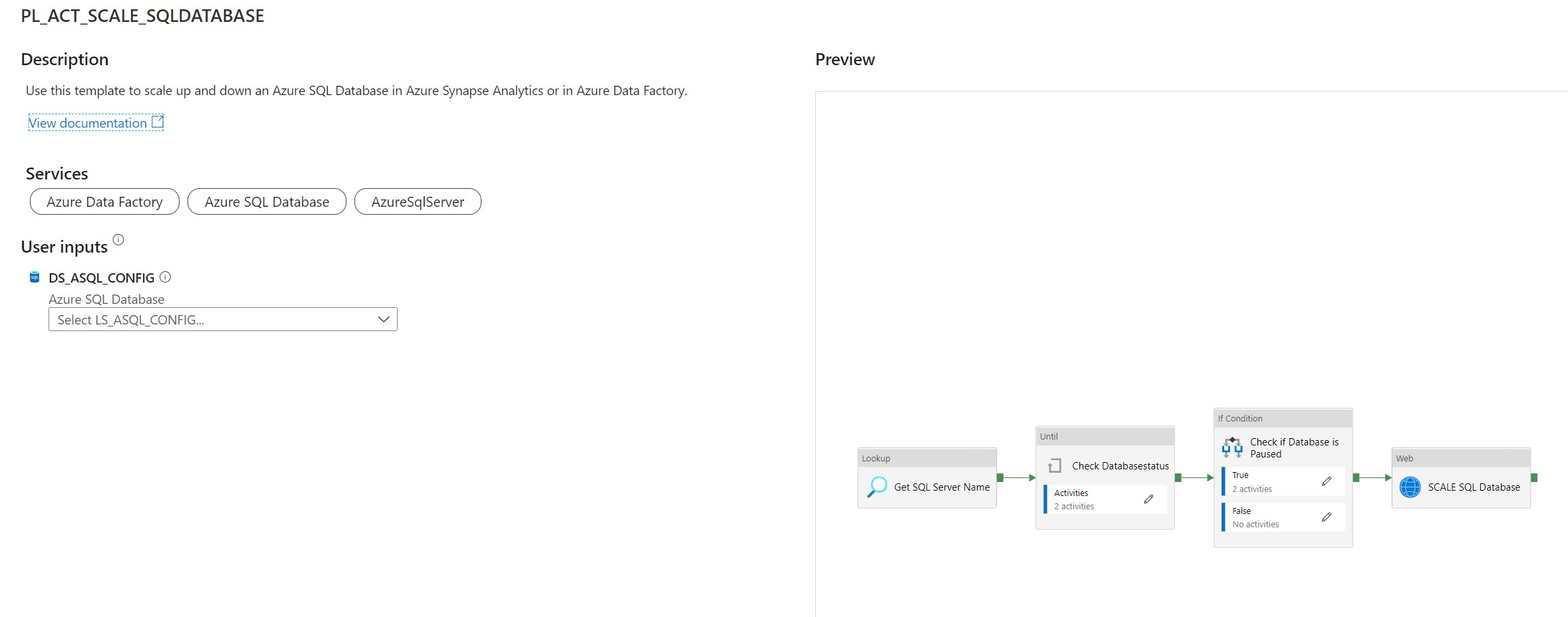
Use this template to scale up and down an Azure SQL Database in Azure Synapse Analytics or in Azure Data Factory.
This article describes a solution template how you can Scale up or down a SQL Database within Azure Synapse Analytics or Azure Data Factory dynamically based on metadata. This is actually a necessary functionality during your Data Movement Solutions. In this way you can optimize costs and gain more performance during batch loading. The Pipeline can be added before and after your Nightly Run.
The template contains 8 activities:
Lookup Activity Get the necessary metadata from a table in your configuration database.
Until Activity to check a set of activities in a loop until the condition associated with the activity evaluates to true.
Web Activity activity which will check the current Status of the SQL Pool
Wait Activity activity which will wait before retry to check the Status of the SQL Database
If Condition Activity Activity to check if the SQL Database is Online
Web Activity Activity to Resume the SQL Database(Serverless only) if not Online
Wait Activity Activity to wait before to go to the next activity
Web Activity Activity to Scale the SQL Database up or down to the desired DatabaseLevel
Pipeline Parameters:
Parameter
Value
Description
WaitTime
10
Wait time in seconds before the Pipeline will finish
Create a control table in Azure SQL Database to store the Metadata.
[NOTE] > The table and stored procedure can be stored in any database, but preferred in a database where you store all your configuration in.
[sql]
CREATE TABLE [configuration].[Environment_Parameter1](
	[ParameterId] [int] IDENTITY(1,1) NOT NULL,
	[ParameterName] [varchar](128) NOT NULL,
	[ParameterValue] [nvarchar](max) NOT NULL,
	[Description] [nvarchar](max) NULL,

CONSTRAINT [PK_Environment_Parameter1] PRIMARY KEY CLUSTERED
    (
    	[ParameterId] ASC
    )WITH (STATISTICS_NORECOMPUTE = OFF, IGNORE_DUP_KEY = OFF, OPTIMIZE_FOR_SEQUENTIAL_KEY = OFF) ON [PRIMARY]
    ) ON [PRIMARY]

INSERT [configuration].[Environment_Parameter] ( [ParameterName], [ParameterValue], [Description]) VALUES (N'yourResourceGroupName', N'', N'ResourceGroupName of your Azure Synapse or ADF Instance')
GO
INSERT [configuration].[Environment_Parameter] ( [ParameterName], [ParameterValue], [Description]) VALUES (N'SubscriptionId', N'XXXXXXXX', N'SubscriptionId of your Azure Synapse or ADF Instance')
GO
INSERT [configuration].[Environment_Parameter] ( [ParameterName], [ParameterValue], [Description]) VALUES (N'SQLServer', N'yoursqlserver', N'Name of your SQL Server( Needed for scaling databases)')
GO
[/sql]
[sql]
CREATE PROCEDURE [configuration].[Environment]
    @ColumnToPivot  NVARCHAR(255),
    @ListToPivot    NVARCHAR(max)
    AS
      /**********************************************************************************************************
    * SP Name:		[configuration].[[Environment]]
    *
    * Purpose:		Procedure display record parameters for environment Settings
    *
    *
    * Revision Date/Time:
    *  2020-12-01		Erwin de Kreuk (InSpark) - Initial creation of SP
    *
    **********************************************************************************************************/
    BEGIN

      DECLARE @SqlStatement NVARCHAR(MAX)
      SET @SqlStatement = N'
        SELECT * FROM (
          SELECT

           [ParameterName] ,
           [ParameterValue]
          FROM [configuration].[Environment_Parameter]    ) EnvironmentTable
        PIVOT
        (max([ParameterValue])
          FOR ['+@ColumnToPivot+']
          IN ('+@ListToPivot+' )    ) AS PivotTable
      ';

      EXEC(@SqlStatement)

    END
[/sql]
After you have imported the Template you will see the following:
[NOTE] > Azure Synapse has no import functionality, create a new pipeline PL_ACT_SCALE_SQLDATABASE and copy the code into the pipeline. Once the pipeline is created manualy link the correct linked service for your Metadata table
Create a connection to the database where your metadata tables is stored. Followed by use this template.
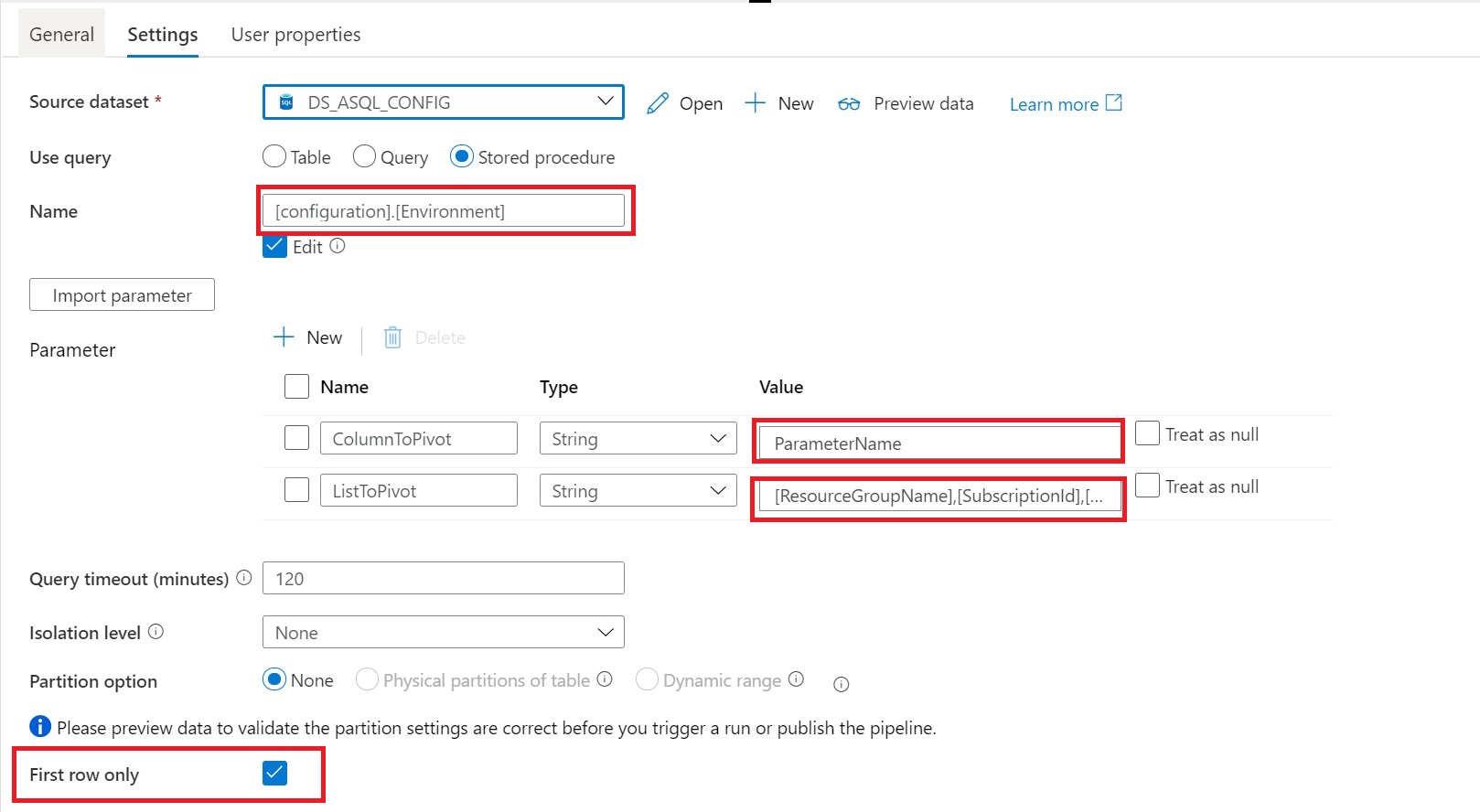
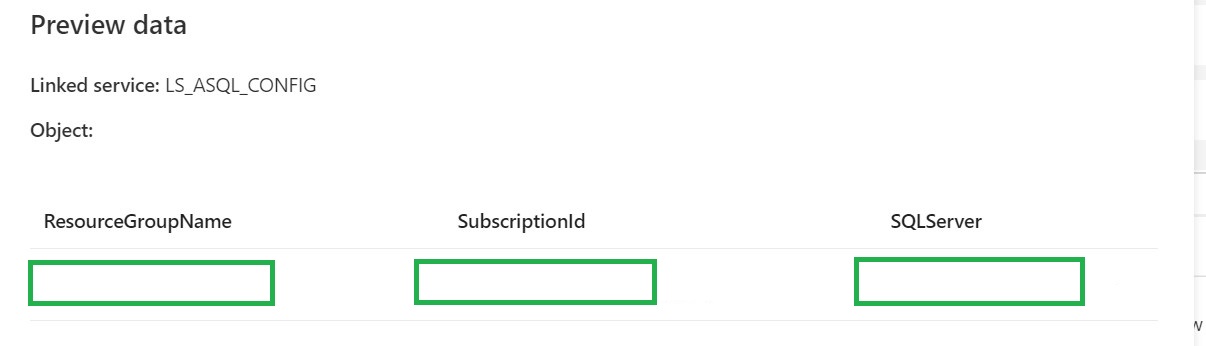
Lookup Activity Name = Get SQL Server Name
Source Dataset = Linked Services to your Metadata Table
Until Activity We can only change the DatabaseLevel when the SQL Database is Paused or Online. That’s why we need to add an Until activity to check for these statusses.
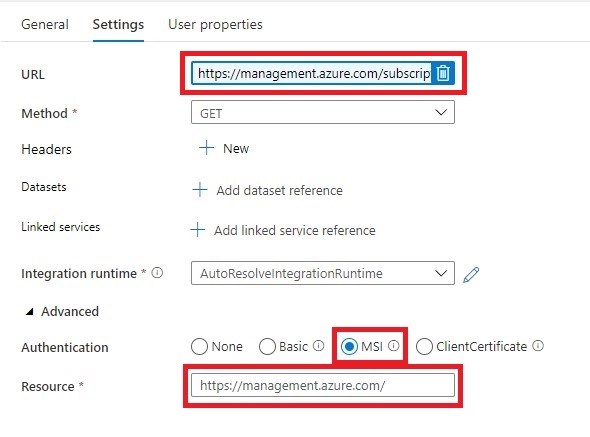
Web Activity Within the Until Activity we need to create a new Web Activity.
https://management.azure.com/subscriptions/@{activity('Get SQL Server Name').output.firstRow.SubscriptionId}/resourceGroups/@{activity('Get SQL Server Name').output.firstRow.ResourceGroupName}/providers/Microsoft.Sql/servers/@{activity('Get SQL Server Name').output.firstRow.SQLServer}/databases/@{pipeline().parameters.DatabaseName}/?api-version=2019-06-01-preview
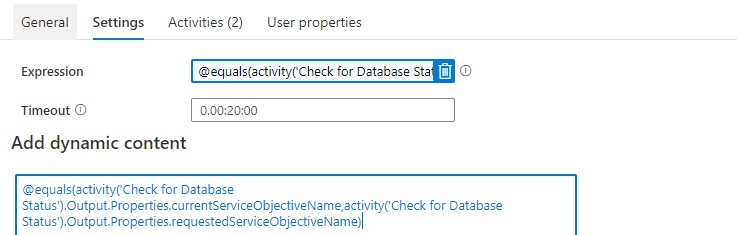
After we have created the Web Activity, we can define the expression for the Until Activity.
The Pipeline can only continue when the current status is not scaling. We can check this by comparing the currentServiceObjectiveName and the requestedServiceObjectiveName.
Expression: @equals(activity('Check for Database Status').Output.Properties.currentServiceObjectiveName,activity('Check for Database Status').Output.Properties.requestedServiceObjectiveName)
Time out: 0.00:20:00
The Until Activity will only continue, when the status from the above Web Activity output is equal, this can take a while and we don’t want to execute the Web Activity every time. That’s why we add a Wait Activity.
Wait Activity
A Wait Activity waits for the specified period of time before continuing with execution of subsequent activities.
Check for the SQL Database Status (Serverless Only)
If Condition Activity (Name: Check if Database is Paused). When is SQL Database is Paused, we need to Resume
Expression: @bool(startswith(activity('Check for Database Status').Output.Properties.status,'Paused'))
Web Activity In case the SQL Database is Paused we need to Resume.
The XXX are replaced with the output from Lookup activity.
https://management.azure.com/subscriptions/@{activity('Get SQL Server Name').output.firstRow.SubscriptionId}/resourceGroups/@{activity('Get SQL Server Name').output.firstRow.ResourceGroupName}/providers/Microsoft.Sql/servers/@{activity('Get SQL Server Name').output.firstRow.SQLServer}/databases/@{activity('Get SQL Server Name').output.firstRow.DatabaseName}/Resume?api-version=2019-06-01-preview
It is almost the same URL we used in the First Web Actvity but have to add the action option Resume.
The XXX are replaced with the output from Lookup activity.
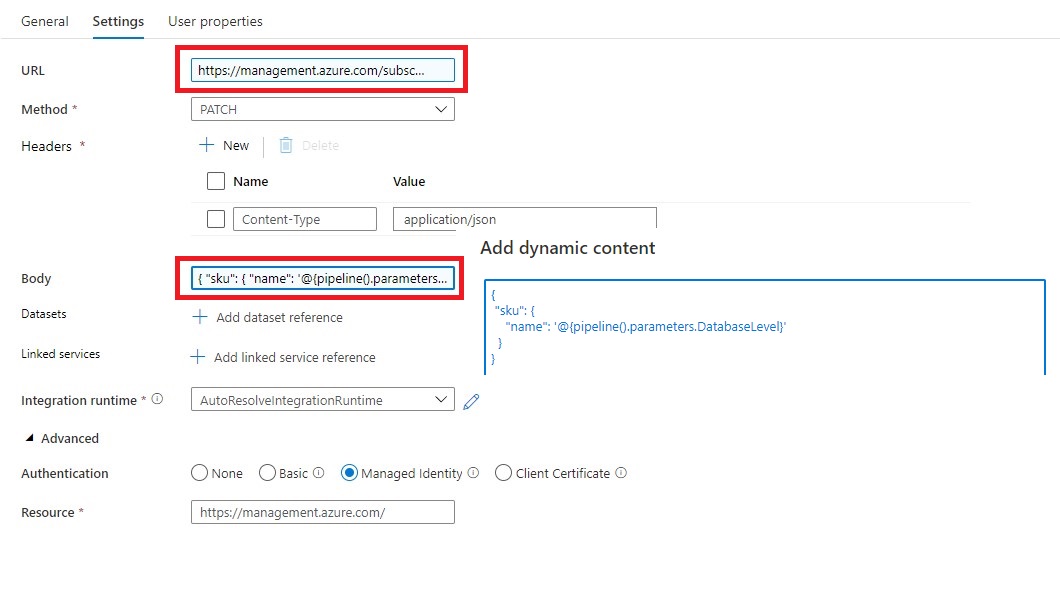
https://management.azure.com/subscriptions/@{activity('Get SQL Server Name').output.firstRow.SubscriptionId}/resourceGroups/@{activity('Get SQL Server Name').output.firstRow.ResourceGroupName}/providers/Microsoft.Sql/servers/@{activity('Get SQL Server Name').output.firstRow.SQLServer}/databases/@{pipeline().parameters.DatabaseName}/?api-version=2019-06-01-preview
Method = PATCH
Headers = Name = Content-Type Value= application/json
Body = { “sku”: { “name”: ‘@{pipeline().parameters.DatabaseLevel}’ } }
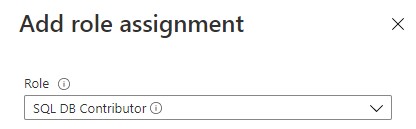
To allow Azure Synapse Analytics or Azure Data Factory to call the REST API we need to give the Synapse/ADF access to the SQL Database/Server. In the Access control (IAM) of the SQL Server assign the SQL Contributor role to Synapse/ADF.
Debug
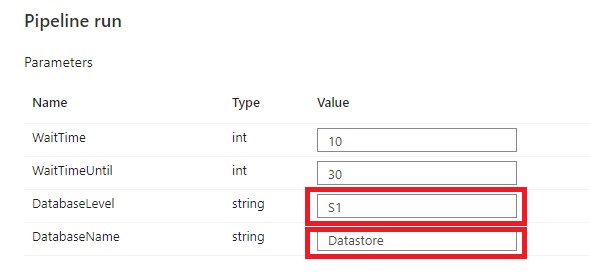
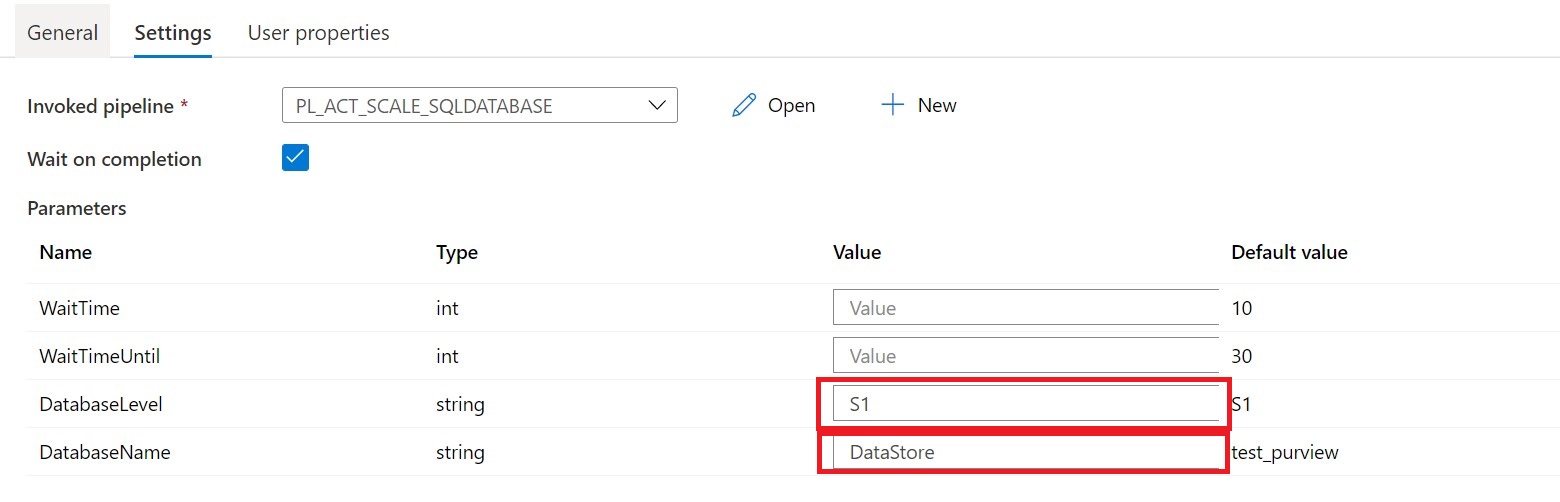
Select Debug, enter the Parameters, define the correct DatabaseLevel and DatabaseName to Scale and then select Finish.
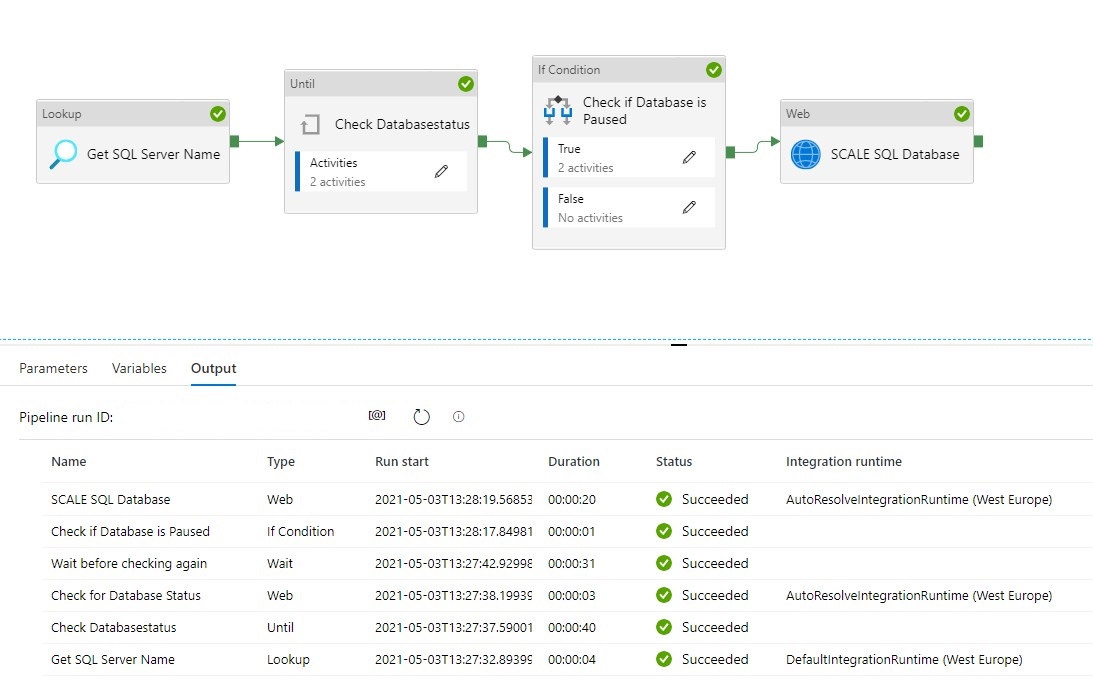
When the pipeline run completes successfully, you will see the result similar to the following example:
You can now call this pipeline from every other pipeline, you only need to change the DatabaseLevel and DatabaseName.
You have now learned how to Scale your SQL Database Dynamically with the use of Metadata.
Please feel free to download the Pipeline code here for Azure Synapse Analytics and for herefor Azure Data Factory
Hopefully this article has helped you a step further. As always, if you have any questions, leave them in the comments.