Parameterize Linked Services in ADF
Parameterize Linked Services
For my Azure Data Factory solution I wanted to Parameterize properties in my Linked Services. Not all properties are Parameterized by default through the UI. But there’s another way to achieve this.
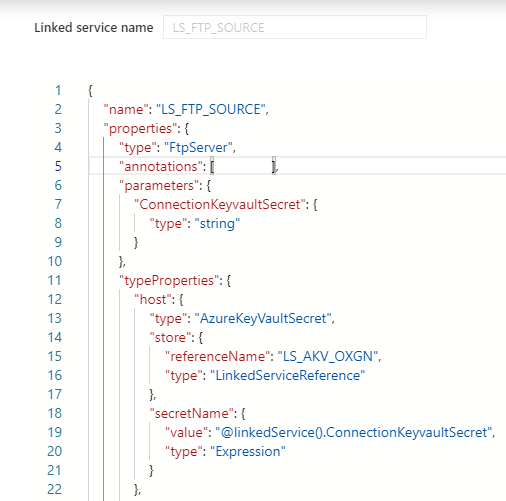
Linked Service
Open your existing Linked Services.
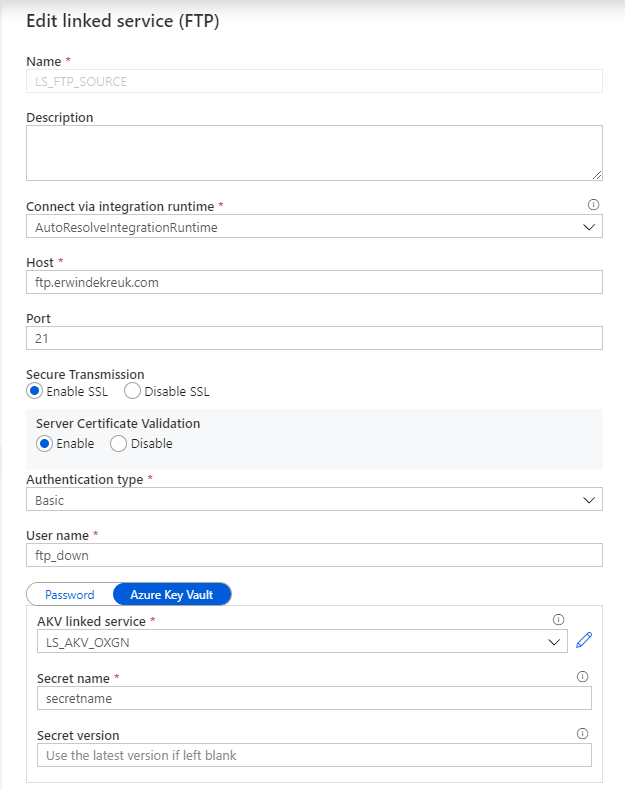
In this situation I want to Parameterize my FTP connection so that I can change the Host name based on a Azure Key Vault Secret.
By default is this not possible through the UI but in the Bottom of your Linked Service there is a Advanced box
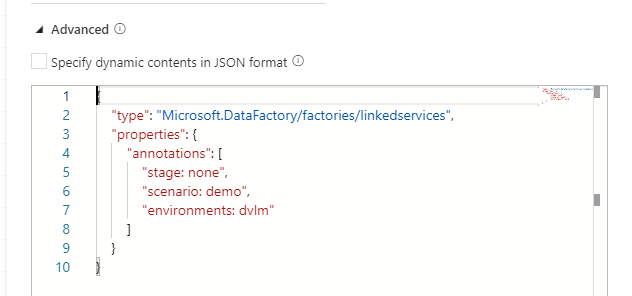
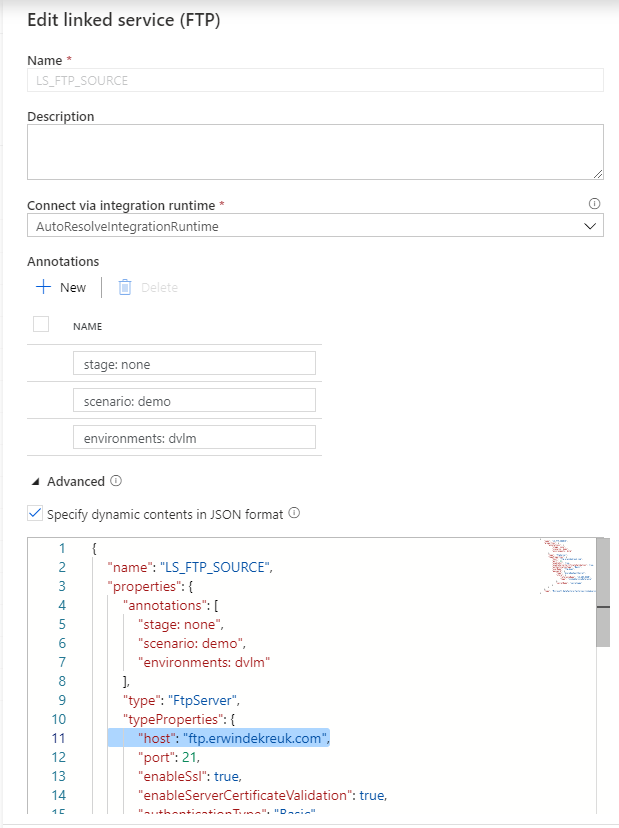
If you enable this box you can start building your own connection, but also create your own Parameters for this connection.
How to start:
As a base we will use the default code or our connection

{
    "name": "LS_FTP_SOURCE",
    "properties": {
        "annotations": [
            "stage: none",
            "scenario: demo",
            "environments: dvlm"
        ],
        "type": "FtpServer",
        "typeProperties": {
            "host": "ftp.erwindekreuk.com",
            "port": 21,
            "enableSsl": true,
            "enableServerCertificateValidation": true,
            "authenticationType": "Basic",
            "userName": "ftp_down",
            "password": {
                "type": "AzureKeyVaultSecret",
                "store": {
                    "referenceName": "LS_AKV_OXGN",
                    "type": "LinkedServiceReference"
                },
                "secretName": "secretname"
            }
        }
    },
    "type": "Microsoft.DataFactory/factories/linkedservices"
}
Now you can start adding new parameters.
If you want to Parameterize your HOST name connection you have to add in the top of the code a new Parameter, under the type of your connection
    "properties": {
        "type": "FtpServer",
        "parameters": {
            "ConnectionKeyvaultSecret": {
                "type": "string"
            }
After you have done this, you need to specify for which properties you want to use this parameter. In my case I want to read the parameter form my Azure Key Vault for my HOST propertie.
The JSON code below will now use above parameter as an input.
        "typeProperties": {
            "host": {
                "type": "AzureKeyVaultSecret",
                "store": {
                    "referenceName": "LS_AKV_OXGN",
                    "type": "LinkedServiceReference"
                },
                "secretName": {
                    "value": "@linkedService().ConnectionKeyvaultSecret",
                    "type": "Expression"
                }
            }
Save your connection and you will see that your UI is changed and that you have to define all your setting through the Advanced Editor.
If you test your connection you will now see that you have to fill in a parameter.
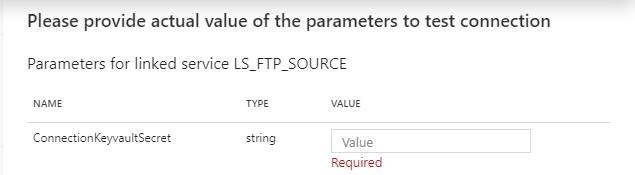
And now you can create parameters of every TypeProperties within your connection.
The code below will create Parameters for your Host, Username and Password entries with Azure Key Vault enabled. For the authenticationType you have to choose between Basic and Anonymous. But can also at this to your Azure Key Vault.
{
    "name": "LS_FTP_SOURCE",
    "properties": {
        "type": "FtpServer",
        "parameters": {
            "ConnectionKeyvaultSecret": {
                "type": "string"
            },
            "UsernameKeyvaultSecret": {
                "type": "string"
            },
            "PasswordKeyvaultSecret": {
                "type": "string"
            },
            "authenticationType": {
                "type": "string"
            }
        },
        "annotations": [ ],
        "typeProperties": {
            "host": {
                "type": "AzureKeyVaultSecret",
                "store": {
                    "referenceName": "LS_AKV_OXGN",
                    "type": "LinkedServiceReference"
                },
                "secretName": {
                    "value": "@linkedService().ConnectionKeyvaultSecret",
                    "type": "Expression"
                }
            },
            "port": 21,
            "enableSsl": false,
            "enableServerCertificateValidation": false,
            "authenticationType": "@linkedService().authenticationType",
            "userName": {
                "type": "AzureKeyVaultSecret",
                "store": {
                    "referenceName": "LS_AKV_OXGN",
                    "type": "LinkedServiceReference"
                },
                "secretName": {
                    "value": "@linkedService().UsernameKeyvaultSecret",
                    "type": "Expression"
                }
            },
            "password": {
                "type": "AzureKeyVaultSecret",
                "store": {
                    "referenceName": "LS_AKV_OXGN",
                    "type": "LinkedServiceReference"
                },
                "secretName": {
                    "value": "@linkedService().PasswordKeyvaultSecret",
                    "type": "Expression"
                }
            }
        }
    }
}
Thanks for reading my blog post and have fun with Parameterization of your Linked Services in ADF.


Feel free to leave a comment
2 Comments
Leave a Reply
Discover more from Erwin | Data & Intelligence
Subscribe to get the latest posts sent to your email.

Thanks for the article! Just a note, proper indentation of the json goes a long way in helping everyone understand the logic 🙂
Thanks for the Feedback David, looks like my editor removed the indentation. Going to look if I can better integrate/visualize this within my webpage.