Microsoft Purview new Experience is coming

Microsoft Purview new Experience is coming

Month: June 2023

Get ready for the next enhancement in Microsoft Purview

Get ready for the next enhancement in Microsoft Purview, as it brings a range of exciting new features and capabilities. To ensure the best experience with Purview, it is recommended that you tag your existing Microsoft Purview accounts appropriately.

Mark your Purview accounts with the proper tags

In short, mark each Purview account with the following tags: Name: "Purview Environment," Value: "Production."

In the long story, you have several tag options available to you. The table below outlines the different tags and their purposes:

In all purposes the tag name is "Purview Environment"

Production - This tag signifies that the account is or will be used for cataloging and governance requirements in a production environment. It is a candidate to be selected as the primary account for the tenant.

Pre-production - This tag indicates that the account is or will be used to validate cataloging and governance requirements before making them available in production. It is a candidate to be merged as a domain or can be deleted.

Test - This tag suggests that the account is or will be used for testing capabilities in Microsoft Purview Governance. It is a candidate to be merged as a domain or can be deleted.

Dev - This tag signifies that the account is or will be used to test capabilities or develop custom code and scripts in Microsoft Purview Governance. It is a candidate to be merged as a domain or can be deleted.

Proof Of Concept - This tag indicates that the account is or will be used to test capabilities or develop custom code and scripts in Microsoft Purview Governance. It can be deleted in the future.

Deprecate - This tag is for accounts that were created a while back but are not in use today. They can be deleted in the future.

Create tag

The following instructions will allow you to successfully tag your Purview account(s) with the desired classification:
1. Sign in to the Azure portal using your Azure account credentials.
2. Use the search bar to find and select your Microsoft Purview account.
3. Locate the Tags (edit) section on the left of the Purview account overview page.
4. Click on the Tags (edit) link to open the tags editor.
5. Add a new tag with a Name and Value according to the provided options (e.g., Name: "Purview Environment," Value: "Production").
6. Click on Save to apply the tag to your Purview account.

What's Next!

The next Microsoft Purview enhancement is coming to you in a few weeks. Along with the features you've enjoyed with Microsoft Purview so far, this enhancement will provide these additional capabilities:
 
Centralized organization-wide data governance that automatically gives you visibility across your Microsoft Cloud.
Configuration and set up is no longer required to capture metadata for Microsoft Cloud - Microsoft Purview is auto-attached to Microsoft Fabric and Azure SQL.
A clean, crisp, and more intuitive user interface to navigate the platform and apps.
These new features will be turned on automatically and added to your existing capabilities.

How can you use our new experience?

These new features will be turned on automatically and seamlessly integrated with your existing capabilities. The new experience will be available once your organization has been enabled. The exact steps to get started will depend on your organization's current structure, and more information will be provided in the coming weeks.

Follow one of these guides below:

More information will be available in the coming weeks.

You can learn more about the enhancements by going to https://learn.microsoft.com/azure/purview/account-upgrades.
 
I'm looking forward to new the experience with hopefully an even better integration with Microsoft Fabric.
 
If you have any further questions, feel free to ask them in the comments below.

Feel free to leave a comment

How to enable Microsoft Fabric

How to enable Microsoft Fabric

Month: June 2023

Microsoft Fabric

I got some questions from customers that didn’t know how to enable Microsoft Fabric and that they only see Power BI Items and not the new announced Experiences. In this short blog I will explain how you can easily enable Microsoft Fabric.

How to enable Fabric

If you want to try Fabric in your tenant, you need to enable the Fabric features in your Power BI admin portal.

To do, go to https://app.powerbi.com/.

Note: You must be an Power BI administrator

Please note that Microsoft Fabric Capacity(Trial) or Power BI Premium Capacity is required to get started with Microsoft Fabric.

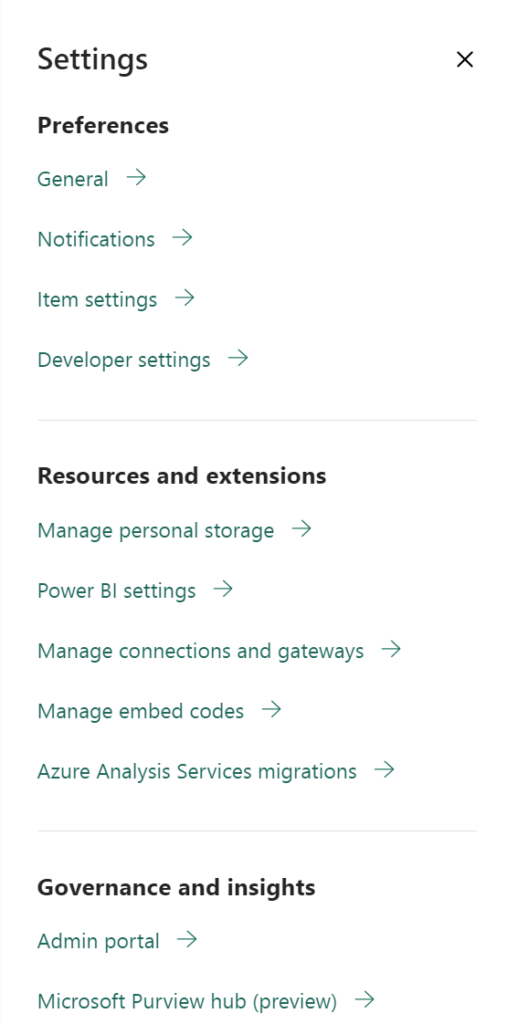
  • Open the Microsoft Fabric admin portal.

Microsoft-Fabric-Admin-portal

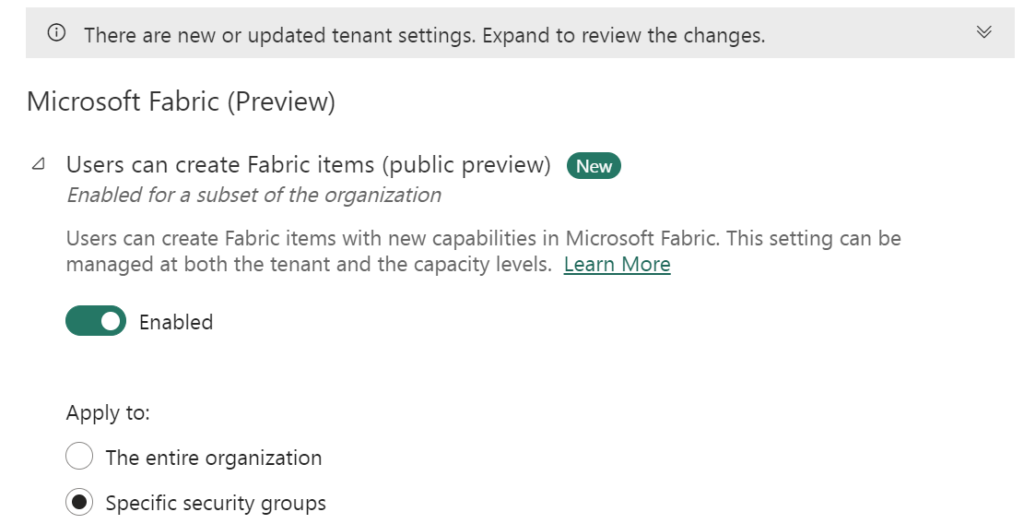
  • By default, Microsoft Fabric is disabled (if you do not change the setting, it will be set to ON after July 1st 2023).

Microsoft-Fabric-Enabled

  • You enable Microsoft Fabric for the whole organization or you can just start with a small group(Specify Security Groups). My advice is to start with a small group. Microsoft Fabric is in Public Preview and not ready for Production Environments.
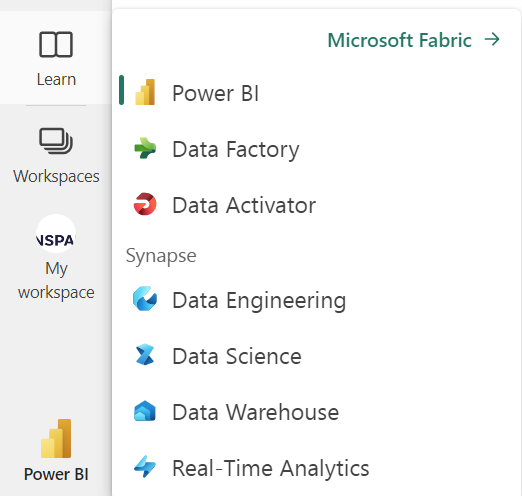
  • It will take up to 15 minutes to deploy these setting, mostly much faster. After that the new experiences will be available.

Microsoft-Fabric-Experiences

  • Select Data Engineering

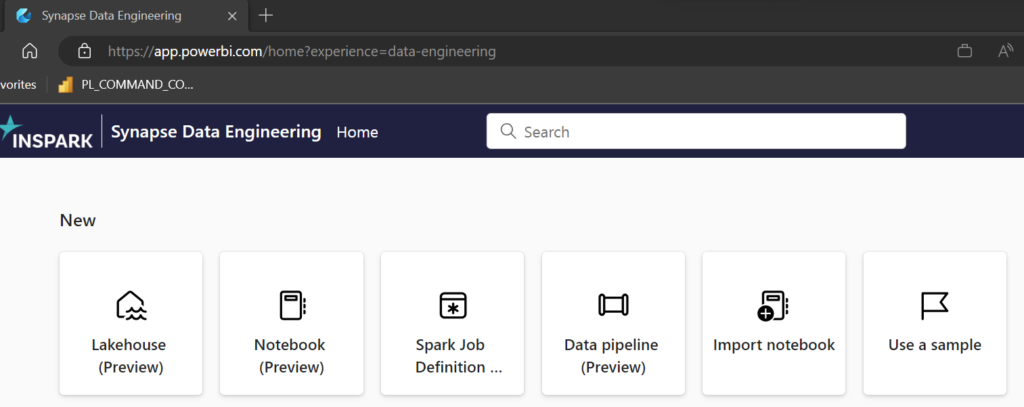
In the top of the page you can directly, see which experience you use.

Microsoft-Fabric-Data-Engineering-experience

In this case Synapse Data Engineering Experience, check out the logo on the left side and the text behind home?experience 

Start Trial

Have a look to this page how easily it is to get started with a free Trial Fabric (preview)

Guy in the Cube

You also watch the video, who Adam Saxton created:


Documentation

If you have any questions, I’d love to hear them.
More information about Microsoft Fabric can be found at my Content Hub:

Microsoft Fabric Content Hub

Feel free to leave a comment

Create capacity for Microsoft Fabric

Create capacity for Microsoft Fabric

Month: June 2023

Microsoft Fabric Capacity

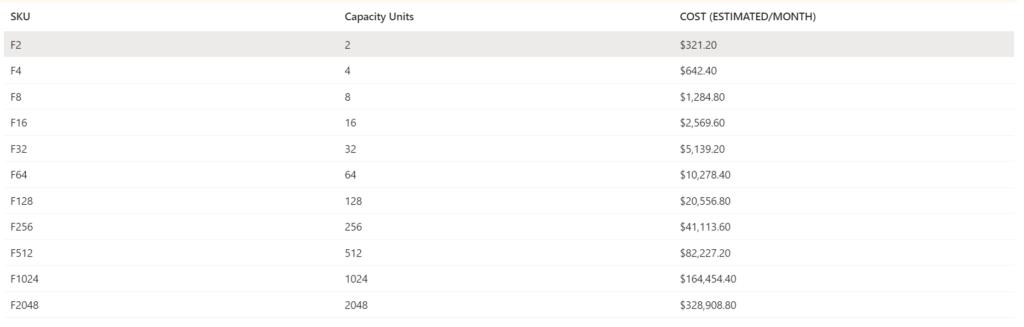
Since the first of June 2023, we can create Fabric capacities in Azure. This are currently the Pay as You go pricing, later this year the Azure Reservation will follow. OneLake storage pricing is comparable to Azure ADLS (Azure Data Lake Storage) pricing and is not included in the price below. These prices are prices in the West-Europe region, prices can be different across regions.

Microsoft Fabric Pricing new

Note: As you can see, the F1024 and F2028 are not having the correct prices, it should be 2 or 4 x F512. The error is already is report to the Fabric Team.

Read the announcement below:

Announcing Microsoft Fabric capacities are available for purchase | Microsoft Fabric Blog

Microsoft Fabric Capacity is a distinct pool of resources allocated to Microsoft Fabric that resides on a tenant. The size of the capacity determines the amount of computation power your organization gets.

Microsoft Fabric has an array of capacities that you can buy. The capacities are split into SKU's. Each SKU provides a different amount of computing power, measured by its Capacity Unit (CU) value.

Creating Fabric Capacity in Azure

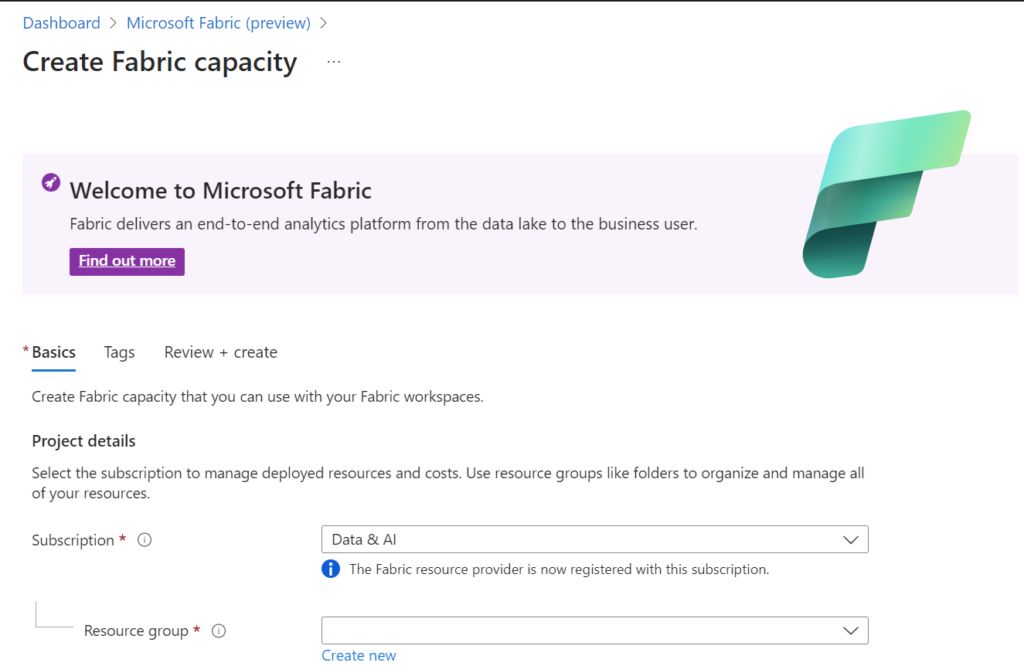
  • Search for the Fabric Capacity in the Azure Marketplace.

Microsoft Fabric create capacity


  • Select the appropriate Subscription and resource group. You can move the Fabric capacity to another Resource Group later if needed.Microsoft Fabric configure capacity
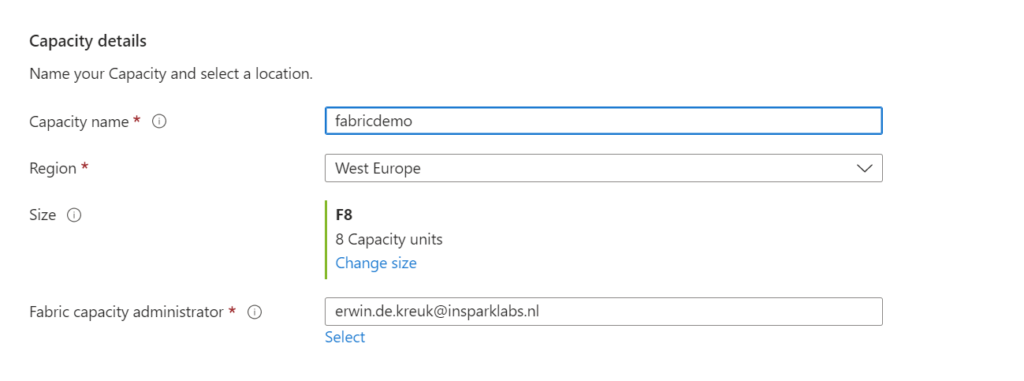
  • Provide a name for the capacity.
  • Define the region for the capacity.
  • Choose the desired size, starting from F2. F64 is equivalent to a Power BI Premium capacity. You can learn more on this page.
  • Assign a Fabric capacity Administrator.
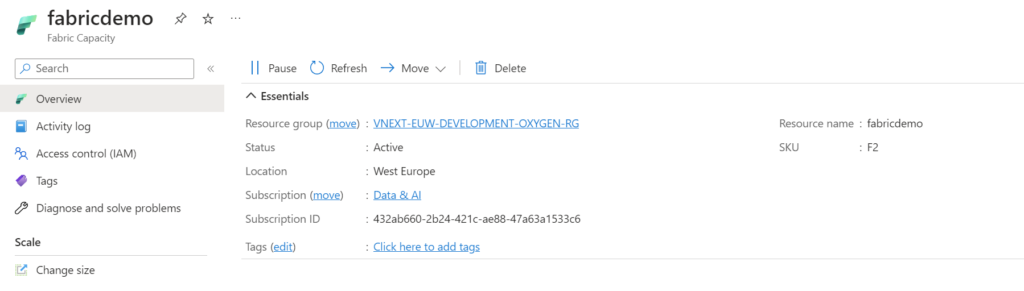
  • Click on "Create" to initiate the capacity creation process. Once created, you will see the relevant information on the screen.

Microsoft Fabric capacity in Azure

Assign capacity in Microsoft Fabric

After creating the Fabric capacity, you need to assign it to a Workspace by following these steps:

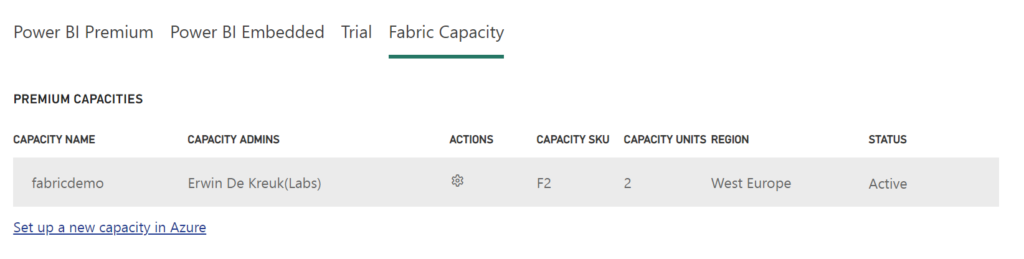
  • Open the Microsoft Fabric admin portal.
  • Select the capacity option on the right side.
  • Locate the recently created capacity in the list.Microsoft Fabric capacity

Assign capacity to a Workspace

The last step is to assign the capacity to a Workspace.

  • On the Workspace level, click on settings.
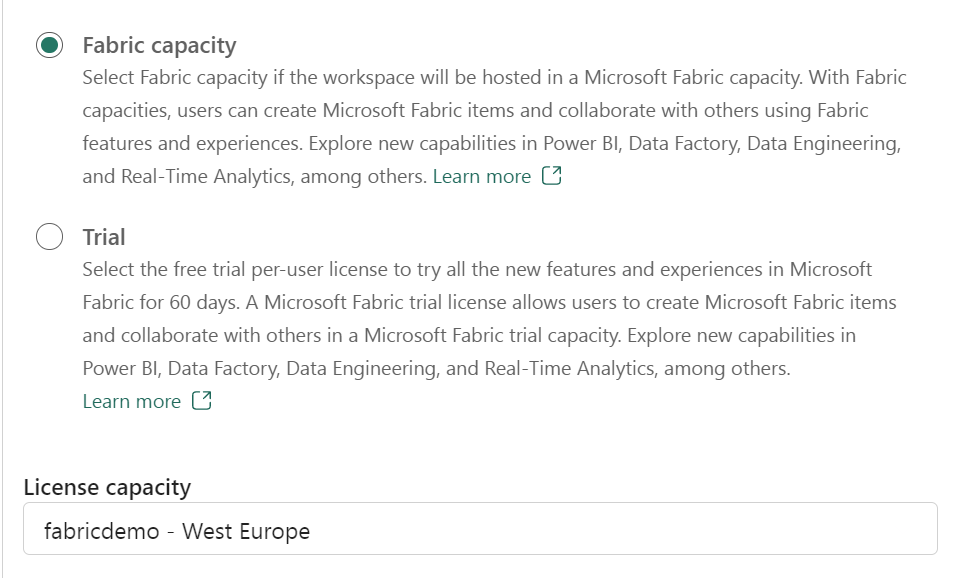
  • Go to the Premium tab and select the Fabric capacity.
  • Define the correct License capacity for the Fabric capacity.

Microsoft Fabric Capacity assigned

Select the Fabric Capacity and define the correct License capacity to it. That's all, you are now using the new capacity.

Capacity Pause/Resume

With the Fabric capacity set up, you can take advantage of the Pause/Resume feature, which allows you to temporarily halt and resume the capacity, making it useful for development and testing purposes. However, please note that this option will not work if you purchase Azure Reservation in the future.

Microsoft Fabric app

To monitor usage and related to Microsoft Fabric capacities, you can use the Microsoft Fabric utilization and metrics app.

To install the Microsoft Fabric Capacity Metrics app for the first time, follow these steps:

  1. Select one of these options to get the app from AppSource:Go to AppSource > Microsoft Fabric Capacity Metrics and select Get it now.In Microsoft Fabric:
    1. Select Apps.
    2. Select Get apps.
    3. Search for Microsoft Fabric.
    4. Select the Microsoft Fabric Capacity Metrics app.
    5. Select Get it now.
  2. When prompted, sign in to AppSource using your Microsoft account and complete the registration screen. The app takes you to Microsoft Fabric to complete the process. Select Install to continue.
  3. In the Install this Power BI app window, select Install.
  4. Wait a few seconds for the app to install.

It's a pretty simple process to set it up.

Documentation

If you have any questions, I'd love to hear them.
More information about Microsoft Fabric can be found at:

Microsoft Fabric Content Hub

Microsoft Fabric pricing (Preview)

Microsoft Fabric pricing (Preview)

Month: June 2023

Microsoft Fabric Pricing

Microsoft Fabric pricing in Public Preview is announced as of the 1 st of June.

These are currently the Pay as You go pricing, later this year the Azure Reservation will follow.

OneLake storage pricing is comparable to Azure ADLS (Azure Data Lake Storage) pricing and is not included in the price below. These prices are prices in the West-Europe region, prices can be different across regions.

Microsoft Fabric capacity overview new

Updated on June 13th.

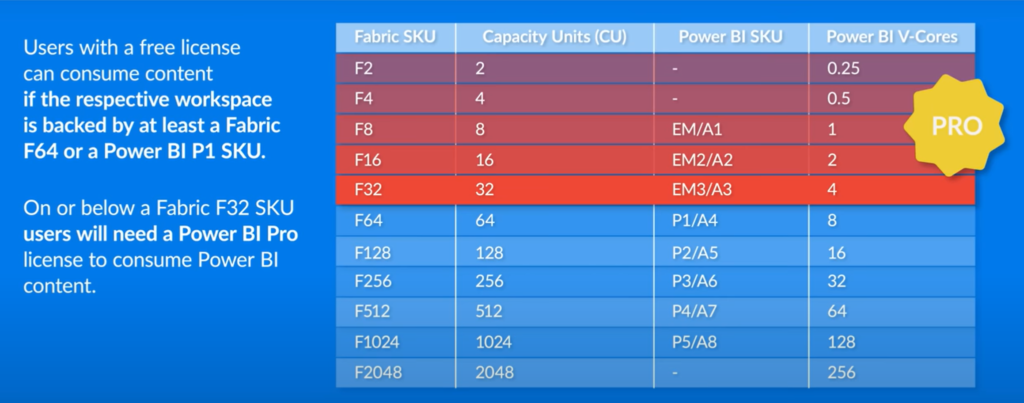
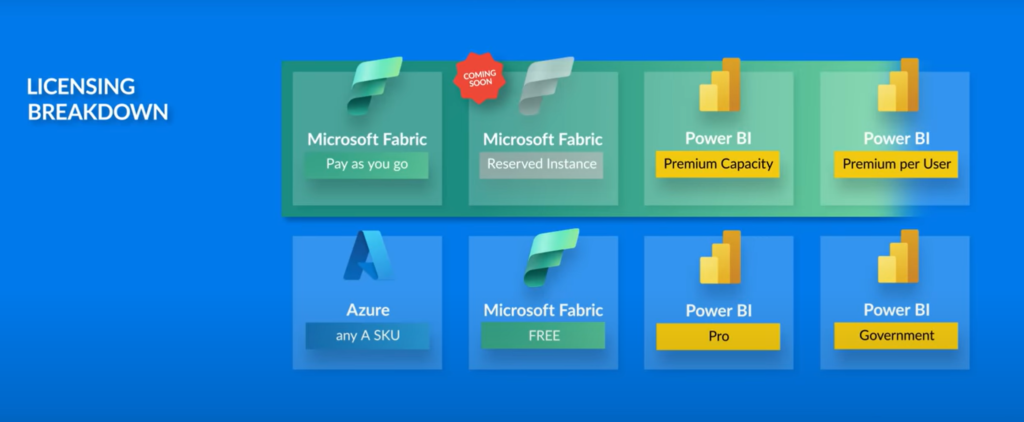
Guy in the Cube did create a great video on the Microsoft Fabric Licensing and Cost. The way he tells it is pretty easy and simple, I would definitely check out the video.

Microsoft-Fabric-Sku Overview


Microsoft-Fabric-Licensing-Overview


Feel free to leave a comment