Data Toboggan January 2022 (Video)
Recording of my session during the Data Toboggan January 2022 conference.

Recording of my session during the Data Toboggan January 2022 conference.

This Saturday I've joined the Data Toboggan to talk about Azure Synapse Analytics.
Today I've been talking on how to deal with all the different roles in Azure Synapse Analytics during Data Toboggan. An event 100% focussed on Azure Synapse Analytics.
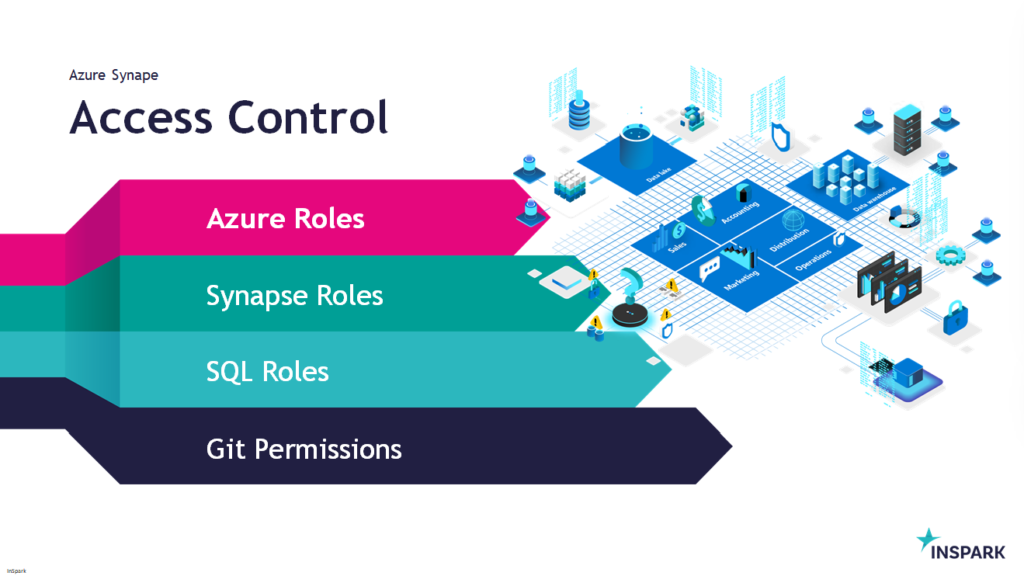
You can find my slides below on Slideshare:
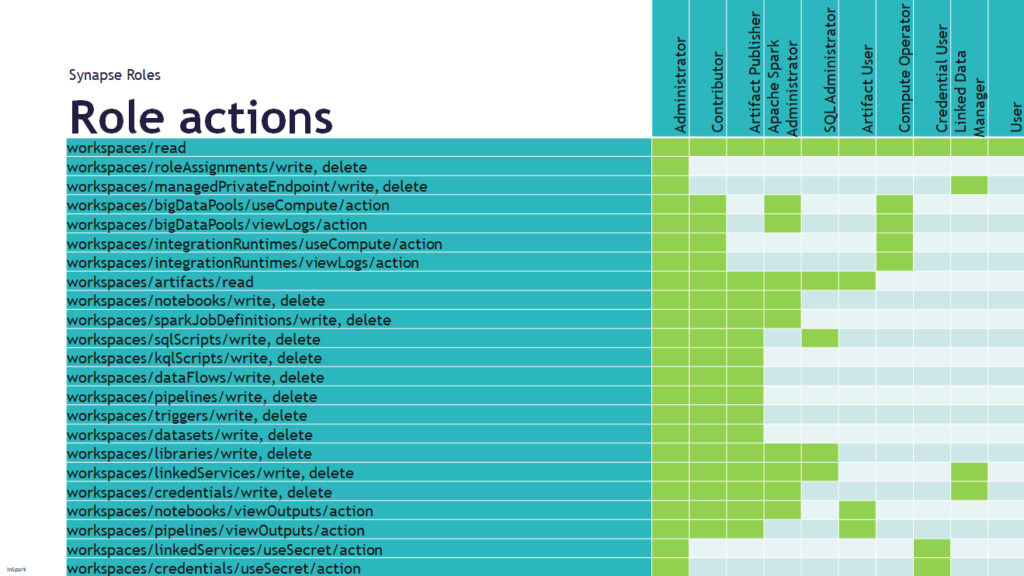
In case you have any questions left please feel free to ask them via the comment or Socials

The last few days I've been following some discussions on Twitter on using a separate Integration Runtime in Azure Synapse Analytics running in the selected region instead of auto-resolve. The AutoResolveIntegrationRuntime is automatically deployed with Auto Resolve and cannot be changed. If you create a separate Integration Runtime you can set the Region.
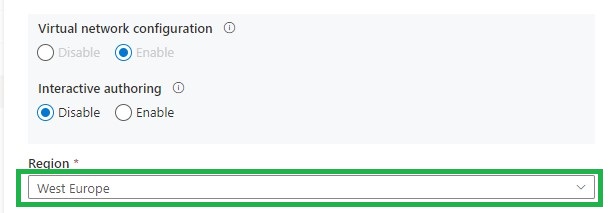
The blog from Asanka Padmakumara has a good explanation why should you choose for a new Integration Runtime with a dedicated Region so I'm not going in detail of that.
I was more interested what this will do with the costs when Managed Virtual Network is enabled and run a certain Pipeline with AutoResolveIntegrationRuntime enabled or with a manual created Integration Runtime. The final result was quite surprising for me.
Azure Synapse Analytics deployed with Managed Virtual Network and Private Links in West-Europe region.
Copy data from a Azure SQL server to Datalake.
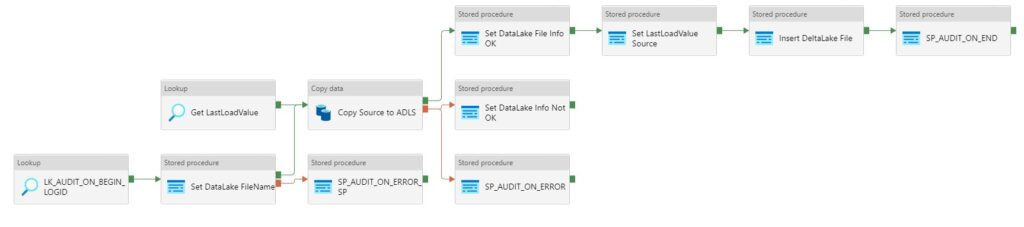
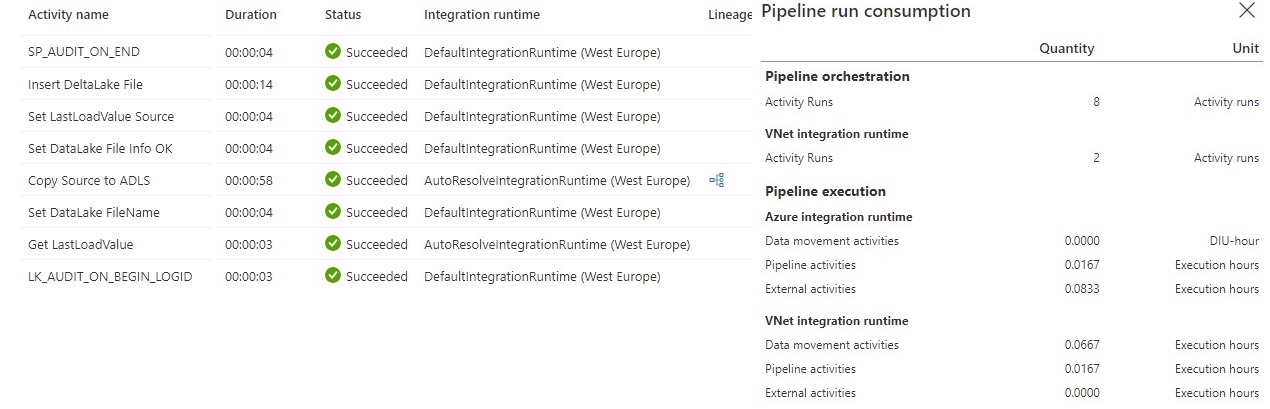
Pipeline Consumption with AutoResolveIntegrationRuntime
Pipeline Consumption with Integration Runtime created in West-Europe
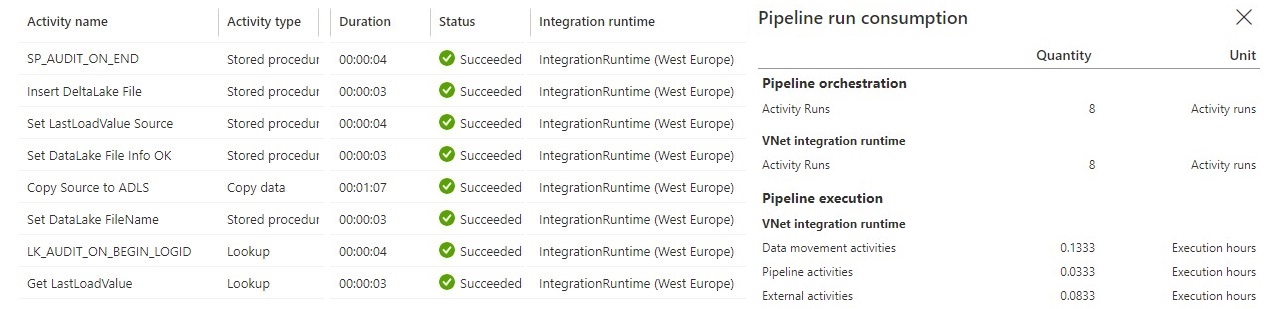
I didn't expect the consumption of these 2 Integration Runtimes to be different.
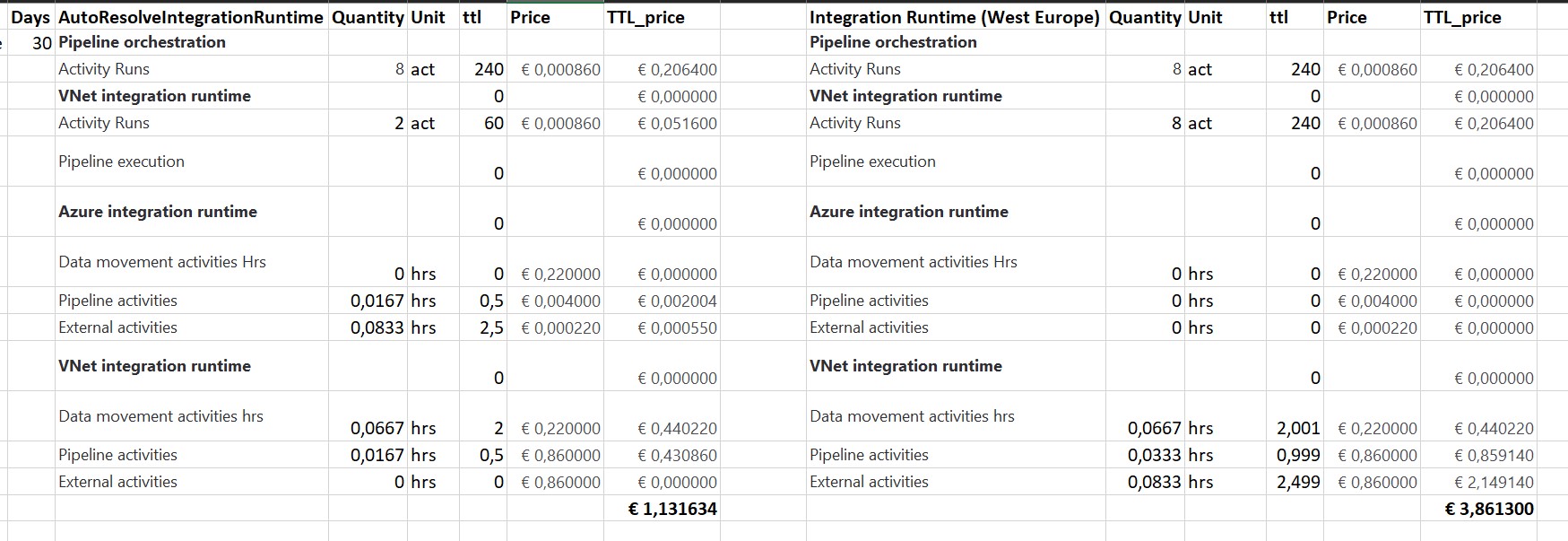
When running all my Linked Services on the AutoResolveIntegrationRuntime it looks to be a little bit faster compared to an Integration Runtime created in West-Europe. But there was a huge difference in costs, you have to pay 350% more if you run on an Integration Runtime. That is quite a lot, especially if you run 100 of these Pipelines per day, which is almost € 270 on a monthly basis. These differences probably won't be there if you don't use the Managed Virtual Network.
During my test of the Integration Runtime I also found out that you cannot change a DataFlow in Azure Synapse Analytics to an Integration Runtime without auto resolve.
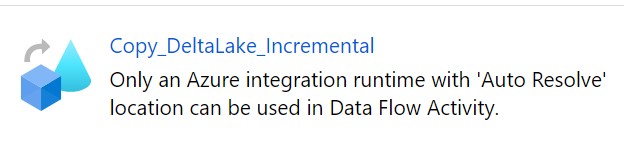
If you enable Managed Virtual Network for auto-resolve Azure IR, the IR in the Data Factory or Synapse Workspace region is used.
=> Integration runtime - Azure Data Factory & Azure Synapse | Microsoft Docs
As always, if you have any questions, let me know.

In Azure Synapse Analytics and Azure Data Factory is an new option available "Overwrite Live Mode", which can be found in the Management Hub-Git Configuration.
With this new option your can directly overwrite your Azure Synapse Analytics or Azure Data Factory Live mode code with the current Branch from your Azure Dev Ops.
It will use the Publish option to overwrite everything into your Azure Synapse Analytics or Azure Data Factory, so be careful with doing this. If you have a lot of code, the deployment time can take a while based on the size of the branch and the number of resources.
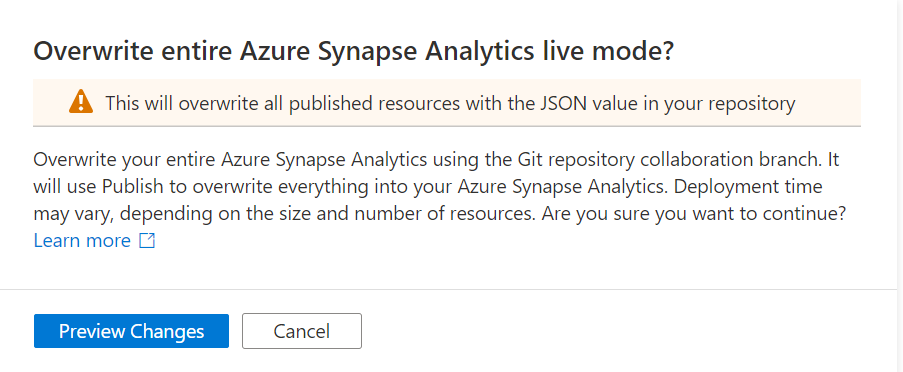
Once you click on Preview Changes you will see that all your code will be published. You need to confirm by clicking the Overwrite button.
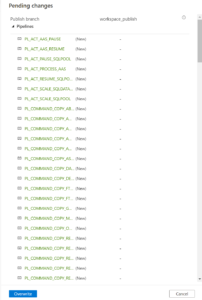
After you clicked on overwrite, it will start publishing.
Sometimes your Live Mode has a different code than your current Git Branch, especially when it comes to Linked Services, Managed Vnets and when using multiple Feature Branches. Incidentally, this is also the case if you link your code (Solution Templates) to your Azure Synapse Workspace from Dev Ops for the first time. Then it is possible that you will not get this code published because there are still dependencies, what I've seen mostly because the use of Azure Key Vault or different Integration Runtime setup. According to the documentation from Microsoft which you can find here they add the following examples:
If the publish branch is out of sync with your collaboration branch and contains out-of-date resources despite a recent publish, you can use the solution above.
I used to disconnect my Git configuration, make the changes in Live Mode, and reconnect Azure Dev Ops again and imported the resource to my current Branch. This solution makes it much easier and will safe you definitely a lot of time.
If you haven't yet linked your Azure Synapse Workspace to Azure Dev Ops, read how to do this in a previous Blog.
Hopefully this article has helped you a step further. As always, if you have any questions, leave them in the comments.



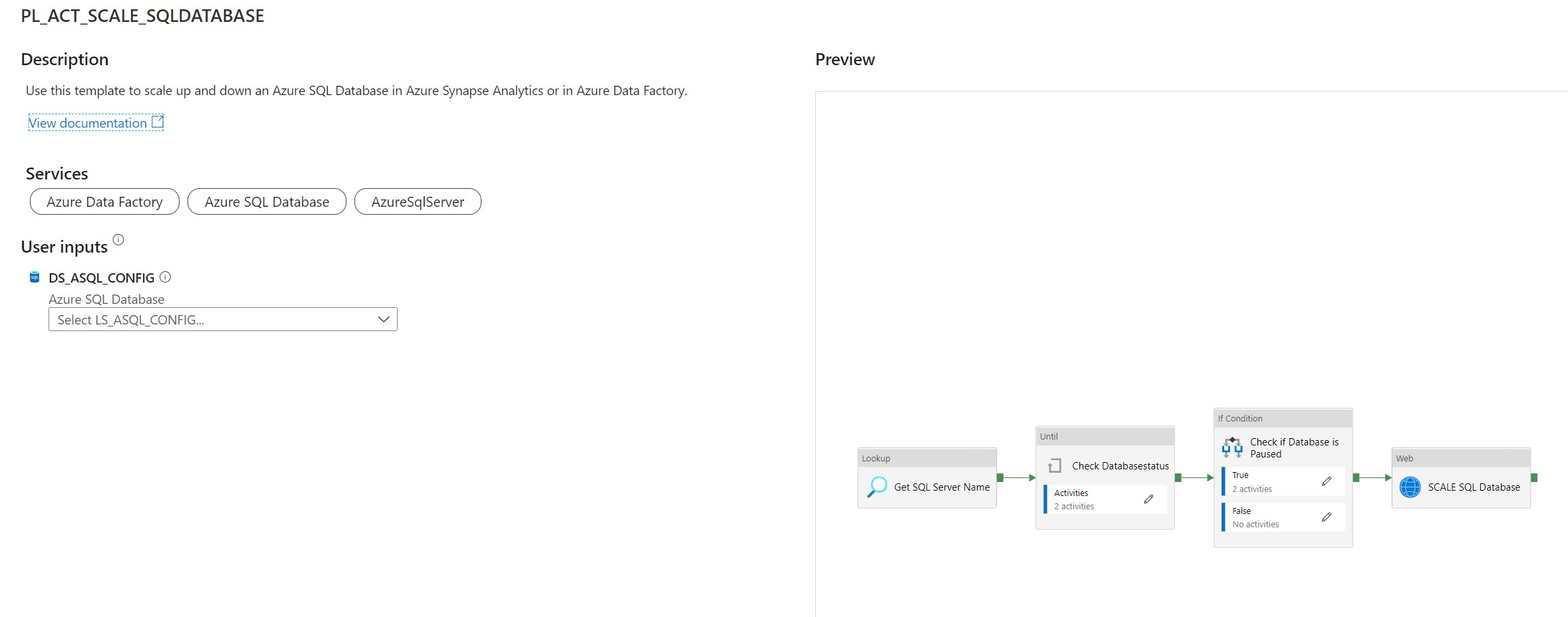
Use this template to scale up and down an Azure SQL Database in Azure Synapse Analytics or in Azure Data Factory.
This article describes a solution template how you can Scale up or down a SQL Database within Azure Synapse Analytics or Azure Data Factory dynamically based on metadata. This is actually a necessary functionality during your Data Movement Solutions. In this way you can optimize costs and gain more performance during batch loading. The Pipeline can be added before and after your Nightly Run.
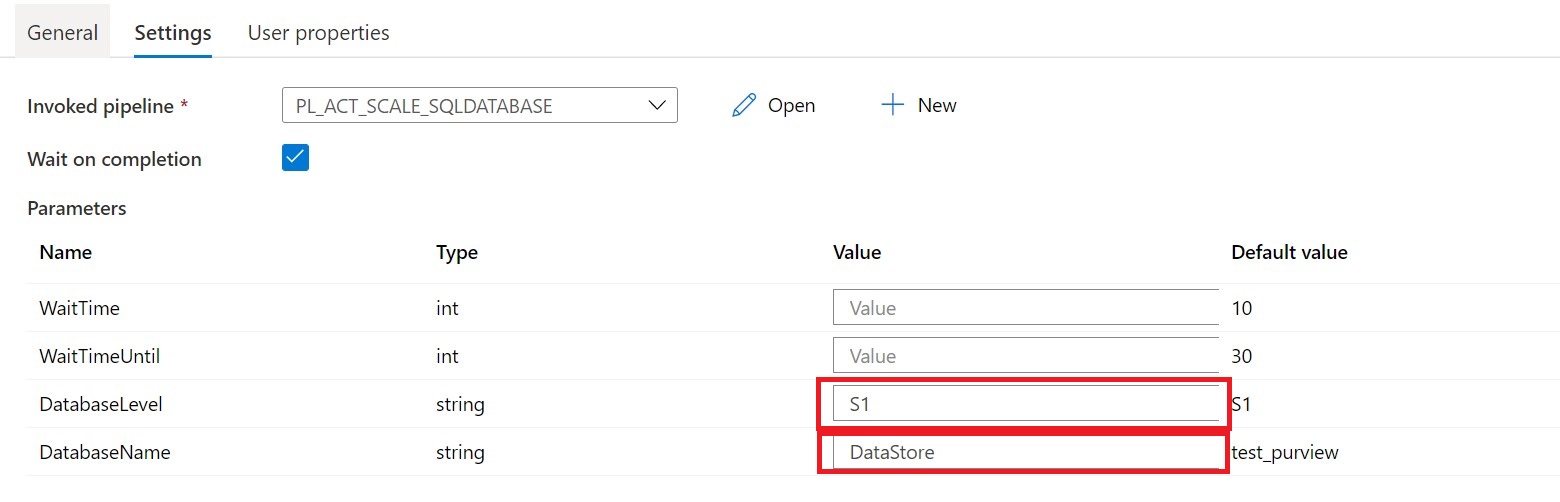
Pipeline Parameters:
| Parameter | Value | Description |
|---|---|---|
| WaitTime | 10 | Wait time in seconds before the Pipeline will finish |
| WaitTimeUntil | 30 | Wait time in seconds for the retry process |
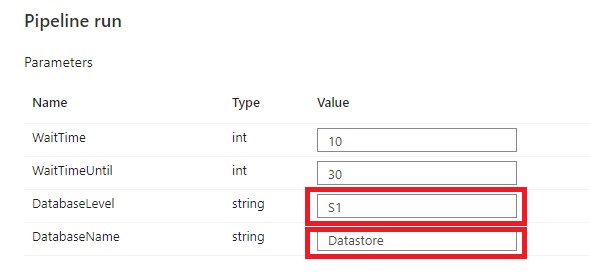
| DatabaseLevel | S1 |
The Database Service Objective Name https://docs.microsoft.com/en-us/azure/azure-sql/database/resource-limits-vcore-single-databases https://docs.microsoft.com/en-us/azure/azure-sql/database/resource-limits-dtu-single-databases |
| DatabaseName | Datastore | The Database Name |
Create a control table in Azure SQL Database to store the Metadata.
[NOTE] > The table and stored procedure can be stored in any database, but preferred in a database where you store all your configuration in.
[sql]
CREATE TABLE [configuration].[Environment_Parameter1](
	[ParameterId] [int] IDENTITY(1,1) NOT NULL,
	[ParameterName] [varchar](128) NOT NULL,
	[ParameterValue] [nvarchar](max) NOT NULL,
	[Description] [nvarchar](max) NULL,

CONSTRAINT [PK_Environment_Parameter1] PRIMARY KEY CLUSTERED
    (
    	[ParameterId] ASC
    )WITH (STATISTICS_NORECOMPUTE = OFF, IGNORE_DUP_KEY = OFF, OPTIMIZE_FOR_SEQUENTIAL_KEY = OFF) ON [PRIMARY]
    ) ON [PRIMARY]

INSERT [configuration].[Environment_Parameter] ( [ParameterName], [ParameterValue], [Description]) VALUES (N'yourResourceGroupName', N'', N'ResourceGroupName of your Azure Synapse or ADF Instance')
GO
INSERT [configuration].[Environment_Parameter] ( [ParameterName], [ParameterValue], [Description]) VALUES (N'SubscriptionId', N'XXXXXXXX', N'SubscriptionId of your Azure Synapse or ADF Instance')
GO
INSERT [configuration].[Environment_Parameter] ( [ParameterName], [ParameterValue], [Description]) VALUES (N'SQLServer', N'yoursqlserver', N'Name of your SQL Server( Needed for scaling databases)')
GO
[/sql]
[sql]
CREATE PROCEDURE [configuration].[Environment]
    @ColumnToPivot  NVARCHAR(255),
    @ListToPivot    NVARCHAR(max)
    AS
      /**********************************************************************************************************
    * SP Name:		[configuration].[[Environment]]
    *
    * Purpose:		Procedure display record parameters for environment Settings
    *
    *
    * Revision Date/Time:
    *  2020-12-01		Erwin de Kreuk (InSpark) - Initial creation of SP
    *
    **********************************************************************************************************/
    BEGIN

      DECLARE @SqlStatement NVARCHAR(MAX)
      SET @SqlStatement = N'
        SELECT * FROM (
          SELECT

           [ParameterName] ,
           [ParameterValue]
          FROM [configuration].[Environment_Parameter]    ) EnvironmentTable
        PIVOT
        (max([ParameterValue])
          FOR ['+@ColumnToPivot+']
          IN ('+@ListToPivot+' )    ) AS PivotTable
      ';

      EXEC(@SqlStatement)

    END
[/sql]
After you have imported the Template you will see the following:
[NOTE] > Azure Synapse has no import functionality, create a new pipeline PL_ACT_SCALE_SQLDATABASE and copy the code into the pipeline. Once the pipeline is created manualy link the correct linked service for your Metadata table
Create a connection to the database where your metadata tables is stored. Followed by use this template.
Lookup Activity Name = Get SQL Server Name
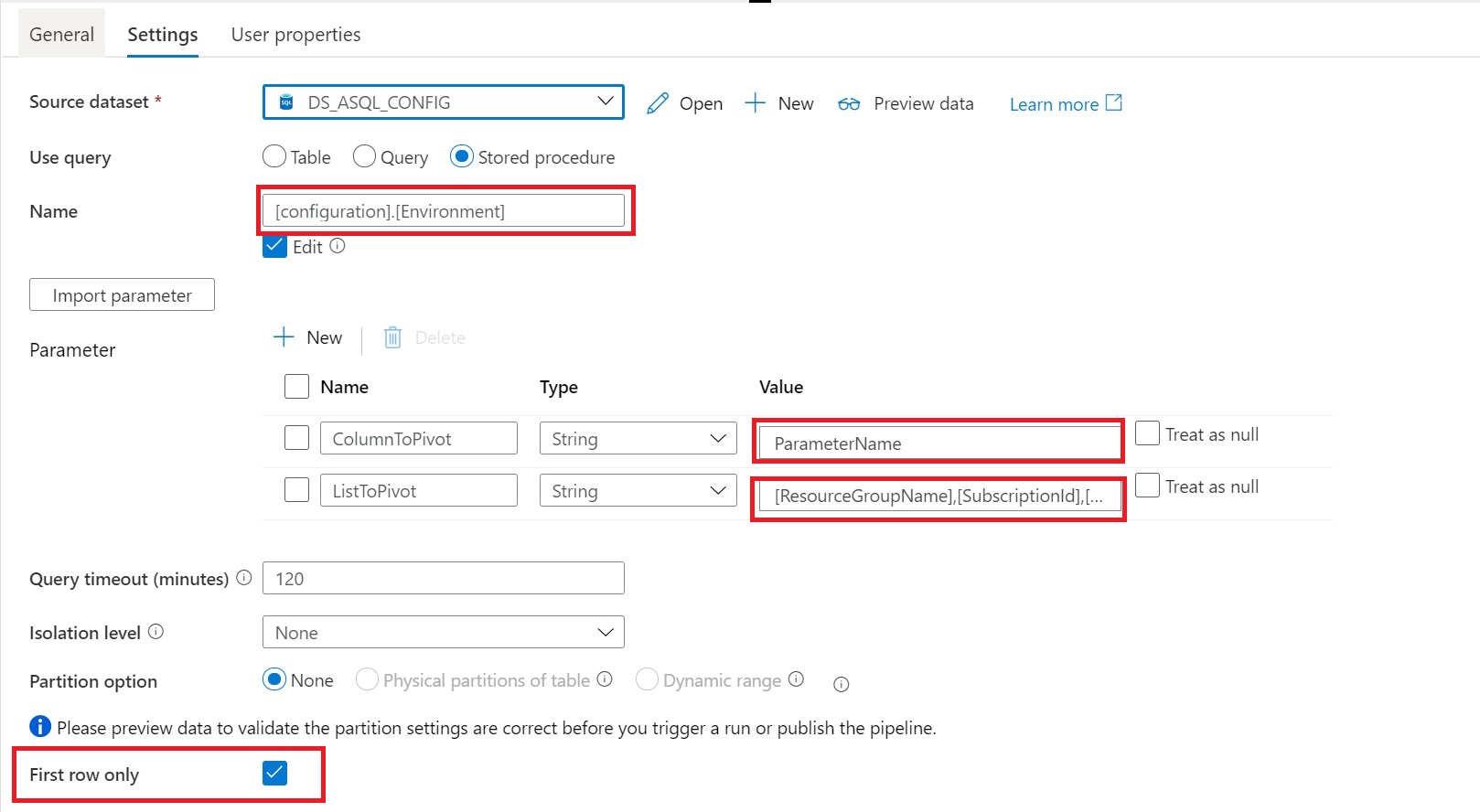
Source Dataset = Linked Services to your Metadata Table
Stored Procedures = configuration.environment
Parameters:
ColumnToPivot= ParameterName
ListToPivot= [ResourceGroupName],[SubscriptionId],[SQLServer]
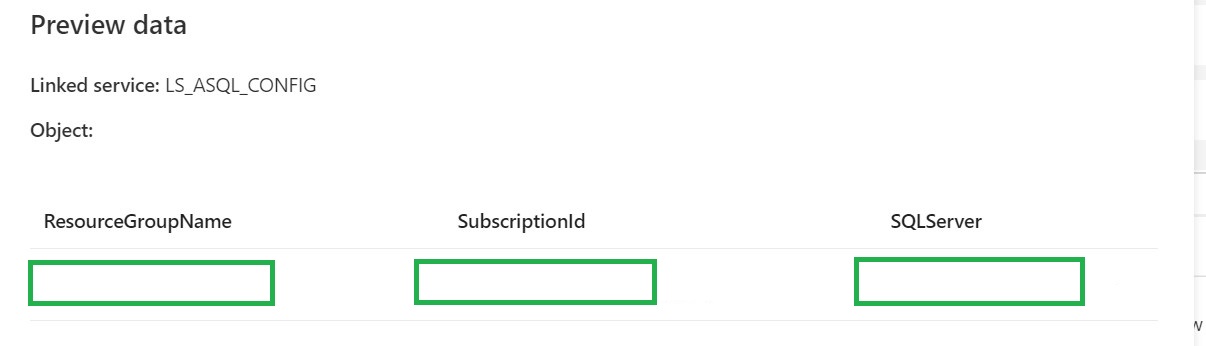
Until Activity We can only change the DatabaseLevel when the SQL Database is Paused or Online. That’s why we need to add an Until activity to check for these statusses.
Web Activity Within the Until Activity we need to create a new Web Activity.
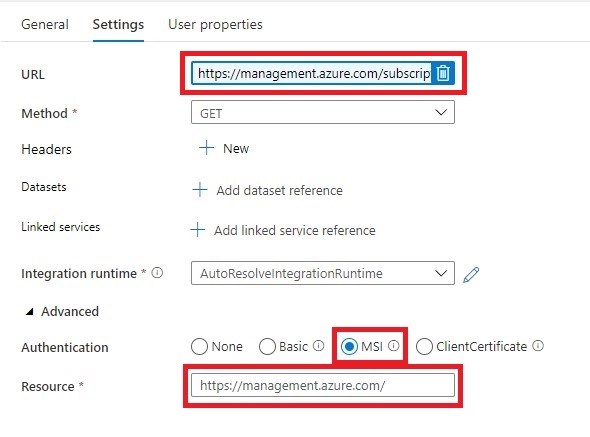
Name = Check for Database Status
URL= https://management.azure.com/subscriptions/XXX/resourceGroups/XXX/providers/Microsoft.Sql/servers/XXX/databases/XXX/?api-version=2019-06-01-preview
Replace the XXX with Pipeline Parameters.
https://management.azure.com/subscriptions/@{activity('Get SQL Server Name').output.firstRow.SubscriptionId}/resourceGroups/@{activity('Get SQL Server Name').output.firstRow.ResourceGroupName}/providers/Microsoft.Sql/servers/@{activity('Get SQL Server Name').output.firstRow.SQLServer}/databases/@{pipeline().parameters.DatabaseName}/?api-version=2019-06-01-preview
Method = GET
Resource =https://management.azure.com/
After we have created the Web Activity, we can define the expression for the Until Activity.
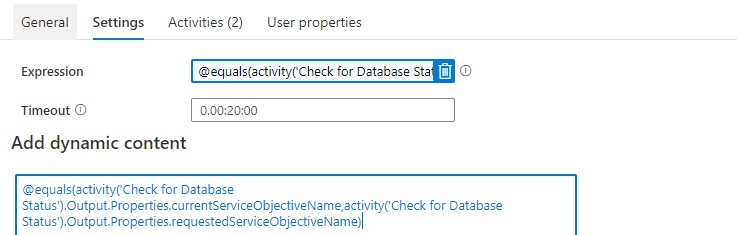
The Pipeline can only continue when the current status is not scaling. We can check this by comparing the currentServiceObjectiveName and the requestedServiceObjectiveName.
Expression: @equals(activity('Check for Database Status').Output.Properties.currentServiceObjectiveName,activity('Check for Database Status').Output.Properties.requestedServiceObjectiveName)
Time out: 0.00:20:00
The Until Activity will only continue, when the status from the above Web Activity output is equal, this can take a while and we don’t want to execute the Web Activity every time. That’s why we add a Wait Activity.
A Wait Activity waits for the specified period of time before continuing with execution of subsequent activities.

If Condition Activity (Name: Check if Database is Paused). When is SQL Database is Paused, we need to Resume
Expression: @bool(startswith(activity('Check for Database Status').Output.Properties.status,'Paused'))
Web Activity In case the SQL Database is Paused we need to Resume.
URL: https://management.azure.com/subscriptions/XXX/resourceGroups/XXX/providers/Microsoft.Sql/servers/XXX/databases/XXX/{Action}?api-version=2019-06-01-preview
The XXX are replaced with the output from Lookup activity.
https://management.azure.com/subscriptions/@{activity('Get SQL Server Name').output.firstRow.SubscriptionId}/resourceGroups/@{activity('Get SQL Server Name').output.firstRow.ResourceGroupName}/providers/Microsoft.Sql/servers/@{activity('Get SQL Server Name').output.firstRow.SQLServer}/databases/@{activity('Get SQL Server Name').output.firstRow.DatabaseName}/Resume?api-version=2019-06-01-preview
It is almost the same URL we used in the First Web Actvity but have to add the action option Resume.
Method = Post
Header = {“Nothing”:”Nothing”}
Resource =https://management.azure.com/
Wait Activity the purpose of this activity is to wait a period before we start ingestion data(just to be sure the SQL Database is online)
Expression: @pipeline().parameters.WaitTime
Web Activity "SCALE SQL Database"
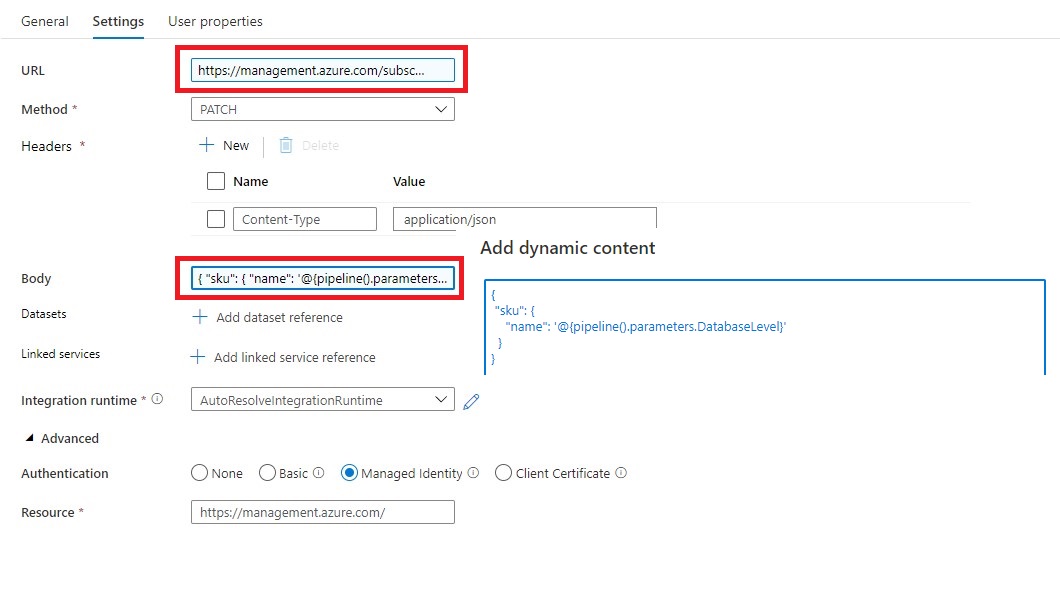
Name = SCALE SQL Database
URL= https://management.azure.com/subscriptions/XXX/resourceGroups/XXX/providers/Microsoft.sql/servers/XXX/databases/XXX/?api-version=2019-06-01-preview
The XXX are replaced with the output from Lookup activity.
https://management.azure.com/subscriptions/@{activity('Get SQL Server Name').output.firstRow.SubscriptionId}/resourceGroups/@{activity('Get SQL Server Name').output.firstRow.ResourceGroupName}/providers/Microsoft.Sql/servers/@{activity('Get SQL Server Name').output.firstRow.SQLServer}/databases/@{pipeline().parameters.DatabaseName}/?api-version=2019-06-01-preview
Method = PATCH
Headers = Name = Content-Type Value= application/json
Body = { “sku”: { “name”: ‘@{pipeline().parameters.DatabaseLevel}’ } }
Resource =https://management.azure.com/
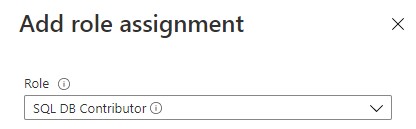
To allow Azure Synapse Analytics or Azure Data Factory to call the REST API we need to give the Synapse/ADF access to the SQL Database/Server. In the Access control (IAM) of the SQL Server assign the SQL Contributor role to Synapse/ADF.
Select Debug, enter the Parameters, define the correct DatabaseLevel and DatabaseName to Scale and then select Finish.
When the pipeline run completes successfully, you will see the result similar to the following example:
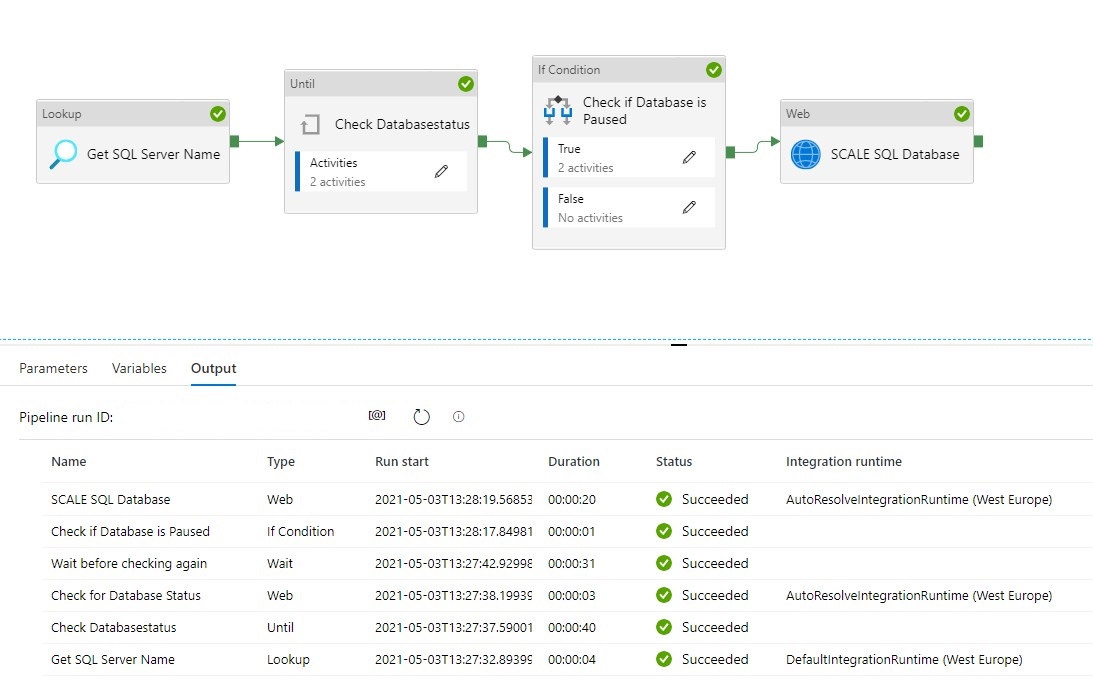
You can now call this pipeline from every other pipeline, you only need to change the DatabaseLevel and DatabaseName.
You have now learned how to Scale your SQL Database Dynamically with the use of Metadata.
Please feel free to download the Pipeline code here for Azure Synapse Analytics and for here for Azure Data Factory
Hopefully this article has helped you a step further. As always, if you have any questions, leave them in the comments.