Rerun Pipeline activities in Azure Data Factory

Rerun Pipeline activities in Azure Data Factory

Azure Synapse

by Erwin | Mar 7, 2019

Rerun Pipeline activities in ADF!

As of today you can rerun or partially, yes you’re reading it correct partially, rerun you Azure Data Factory pipeline.
Where you previously had to run the entire Pipeline again, you can now run a part of the Pipeline. This can save a lot of time if many different activities are created within one pipeline. Another nice step forward, I'm curious what else is coming in the next months.


Visualized

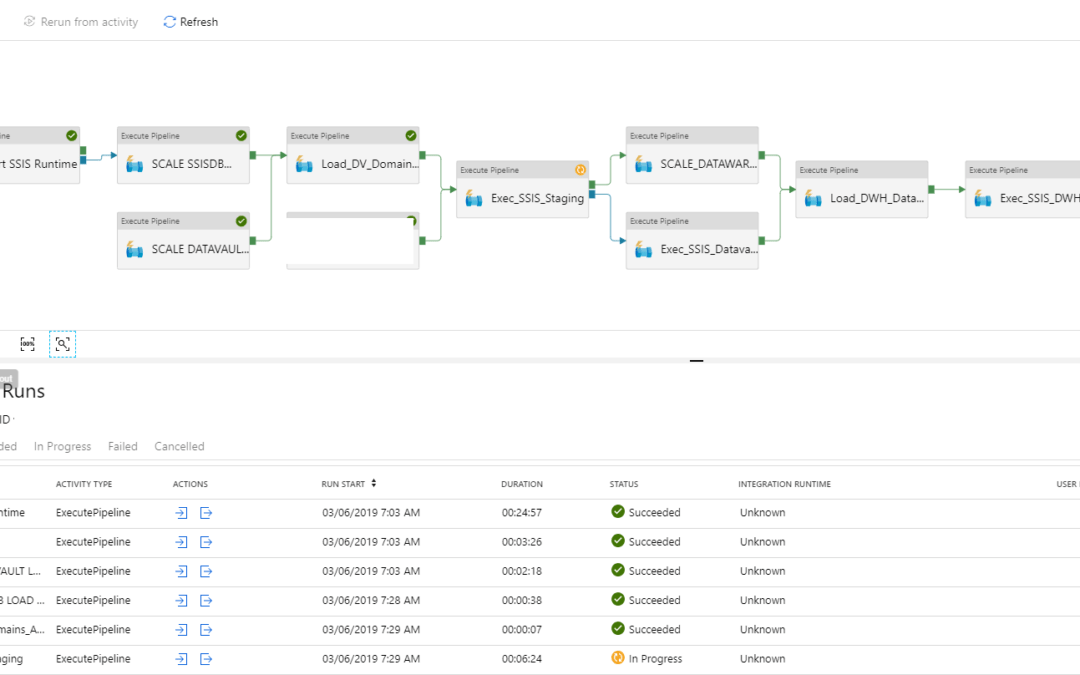
Besides that you can rerun your Pipeline in Azure Data Factory in a easy way, you also have the possibilities to see your run,  visualized in the Azure Data Factory Monitoring. This is a big improvement in my opinion.
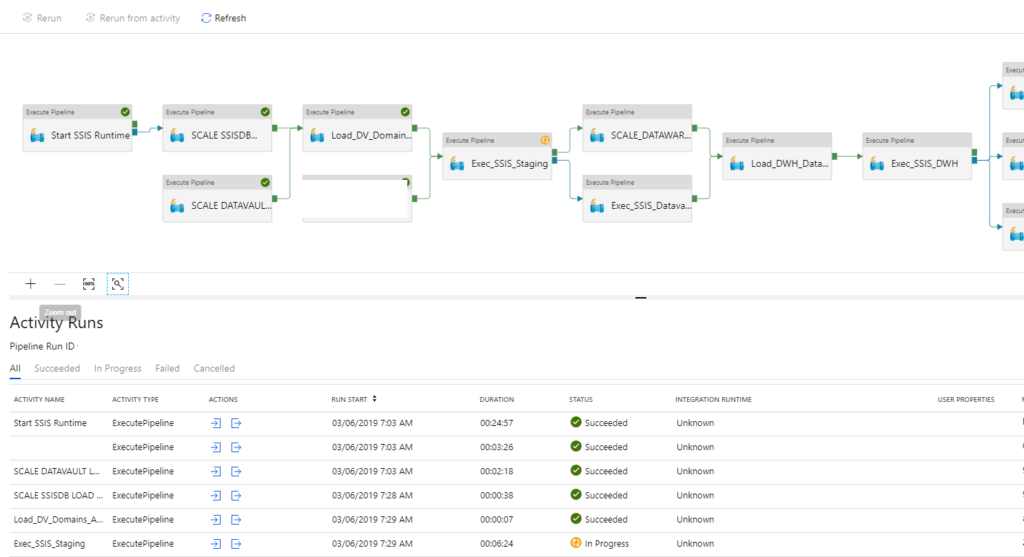
Rerun a Pipeline

If you want to partially rerun a Pipeline, follow the steps below:
Select the Pipeline which has failed, go to the view activity runs and select the activity which failed.

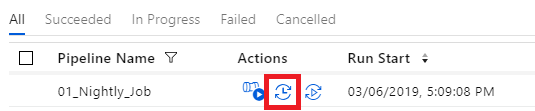
Click on the Rerun Icon
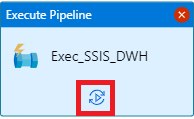


You need to confirm that you want to rerun this activity.

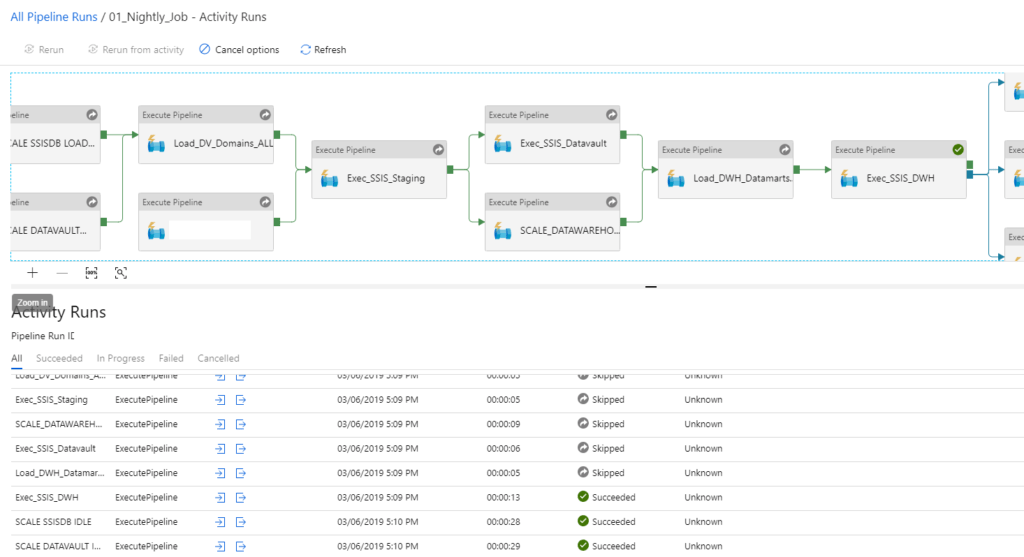
The Pipeline will start and will first skip all the activities(the grey new icons in the upper right corner of each activity) in the Pipeline before your selected Activity.
Your Pipeline will now finalize all the activities from your newly defined starting point.
 

What else is new?

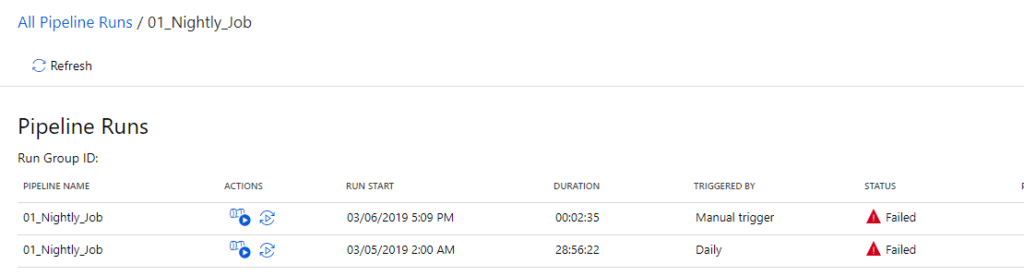
Monitor Rerun History

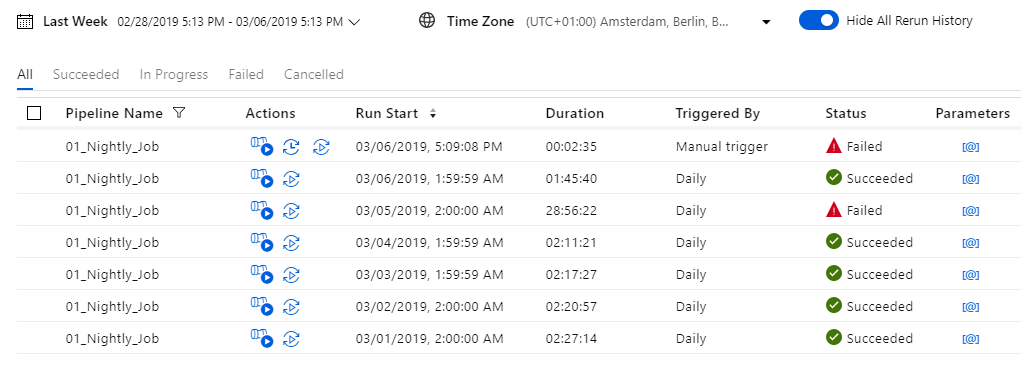
You can now view all the history reruns by clicking on the toggle to ‘View All Rerun History’.
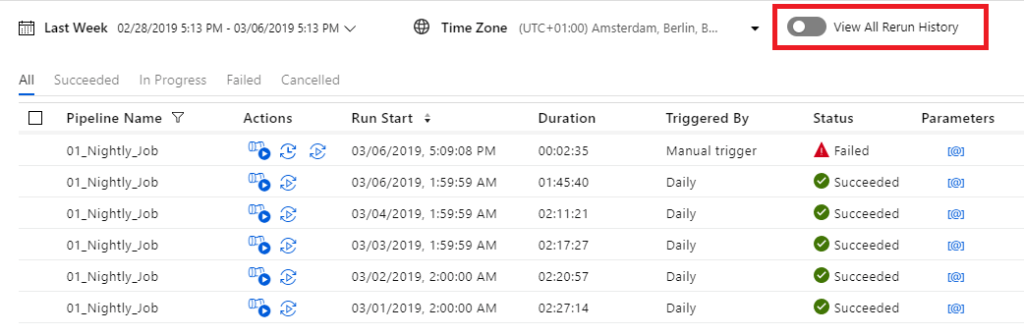
By clicking on the red marked action, you can see all the History from an particular Pipeline run.
 

Thanks for reading.


Updated 10th of March:


Found a video on Channel9 which explains how to  "Rerun activities inside your Azure Data Factory pipelines"
https://channel9.msdn.com/Shows/Azure-Friday/Rerun-activities-inside-your-Azure-Data-Factory-pipelines?ocid=player

Feel free to leave a comment

Azure DevOps and Azure Feature Pack for Integration Services

Azure Feature Pack for Integration Services

Azure Blob Storage

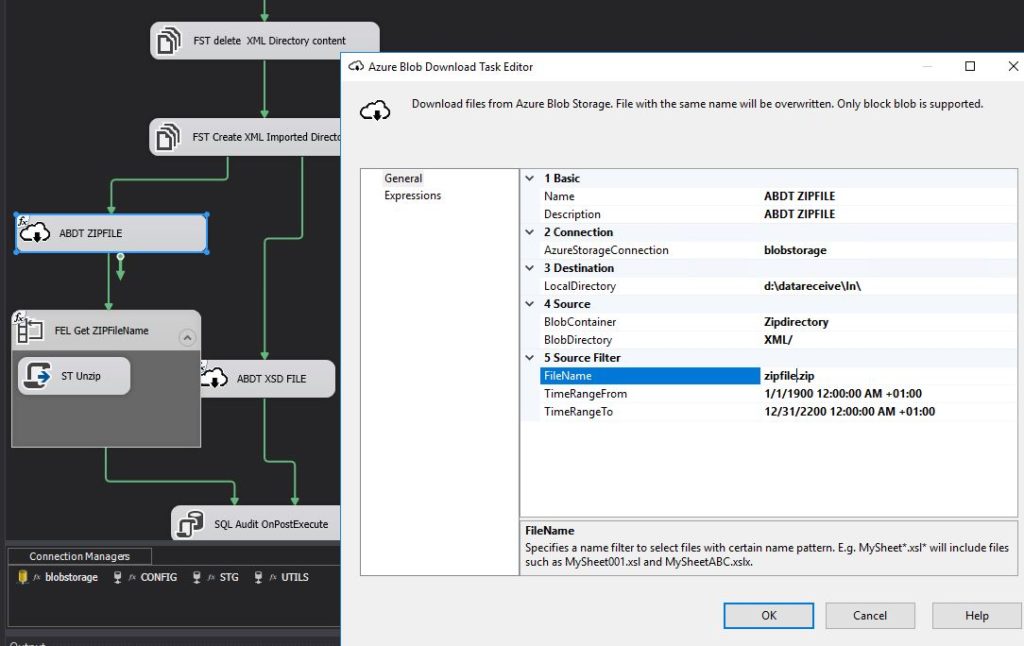
A great addition for SSIS is using extra connectors like  Azure Blob Storage or Azure Data Lake Store which are added by the Azure Feature Pack. This Pack needs to be installed on your local machine. Are you running your SSIS packages in Azure?  You don’t have to install anything, this pack is installed by default.

SSIS Package


Building your SSIS Packages in Azure DevOps

After I started to use Azure Dev Ops to build my SSIS packages on a hosted VS2017, I got some strange error messages running these packages.

SSIS error

Microsoft Support

After contacting support we found out that the Azure Feature Pack is not installed on a Hosted VS2017 instance and that you need to add this installation to your build processes.


Install Azure Feature Pack on your Hosted VS2017 machine

Follow the steps to download and install the Azure Feature Pack:

  • Open  your dev.azure.com/instance.
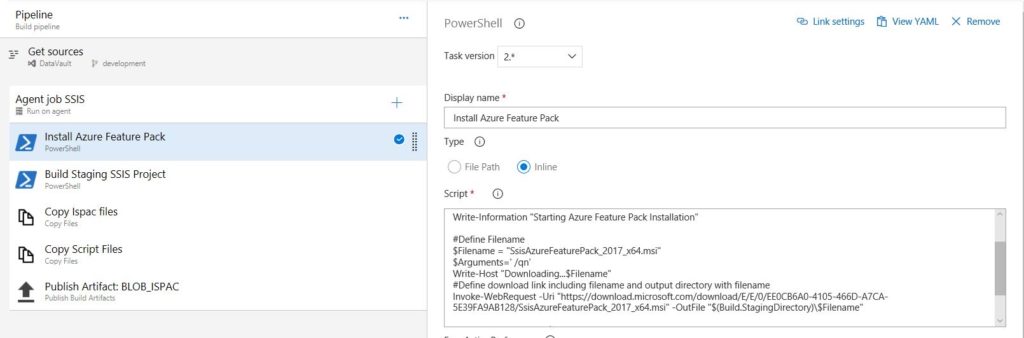
  • Create a new Build Pipeline or use an existing one.
  • Select the correct Sources and after that you can add a new build task.
  • Add a Powershell Task.
    • This task needs to be added before the build process of your SSIS project.
  • Define the Display name “Install Azure Feature Pack”.Azure Dev Ops Pipeline Install Feature Pack
  • Type => Inline.
  • Add the script which you can find below.
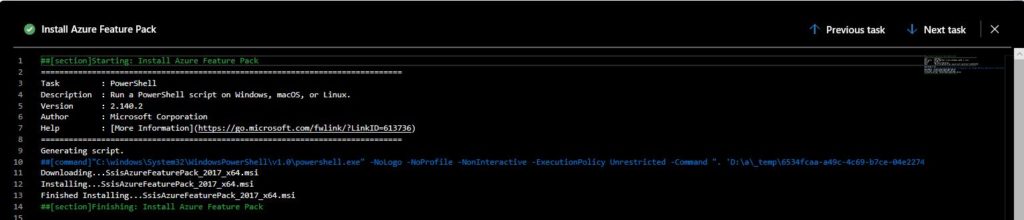
  • Save and Queue the Pipeline.
  • Check the Results.


Powershell script

The script will take care of downloading and installing the Azure Feature Pack for SSIS2017 on your hosted 2017 machine.

The File SsisAzureFeaturePack_2017_x64.msi will be downloaded to the system variable Build.StagingDirectory.

Inline script:

[code lang="ps"]
# Erwin de Kreuk
# February 2019
# PURPOSE: Install Azure Feature pack on Hosted VS2017 machine in Azure DevOps

Write-Information 'Starting ADF ARM Transform'

#Define Filename
$Filename = 'SsisAzureFeaturePack_2017_x64.msi'
$Arguments=' /qn'
Write-Host 'Downloading...$Filename'
#Define download link including filename and output directory with filename
Invoke-WebRequest -Uri 'https://download.microsoft.com/download/E/E/0/EE0CB6A0-4105-466D-A7CA-5E39FA9AB128/SsisAzureFeaturePack_2017_x64.msi' -OutFile '$(Build.StagingDirectory)$Filename'

Write-Host 'Installing...$Filename'
Invoke-Expression -Command '$(Build.StagingDirectory)$Filename $Arguments'
Write-Host 'Finished Installing...$Filename'

[/code]

Azure Dev Ops Build

The next time you build your SSIS Packages with the Azure Components, these packages are build correctly. Create a Release Pipeline to Deploy the SSIS Packages to the SSIS server and to test your Package.

Thanks for reading today and if there’re some questions left do not hesitate to ask them.