Parameterize Linked Services in ADF

Parameterize Linked Services in ADF

Azure Synapse

by Erwin | Jul 9, 2020

Parameterize Linked Services 

For my Azure Data Factory solution I wanted to Parameterize properties in my Linked Services. Not all properties are Parameterized by default through the UI. But there's another way to achieve this.


Linked Service

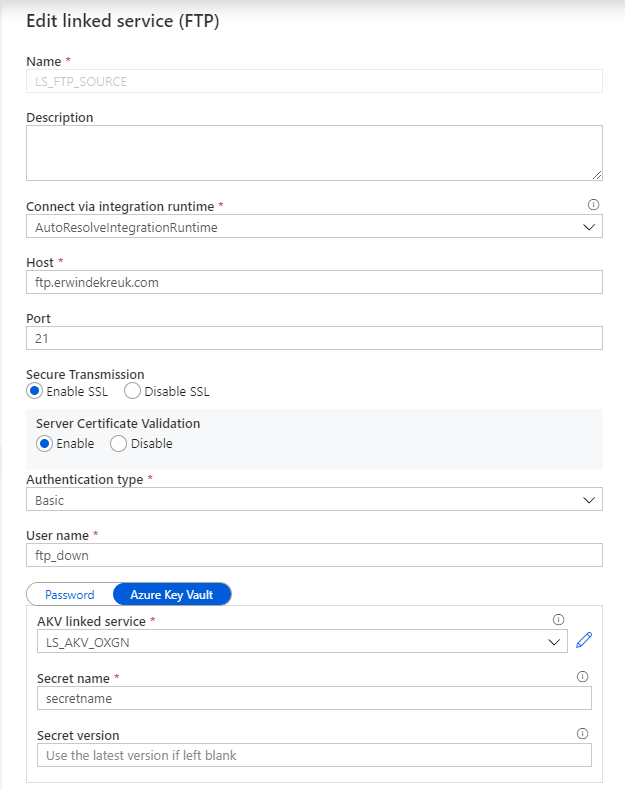
Open your existing Linked Services.
Linked Services ADF

In this situation I want to Parameterize my FTP connection so that I can change the Host name based on a Azure Key Vault Secret.

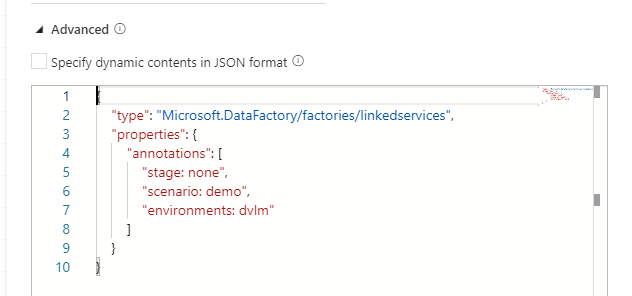
By default is this not possible through the UI but in the Bottom of your Linked Service there is a Advanced box
Linked Services Advanced


If you enable this box you can start building your own connection, but also create your own Parameters for this connection.

How to start:

As a base we will use the default code or our connection

Linked Services Code

{
    "name": "LS_FTP_SOURCE",
    "properties": {
        "annotations": [
            "stage: none",
            "scenario: demo",
            "environments: dvlm"
        ],
        "type": "FtpServer",
        "typeProperties": {
            "host": "ftp.erwindekreuk.com",
            "port": 21,
            "enableSsl": true,
            "enableServerCertificateValidation": true,
            "authenticationType": "Basic",
            "userName": "ftp_down",
            "password": {
                "type": "AzureKeyVaultSecret",
                "store": {
                    "referenceName": "LS_AKV_OXGN",
                    "type": "LinkedServiceReference"
                },
                "secretName": "secretname"
            }
        }
    },
    "type": "Microsoft.DataFactory/factories/linkedservices"
}
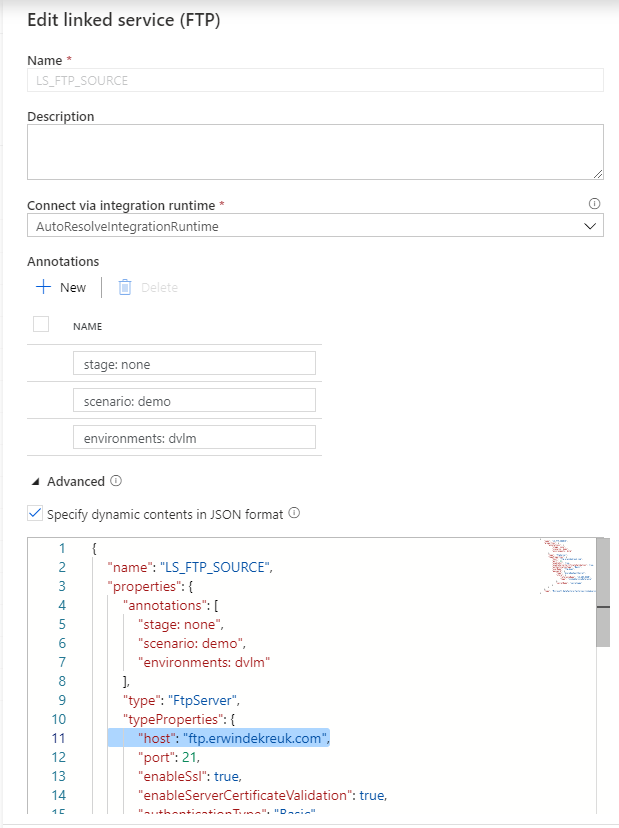
Copy this code to your advanced box and enable the option Specify dynamic contents in JSON format/

Now you can start adding new parameters.
Linked Services Advanced

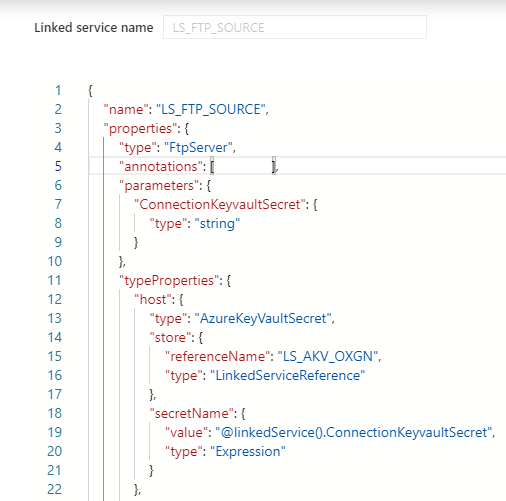
If you want to Parameterize your HOST name  connection you have to add in the top of the code a new Parameter, under the type of your connection

    "properties": {
        "type": "FtpServer",
        "parameters": {
            "ConnectionKeyvaultSecret": {
                "type": "string"
            }

After you have done this, you need to specify for which properties you want to use this parameter. In my case I want to read the parameter form my Azure Key Vault for my HOST propertie.

The JSON code below will now use above parameter as an input.

        "typeProperties": {
            "host": {
                "type": "AzureKeyVaultSecret",
                "store": {
                    "referenceName": "LS_AKV_OXGN",
                    "type": "LinkedServiceReference"
                },
                "secretName": {
                    "value": "@linkedService().ConnectionKeyvaultSecret",
                    "type": "Expression"
                }
            }

Save your connection and you will see that your UI is changed and that you have to define all your setting through the Advanced Editor.

If you test your connection you will now see that you have to fill in a parameter.
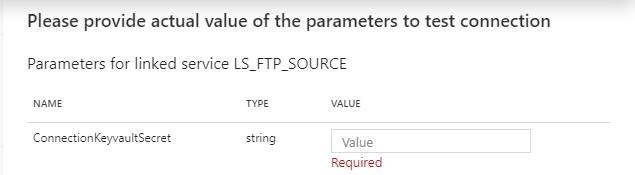
Linked Service Test Connection

And now you can create parameters of every TypeProperties within your connection.

The code below will create Parameters for your Host, Username and Password entries with Azure Key Vault enabled. For the authenticationType you have to choose between Basic and Anonymous. But can also at this to your Azure Key Vault.

{
    "name": "LS_FTP_SOURCE",
    "properties": {
        "type": "FtpServer",
        "parameters": {
            "ConnectionKeyvaultSecret": {
                "type": "string"
            },
            "UsernameKeyvaultSecret": {
                "type": "string"
            },
            "PasswordKeyvaultSecret": {
                "type": "string"
            },
            "authenticationType": {
                "type": "string"
            }
        },
        "annotations": [ ],
        "typeProperties": {
            "host": {
                "type": "AzureKeyVaultSecret",
                "store": {
                    "referenceName": "LS_AKV_OXGN",
                    "type": "LinkedServiceReference"
                },
                "secretName": {
                    "value": "@linkedService().ConnectionKeyvaultSecret",
                    "type": "Expression"
                }
            },
            "port": 21,
            "enableSsl": false,
            "enableServerCertificateValidation": false,
            "authenticationType": "@linkedService().authenticationType",
            "userName": {
                "type": "AzureKeyVaultSecret",
                "store": {
                    "referenceName": "LS_AKV_OXGN",
                    "type": "LinkedServiceReference"
                },
                "secretName": {
                    "value": "@linkedService().UsernameKeyvaultSecret",
                    "type": "Expression"
                }
            },
            "password": {
                "type": "AzureKeyVaultSecret",
                "store": {
                    "referenceName": "LS_AKV_OXGN",
                    "type": "LinkedServiceReference"
                },
                "secretName": {
                    "value": "@linkedService().PasswordKeyvaultSecret",
                    "type": "Expression"
                }
            }
        }
    }
}

Thanks for reading my blog post and have fun with Parameterization of your Linked Services in ADF.

Feel free to leave a comment

Azure Data Factory and Azure Synapse Analytics Naming Conventions

Naming ConventionsAzure Naming Conventions

More and more projects are using Azure Data Factory and Azure Synapse Analytics, the more important it is to apply a correct and standard naming convention. When using standard naming conventions you create recognizable results across different projects, but you also create clarity for your colleagues. In addition to that, it is easier to add these projects to other services such as Managed Services, Azure DevOps,  etc etc,  because standards are used.

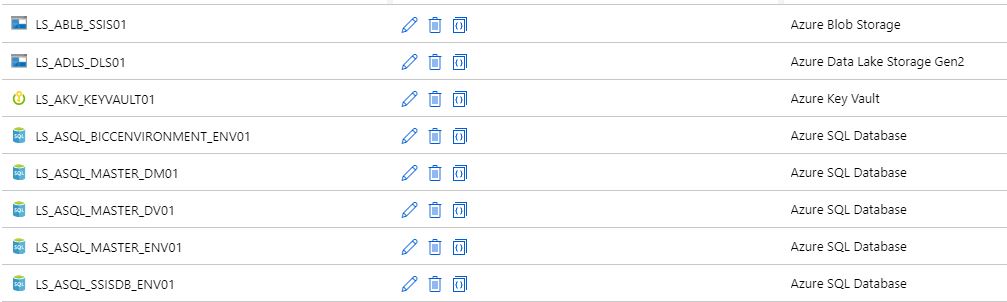
To start with these naming conventions, I have made a list of suggestions with most common Linked Services. The list is not exhaustive, but it does provide guidance for new Linked Services.

There are a few standard naming conventions that apply to all elements in Azure Data Factory and in Azure Synapse Analytics.

  • *Names are case insensitive (not case sensitive).  For that reason I’m only using CAPITALS.
  • *Maximum number of characters in a table name: 260.
  • All object names must begin with a letter, number or underscore (_).
  • Following characters are not allowed: “.”, “+”, “?”, “/”, “<”, ”>”,”*”,”%”,”&”,”:”,””

These rules are also defined on the following link

This post has been updated on Feb 2nd, 2023 with the latest connectors.

Azure

Abbreviation Linked Service Dataset
Azure Blob Storage ABLB_ LS_ABLB_ DS_ABLB_
Azure Cosmos DB SQL API ACSA_ LS_ACSA_ DS_ACSA_
Azure Cosmos DB MongDB API ACMA_ LS_ACMA_ DS_ACMA_
Azure Data Explorer ADEX_ LS_ADEX_ DS_ADEX_
Azure Data Lake Storage Gen1 ADLS_ LS_ADLS_ DS_ADLS_
Azure Data Lake Storage Gen2 ADLS_ LS_ADLS_ DS_ADLS_
Azure Database for MariaDB AMDB_ LS_AMDB_ DS_AMDB_
Azure Database for MySQL AMYS_ LS_AMYS_ DS_AMYS_
Azure Database for PostgreSQL APOS_ LS_APOS_ DS_APOS_
Azure File Storage AFIL_ LS_AFIL_ DS_AFIL_
Azure Search ASER_ LS_ASER_ DS_ASER_
Azure SQL Database ASQL_ LS_ASQL_ DS_ASQL_
Azure SQL Database Managed Instance ASQM_ LS_ASQM_ DS_ASQM_
Azure Synapse Analytics (formerly Azure SQL DW) ASDW_ LS_ASDW_ DS_ASDW_
Azure Table Storage ATBL_ LS_ATBL_ DS_ATBL_
Azure DataBricks ADBR_ LS_ADBR_ DS_ADBR_
Azure Cognitive Search ACGS_ LS_ACGS DS_ACGS_
Azure Synapse Analytics  ASA_ LS_ASA DS_ASA
Azure Cognitive Service ACG_ LS_ACG_ N/A


Database

     
  Abbreviation Linked Service Dataset
SQL Server  MSQL_ LS_SQL_ DS_SQL_
Oracle ORAC_ LS_ORAC_ DS_ORAC_
Oracle Eloqua ORAE_ LS_ORAE_ DS_ORAE_
Oracle Responsys ORAR_ LS_ORAR_ DS_ORAR_
Oracle Service Cloud ORSC_ LS_ORSC_ DS_ORSC_
MySQL MYSQ_ LS_MYSQ_ DS_MYSQ_
DB2 DB2_ LS_DB2_ DS_DB2_
Teradata  TDAT_ LS_TDAT_ DS_TDAT_
PostgreSQL POST_ LS_POST_ DS_POST_
Sybase SYBA_ LS_SYBA_ DS_SYBA_
Cassandra CASS_ LS_CASS_ DS_CASS_
MongoDB MONG_ LS_MONG_ DS_MONG_
Amazon Redshift ARED_ LS_ARED_ DS_ARED_
SAP Business Warehouse SAPW_ LS_SAPW_ DS_SAPW_
SAP Cloud for Customer (C4C) SAPC_ LS_SAPC_ DS_SAPC_
SAP Table SAPT_ LS_SAPT DS_SAPT_
SAP HANA HANA_ LS_HANA_ DS_HANA_
Drill DRILL_ LS_DRILL_ DS_DRILL_
Google BigQuery GBQ_ LS_GBQ_ DS_GBQ_
Greenplum GRPL_ LS_GRPL_ DS_GRPL_
HBase HBAS_ LS_HBAS_ DS_HBAS_
Hive HIVE_ LS_HIVE_ DS_HIVE_
Apache Impala IMPA_ LS_IMPA_ DS_IMPA_
Informix INMI_ LS_INMI_ DS_INMI_
MariaDB MDB_ LS_MDB_ DS_MDB_
Microsoft Access MACS_ LS_MACS_ DS_MACS_
Netezza NETZ_ LS_NETZ_ DS_NETZ_
Phoenix PHNX_ LS_PHNX_ DS_PHNX_
Presto (Preview) PRST_ LS_PRST_ DS_PRST_
Spark SPRK_ LS_SPRK_ DS_SPRK_
Vertica VERT_ LS_VERT_ DS_VERT_
Snowflake SNWF_ LS_SNWF_ DS_SNWF_
MongoDB Atlas MONG_ATLAS_ LS_MONG_ATLAS_ DS_MONG_ATLAS_
Amazon RDS for Oracle RDSORAC_ LS_RDSORAC_ DS_RDSORAC_
Amazon RDS for SQL Server RDSSQL_ LS_RDSSQL_ DS_RDSSQL_


Files

     
  Abbreviation Linked Service Dataset
File System FILE_ LS_FILE_ DS_FILE_
HDFS HDFS_ LS_HDFS_ DS_HDFS_
Amazon S3  AMS3_ LS_AMS3_ DS_AMS3_
FTP FTP_ LS_FTP_ DS_FTP_
SFTP SFTP_ LS_SFTP_ DS_SFTP_
Google Cloud Storage GCS_ LS_GCS_ DS_GCS_
Oracle Cloud Storage OCS_ LS_OCS_ DS_OCS_
Amazon S3 Compatible Storage SMS3C_ LS_SMS3C_ DS_SMS3C_


Generic

     
  Abbreviation Linked Service Dataset
Generic ODBC ODBC_ LS_ODBC_ DS_ODBC_
Generic OData  ODAT_ LS_ODAT_ DS_ODAT_
Generic REST REST_ LS_REST_ DS_REST_
Generic HTTP HTTP_ LS_HTTP_ DS_HTTP_


Services and Apps

Abbreviation Linked Service Dataset
Salesforce SAFC_ LS_SAFC_ DS_SAFC_
Salesforce Service Cloud SAFCSC_ LS_SAFCSC_ DS_SAFCSC_
Salesforce Marketing Cloud SAFOMC_ LS_SAFOMC_ DS_SAFOMC_
GitHub GITH_ LS_GITH_ DS_GITH_
Jira JIRA_ LS_JIRA_ DS_JIRA_
Web Table (table from HTML)  WEBT_ LS_WEBT_ DS_WEBT_
Amazon Marketplace Web Service AMSMWS_ LS_AMSMWS_ DS_AMSMWS_
Xero XERO_ LS_XERO_ DS_XERO_
SharePoint Online List SHAREPOINT_ LS_SHAREPOINT_ DS_SHAREPOINT_
ServiceNow SERVICENOW_ LS_SERVICENOW_ DS_SERVICENOW_
Dynamics (Microsoft Dataverse) DATAVERSE_ LS_DATAVERSE_ DS_DATAVERSE__
Dynamics 365 D365_ LS_D365_ DS_D365_
Dynamics AX DAX_ LS_DAX_ DS_DAX_
Dynamics CRM DCRM_ LS_DCRM_ DS_DCRM_
Microsoft 365 M365_ LS_M365_ Ds_M365__
SAP Cloud for Customer (C4C) SAPC4C_ LS_SAPC4C_ DS_LS_SAPC4C_
SAP ECC SAPE_ LS_SAPE_ DS_SAPE_

If your connector is not described(mostly connectors which are in Preview), please let me know. For more details for all the different connectors, check the connector overview

Pipeline

Even for Pipeline you can define naming conventions. I think the most important thing is that you always start your pipeline with PL_ followed by a Logic Name for you. You can for example use:

TRANS: Pipeline with transformations

SSIS: Pipeline with SSIS Packages

DATA: Pipeline with DataMovements

COPY: Pipeline with Copy Activities

Divers

NB: Notebook 

DF: Mapping Dataflows

SQL: SQL Scripts

KQL: KQL Scripts

JOB: Spark job definition

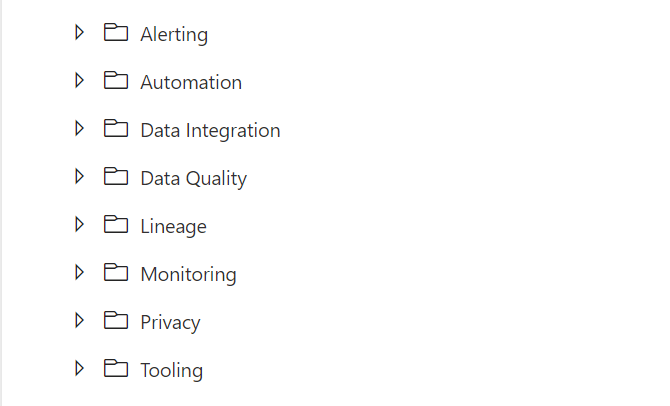
Once again these naming conventions are just suggestions. The most important thing is that you start using naming conventions and that you use the folder structure within the Pipelines (categories). Like the picture below as an example.

FolderStructure

If you have suggestions just let me know by leaving a comment below.

Azure Data Factory: New functionalities and features

Azure Data Factory: New functionalities and features

Azure Synapse

by Erwin | May 22, 2020

New functionalities and features

Last week, a number of great new functionalities and features were added within Azure Data Factory. I would like to take you in some details in the blog below:

Customer key

With this new functionality you can add extra security to your Azure Data Factory environment. Where the data was first encrypted with a randomly generated key from Microsoft, you can now use the customer-managed key feature. With this Bring Your Own Key (BYOK) you can add extra security to your Azure Data Factory environment. If you use the customer-managed key functionality, the data will be encrypted in combination with the ADF system key. You can create your own key or have it generated by the Azure Key Vault API.

You can read more in this Article which I wrote.

Pipeline Consumption Report

Last week the Azure Data Factory added the Pipeline Consumption Report.

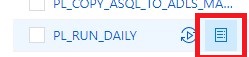
The report can be used for your Triggered runs, just go to your Triggered runs and click on the new Icon.

ADFMonitor

The consumption of the selected Pipeline will be displayed. The data shown is only from this Pipeline and not from other Pipelines fired by this Pipeline. Would be a nice addition if the report shows the aggregation of the complete Triggered Run.

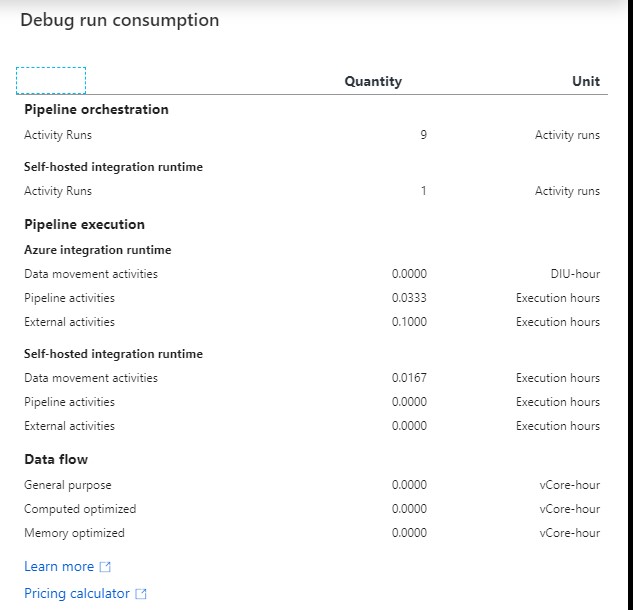
For your debug run, click on right site of your Output pane:

ADF DEBUG button

ADF DEBUG Report

The ADF consumption report is only surfacing Azure Data Factory related units. There may be additional units billed from other services that you are using and accessing which are not accounted for here including Azure SQL Database, Synapse Analytics, CosmosDB, ADLS, etc. More detailed can be found here.

Parameters from Execute Pipeline Activity

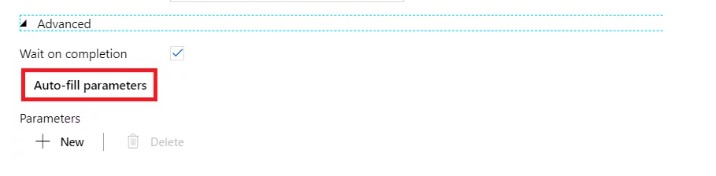
When calling a Pipeline you first had to add the parameters yourself, now they are automatically taken over from the Pipeline you select. Very handy and saves time again if you use a lot of parameters.

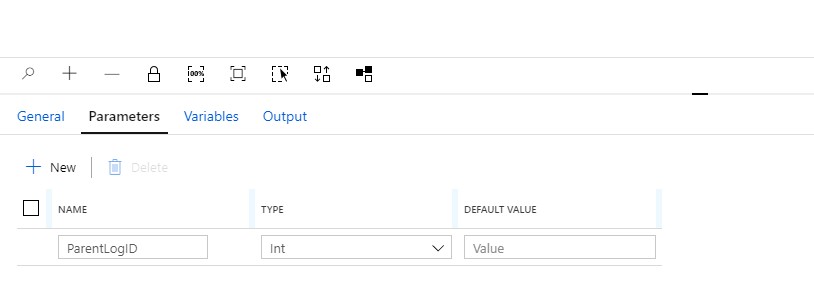
Define a Parameter in one of your Pipelines:

ADF Parameter


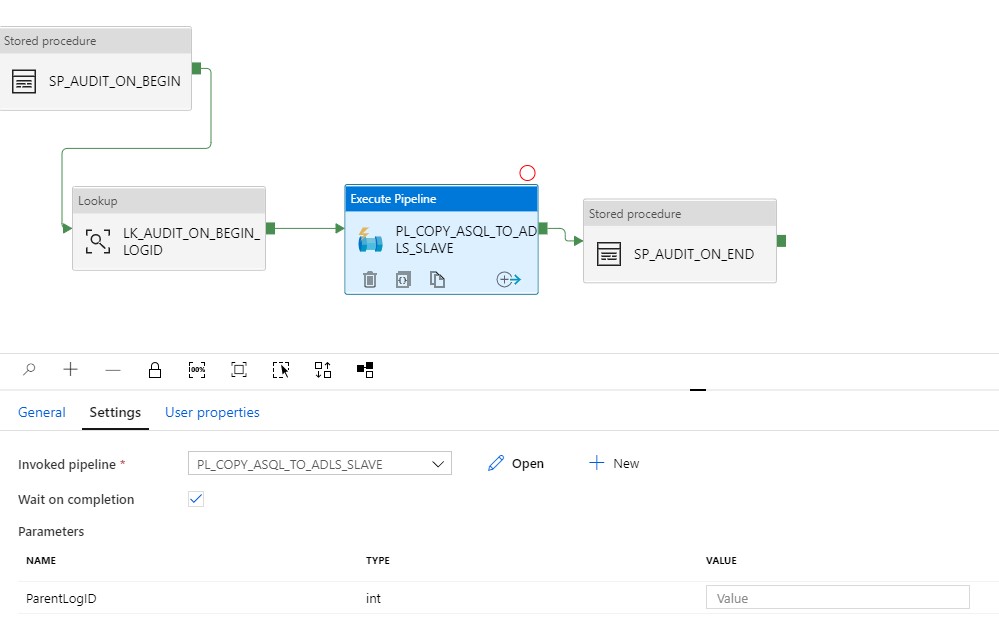
Create another Pipeline and add the Execute Pipeline activity. On the settings tab where you have to select the Pipeline you want to execute, you will discover that the option to add Manually the parameters is not there anymore. But, all the Parameters you had defined in your Pipeline are directly shown. Very handy and it reduces errors.

Old Situation:

ADF Parameter 3

New Situation:

ADF Parameter Pipeline

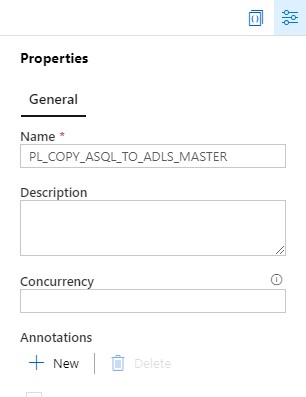
General Tab moved to new Properties Pane

Your General tab is now moved to the right site of the Canvas.

ADF Pane General

To edit it your properties, click on the pane icon located in the top-right corner of the canvas.

ADF Pane Properties

So these were some nice and useful addition to Azure Data Factory. I am very happy with it and what do you think?

Feel free to leave a comment

Azure Data Factory: How to assign a Customer Managed Key

Azure Data Factory: How to assign a Customer Managed Key

Customer key

With this new functionality you can add extra security to your Azure Data Factory environment. Where the data was first encrypted with a randomly generated key from Microsoft, you can now use the customer-managed key feature. With this Bring Your Own Key (BYOK) you can add extra security to your Azure Data Factory environment. If you use the customer-managed key functionality, the data will be encrypted in combination with the ADF system key. You can create your own key or have it generated by the Azure Key Vault API

Be careful,  this new feature can only be enabled on an empty Azure Data Factory environment.  Make sure your Azure Active Directory, Azure Data Factory and Azure KeyVault are all in the same region. If you use an Azure Landing Zone consisting of different subscriptions, this is also possible, as long as the services exist in the same region.

Please follow the steps below how to enable this new feature:

I assume that you already have an existing Azure KeyVault. If not, you will have to create one first. You can read how to do that here.
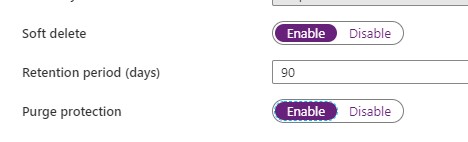
With an existing Azure KeyVault, it is important that you enable the options Soft Deletes and Purge protection.

Enable Soft Deletes and Purge protection

Purge option

If you want to enable this via Powershell use the following command:

[code lang="ps"] ($resource = Get-AzResource -ResourceId (Get-AzKeyVault -VaultName 'YOURKEYVAULTNAME').ResourceId).Properties | Add-Member -MemberType 'NoteProperty' -Name 'enableSoftDelete' -Value 'true'

Set-AzResource -resourceid $resource.ResourceId -Properties $resource.Properties

($resource = Get-AzResource -ResourceId (Get-AzKeyVault -VaultName 'YOURKEYVAULTNAME').ResourceId).Properties | Add-Member -MemberType 'NoteProperty' -Name 'enablePurgeProtection' -Value 'true'

Set-AzResource -resourceid $resource.ResourceId -Properties $resource.Properties

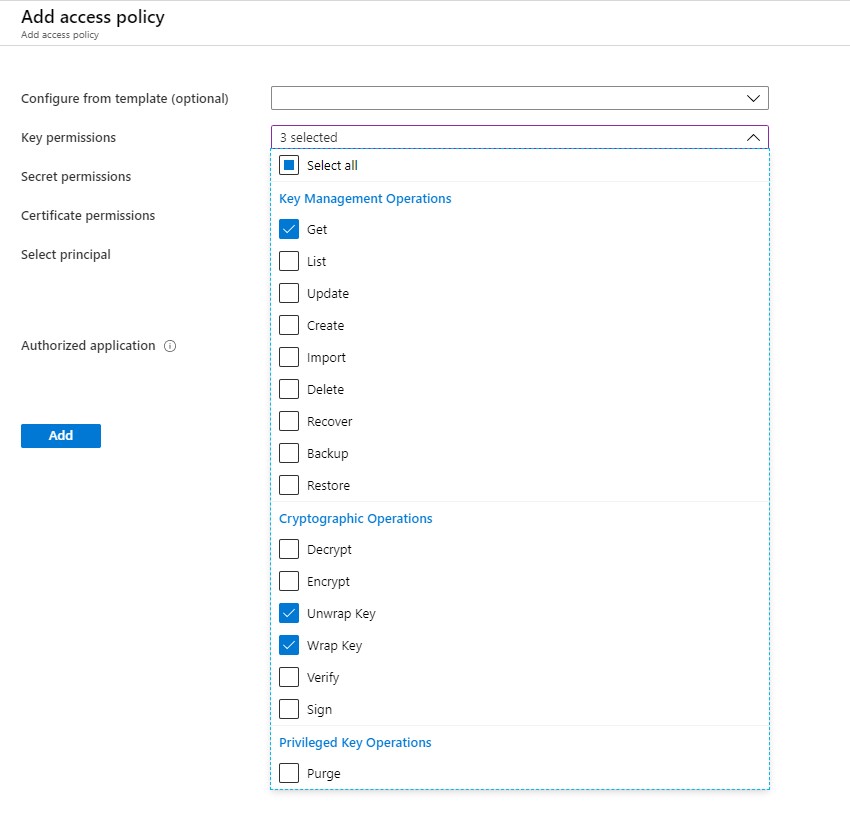
Define Access policy

The next step is to enable your Grant Data Factory access to Azure Key Vault, you have to enable  the following permissions: Get, Unwrap Key, and Wrap Key

ADF Policy

Search for Data Factory Instance and Select the correct one:

ADF Principal

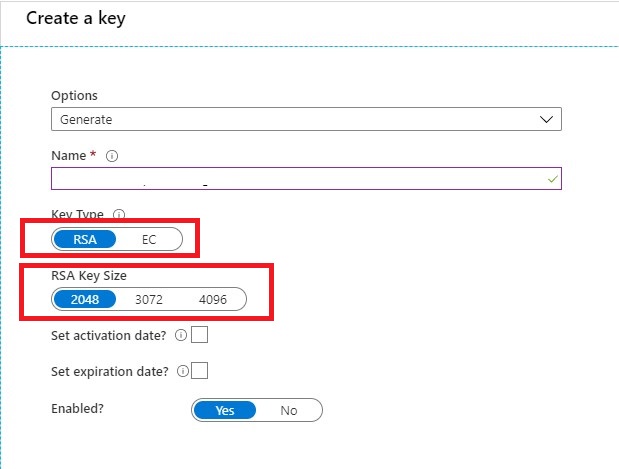
Create KEY

Once you have done that it’s time to create your Keys. Keep in mind that only RSA 2048-bit keys are supported by Azure Data Factory encryption.

Create Keys

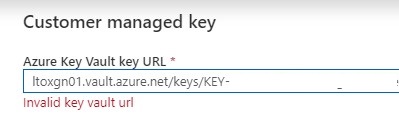
Very important step your key name must be in only letters. KEYADFNAMECUSTOMER will work, but KEY-ADFNAME-CUSTOMER isn’t and you will get an error in your Azure Data Factory Instance. It took me a while to figure this out. So it can saves you a lot of time.

After your KEY is created, copy the Key Identifier.

Assign Customer Key

The last step in this article is to assign the key to your Azure Data Factory Instance.

CMK

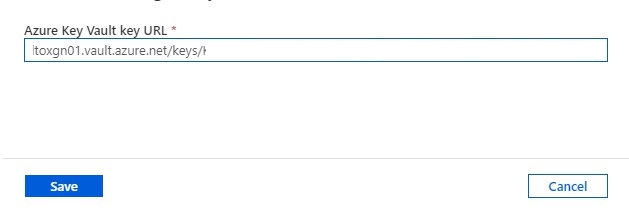
Customer key ADF

Paste the selected key in your Azure Data Factory Instance and save.

Errors

If your get an error “Invalid key Vault URL”

-Check if the Soft Deletes and Purge protection on your Key Vault is set.

-Check if your Key consists only of letters.

-Check if you enabled your Grant Data Factory access to Azure Key Vault.

-Check if Azure DataFactory, Azure KeyVault and your Azure Active Directory are in the same region.


If you still have errors, please send me a message and I will try to help you out.

Hopefully, this article has helped you to secure your environment.