Suspend or Resume your Azure Analysis Services in Azure Data Factory
Last week one of my customer asked me if they could start or stop his Azure Analysis Services within Azure Data Factory. After a search on the internet I came across a blog from Joost, I’m using that blog as input for this post. Most of the credits goes to him. For me the focus was more on making it parameterized so that I can reuse these Pipelines for all of my customers. A couple of weeks ago the ADF team released the Global Parameters and in this post I’m going to use these parameters.
Global Parameters
Global parameters are constants across a data factory that can be consumed by a pipeline in any expression. They are useful when you have multiple pipelines with identical parameter names and values.
Creation and management of global parameters is done in the management hub.
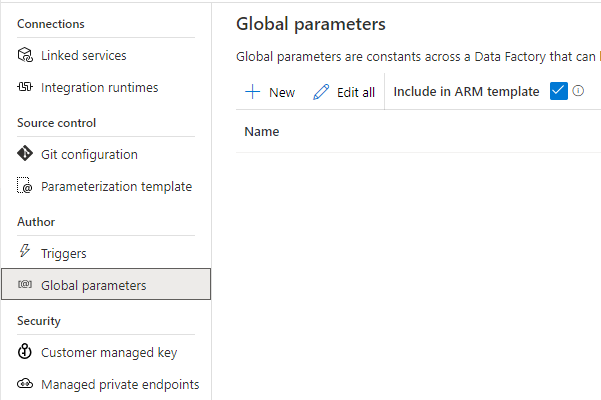

Create above Global Parameters to build the Pipeline.
The following parameters can now be used across all your Data Factory Activities:
@pipeline().globalParameters.AAS_ResourceGroupName
@pipeline().globalParameters.AAS_ServerName
@pipeline().globalParameters.SubscriptionId
Build Pipeline
Create a new Pipeline PL_ACT_AAS_SUSPEND_GP
Add a Parameter to the Pipeline Action to easily reuse this Pipeline to Resume our AAS.
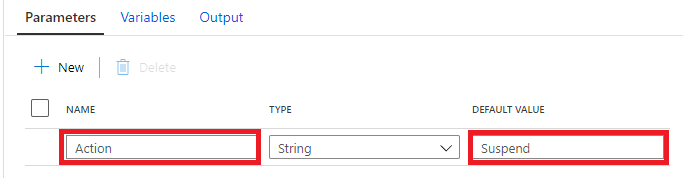
Add a Web Activity.
Name = Suspend_AAS (depends on the Action).
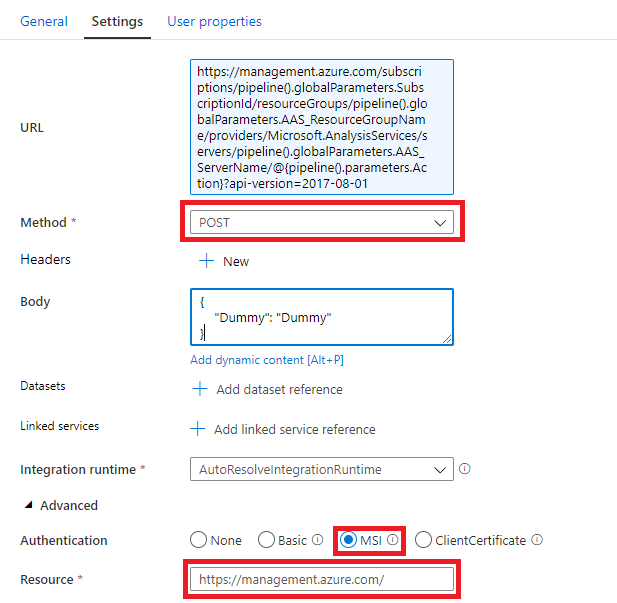
As Joost Mentioned in his blog we first have to define the Rest API Url in the Settings Tab.
https://management.azure.com/subscriptions/<xxx>/resourceGroups/<xxx>/providers/Microsoft.AnalysisServices/servers/<xxx>/<ACTION>?api-version=2017-08-01
The <xxx> we need to replace with the Global Parameters and the <Action> with the Pipeline Parameter. The final Result will be:
https://management.azure.com/subscriptions/@{pipeline().globalParameters.SubscriptionId}/resourceGroups/@{pipeline().globalParameters.AAS_ResourceGroupName}/providers/Microsoft.AnalysisServices/servers/@{pipeline().globalParameters.AAS_ServerName}/@{pipeline().parameters.Action}?api-version=2017-08-01
Method = POST
Body = Create a dummy json message, it is not used by the Rest API.
Add Azure Data Factory as Contributor to Azure Analysis Services
Before you can debug or test your Pipelines you should add your ADF Instance with Contributor Role to your Azure Analysis Services.

After you have done this, you can Debug your Pipeline.

Error
I got an error because my AAS is already Suspend Or Resumed. We can solve this by adding a check, to check what the Status of Analysis Services is.
Check Analysis Services Status
To check if our Analysis Services is already Suspended or Resumed we can at Web Activity to check the Status.
Add a Web Activity to your Pipeline or make a copy of the existing Web Activity
Name = Check_Status_AAS
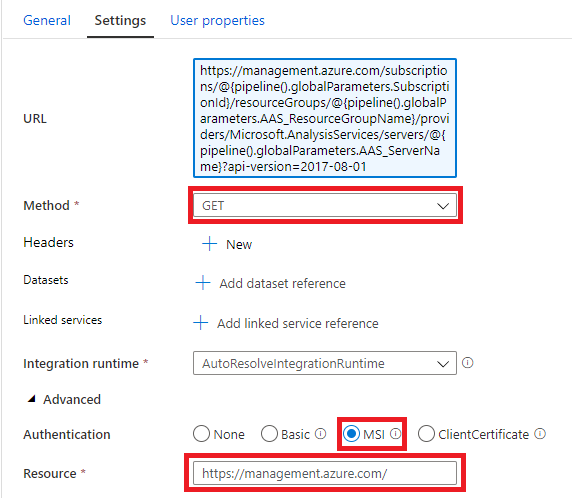
URL= Https://management.azure.com/subscriptions/@{pipeline().globalParameters.SubscriptionId}/resourceGroups/@{pipeline().globalParameters.AAS_ResourceGroupName}/providers/Microsoft.AnalysisServices/servers/@{pipeline().globalParameters.AAS_ServerName}?api-version=2017-08-01
Method = GET
Add IF Condition Activity (Check if AAS is Running)
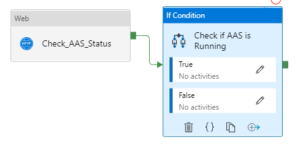
Add an Expression on the If Condition Activity @bool(startswith(activity(‘Check_AAS_Status’).output.properties.state,’Paused’))
This expression will check if the Analysis Services is Running or not. If we want to to Suspend our Analysis Services we have to add to the Web Activity Suspend_AAS to False (Cut from the main frame and Paste in the False Activity). In case the Analysis Services is already Suspended we do nothing(True).
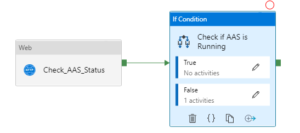
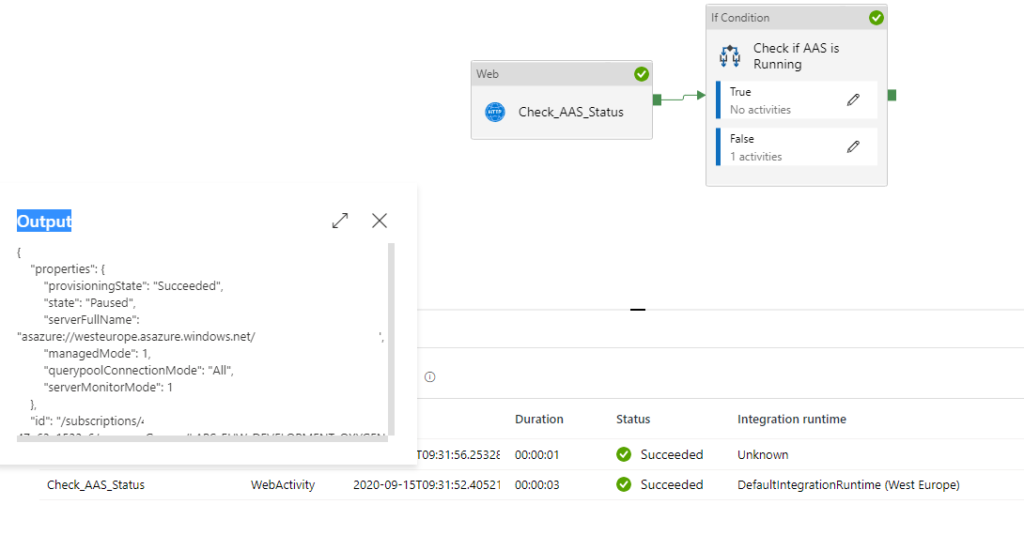
Debug your Pipeline, to see what is happening
Analysis Services was running, Web Activity Suspend AAS is called:
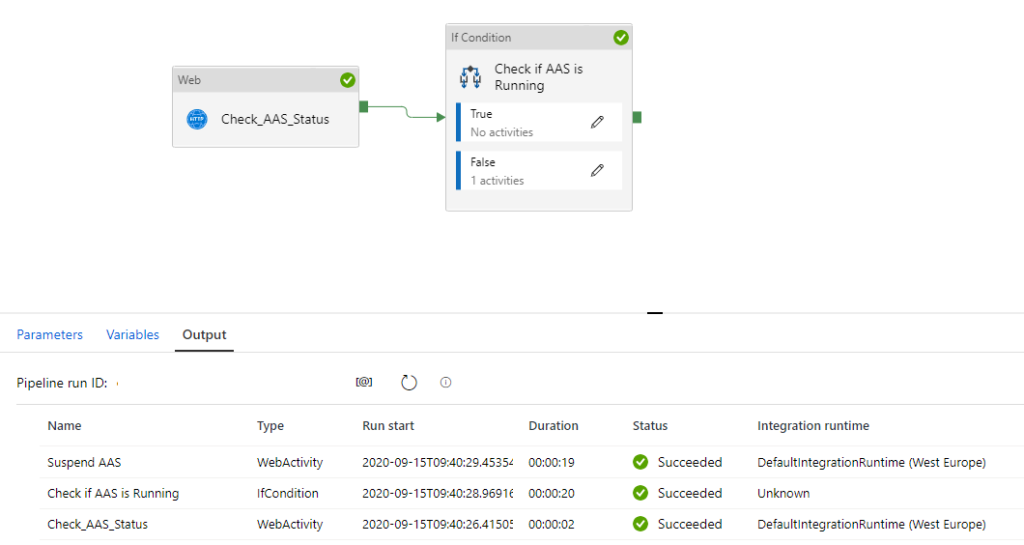
Analysis Services was already Paused/Suspended, no action required:
Create Pipeline to Resume your Analysis Services
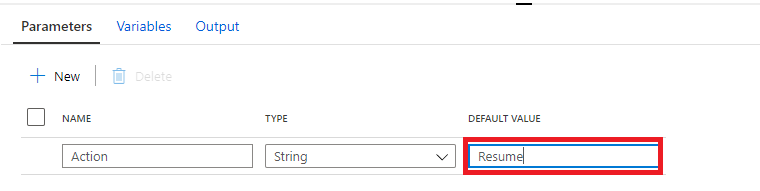
Clone your PL_ACT_AAS_SUSPEND_GP and rename it to PL_ACT_AAS_RESUME_GP. Change your action Parameter to “Resume”.
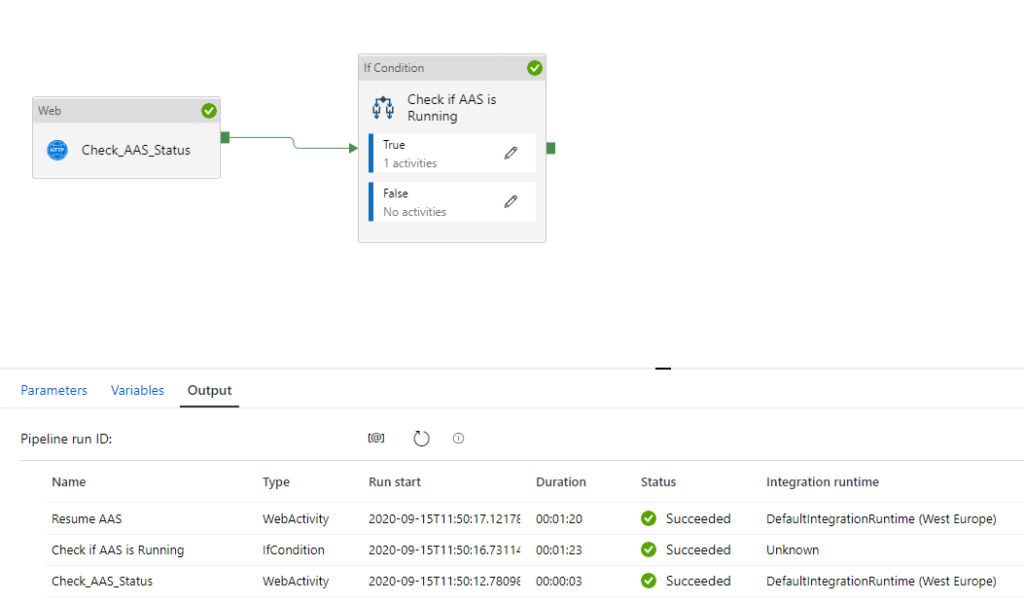
Within the IF Condition move the Web Activity Suspend AAS from False to True and rename to Resume AAS
Debug to see if everything is working fine:
You have now learned how to Suspend and Resume your Azure Analysis Services Dynamically with the use of Global Parameters. Both Pipelines can be easily transferred to different customers.
Please feel free to download the Pipeline Templates here
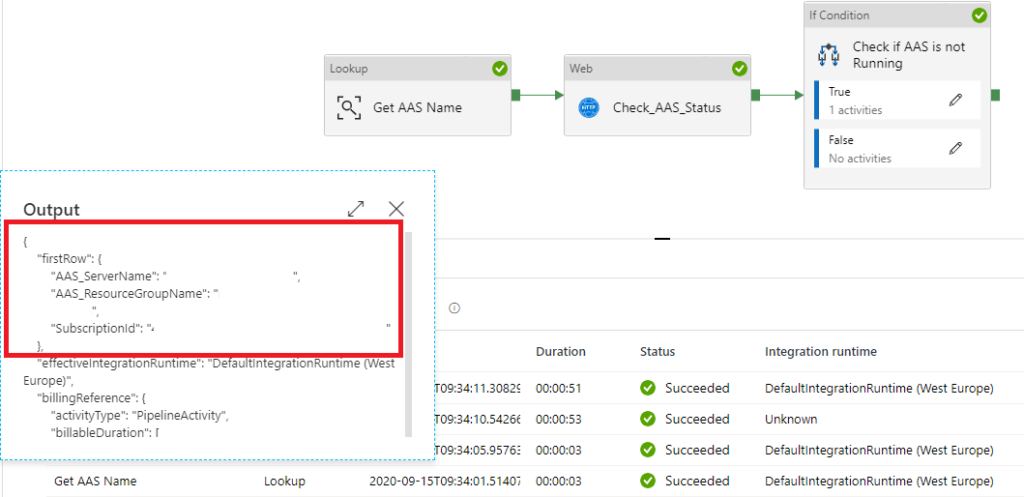
If you’re already using a database where you store your Meta Data, then you have also the possibility to store the necessary parameters in the database. The only thing you need to do is to add a Lookup Activity to get the parameters from your database(and replace the global parameters with the output from the lookup activity)
Hopefully this article has helped you a step further. As always, if you have any questions, leave them in the comments.
Based on above article you should now also be able to build a Pipeline to Process your Analysis Services Model with some help from this blog or you download the Pipeline Template from here.