Rerun Pipeline activities in Azure Data Factory

Rerun Pipeline activities in Azure Data Factory

Pipeline

by Erwin | Mar 7, 2019

Rerun Pipeline activities in ADF!

As of today you can rerun or partially, yes you’re reading it correct partially, rerun you Azure Data Factory pipeline.
Where you previously had to run the entire Pipeline again, you can now run a part of the Pipeline. This can save a lot of time if many different activities are created within one pipeline. Another nice step forward, I'm curious what else is coming in the next months.


Visualized

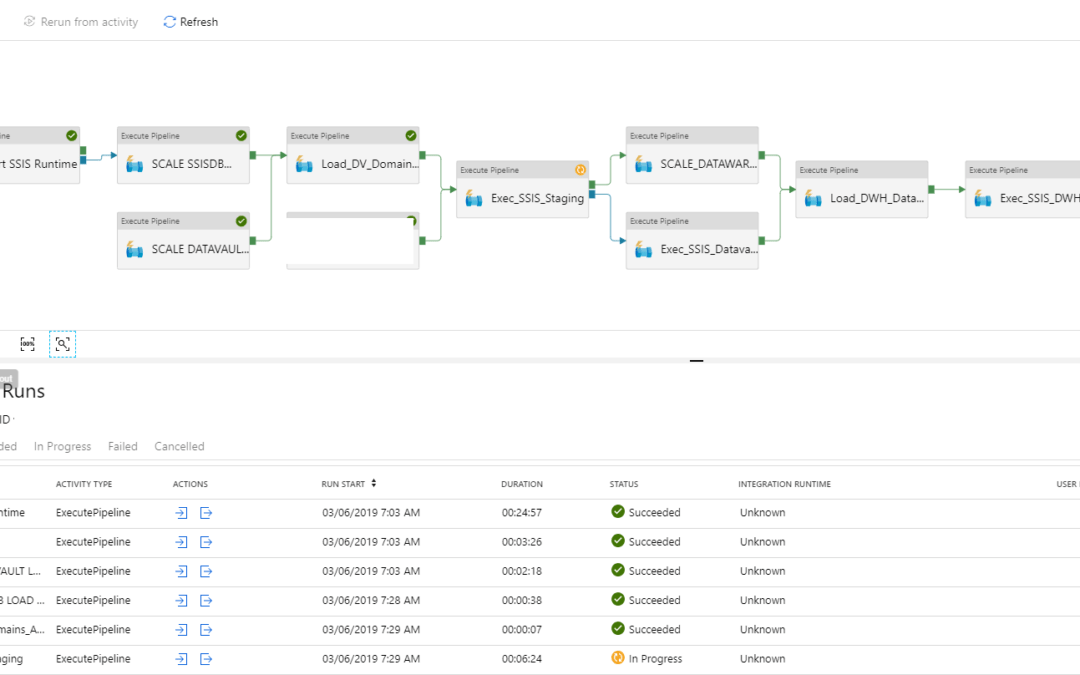
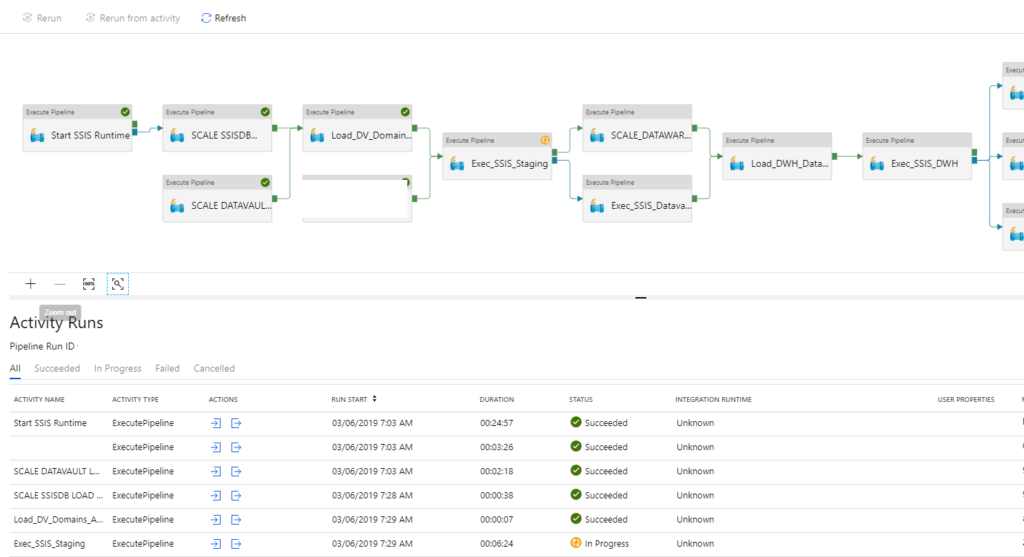
Besides that you can rerun your Pipeline in Azure Data Factory in a easy way, you also have the possibilities to see your run,  visualized in the Azure Data Factory Monitoring. This is a big improvement in my opinion.

Rerun a Pipeline

If you want to partially rerun a Pipeline, follow the steps below:
Select the Pipeline which has failed, go to the view activity runs and select the activity which failed.

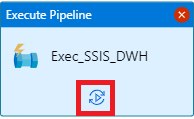
Click on the Rerun Icon


You need to confirm that you want to rerun this activity.

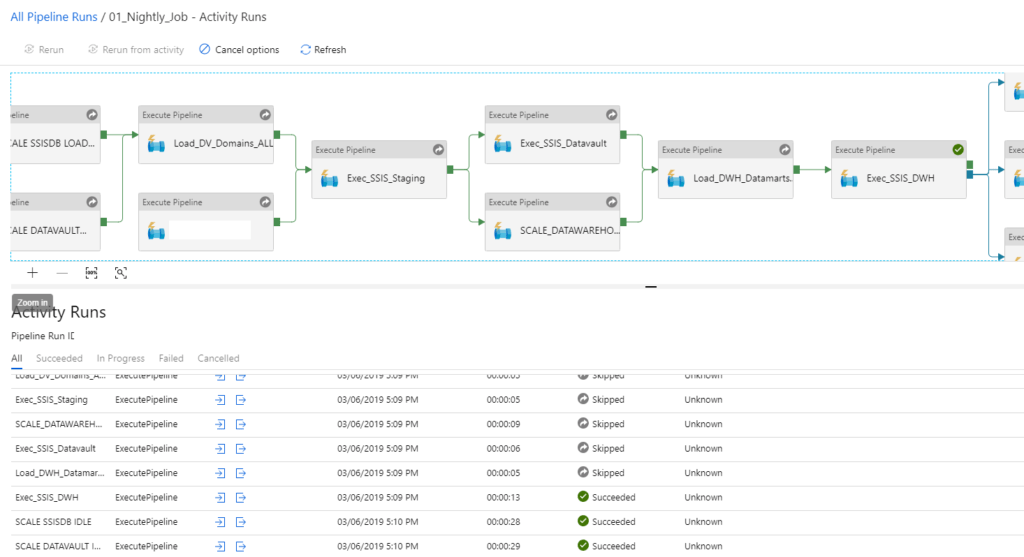
The Pipeline will start and will first skip all the activities(the grey new icons in the upper right corner of each activity) in the Pipeline before your selected Activity.
Your Pipeline will now finalize all the activities from your newly defined starting point.


What else is new?

Monitor Rerun History

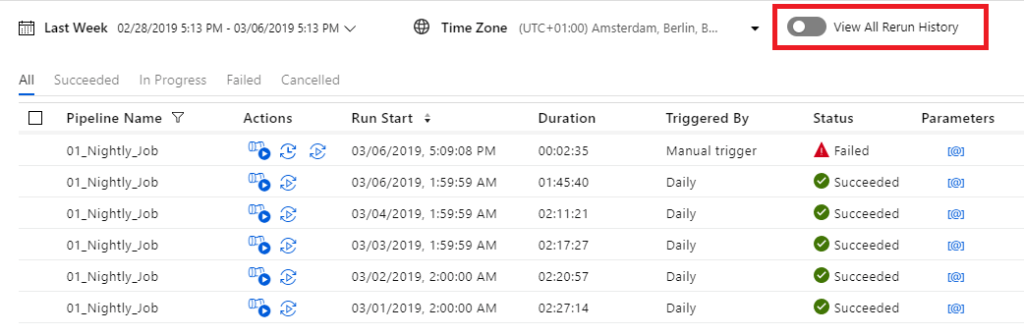
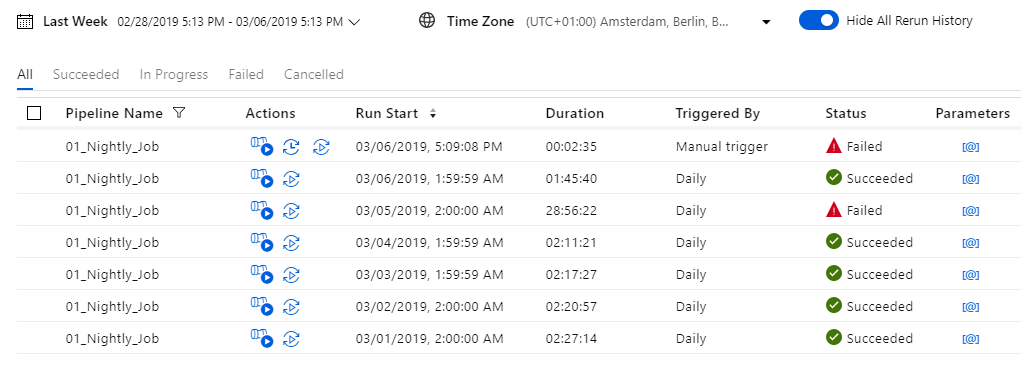
You can now view all the history reruns by clicking on the toggle to ‘View All Rerun History’.

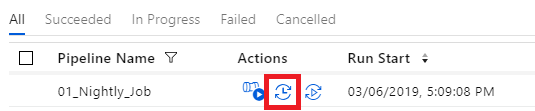
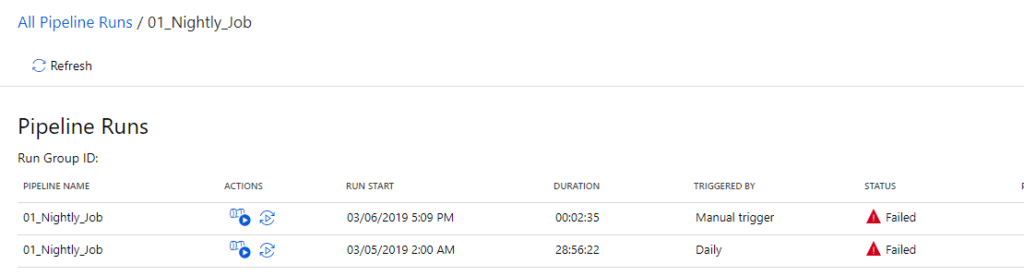
By clicking on the red marked action, you can see all the History from an particular Pipeline run.


Thanks for reading.


Updated 10th of March:


Found a video on Channel9 which explains how to  "Rerun activities inside your Azure Data Factory pipelines"

https://channel9.msdn.com/Shows/Azure-Friday/Rerun-activities-inside-your-Azure-Data-Factory-pipelines?ocid=player

Feel free to leave a comment

Azure Data Factory: Generate Pipeline from the new Template Gallery

Pipeline

Last week I mentioned that we could save a Pipeline to GIT. But today I found out that you can also create a Pipeline from a predefined Solution Template.

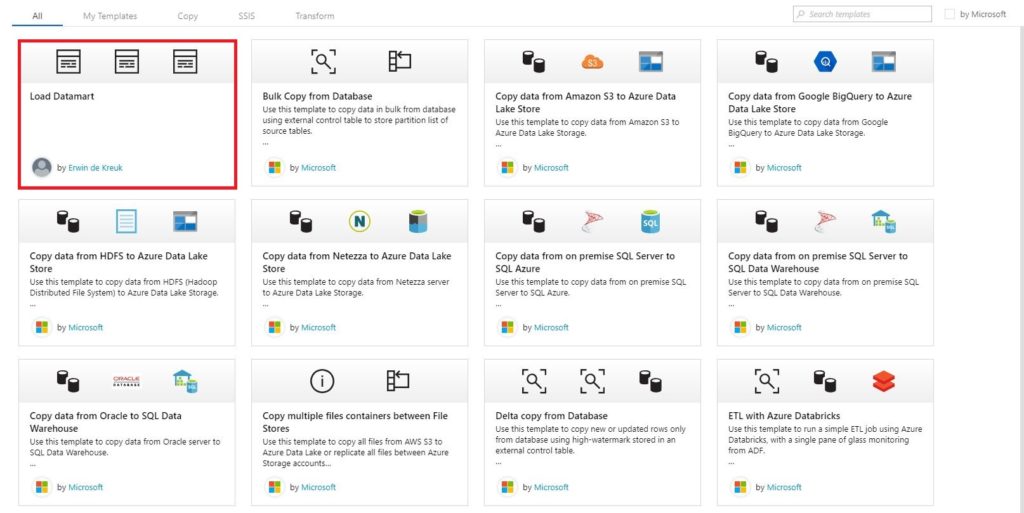
Template Gallery

These template will make it easier to start with Azure Data Factory and it will reduce development time when you start a new project.

Currently Microsoft has released the following templates:

Copy templates:

  • Bulk copy from Database
  • Copy multiple file containers between file-based stores
  • Delta copy from Database

Copy from <source> to <destination>

  • From Amazon S3 to Azure Data Lake Store Gen 2
  • From Google Big Query to Azure Data Lake Store Gen 2
  • From HDF to Azure Data Lake Store Gen 2
  • From Netezza to Azure Data Lake Store Gen 1
  • From SQL Server on premises to Azure SQL Database
  • From SQL Server on premises to Azure SQL Data Warehouse
  • From Oracle on premises to Azure SQL Data Warehouse

SSIS templates

  • Schedule Azure-SSIS Integration Runtime to execute SSIS packages

Transform templates

  • ETL with Azure Databricks

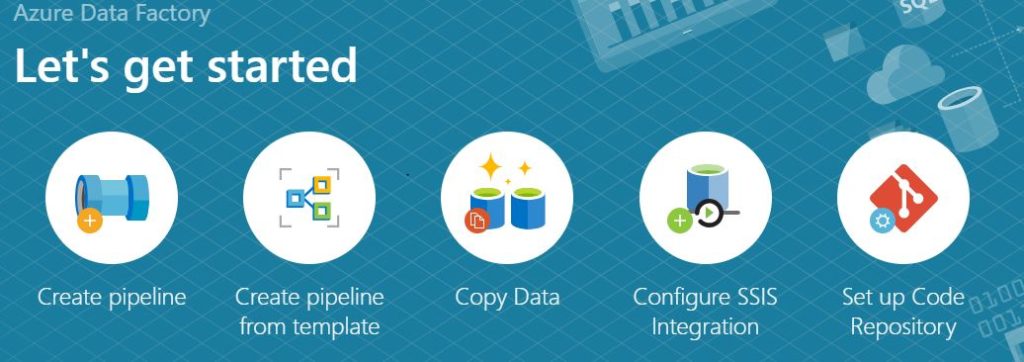
These templates can be found directly in the Azure Data Factory Portal:

Now you can select the option Create Pipeline from Template.

After selecting this option, all templates from the gallery but also the templates you saved yourselves, are visible.

Create a Pipeline from a Template

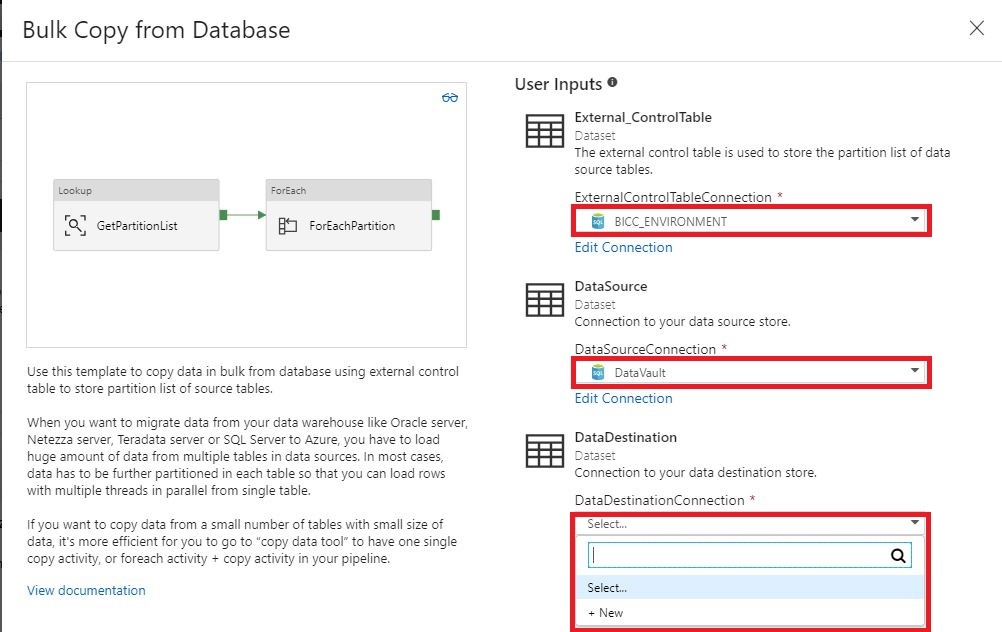
To start the creating of the template, click on the template you want to create. For this example, I have chosen for the template Bulk Copy from Database. A wizard will open which you have to follow.

The only thing you need to do right know is selecting the correct inputs. You can also create a new input from the Template wizard.

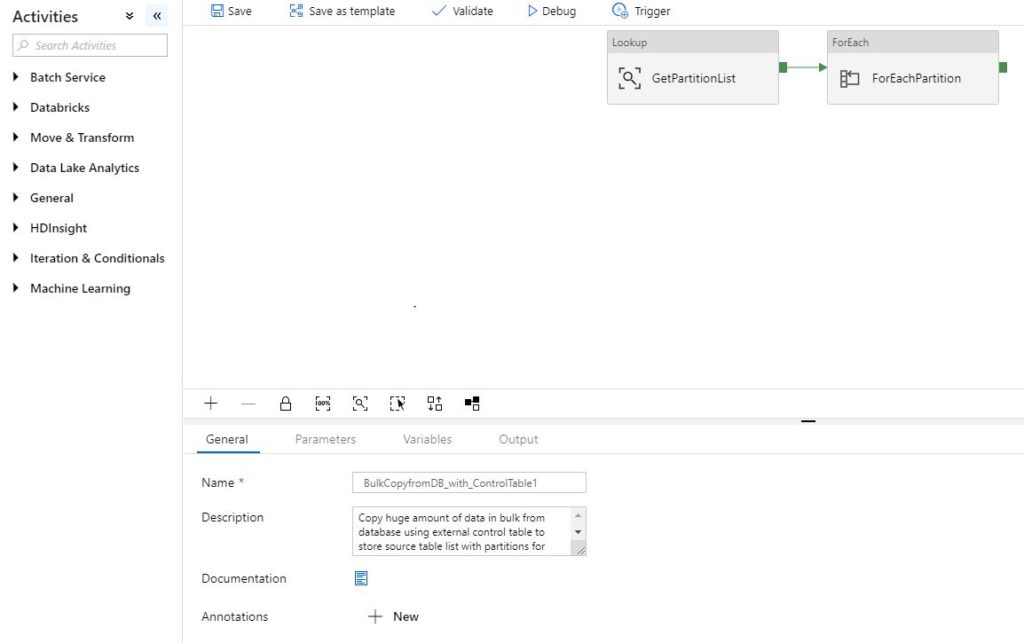
After selecting all the correct inputs you can finalize the template and the template will be added to your Factory.

Do you want to follow the detailed steps of creating this pipeline? The details can be found here.

Thanks so much for reading through this article today, and I hope you all take some time to try it out. It’s will make your life easier.