Scale your SQL Pool dynamically in Azure Synapse

Scale your SQL Pool dynamically in Azure Synapse

Scale your Dedicated SQL Pool in Azure Synapse Analytics

In my previous article, I explained how you can Pause and Resume your Dedicated SQL Pool with a Pipeline in Azure Synapse Analytics. In this article I will explain how to scale up and down a SQL Pool via a Pipeline in Azure Synapse Analytics. This is actually a necessary functionality during your Data Movement Solutions. In this way you can optimize costs.

The Pipeline can be added before and after your Nightly Run.

SQL Pool Performance Level

As a quick resume from the previous article, a SQL Pool can have different statuses:

  • Pausing: SQL Pool is Pausing and we cannot change the status.
  • Resuming: SQL Pool is Resuming, the SQL Pool starting and during this  process and we cannot change the status.
  • Scaling: SQL Pool is Scaling, the SQL Pool is scaling to a different compute level and during this  process we cannot change the status.
  • Paused: SQLPool is Paused, we can now change the status.
  • Online: SQLPool is Online, we can now change the status.

To allow the Synapse workspace to call the REST API we need to give the Synapse workspace access to the SQL Pool. In the Access control (IAM) of the SQL Pool assign the contributor role to your Synapse Workspace.

Build Pipeline

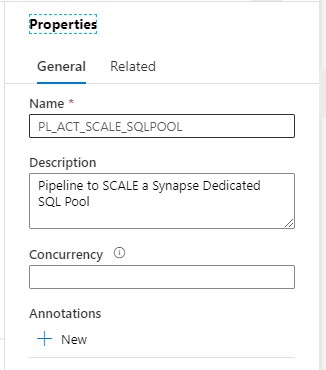
Clone the Pipeline PL_ACT_RESUME_SQLPOOL and rename it to PL_ACT_SCALE_SQLPOOL.

Change the description of the Pipeline, ‘Pipeline to SCALE a Synapse Dedicated SQL Pool

Synapse SQL Pool Description

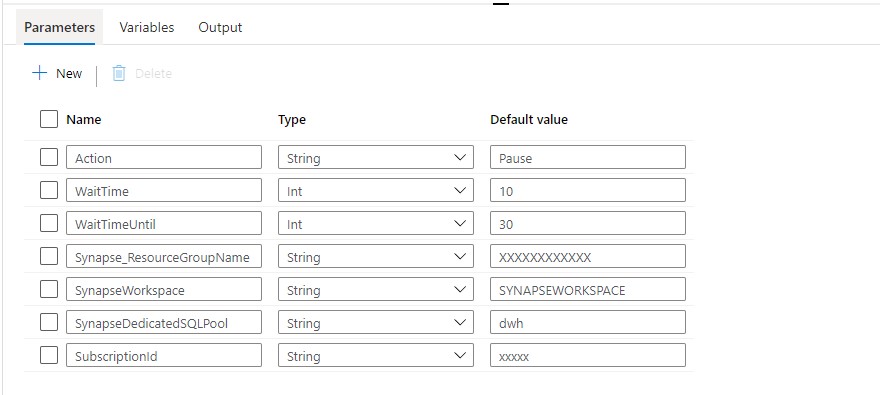
Add the PerformanceLevel parameter to the Parameters of the Pipeline:
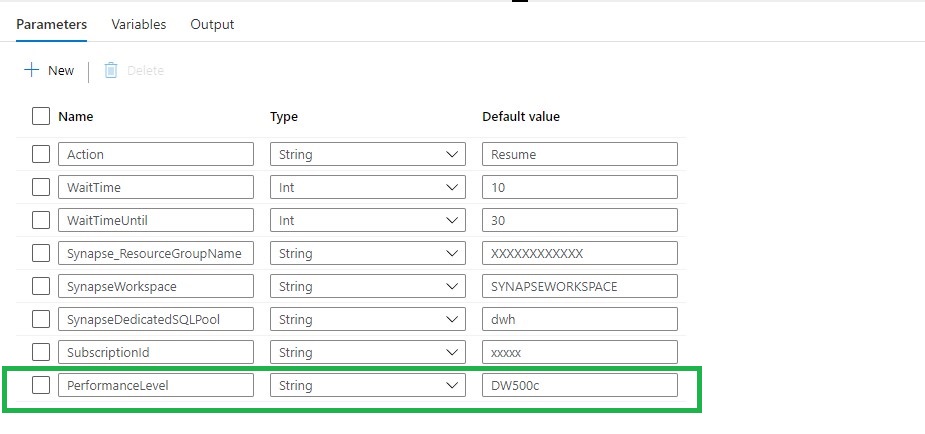
Synapse SQL Pool Scale Parameters

Action:   RESUME(Leave this on RESUME, if we want to SCALE the SQL Pool must be Online)

WaitTime: Wait time in seconds before the Pipeline will finish

WaitTimeUntil: Wait time in seconds for the retry process

Synapse_ResourceGroupName: Name of the ResourceGroup of the used Synapse Workspace

SynapseWorkspace: SynapseWorkspace

SynapseDedicatedSQLPool: Name of the dedicated SQL Pool

SubsriptionId: SubscriptionId of Synapse Workspace

PerformanceLevel:  The Database Performance level (DW100c, DW200c, DW300c, DW400c DW500c, DW1000c, DW1000c, DW1500c, DW2000c, DW2500c, DW3000c, DW5000c, DW6000c, DW7500c, DW10000c, DW15000c, DW30000c)

Web Activity

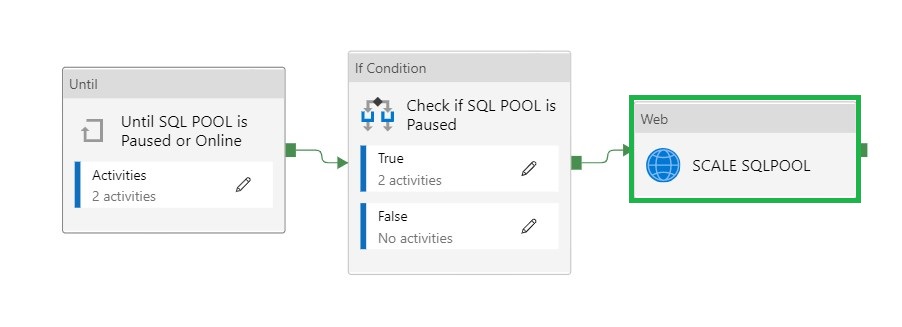
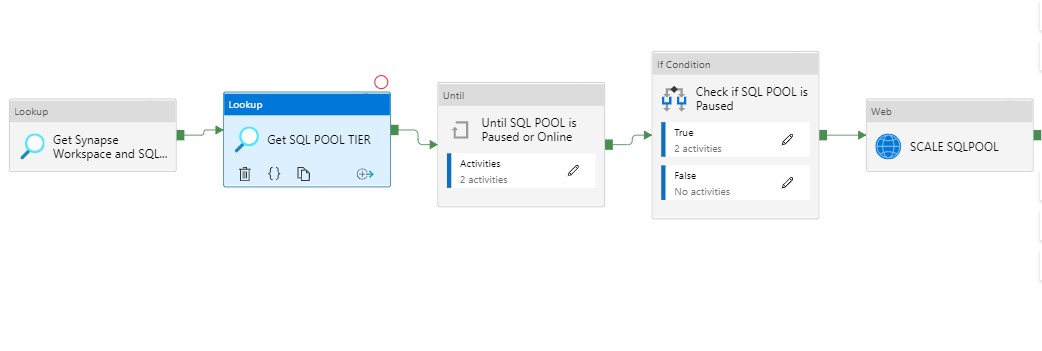
Synapse SQL Pool Scale pipeline

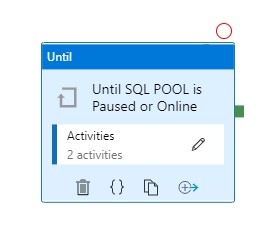
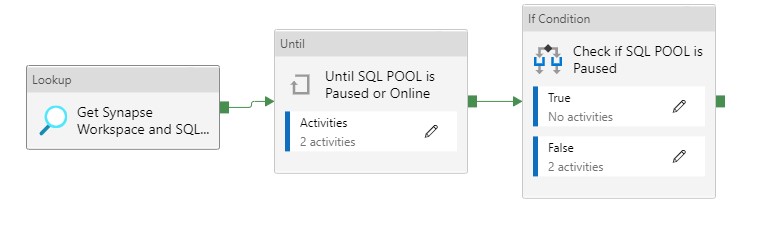
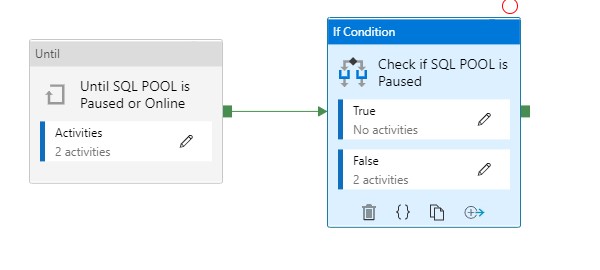
We leave the first two activities as is. The Pipeline can only continue when the status is Paused or Online and not one of the other statuses. When the SQL Pool is Paused, the second activity will Resume the SQL Pool.

To Scale the SQL Pool we need add a new Web Activity.
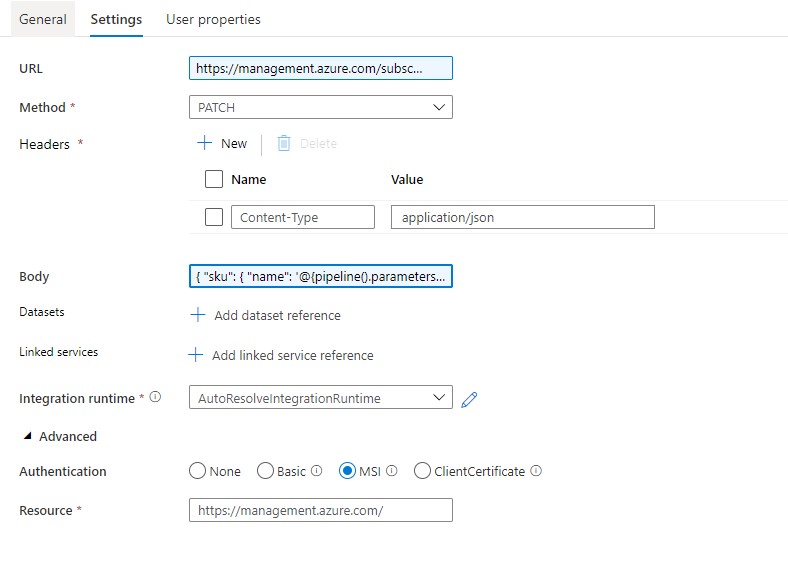
Synapse SQL Pool Scale Header

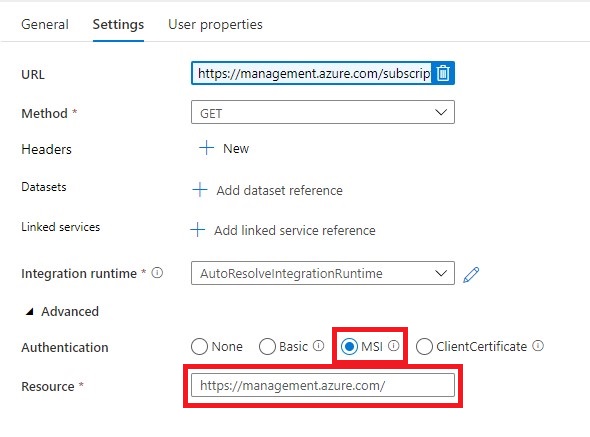
Name = SCALE SQLPOOL

URL= https://management.azure.com/subscriptions/XXX/resourceGroups/XXX/providers/Microsoft.Synapse/workspaces/XXX/sqlPools/XXX/?api-version=2019-06-01-preview

The  <xxx> we need to replace with the Pipeline Parameters. The final Result will be:

https://management.azure.com/subscriptions/@{pipeline().parameters.SubscriptionID}/resourceGroups/@{pipeline().parameters.Synapse_ResourceGroupName}/providers/Microsoft.Synapse/workspaces/@{pipeline().parameters.SynapseWorkspace}/sqlPools/@{pipeline().parameters.SynapseDedicatedSQLPool}/?api-version=2019-06-01-preview

Method = PATCH

Headers =  Name = Content-Type     Value= application/json

Body = { “sku”: { “name”: ‘@{pipeline().parameters.PerformanceLevel}’ } }

Resource =https://management.azure.com/

Please feel free to download the Pipeline code here.

DAILY RUN

Add the above Pipeline as a Start Pipeline before your Daily run and Scale up to the desired Performance Level. When the Daily run is finished you Scale Down to a lower level or can you add the Pipeline to Pause the SQL Pool.
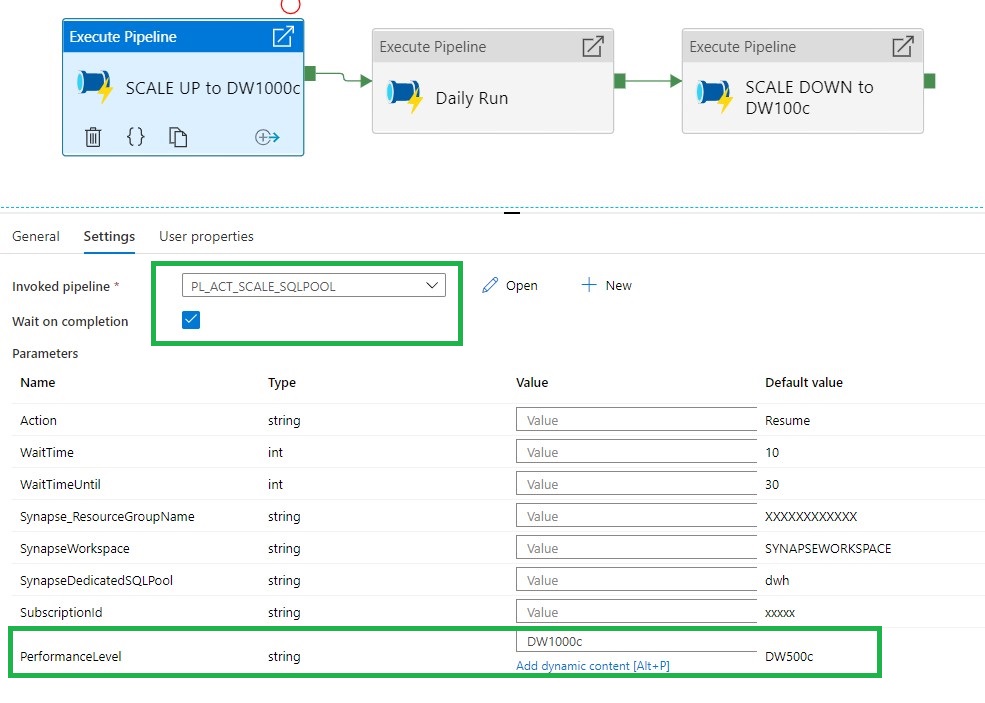
Synapse SQL Pool Scale RUN1

Metadata

If you’re already using a database where you store your Meta Data, you can create a table where you store the desired Performance Level The only thing you need to do is adding a Lookup Activity to get the parameters from your database and replace the parameters with the output from the lookup activity.

[sql]
CREATE TABLE [configuration].[Database_Level](
[Id] [int] IDENTITY(1,1) NOT NULL,
[DatabaseName] [varchar](30) NULL,
[DatabaseLevel] [varchar](10) NOT NULL,
[PerformanceLevel] [varchar](10) NOT NULL,
CONSTRAINT [PK_Pipeline_ExecutionLog] PRIMARY KEY CLUSTERED
(
[Id] DESC
)WITH (STATISTICS_NORECOMPUTE = OFF, IGNORE_DUP_KEY = OFF, OPTIMIZE_FOR_SEQUENTIAL_KEY = OFF) ON [PRIMARY]
) ON [PRIMARY]

[/sql]
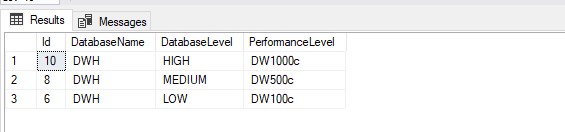
Performance Database table

Synapse SQL Pool MetaData

A SQL Pool(Former SQL DW)

A SQL Pool(Former SQL DW) linked to a SQL (Logical) Server has a slightly different approach.

Use the settings below to create a Pipeline to Scale the SQL Pool.

Action:   RESUME

WaitTime: Wait time in seconds before the Pipeline will finish

WaitTimeUntil: Wait time in seconds for the retry process

SQLServer_ResourceGroupName: Name of the ResourceGroup of the used SQL(Logical) Server

SQLServer: SQL(Logical) Server name

SQLServerDedicatedSQLPool: Name of the dedicated SQL Pool

SubsriptionId: SubscriptionId of Synapse Workspace

DatabaseTier:  The Database Performance level (DW100c, DW200c, DW300c, DW400c DW500c, DW1000c, DW1000c, DW1500c, DW2000c, DW2500c, DW3000c, DW5000c, DW6000c, DW7500c, DW10000c, DW15000c, DW30000c)

Body: { “requestedServiceObjectiveName”: { “name”: ‘@{pipeline().parameters.PerformanceLevel}’ } }


Hopefully this article has helped you a step further. As always, if you have any questions, leave them in the comments.

Azure Synapse Pause and Resume SQL Pool

Azure Synapse Pause and Resume SQL Pool

Pause or Resume your Dedicated SQL Pool in Azure Synapse Analytics

Azure Synapse Analytics went GA in beginning of December 2020, with Azure Synapse we can now also create a Dedicated SQL Pool(formerly Azure SQL DW). Please read this document to learn what a Dedicated SQL Pool is. This article describes how to Pause or Resume a SQL Pool within Azure Synapse Analytics. A SQL Pool(Former Azure SQL DW) linked to a SQL (Logical) Server has a slightly different approach.

A SQL Pool is a MPP Database (short for massively parallel processing) and has a different approach of loading data but also different kind of pricing. This are details for another Blogpost.


Azure Synapse Dedicated SQL Pool

In this article, we are going to build a Synapse Pipeline which will call a REST API. The concept is based on an earlier post about Analysis Services:  Use Global Parameters to Suspend and Resume your Analysis Services in ADF.

A SQL Pool can have different statuses:

  • Pausing: SQL Pool is Pausing and we cannot change the status.
  • Resuming: SQL Pool is Resuming, the SQL Pool starting and during this  process and we cannot change the status.
  • Scaling: SQL Pool is Scaling, the SQL Pool is scaling to a different compute level and during this  process we cannot change the status.
  • Paused: SQLPool is Paused, we can now change the status.
  • Online: SQLPool is Online, we can now change the status.

To allow the Synapse workspace to call the REST API we need to give the Synapse workspace access to the SQL Pool. In the Access control (IAM) of the SQL Pool assign the contributor role to your Synapse Workspace.

Build Pipeline

Create a new Pipeline with the name PL_ACT_PAUSE_SQLPOOL

Add the following Parameters to the Pipeline:

Azure Synapse Dedicated SQL Pool Parameter

Above are the generic Parameters used within the Pipeline.

Action:   PAUSE or RESUME

WaitTime: Wait time in seconds before the Pipeline will finish

WaitTimeUntil: Wait time in seconds for the retry process

Synapse_ResourceGroupName: Name of the ResourceGroup of the used Synapse Workspace

SynapseWorkspace: SynapseWorkspace

SynapseDedicatedSQLPool: Name of the dedicated SQL Pool

SubsriptionId: SubscriptionId of Synapse Workspace

Until Activity

We can only change the status when the SQL Pool is Paused or Online That’s why we need to add  an Until activity to start the Pipeline. It executes a set of activities in a loop until the condition associated with the activity evaluates to true.

Azure Synapse Until

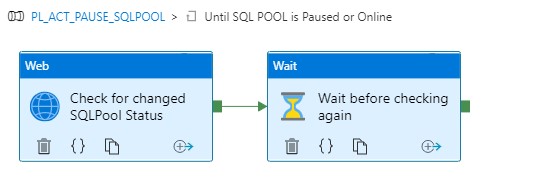
With this activity we can check the status of the SQL Pool and wait until it becomes Paused or Online. Let me explain how this works.

Web Activity

Within the Until Activity we need to create a new Web Activity. A Web Activity can be used to call a custom REST API endpoint from a Synapse Data pipeline.

Name = Check for changed SQLPool Status

URL= https://management.azure.com/subscriptions/XXX/resourceGroups/XXX/providers/Microsoft.Synapse/workspaces/XXX/sqlPools/XXX/?api-version=2019-06-01-preview

The  <xxx> we need to replace with the Pipeline Parameters. The final Result will be:

https://management.azure.com/subscriptions/@{pipeline().parameters.SubscriptionID}/resourceGroups/@{pipeline().parameters.Synapse_ResourceGroupName}/providers/Microsoft.Synapse/workspaces/@{pipeline().parameters.SynapseWorkspace}/sqlPools/@{pipeline().parameters.SynapseDedicatedSQLPool}/?api-version=2019-06-01-preview

Method = GET

Resource =https://management.azure.com/

Azure Synapse Web Activity

Once we have created the Web Activity, we can define the expression for the Until Activity.

Azure Synapse Until expresssion

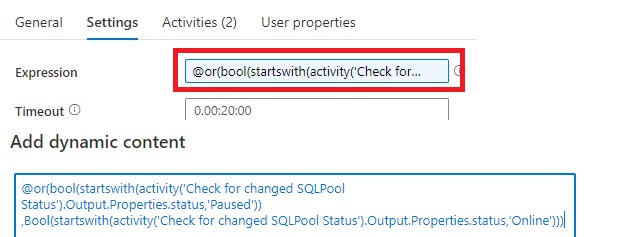
The Pipeline can only continue when the status is Paused or Online and not one of the other statuses. That’s the reason we need to add these 2 two statuses to check for.

Expression: @or(bool(startswith(activity(‘Check for changed SQLPool Status’).Output.Properties.status,’Paused’)),Bool(startswith(activity(‘Check for changed SQLPool Status’).Output.Properties.status,’Online’)))

Time out: 0.00:20:00

The Until Activity will only continue, when the status from the above Web Activity output is Paused or Online, this can take a while and we don’t want to execute the Web Activity every time. That’s why we add a Wait Activity.

Wait Activity

A Wait Activity  waits for the specified period of time before continuing with execution of subsequent activities. Within the Wait Activity add an expression from above parameters for Wait time seconds.

Azure Synapse Wait Activity

After the Web Activity, Azure Synapse waits in this case 30 seconds to check if the status has changed before it will check again.

Azure Synapse Until inside

Check for the SQL Pool Status

To check if the SQL Pool is paused, we’re adding an If Condition Activity (Name: Check if SQL POOL is Paused)

Azure Synapse Paused

Add an Expression on the If Condition Activity @bool(startswith(activity(‘Check for changed SQLPool Status’).Output.Properties.status,’Paused’))

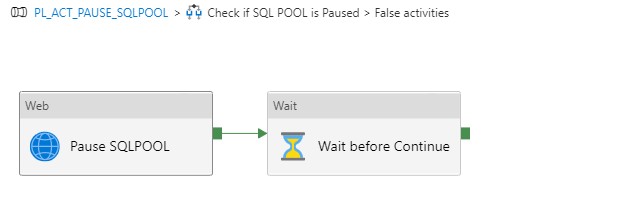
This expression will check if the SQL Pool is Paused or not. In this situation we want to Pause our SQL Pool, to Pause the SQL Pool we need to add as  Activity for pausing(see below) to False. In case the SQL Pool is already Paused we do nothing(True).

Azure Synapse If inside

The following settings are set for the Web Activity:

URL: https://management.azure.com/subscriptions/XXX/resourceGroups/XXX/providers/Microsoft.Synapse/workspaces/XXX/sqlPools/XXX/{Action}?api-version=2019-06-01-preview

The  <xxx> we need to replace with the Pipeline Parameters. The final Result will be:

https://management.azure.com/subscriptions/{pipeline().parameters.SubscriptionID}/resourceGroups/{pipeline().parameters.Synapse_ResourceGroupName}/providers/Microsoft.Synapse/workspaces/{pipeline().parameters.SynapseWorkspace}/sqlPools/{pipeline().parameters.SynapseDedicatedSQLPool}/@{pipeline().parameters.Action}?api-version=2019-06-01-preview

It is almost the same URL but we have to add the action option @{pipeline().parameters.Action} 

Method = Post

Header = {“Nothing”:”Nothing”}

Resource =https://management.azure.com/

Add a Wait Activity but this time with a different parameter @pipeline().parameters.WaitTime, the purpose of this activity is to wait a period before we start ingestion data(just to be sure the SQL Pool in online)

Create Pipeline to Resume your SQL Pool

Clone your PL_ACT_PAUSE_SQLPOOL and rename it to PL_ACT_RESUME_SQLPOOL. Change your action Parameter to “Online”.

Within the IF Condition move the Web Activity Pause SQL Pool and the Wait Activity  from False to True and rename to Resume SQL Pool.

You have now learned how to Pause and Resume your SQL Pool Dynamically with the use of Parameters. Both Pipelines can be easily transferred to different customers.

Please feel free to download the Pipeline code here

MetaData

If you’re already using a database where you store your Meta Data, then you have also the possibility to store the necessary parameters in the database. The only thing you need to do is adding a Lookup Activity to get the parameters from your database(and replace the parameters with the output from the lookup activity)

Azure Synapse MetaData

A SQL Pool(Former SQL DW)

A SQL Pool(Former SQL DW) linked to a SQL (Logical) Server has a slightly different approach, use the settings below to create a Pipeline to Pause or Resume.

Action:   PAUSE or RESUME

WaitTime: Wait time in seconds before the Pipeline will finish

WaitTimeUntil: Wait time in seconds for the retry process

SQLServer_ResourceGroupName: Name of the ResourceGroup of the used SQL(Logical) Server

SQLServer: SQL(Logical) Server name

SQLServerDedicatedSQLPool: Name of the dedicated SQL Pool

SubsriptionId: SubscriptionId of Synapse Workspace

Pause: https://management.azure.com/subscriptions/XXX/resourceGroups/XXX/providers/Microsoft.Sql/servers/XXX/databases/XXX/Pause?api-version=2020-08-01-preview

Resume: https://management.azure.com/subscriptions/XXX/resourceGroups/XXX/providers/Microsoft.Sql/servers/XXX/databases/XXX/Resume?api-version=2020-08-01-preview

Status: https://management.azure.com/subscriptions/XXX/resourceGroups/XXX/providers/Microsoft.Sql/servers/XXX/databases/XXX/?api-version=2020-08-01-preview

To allow the Synapse workspace to call the REST API we need to give the Synapse workspace access to the SQL(Logical) Server. In the Access control (IAM) of the SQL(Logical) Server assign the SQL DB Contributor role to your Synapse Workspace.

Hopefully this article has helped you a step further. As always, if you have any questions, leave them in the comments.
My Virtual session at Data Toboggan

My Virtual session at Data Toboggan

An inaugural event specializing on Azure Synapse Analytics

Data Toboggan

This Saturday I've been speaking during Data Toboggan an inaugural event specializing on Azure Synapse Analytics. 12 Hours of sessions with amazing speakers.

Azure Purview

I presented a session about Azure Purview Microsoft's answer to Data Governance and Data Lineage

It was the first time ever that I presented this session in Public. I've been working on this session the last couple weeks. Presented several times to my colleagues. In any case, I was well prepared.
During the day I attended several sessions and all of them were of high quality.
My session started at 16:00 GMT and I explained in 45 minutes what Azure Purview can mean within a Data Estate. Personally, I was very satisfied with the presentation of my session.

A big applause for Mark, Richard and Victoria for the organization and of course for having me

 
Some useful links:


In case you have any questions left please feel free to ask them via the comment or Socials

Connect Azure Synapse Analytics with Azure Purview

Connect Azure Synapse Analytics with Azure Purview

How do you integrate Azure Purview in Azure Synapse Analytics?

This article explains how to integrate Azure Purview into your Azure Synapse workspace for data discovery and exploration. Follow the steps below to connect your Azure Purview account in your Azure Synapse Workspace.

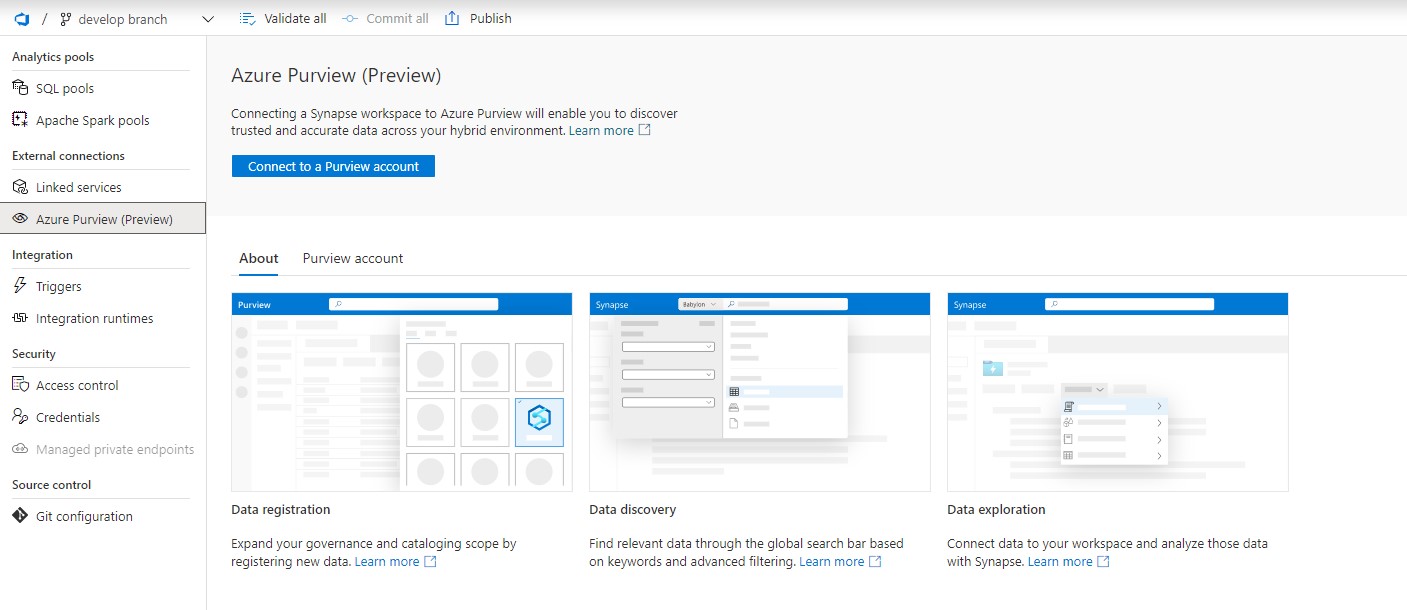
In the Management Hub you will see now a new option called Azure Purview.

Azure Purview Management HUb

Click on the option  “Connect to a Purview Account”. Please be aware that you need a Contributor role in your Azure Synapse workspace and access to your Azure Purview Account(Purview Reader or Purview Curator).

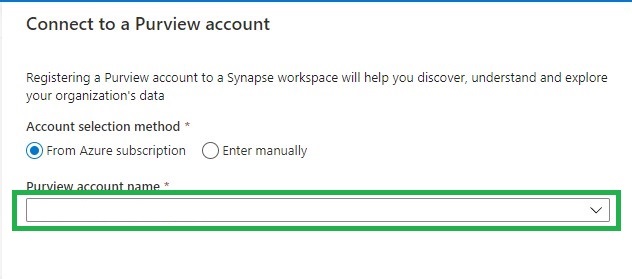
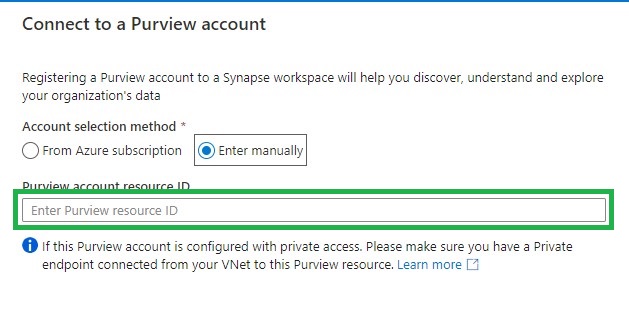
Find the Purview account you want to connect to from the drop down list or add it manually by adding the source ID.

Azure Puriew Connect Resource ID

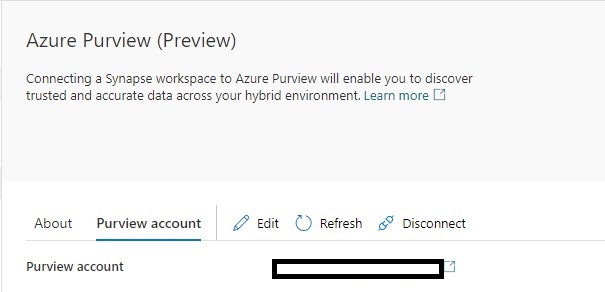
If the connection is successful, you will see the following screen. If not, make sure you have the correct role to connect to your Azure Purview account.

Azure Purview Connected


Data discovery:

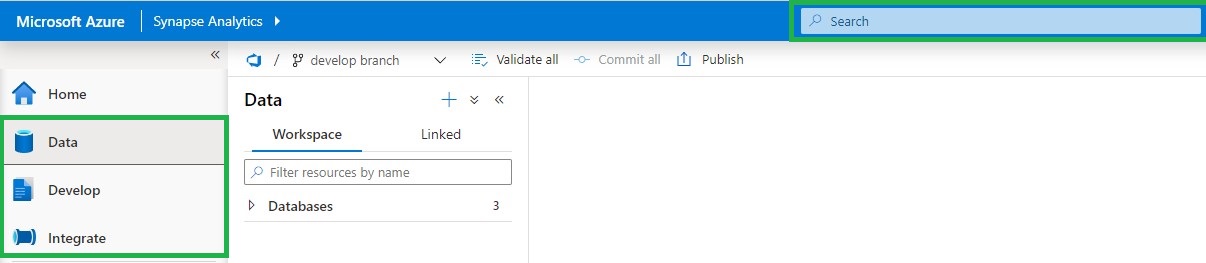
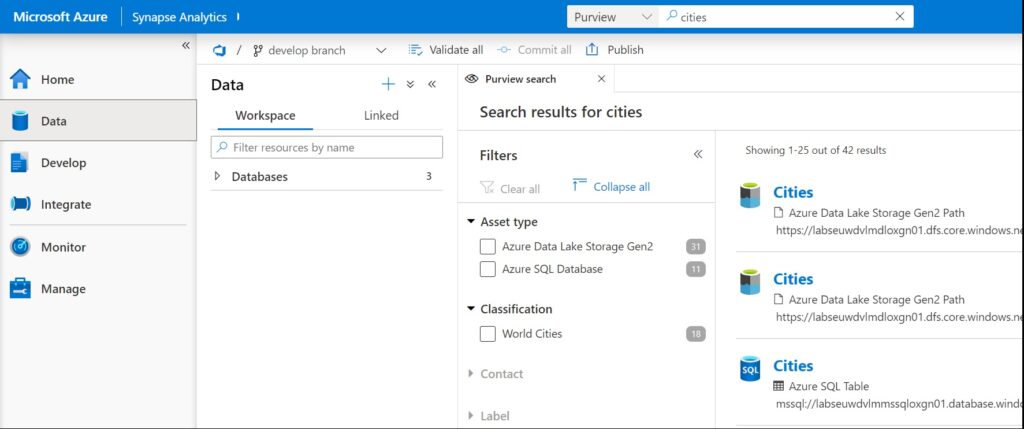
If you select your Data, Develop or Integrate HUB, you will see in the top center a Search bar.

Azure Purview Search

Using Azure Purview in Azure Synapse

To use Azure Purview in Azure Synapse it requires you to have access to the connected Azure Purview account. Azure Synapse will then passes-through the correct Azure Purview permissions.

Purview Reader role

  • Can read all content in Azure Purview

Purview Curator role

  • Can read all content in Azure Purview
  • Can edit assets, classification and glossary terms
  • Can apply classifications and glossary terms to assets.

Azure Purview actions

The following Azure Purview features are available in Azure Synapse Analytics(based on your role):

  • Overview of the metadata
  • View and edit schema of the metadata with classifications, glossary terms, data types, and descriptions
  • View lineage to understand dependencies and do impact analysis. For more information about, see lineage
  • View and edit Contacts to know who is an owner or expert over a dataset
  • Related to understand the hierarchical dependencies of a specific dataset. This experience is helpful to browse through data hierarchy.

Azure Purview Integration

Connect data to Azure Synapse

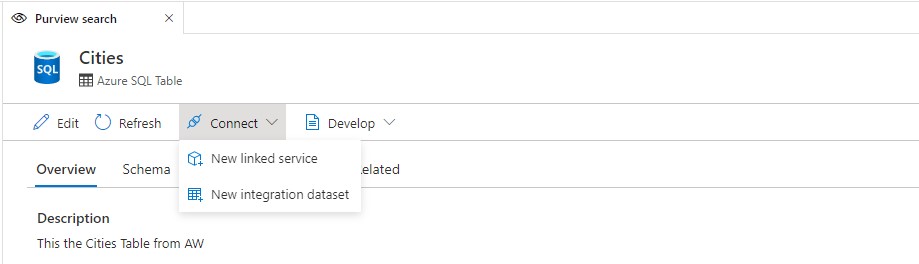
Add addition to above features, you can also connect directly to the assets you have searched.

Linked Service

  • Creating a new Linked Service will be required to copy data to Synapse or have them in your data hub (for supported data sources like ADLS Gen 2)

Integration Dataset

  • For objects like files, folders, or tables, you can directly create a new Integration Dataset and leverage an existing linked service if already created.

Develop in Azure Synapse

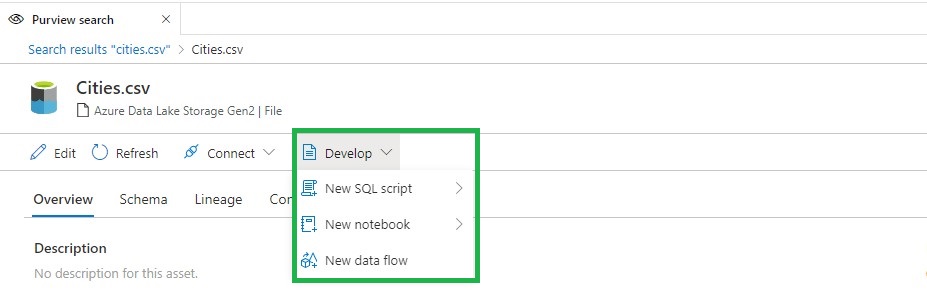
There are three actions that you can perform: New SQL Script, New Notebook, and New Data Flow.

SQL Script

  • View the top 100 rows in order to understand the shape of the data.
  • Create an external table from Synapse SQL database.
  • Load the data into a Synapse SQL database.

Notebook

  • Load data into a Spark DataFrame.
  • Create a Spark Table (if you do that over Parquet format, it also creates a serverless SQL pool table).

Data flow

  • Create an integration dataset that can be used as a source in a data flow pipeline.

Azure Purview Integration Develop

These new functionalities makes the integration between Azure Purview and Azure Synapse Analytics even more Powerful. More details can be found here.

Useful links

Create a Synapse workspace

Create an Azure Purview account

Thank you for reading, please feel free to ask questions and I’m more then happy to answer them.

How to setup Code Repository in Azure Data Factory

How to setup Code Repository in Azure Data Factory

Synapse

by Erwin | Nov 5, 2020

Why activate a Git Configuration?

The main reasons are:

  1. Source Control: Ensures that all your changes are saved and traceable, but also that you can easily go back to a previous version in case of a bug.
  2. Continuous Integration and Continuous Delivery (CI/CD): Allows you to Create build and release pipelines for easy release to other Data Factory instance, manually or triggered(DTAP).
  3. Collaboration: You have the ability to easily collaborate in the same Data Factory with different colleagues.
  4. Performance: Your Data Factory from Git is 10 times faster then loading directly from the Data Factory Service.

So enough reasons to start enabling your Git Configuration.

How to setup your Code Repository in Azure Data Factory!

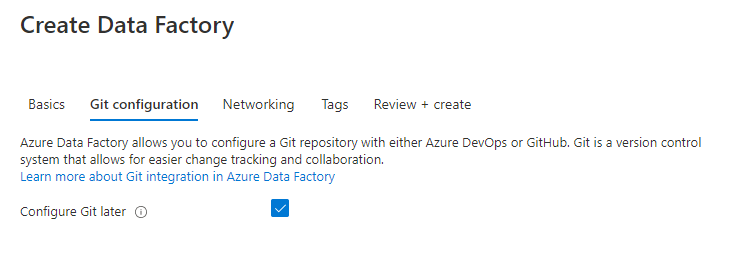
During the configuration/set up of your Data Factory you have the possibility to select either Azure DevOps or GitHub as your Git Configuration. If you haven't done that, you can still configure this integration in Azure Data Factory. The procedure for both options are the same.
Create ADF Version Control
In my previous article, Creating an Azure Data Factory Instance, I skipped the Git Configuration. In this article I will explain how to do this in an already created Data Factory.

Azure Data Factory Source Control

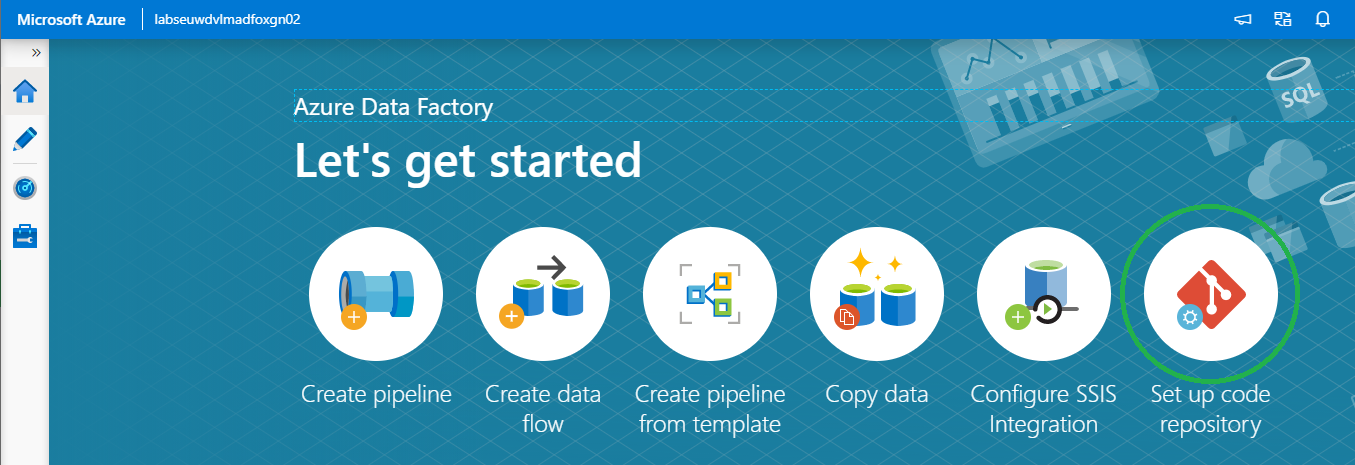
On the right of your splash screen when opening your Data Factory select the Setup Code Repository. Other options to start configuring your Code Repository are through the Management Hub or in the UX on the top left in the authoring canvas. If you don't see the option, Code Repository is already configured. You can check this in the Management Hub or UX.

We have the option to configure Azure DevOps or GitHub.

Azure DevOps integration

First I will take you through the configuration of Azure DevOps and then also create a similar configuration in GitHub. If you want to start directly in GitHub, click here.

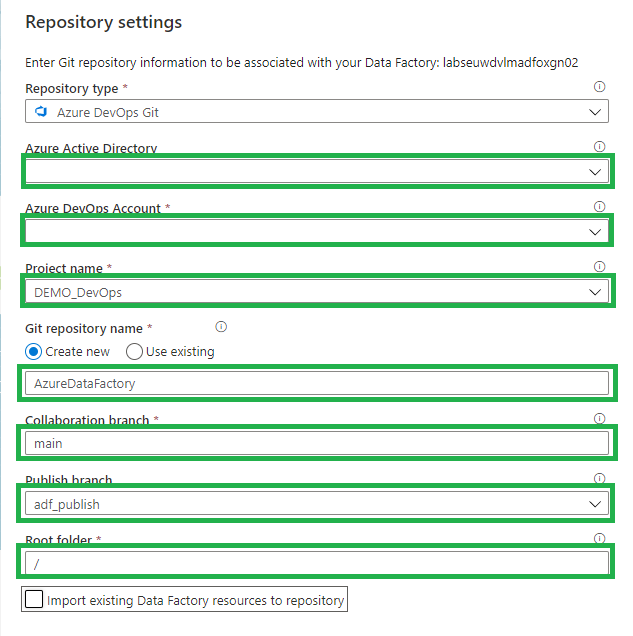
Select Azure DevOps Git:

Azure Dev Ops Config

  1. Azure Active Directory: Select the AAD where your Azure DevOps environment is located. If you use another AAD, make sure that this account has rights to that environment.
  2. Azure DevOps Account: Select your Account.
  3. Project Name: Select the Project Name where you want to store your repository in.
  4. Git Repository: Create a new Project.
  5. Collaboration Branch: Change this to Main.
  6. Publish Branch: Leave this on adf_publish.
  7. Root folder: If you want to create a complete project with SQL,Azure Analysis Service, Azure DataBricks etc etc, you define a root folder and create your repository into that folder.
  8. Import: When this is a blank Data Factory, you can disable this option. When you have create already resources in your Data Factory, you should enable this so already created resources are committed to the repository.

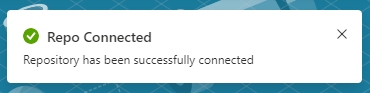
Click on apply and you will see that you repository is connected.

Repo Connected

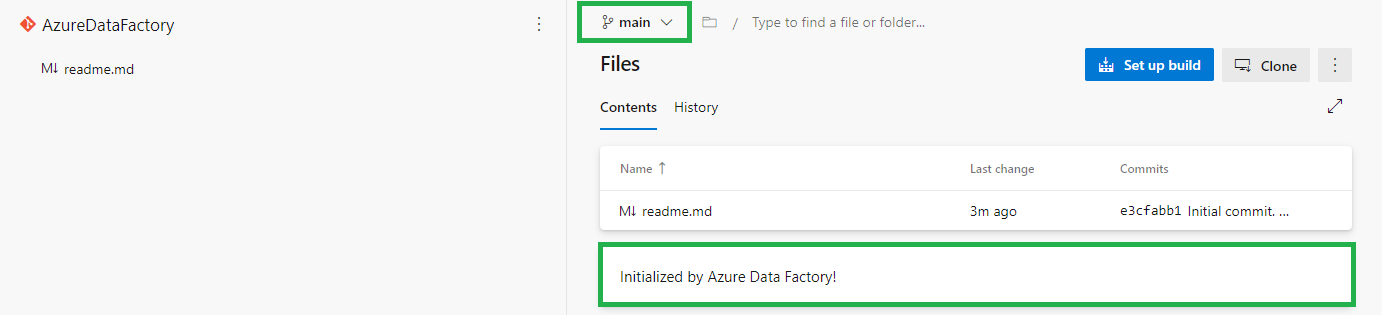
When you log in to your Azure Dev Ops Environment, you will see that a new Repository is created Main Branch. Azure Dev Ops Main

Go back to your Data Factory and click on Publish.

Data Factory Publish

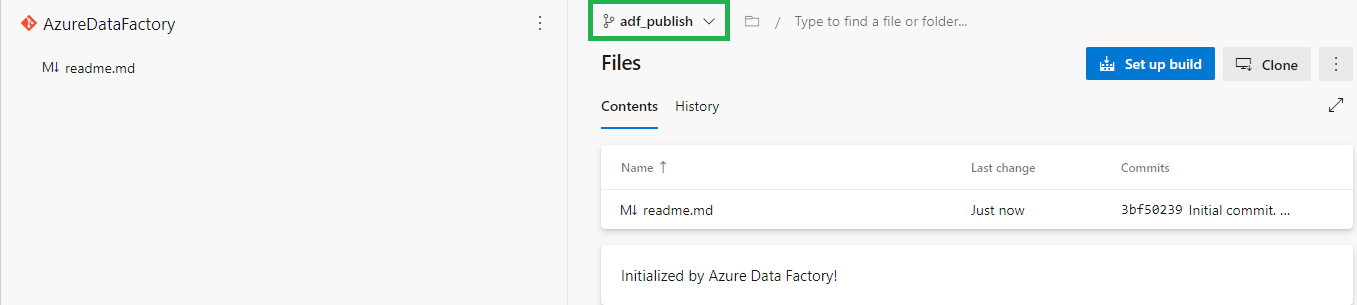
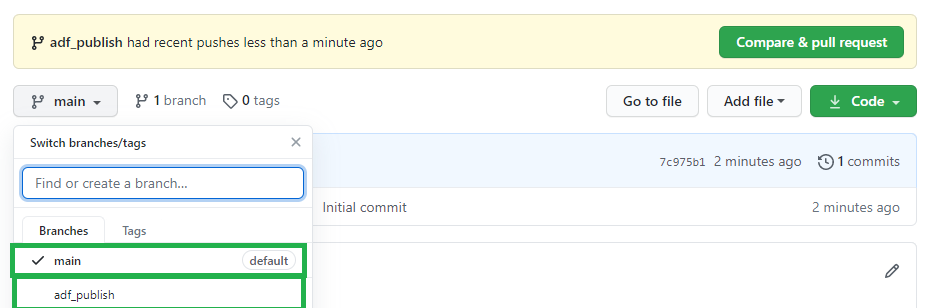
In Azure DevOps the adf_publish Branch is now also created.Azure Dev Ops Publish

GitHub Integration

In the repository screen, select GitHub:

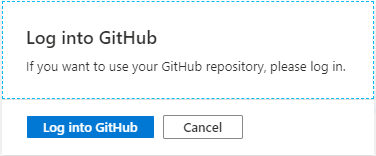
Github login

The first time you connect with your Data Factory you need to login in GitHub.

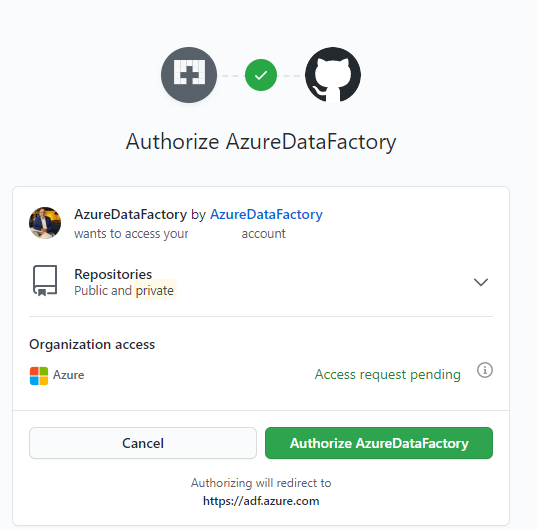
Github authorize

Once connect you to need to Authorize your Data Factory.

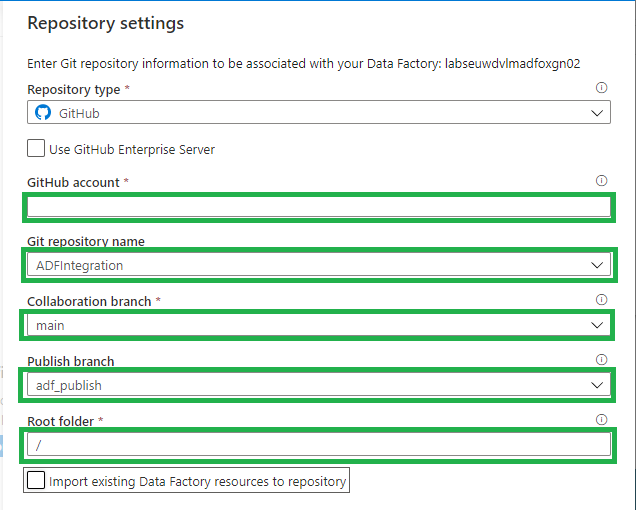
Github Configuration

All the settings are almost the same as in Azure DevOps:

  1. Use GitHub Server Enterprise: If enabled fill the The GitHub Enterprise root URL.
  2. GitHub Account: Select your Account.
  3. Project Name: Select the Project Name where you want to store your repository in.
  4. Git Repository: Create a new Project.
  5. Collaboration Branch: Leave this on Main.
  6. Publish Branch: Leave this on adf_publish.
  7. Root folder: If you want to create a complete project with SQL, Azure Analysis Service, Azure DataBricks etc etc, you define a root folder and create your repository into that folder.
  8. Import: When this is a blank Data Factory, you can disable this option. When you have create already resources in your Data Factory, you should enable this so already created resources are committed to the repository.

Click on apply and you will see that you repository is connected.

Repo Connected

Log in to your GitHub, a new Repository is created Main Branch. If you go back to your Data Factory and click on Publish.

Data Factory Publish

In GitHub the adf_publish Branch is now also created.

GitHub Publish

As you can see the Setup for Azure Dev Ops and GitHub are mostly the same. You have now learned how to connect your Data Factory to a Code Repository. You're now ready to start building your Release and build pipeline's.

Thanks for reading and in case you have some questions, please leave them in the comments below.

Feel free to leave a comment