Azure Synapse Analytics overwrite live mode

Azure Synapse Analytics overwrite live mode

Erwin

by Erwin | Sep 23, 2021

Stale publish branch

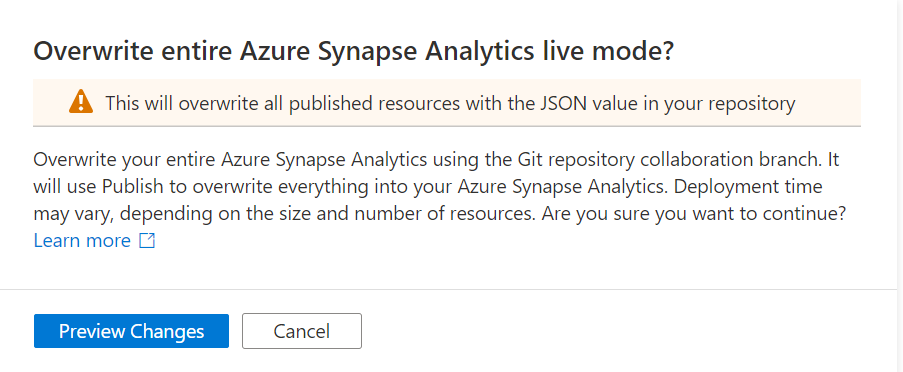
In Azure Synapse Analytics and Azure Data Factory is an new option available "Overwrite Live Mode", which can be found in the Management Hub-Git Configuration.

With this new option your can directly overwrite your Azure Synapse Analytics or Azure Data Factory Live mode code with the current Branch from your Azure Dev Ops.

It will use the Publish option to overwrite everything into your Azure Synapse Analytics or Azure Data Factory, so be careful with doing this. If you have a lot of code, the deployment time can take a while based on the size  of the branch and the number of resources.

Synapse_overwritemode

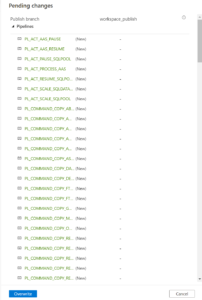
Once you click on Preview Changes you will see that all your code will be published. You need to confirm by clicking the Overwrite button.

Synapse_overwritemode_Publish

After you clicked on overwrite, it will start publishing.

Why?

Sometimes your Live Mode has a different code than your current Git Branch, especially when it comes to Linked Services, Managed Vnets and when using multiple Feature Branches. Incidentally, this is also the case if you link your code (Solution Templates) to your Azure Synapse Workspace from Dev Ops for the first time. Then it is possible that you will not get this code published because there are still dependencies, what I've seen mostly because the use of Azure Key Vault or different Integration Runtime setup. According to the documentation from Microsoft which you can find here they add the following examples:

  • A user has multiple branches. In one feature branch, they deleted a linked service that isn't AKV associated (non-AKV linked services are published immediately regardless if they are in Git or not) and never merged the feature branch into the collaboration branch.
  • A user modified the Synapse or data factory using the SDK or PowerShell
  • A user moved all resources to a new branch and tried to publish for the first time. Linked services should be created manually when importing resources.
  • A user uploads a non-AKV linked service or an Integration Runtime JSON file manually. They reference that resource from another resource such as a dataset, linked service, or pipeline. A non-AKV linked service created through the UX is published immediately because the credentials need to be encrypted. If you upload a dataset referencing that linked service and try to publish, the UX will allow it because it exists in the git environment. It will be rejected at publish time since it does not exist in the Synapse or data factory service.

If the publish branch is out of sync with your collaboration branch and contains out-of-date resources despite a recent publish, you can use the solution above.

Conclusion

I used to disconnect my Git configuration, make the changes in Live Mode, and reconnect Azure Dev Ops again and imported the resource to my current Branch. This solution makes it much easier and will safe you definitely a lot of time.

If you haven't yet linked your Azure Synapse Workspace to Azure Dev Ops, read how to do this in a previous Blog.

Hopefully this article has helped you a step further. As always, if you have any questions, leave them in the comments.

Feel free to leave a comment

Microsoft (Azure) Purview Pricing example

Microsoft (Azure) Purview Pricing example

Azure Purview pricing?

Azure Purview is now Microsoft Purview as off April 2022

An updated post can be found here Updated Microsoft Purview Pricing and Applications


Note: Billing for Azure Purview will commence November 1, 2021.

Updated October 31st, 2021

Pricing for Elastic Data Map and Scanning for Other Sources are changed and updated in the blog below.

Since my last post on Azure Purview announcements and new functionalities  I got some questions regarding pricing. In the meantime the pricing page has been updated and I’ve created also a new Azure Purview instance in my subscription(after August 18th). Currently most of the Azure Purview components are still free until further Notice. To get more details I still recommend everyone to watch the Azure Purview event from September 28th 2021, https://azuredatagovernance.eventcore.com/

Updated September 29th, 2021

Yesterday Microsoft announced the General Availability of Azure Purview, more on the announcement can be found in the blog from Rohan Kumar

Since September 28, 2021, the price of Azure Purview has been adjusted. The main change is that the use of the Elastic Data Map will remain free until November 1, 2021. To encourage trial of the Elastic Data Map, we are providing all customers free usage of Data Map from August 16, 2021 to October 31, 2021. I’ve updated the pricing details below.

As a small recap:

Azure Purview Elastic Data Map

  Price
Capacity Unit €0.353 per 1 Capacity Unit Hour

Billing for Data Map capacity unit consumption will commence November 1, 2021.

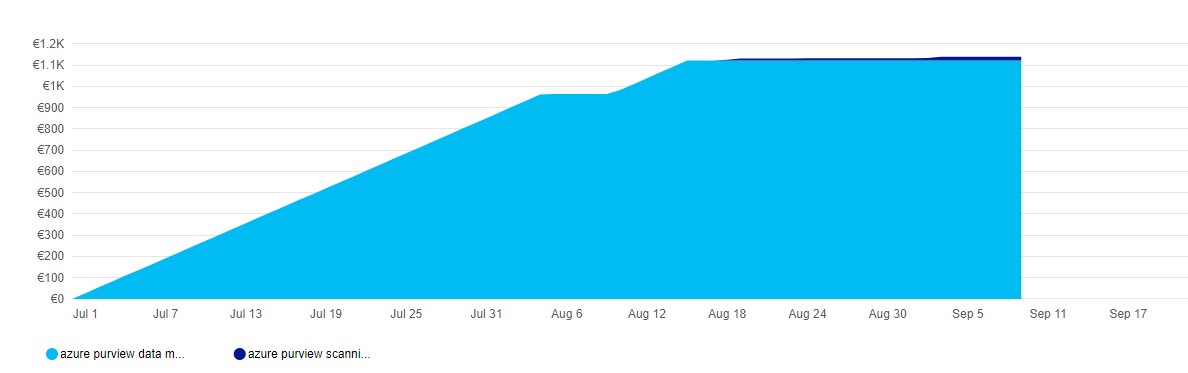
When you have created your Azure Purview after Augusts 18th, you will see that you are currently not charged for the Data Map Units.

Azure_purview_pricing_datamap

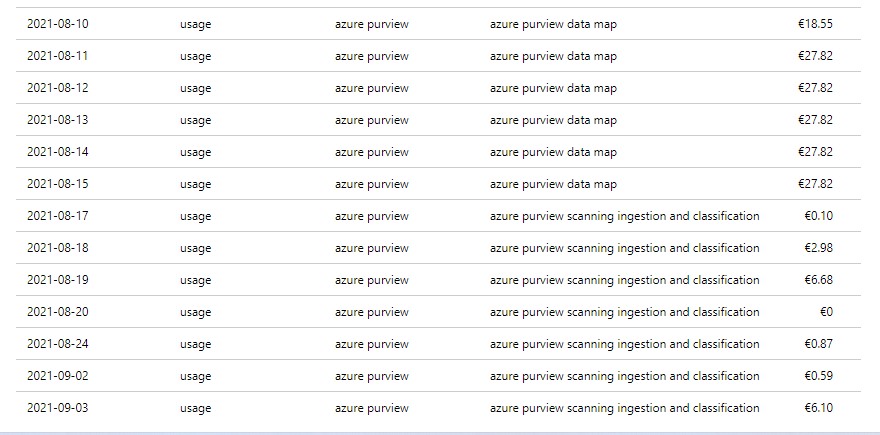
As you can see, no charging anymore for Data Map, I’m only charged for my scanning, which I only do manually do save some costs.

Azure_purview_pricing_details

Automated Scanning & Classification

  Price
For Power BI online Free for a limited time
For SQL Server on-prem Free for a limited time
For other data sources €0.540 per 1 vCore Hour


Other features

  Price
Resource Set €0.18 per 1 vCore Hour

Billing for scanning duration will commence November 1, 2021.

Pricing Example

Based on the example which is published on the pricing page, I’ve done a Calculation:

Example Scenario:
Data Map can scale capacity elastically based on the request load. Request load is measured in terms of data map operations per second. As a cost control measure, a Data Map is configured by default to elastically scale up to a peak of 8 times the steady state capacity.

For dev/trial usage:

Data Map (Always on): 1 capacity unit x Price per capacity unit per hour x 730 hours per month

Scanning (Pay as you go): Total duration (in minutes) of all scans in a month / 60 min per hour x 32 vCore per scan x €0.540 per vCore per hour

Resource Set: Total duration (in hours) of processing resource set data assets in a month * Price per vCore per hour

The total cost per month for Azure Purview = cost of Data Map + cost of Scanning + cost of Resource Set

Assuming above Scenario that we only use 1 Capacity Unit and use not more then 2 GB of Metadata storage and we scan our data once a week for 2 hours.

Data Map 1 CPU x €0.353 X 730 hours = €257,69

Scanning 4 scans x 2 hours x 32 VCore x €0.540 per vCore per hour = €138,24

Resource Set 4 scans x 1 hour x €0.18 per vCore per hour €0,72

In Total €396,65including 4 scans. If you leave Azure Purview as is and no scanning you base fee will be €257,69.

Like always, in case you have questions, leave them in the comments or send me a message.

Useful links


My Virtual Session DataSaturday #14 Oslo

My Virtual Session DataSaturday #14 Oslo

DATA SATURDAY #14 OSLO

This Saturday I've been speaking during DataSaturday #4 Oslo. If you want to visit more Datasaturday events please visit the Data Saturdays event page.

Azure Purview

I presented a session on Azure Purview Microsoft's answer to Data Governance and Data Lineage

You can find my slides below on Slideshare:

Some useful links:


More clarity about pricing and when Azure Purview goes to GA is likely to become clear during the event on September 28. You can register for this event via the link below.

EVENT=>Achieve unified data governance with Azure Purview


Purview_Event


As always, in case you have any questions, please feel free to contact me.


In case you have any questions left please feel free to ask them via the comment or Socials

Azure Purview announcements and new functionalities

Azure Purview announcements and new functionalities

This week the Azure Purview Product team added some new functionalities, new connectors(these connectors where added during my holiday), Azure Synapse Data Lineage, a better Power BI integration and the introduction of Elastics Data Map. Slowly we are on our way to a GA status, on September 2021, 28th there will be a Digital Event. Please find below some of announcements in detail.

New connectors in Azure Purview

Over the past period, the Azure Purview team has worked hard, they have already added the necessary new connectors such as ERWIN, Looker, Cassandra and Google Big Query.Purview_NewSources

This week it was time for some new functionalities.

Azure Synapse Analytics Data Lineage:

This functionality currently only works for a copy activity, but the first step has been made. Where for Lineage from Azure Data Factory you still had to make a link in Azure Purview, for the Lineage from Azure Synapse, it is the other way around. You create the link to Azure Purview in Azure Synapse. How to create this link I described this a couple of months ago in one of my post and can be found here.

Some known limitations on copy activity lineage based on the docs.

Currently, if you use the following copy activity features, the lineage is not yet supported:

  • Copy data into Azure Data Lake Storage Gen1 using Binary format.
  • Copy data into Azure Synapse Analytics using PolyBase or COPY statement.
  • Compression setting for Binary, delimited text, Excel, JSON, and XML files.
  • Source partition options for Azure SQL Database, Azure SQL Managed Instance, Azure Synapse Analytics, SQL Server, and SAP Table.
  • Source partition discovery option for file-based stores.
  • Copy data to file-based sink with setting of max rows per file.
  • Add additional columns during copy.

In additional to lineage, the data asset schema (shown in Asset -> Schema tab) is reported for the following connectors:

  • CSV and Parquet files on Azure Blob, Azure File Storage, ADLS Gen1, ADLS Gen2, and Amazon S3
  • Azure Data Explorer, Azure SQL Database, Azure SQL Managed Instance, Azure Synapse Analytics, SQL Server, Teradata

Power BI

Power BI supports now  automated discovery of columns, measures and  datatypes of  the Power BI.

To enable this functionality you much enable the following settings in the Power BI tenant setting page(be aware that you need to be a Power BI Admin)

Allow service principals to use read-only Power BI admin APIs.

To use this setting create a Security group or use an existing one and add your Purview account to this SG.

Purview_PowerBI_API
Enhance admin APIs responses with detailed metadata
Purview_PowerBI_Metadata

Elastic data map in Azure Purview

All Purview account created after August 2021, 18th are now created with the new Elastic data map concept. With this new concept your Purview account will come by default  with one capacity unit and elastically grow based on usage. Each Data Map capacity unit includes a throughput of 25 operations/sec and 2 GB of metadata storage limit. So now when you’re not using Purview you’re not paying the default value of 4 capacity units.

Purview_Account

The Data Map is billed on an hourly basis. You are billed for the maximum Data Map capacity unit needed within the hour. At times, you may need more operations/second within the hour, and this will increase the number of capacity units needed within that hour. At other times, your operations/second usage may be low, but you may still need a large volume of metadata storage. The metadata storage is what determines how many capacity units you need within the hour. Please read the documentation for a more detailed explanation and some examples

All existing Azure Purview accounts will be migrated in September/October to the Elastics data map concept.

The big question that remains open is what exactly does this Capacity Unit cost? For the time being during the Preview, it is still free, which can be read from the updated  price page of Azure Purview..

More clarity about pricing and when Azure Purview goes to GA is likely to become clear during the event on September 28. You can register for this event via the link below.

EVENT=>Achieve unified data governance with Azure Purview


Purview_Event


As always, in case you have any questions, please feel free to contact me.

Get control of data loads in Azure Synapse

Get control of data loads in Azure Synapse

Erwin

by Erwin | Jul 12, 2021

Load Source data to DataLake

There are several ways to extract data from a source in Azure Synapse Analytics or in Azure Data Factory. In this article I'm going to use a metadata-driven approach by using a control table in Azure SQL in which we configure the metadata(The data which we need to extract). We then load data from an Azure SQL Database to a Azure Data Lake. We will use 2 Pipelines for this activity:

  • The Command Pipeline in which we configure our metadata-driven approach
  • The Execute Pipeline in which we perform the actual data copy activity

Command Pipeline

As you can see in the figure above we use the For Each activity to call the execute pipeline. But when we use the For Each Activity, the Execute Pipelines are assigned during the start of the For Each Activity and not during run time. We will only see this behaviour while extracting a large amount of tables. I have noticed that slots are idle and not starting a new task before one the other task are finished. Due to this behaviour we will see gaps in the Execution window as we can see in the figure below.

For each activity dataload


In the article below I will give you a solution to get control of your data loads by using the Lookup Activity and based on a control table where we can define the workloads.

Metadata

When you're already using a database where you store your Metadata, use this database otherwise create a new one. We then need to create the table below where we store the table names which we need to extract.

[sql]
CREATE TABLE [configuration_demo].[Source_Parameter](
	[Id] [int] IDENTITY(1,1) NOT NULL,
	[SourceName] [nvarchar](500) NULL,
	[SourceSchema] [nvarchar](500) NULL,
	[SourceQueryCustom] [nvarchar](max) NULL,
	[DataLakeCatalog] [nvarchar](500) NULL,
	[Worker] [int] NULL,
	[WorkerOrder] [int] NULL,
	[TableDestinationName] [nvarchar](500) NULL,
	[TableDestinationSchema] [nvarchar](500) NULL,
	[IsActive] [bit] NOT NULL,
	[IsIncremental] [bit] NULL,
	[IsIncrementalColumn] [nvarchar](50) NULL,
	[LastLoadtime] [datetime] NULL,
 CONSTRAINT [PK_Source_Parameter] PRIMARY KEY CLUSTERED
(
	[Id] ASC
)WITH (STATISTICS_NORECOMPUTE = OFF, IGNORE_DUP_KEY = OFF, OPTIMIZE_FOR_SEQUENTIAL_KEY = OFF) ON [PRIMARY]
) ON [PRIMARY]
[/sql]

Metadata-Sourcetable

 
ColumnName Definition
SourceName Name of the Source Table or view
SourceSchema SchemaName of the Source Table or view
SourceQueryCustom Your own custom select querie to load data, do casting or just get a subset of columns
DataLakeCatalog Name of the datalake folder to store raw parquet files
Worker To divide and order the workload, a source can be assigned to 6 workers. These unassigned sources running parallel in batches of 30 (1-6)
WorkerOrder The loading order for the sources assigned to workers 1 till 6.
TableDestinationName Name of the datastore table to store source data
TableDestinationSchema Name of the datastore schema to store source data
IsActive Activate or disable the source from loading (1|0)
IsIncremental Set to 1 if the source needs to be delta loaded (1|0)
IsIncrementalColumn If above setting is set to 1, on which datetime column do we need to base the incremental load
LastLoadtime This field is updated on runtime when the source is loaded.

With the Worker we can define the workload, we can add a same set of tables, a mix of small and large tables, together. This worker can be changed any time.

Once we have filled the configuration we can start creating our Linked Services for the connections.

Create Linked Services

For these 2 Pipelines we need to create 4 different Linked Services.

Azure Key Vault (LS_AKV_OXGN), if you haven't created a Linked Service for Azure Key Vault before please read this page.

Azure Data Lake Storage Gen2 (LS_ADLS_DLS2), linked to your Azure Data Lake.

Linked Service DataLake

Grant workspace service managed identity  access to your Azure Data Lake Storage Gen2.

Azure SQL Source database (LS_ASQL_SOURCE)


Linked Service Sql Source

Create a entry in your Azure Key Vault secrets for the connection string  =>

integrated security=False;encrypt=True;connection timeout=30;data source=xxxxxxxxxx.database.windows.net;initial catalog=WideWorldImporters;user id=xxxxxx;password=xxxxxx

Grant workspace service managed identity access to your Azure SQL Database or create a read-only account in your Source Database

Azure SQL Configuration database (LS_ASQL_CONFIG)

Create a entry in your Azure Key Vault secrets for the connection string  =>

Integrated Security=False;Encrypt=True;Connection Timeout=30;Data Source=demoekeuwdvlmmssqloxgn01.database.windows.net;Initial Catalog=your configurationdatabase

Integration Datasets

Before we can start building our Pipeline we need to create the Integration Datasets.

Source database (DS_ASQL_SOURCE_DEMO)

Dataset SQL Source

Leave the Table Schema and Name empty,

Sink Datalake (DS_ADLS_RAW_PARQUET)

Parameters

  • FilePath
  • Filename

Metadata DB (DS_ASQL_CONFIG)

Dataset Config

Leave the Table Schema and Name empty,

Pipeline

The last step is to create 2 Pipelines, which you can both download over here.

Command Pipeline Worker

Command Pipeline

Name: (PL_COMMAND_COPY_ASQL_TO_ADLS_WORKER_DEMO)

Lookup Activity

Lookup activity can retrieve a dataset from any of the Azure Data Factory / Azure Synapse -supported data sources. For this case we use a query to load the Metadata from the control table so that we know which tables we need to extract.

Get Files Worker

For above Query I've created a view, in the view I have defined the name of the folder and the Filename with the DataLake based on the metadata from the control table.

[sql]
CREATE view [execution_demo].[Load_DataLake_Files]
AS
/**********************************************************************************************************
* View Name:  [execution_demo].[Load_DataLake_Files]
*
* Purpose:    View to show the records which should be processed
*
*
* Revision Date/Time: 

**********************************************************************************************************/
SELECT	 SP.Id as [PipelineParameterId]
		,SP.[SourceName]
		,isnull(CASE WHEN SP.[SourceSchema] != '' THEN SP.[SourceSchema] END, 'Unknown')  as SourceSchema
		,case when Worker not in (1,2,3,4,5,6)  then 1 else Worker end Worker
		,WorkerOrder
		,case	when	SourceQueryCustom is null
			then	'SELECT * FROM [' +isnull(CASE WHEN SP.[SourceSchema] != '' THEN SP.[SourceSchema] END, 'Unknown') + '].[' + SP.[SourceName] + '] where 0 = ' + convert(nvarchar(1),[IsIncremental]) + ' OR 1 = ' + convert(nvarchar(1),[IsIncremental]) + ' AND ' + isnull(SP.[IsIncrementalColumn],'1') +' >='''+convert(varchar(20),ISNULL([LastLoadtime], '1900.01.01'))+''''
			else	[SourceQueryCustom]
		 end As SelectQuery
		,'SELECT CASE WHEN ' + convert(nvarchar(1),[IsIncremental]) + ' = 1 THEN CONVERT(VARCHAR, MAX(' + isnull(SP.[IsIncrementalColumn],'1') +'), 120) ELSE CONVERT(VARCHAR, GETDATE(), 120) END AS [LastLoadDate] FROM [' +isnull(CASE WHEN SP.[SourceSchema] != '' THEN SP.[SourceSchema] END, 'Unknown') + '].[' + SP.[SourceName] + ']' AS [SelectLastLoaddate]
		,isnull(CASE WHEN SP.DataLakeCatalog != '' THEN SP.DataLakeCatalog END, 'Unknown') + '/' +
					isnull(CASE WHEN SP.[SourceSchema] != '' THEN SP.[SourceSchema] END, 'Unknown') + '_' +
					SP.TableDestinationName + '/' +
					FORMAT(GETUTCDATE(), 'yyyy') +'/'+
					FORMAT(GETUTCDATE(), 'MM') +'/'+
					FORMAT(GETUTCDATE(), 'dd')
           as  FilePath
		,isnull(CASE WHEN SP.DataLakeCatalog != '' THEN SP.DataLakeCatalog END, 'Unknown')  + '_' +
					isnull(CASE WHEN SP.[SourceSchema] != '' THEN SP.[SourceSchema] END, 'Unknown') + '_' +
					SP.TableDestinationName + '_' +
					FORMAT(GETUTCDATE(), 'yyyy') +
					FORMAT(GETUTCDATE(), 'MM') +
					FORMAT(GETUTCDATE(), 'dd') +
					FORMAT(GETUTCDATE(), 'HH') +
					FORMAT(GETUTCDATE(), 'mm') +'.parquet'
                --Equal to Filename
			 as [FileName]
		,SP.[TableDestinationName]
		,SP.[ProcessType]
		,cast(SP.[IsActive] as BIT) AS [IsActive]
		,cast(SP.[IsIncremental] as BIT) AS [IsIncremental]
		,isnull(SP.[IsIncrementalColumn],1) as [IsIncrementalColumn]
		,case when [LastLoadtime] is null then '1900.01.01' else LastLoadtime end  as LastLoadtime
FROM [configuration_demo].[Source_Parameter]  as SP
[/sql]

For each Activity

The ForEach Activity defines a repeating control flow in your pipeline. In this case it will call the Pipeline Activity based on the output of Lookup Activity Get Files Worker XX.

For each Activity


Within each Activity we add a Pipeline Activity, to finalize this Pipeline we first need to create the Execute Pipeline.

Execute Pipeline

Name: (PL_EXECUTE_COPY_ASQL_TO_ADLS_DEMO)

Add the following Parameters to the Pipeline:

Execute parameters pipeline

Switch Activity

The Switch activity provides the same functionality that a switch statement provides in programming languages. It evaluates a set of activities corresponding to a case that matches the condition evaluation.

In this situation we create a case for Incremental Loads or Full loads. Why do we do this? We pay for every activity and every activity will take time. If we have a full load we don't need the last load date from the source. So in this situation it will save you 1 activity and 15 sec for every Full load.

Switch Activity

Lookup Activity

Use the Lookup Activity to get the LastLoadDateTime from a Source Table. We will store this value at the end of the process for incremental Loading purposes. In this way, we exactly know the correct value if we run the process the next time.  This Activity is only used in the switch activity when the case Incremental = True .

Exexcute lastloaddate

Query = expression @{pipeline().parameters.SelectLastLoadDate}

Copy Activity

We can use the Copy activity to copy data among data stores located on-premises and in the cloud.

Execute copy source

Query = expression @{pipeline().parameters.SelectQuery}

Execute source ADLS

Stored procedure Activity

Use Stored procedure Activity to do data transformation activities in a Data Factory / Synapse pipeline to transform and process raw data into predictions and insights. We use it to update our control table with the Incremental Value from the source which we looked up in the beginning of our pipeline.

Execute set last loaddate

For the Full load Switch we replace "'@{activity('Get LastLoadDate').output.firstrow.LastLoadDate}' "  with "getdate()"

Now we have finalized our execute pipeline we need to finalize the command pipeline.

FEL Execute Pipeline


Fill in the parameters based on the output of the Get Files Worker1 and you're ready to rock.

Copy and Paste  the Get Files Worker 1 and ForEach_Worker1 to the desired number or workers, rename them to 2,3,4,5 and so on. Change the worker number in the Lookup query or even easier just download both templates from my Github.

Workers

The great advantage of above solution is that you are now in control how your loads are running instead of the random slots in an For each Activity.

Hopefully this article has helped you a step further. As always, if you have any questions, leave them in the comments.

Feel free to leave a comment