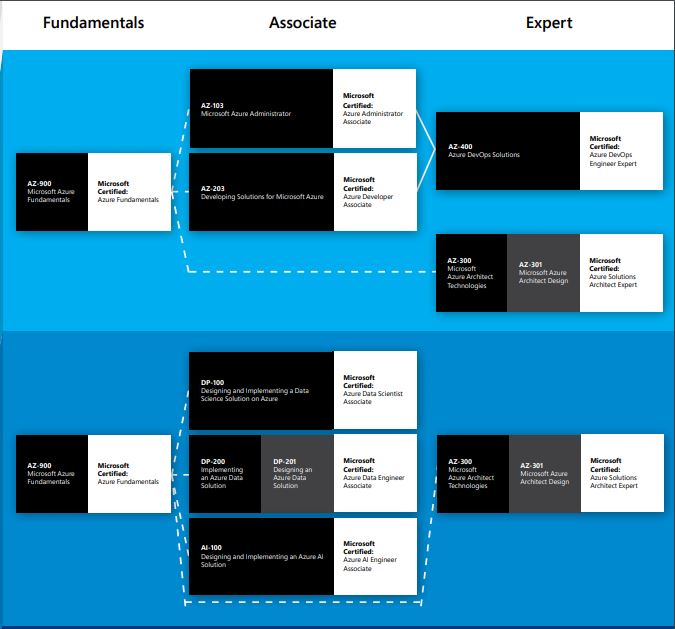
New Microsoft Azure Certifications
Erwin
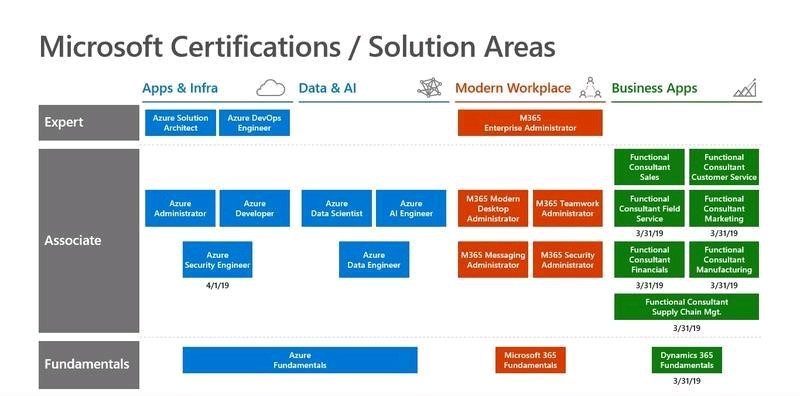
Microsoft Certification by Solution Area
Handy overview of the new Microsoft Azure Certifications.
More details can be found here
Handy overview of the new Microsoft Azure Certifications.
More details can be found here
You can submit a support ticket trough the Azure Portal to request more SQL Servers. After replying some answers about the reason and the purpose of requesting more servers, they added the requested quota to our West Europe region.
So far so good, but then the question came back if I could check if these servers where added. I've been looking everywhere in the Azure Portal, but couldn't find it.
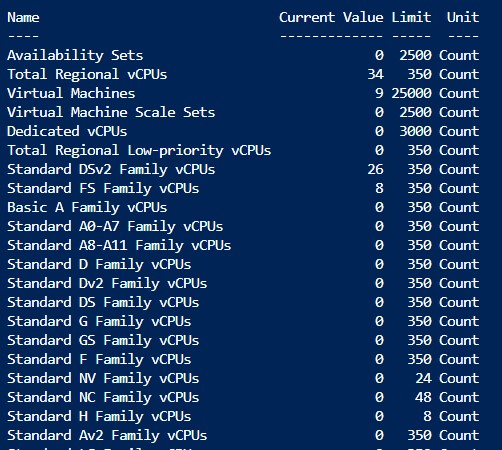
The only way to check your SQL Server quota is by following the documentation(below) where you can find power shell command to check SQL server quota.
https://docs.microsoft.com/en-us/azure/azure-resource-manager/templates/error-resource-quota
Run the Command and you wil get the following result:
[ps] Get-AzVMUsage -Location 'West Europe' [/ps]
Hopefully this will help you the next time you need to find your quota's. Thank you for reading.
Besides that you can rerun your Pipeline in Azure Data Factory in a easy way, you also have the possibilities to see your run, visualized in the Azure Data Factory Monitoring. This is a big improvement in my opinion.

If you want to partially rerun a Pipeline, follow the steps below:
Select the Pipeline which has failed, go to the view activity runs and select the activity which failed.
Click on the Rerun Icon
You need to confirm that you want to rerun this activity.
The Pipeline will start and will first skip all the activities(the grey new icons in the upper right corner of each activity) in the Pipeline before your selected Activity.
Your Pipeline will now finalize all the activities from your newly defined starting point.
You can now view all the history reruns by clicking on the toggle to ‘View All Rerun History’.

By clicking on the red marked action, you can see all the History from an particular Pipeline run.
Thanks for reading.
Updated 10th of March:
Found a video on Channel9 which explains how to "Rerun activities inside your Azure Data Factory pipelines"
I will not describe what Azure DevOps can do, because that is too much to mention. In my future articles I want to take you into the challenges that I had in my projects during building and releasing of f.e. DataFactory, SSIS Packages, KeyVault, a number of recognizable Azure Services that are regularly used within Business Analytics projects.
If you want to use Azure Feature Pack components like Azure Blob Storage or Azure Data Lake Store in your SSIS Packages, I would definitely read the following article:
Azure DevOps and Azure Feature Pack for Integration Services
A great addition for SSIS is using extra connectors like Azure Blob Storage or Azure Data Lake Store which are added by the Azure Feature Pack. This Pack needs to be installed on your local machine. Are you running your SSIS packages in Azure? You don’t have to install anything, this pack is installed by default.
After I started to use Azure Dev Ops to build my SSIS packages on a hosted VS2017, I got some strange error messages running these packages.

After contacting support we found out that the Azure Feature Pack is not installed on a Hosted VS2017 instance and that you need to add this installation to your build processes.
Follow the steps to download and install the Azure Feature Pack:

The script will take care of downloading and installing the Azure Feature Pack for SSIS2017 on your hosted 2017 machine.
The File SsisAzureFeaturePack_2017_x64.msi will be downloaded to the system variable Build.StagingDirectory.
Inline script:
[code lang="ps"] # Erwin de Kreuk # February 2019 # PURPOSE: Install Azure Feature pack on Hosted VS2017 machine in Azure DevOps Write-Information 'Starting ADF ARM Transform' #Define Filename $Filename = 'SsisAzureFeaturePack_2017_x64.msi' $Arguments=' /qn' Write-Host 'Downloading...$Filename' #Define download link including filename and output directory with filename Invoke-WebRequest -Uri 'https://download.microsoft.com/download/E/E/0/EE0CB6A0-4105-466D-A7CA-5E39FA9AB128/SsisAzureFeaturePack_2017_x64.msi' -OutFile '$(Build.StagingDirectory)$Filename' Write-Host 'Installing...$Filename' Invoke-Expression -Command '$(Build.StagingDirectory)$Filename $Arguments' Write-Host 'Finished Installing...$Filename' [/code]
The next time you build your SSIS Packages with the Azure Components, these packages are build correctly. Create a Release Pipeline to Deploy the SSIS Packages to the SSIS server and to test your Package.
Thanks for reading today and if there’re some questions left do not hesitate to ask them.