Datagrillen: Data, Bratwurst und Beer

Datagrillen: Data, Bratwurst und Beer

Data, Bratwurst and Beer

An event that started 5 years ago as a small event, that has grown into an event with 200 participants, 50+ sessions, 5 tracks, 2 days and a BBQ in a small place in Germany, called Lingen. William Durkin and Ben Weissman are the main organizers, but are supported by a bunch of volunteers and supported by a great group of sponsors.

Speaker/Volunteer diner

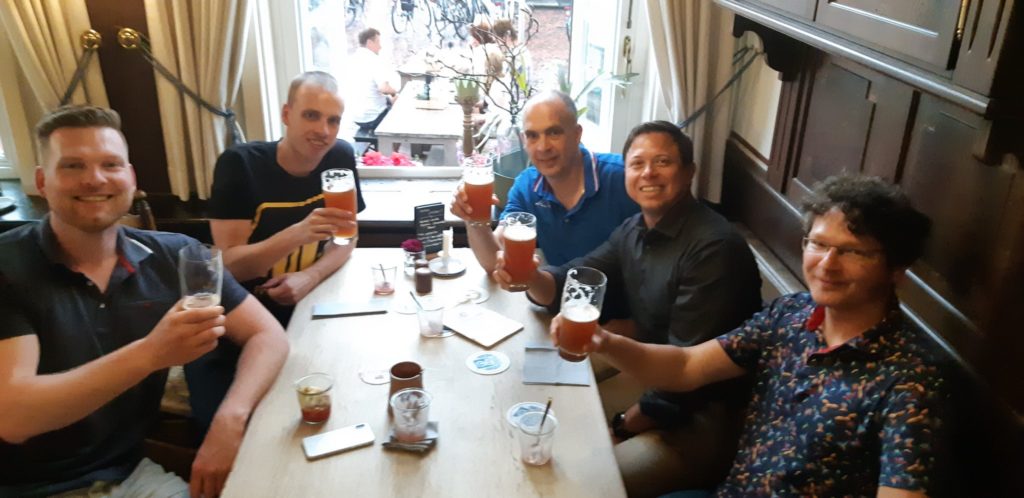
Wednesday the event started for me with a drink in Hotel Lobby and with a great dinner in the Alte Posthalterei. We had a great evening, met some old friends and made some new friends.

DataGrillen Dinner

Sessions

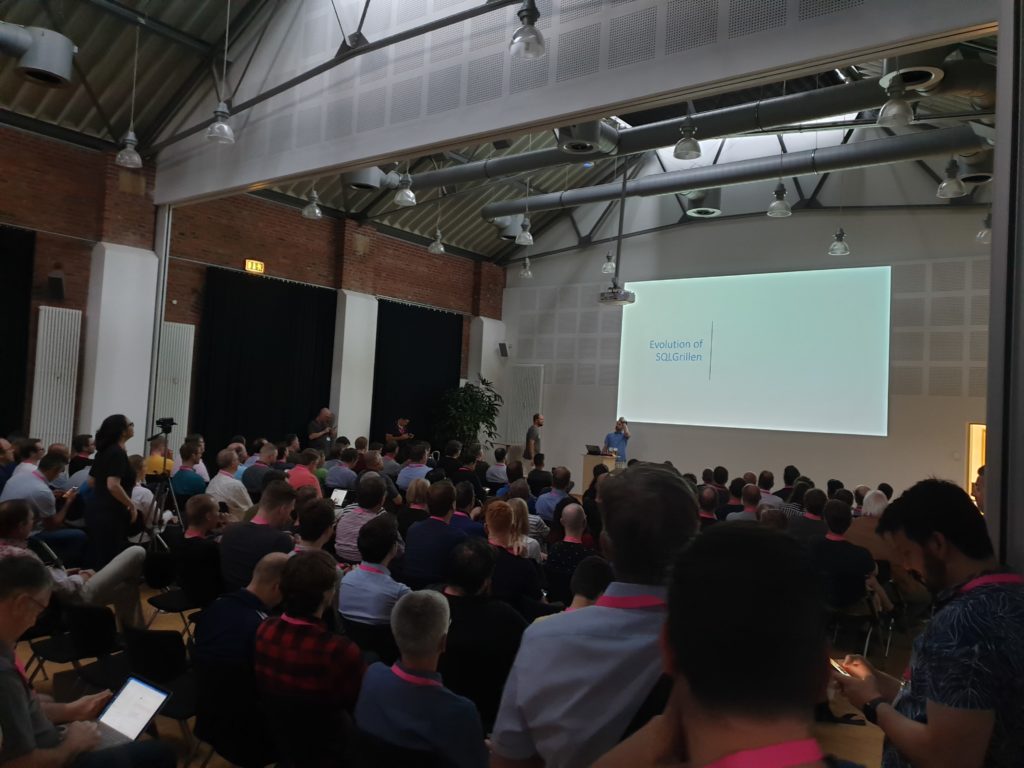
DataGrillen Keynote

The first day started early, we helped preparing the badges and did the check in. Around 9:00 am almost every attendee was in and ready for the Keynote. During the keynote there was a special welcome to all the newcomer Speakers and their mentors. This newcomer track is designed to accommodate people new to presenting. In my opinion this newcomer tracks should be introduced to all events.

During these 2 days there were 5 sessions divided over 5 tracks on both days. I have attended many nice sessions, but I have certainly gained a lot of new inspiration out of these sessions.

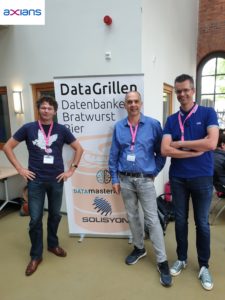
DataGrillen Axians

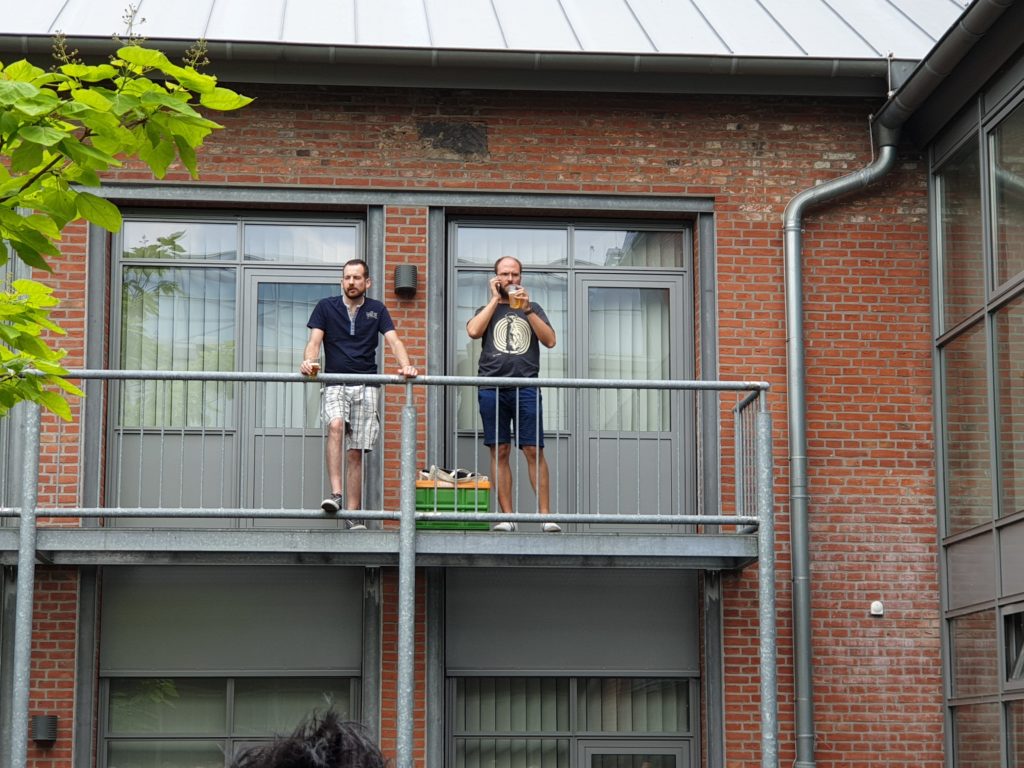
Day 1 ended with the traditional bbq. Personally, I love bbq a lot and know that it is hard work to get a bbq for 200 people, but the catering did very well. Compliments to the catering.

During the days I have spoken to many people, both well-known and also many new ones. From Axians we joined this event with 3 people.

We are 1 large #sqlfamily.


Rafle time

After 2 tiring days, the event was traditionally closed on Friday by William and Ben with the raffle. And that was for me also the end of 2 great days and I could start with my home trip.DataGrillen Raffle


Sponsors

Thank you Solisyon, Datamasterminds, SentryOne, PowerBi Sentinel, dbWatch, Rosen, Shop Apotheke Europe, Redgate, Hedda and IT Emsland without you the event wasn’t free, there where no drinks and there was no food.

Next Year

Next year the event will take place on may 28 and may 29.

Call for Speakers is  open https://sessionize.com/datagrillen-2020/

See you next year. And once again thank you William and Ben for organizing

My Virtual Session Cloud Lunch and Learn Marathon

Cloud Lunch and Learn Marathon 2021 This Thursday May 13th 2021 I’ve been speaking during Cloud Lunch and Learn Marathon 2021. It was the first Cloud Lunch and Learn Marathon conference, more then 1200 registered attendees, 24hours Live and pre recorded sessions….

My Virtual Session DataSaturday #1 Pordenone

DATA SATURDAY #1 PORDENONE This Saturday I’ve been speaking during DataSaturday #1 Pordenono. The first ever DataSaturday after Pass has retired. If you want to visit more Datasaturday events please visit the Data Saturdays event page. Azure Purview I presented a…

The new and refreshing Azure Data Factory home page

The Data Factory home page has been redesigned for a modern and more accessible ( WCAG 2.1 ) experience. The new design is more fluid with better contrast and reflow capabilities.  Thank you to the complete product team for this great experience The new and refreshing…

Data Saturday #1 Pordenone(Video)

Recording of my session during Data Saturday #1 Pordenone Azure Purview Microsoft’s answer to Data Governance and Data Lineage  

My First Blog Post SQLSatHolland 790

Yeah, m y first blog is LIVE After a good talk with Reza Rad from RADACAD during SQLSatHolland, I decided to start my first blog! Knowledge sharing is very important, it gives me a lot of energy. But it also gives others people in the community energies to pick up new…

October=Speaking Month

DataSaturday Holland and DataMinds in Belgium Like last year I have been selected again this year for both events to speak. Cool to be able to speak at 3 different events within 7 days, but also to see many known people and to met new people. Data Saturday Data…

Video: Learn Live Use Data Factory pipelines in Microsoft Fabric

Below you find the recording form the session for Learn Live which I did together with Javier. Use Data Factory pipelines in Microsoft Fabric Use Data Factory pipelines in Microsoft Fabric – Training | Microsoft Learn     After you have followed above learning…

My Session at TechoramaNL 2019

TechoramaNL 2019 Date: 2 th October Location: Pathé Ede From September 30 th to October 2 nd TechoramaNL was held in the Netherlands for the 2nd time. TechoramaNL is the largest deep knowledge IT conference in the Netherlands with 1500 participants and 120 sessions in…

My Virtual session at Data Toboggan

An inaugural event specializing on Azure Synapse Analytics Data Toboggan This Saturday I’ve been speaking during Data Toboggan an inaugural event specializing on Azure Synapse Analytics. 12 Hours of sessions with amazing speakers. Azure Purview I presented a session…

Speaking at SQL BITS 2022

SQL BITS 2022 We’re Hitting the Arcade SQL Bits is back this year in London from March 8-12 2022. SQLBits is the largest data conference in the world and this year’s theme is to bring us back to our incandescent youth, so prepare to level up your data skills and reach…

SSMS 18.xx: Creating your Azure Data Factory SSIS IR directly in SSMS

Creating your Azure Data Factory(ADF) SSIS IR in SSMS

Since  version 18.0 we could see our Integration Catalog on Azure Instances directly.

Yesterday I wrote an article how to Schedule your SSIS Packages in ADF, during writing that article I found out that you can also created your SSIS IR(Integration Runtime) directly in SSMS.

I never saw the option before, it was always grayed out(because the SSISDB was already in Azure). But if you connect to an On Premise system it will not be grayed out.

An easy scenario to lift and shift your SSIS Packages to Azure, with a couple of steps you can create your SSIS IR.

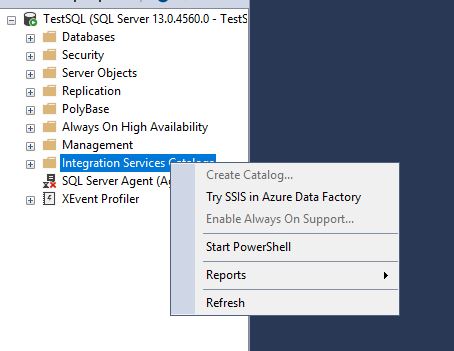
Go to your Integration Services Catalog on your On Premise Server. Right Click and select the option “Try SSIS in Azure Data Factory” and click on Next.

Create ADF


Prerequisites

As Prerequisites you will need:

An Azure account.

An Azure SQL Database server or Managed Instance.


Configuration of your SSIS IR

Create SSIS IR in Azure wizard.

Creating ADF SSIS SSMS

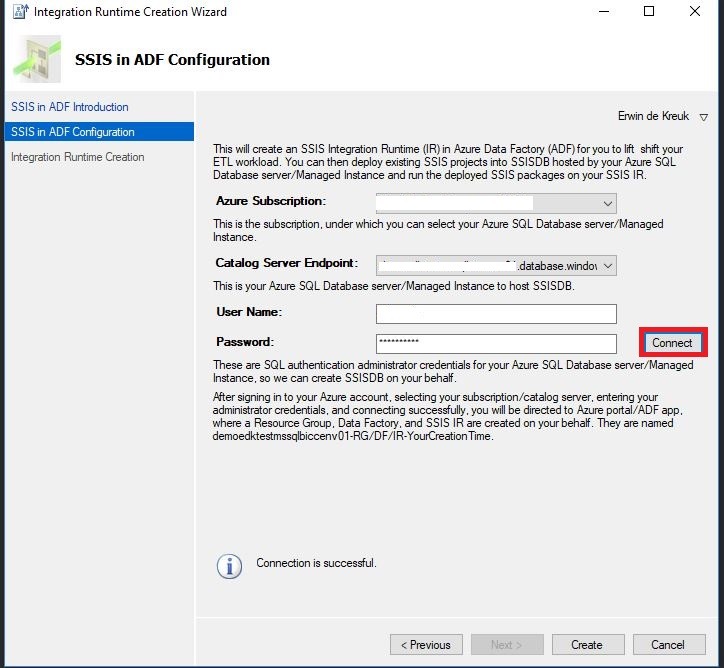
On the right upper corner you can log in to your Azure Subscription.

Select the correction Subscription, in case your have more subscription assigned to this account.

Select the Catalog Server where you want to install your SSIS IR on. This server cannot have an existing SSISDB.

Provide the necessary log in details and click on connect.


Creating ADF SSIS SSMS Validation


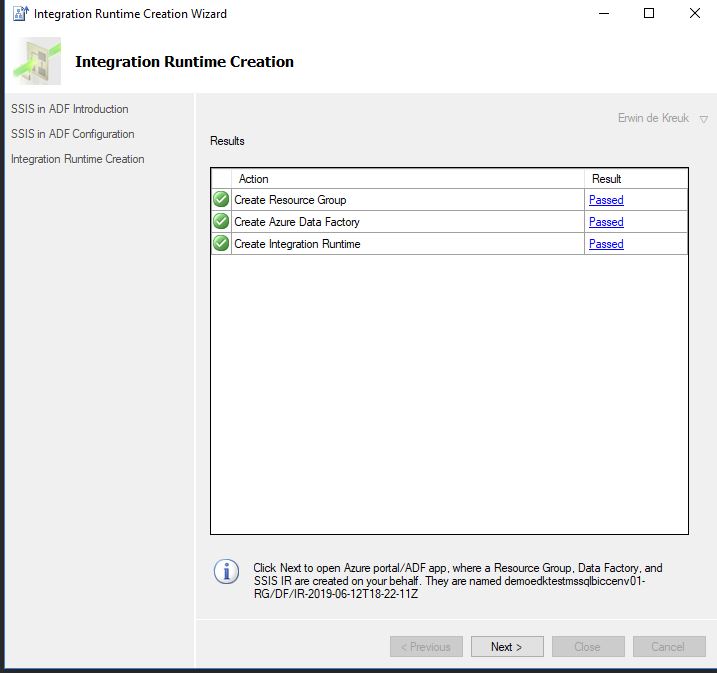
The last step is to Create your SSIS IR.

After you have clicked on Create,  SSMS will do some validations and after these validations you will be asked to open the ADF Portal.


Azure Data Factory Portal

Creating ADF SSIS


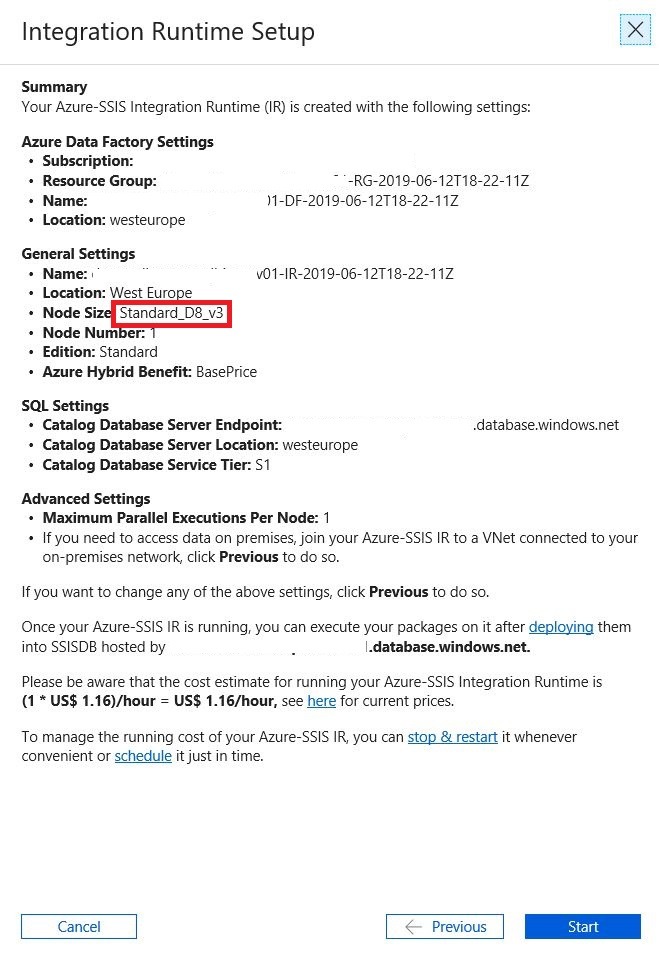
After you logged into the portal you will see a summary of the detail how your SSIS IR will be setup.

If you click on next your SSIS IR will be started.


Change Settings

To change any of the Parameters above you need to use the previous button. You can change:

Number of Parallel Executions Per Node

Custom Setup Container SAS URI

VNET

Node Size

License

The name of your SSIS IR and Resource Group are create by the setup and cannot be changed.

The Resource Group for example is created in the Region US-East.


ADF Pipeline


Conclusion

It is a simple way to setup your SSIS IR in Azure, but I do prefer do this my self trough the Azure Portal or automated with a PowerShell script.

SSMS 18.1: Schedule your SSIS Packages in Azure Data Factory

Schedule your SSIS Packages with SSMS in Azure Data Factory(ADF)

This week SQL Server Management Studio version 18.1 was released, which can be downloaded from here.

In version 18.1 the Database diagrams are back and from now on we can also schedule SSIS Packages in ADF via SSMS.


Select the package you want to schedule in your Integration Services Catalog,

Schedule SSIS Packages


Create the schedule you want to create and click on OK.

 Your schedule will be created in Azure Data Factory.

SSMS Schedule


Azure Data Factory

In Azure Data Factory a pipeline and trigger are created automatically

SSIS Packages Azure Data Factory Pipeline


Azure Dev Ops

Scheduling your SISS packages is not working fine when you have Azure Dev Ops Enabled. Pipeline and Trigger are published to the Data Factory instead of Azure DevOps GIT as you can see below.

My advice will be to build your schedule/trigger directly in Azure Data Factory when you ‘re using Azure Dev Ops.

SSMS Azure Dev Ops


In case you have any questions left, do not hesitate to ask them. I’m more then happy to answer them.

Azure SQL Data Warehouse: Reserved Capacity versus Pay as You go

Azure SQL Data Warehouse: Reserved Capacity versus Pay as You go

How do I use my Reserved Capacity correctly?

Update 11-11-2020: This also applies to Azure Synapse SQL Pools.

In my previous article you were introduced, how to create a Reserved Capacity for an Azure SQL Datawarehouse (SQLDW). Now it’s time to take a look at how this Reserved Capacity differs from an already working environment with an Azure SQLDW Pay as You go model where we already scale up and down during certain time periods.
 
In the example below I’m running an Azure SQLDW with the following capacity during the day.
 
Weekdays:
12:00 AM 4:00 AM 100   cDWU
5:00 AM 7:00 AM 3000 cDWU
8:00 AM 6:00 PM 1500 cDWU
7:00 PM 12:00 AM 100   cDWU

Weekenddays:

12:00 AM 4:00 AM 100   cDWU
5:00 AM 7:00 AM 3000 cDWU
8:00 AM 6:00 PM 500   cDWU
7:00 PM 12:00 AM 100   cDWU

We have separated the weekdays from the weekend days. The SQLDW is used less heavily during the weekend than during the week.

In our calculation we assume that we will purchase a Reserved Capacity of 3 years with 15 units of 100 cDWU. On the left site you will see the Pay as You go model and on the right site the Reserved Capacity.

The amount of Storage will be 8 TB.

As you can see in the example below.

Azure SQL DataWarehouse Reserved Capacity

Conclusions:

In the example we see that we have to pay extra if we exceed our Reserved Capacity. These extras are billed with the normal Pay as You go rate.

If we use the Reserved Capacity, we have 1500 cDWU available throughout the day so we don’t longer need to turn it off or scale it down during weekends or outside office hours. Otherwise the Reserved Capacity is wasted for that hour, it doesn’t carry over.
So we actually get more capacity and we pay less for it, sounds great or not!  More details can be found here.

In this example, we save nearly 2,750 euros a month, which is almost 33,000 euros a year and 100,000 euros during the 3-year Reserved Capacity period. And that is a considerable amount that you can use to develop new solutions.


Reserved Capacity Years Discount Month Year  Total Period Reserved Capacity Year Discount month year Total Period
1500 cDWU 3 65 2742 32914 98739,648 1500 cDWU 1 35 -2319,41 -27832,9 -27832,896
1000 cDWU 3 65 2261,952 27143,42 81430,272 1000 cDWU 1 35 -1112,83 -13354 -13353,984

In this situation we achieve the largest saving with 1500 cDWU with a Reservation of 3 years. When purchasing 10 units of 100 cDWU, we still save but slightly less. When purchasing Reserved Capacity for 1 year, a Pay as You go model will be cheaper.


Calculation Sheet

Since every situation is different, you will have to play with these quantities/units yourself. I have added the Excel form so that you can download it, on which I have based this article. With this form you can fill in your own situation as well as possible. And finally you can take your own conclusions for your customer or environment.

In the sheet only change the Green Marked cells. Prices are in Euro’s.

SQLDWH_-_pay-as-you-go_vs_reservedcapcity

This form has been created together with my colleague Maurice Veltman and we have used it for a solid calculation for 1 of our customers.

If you have any questions or comments about this article or the form,  just let me know.


Azure SQL Data Warehouse: How to setup Reserved Capacity

Purchase your Azure SQL Datawarehouse Reservation


Since a few weeks you can buy Reserved Capacity for an Azure SQL Datawarehouse (SQLDW). This Reservation can save you up to 65% on the normal Pay as You go rates with a 3 year pre-commit. A pre-commit of 1 year will be discounted up to 35%.

These savings will only effect the compute power. You will charged separately for the storage with the normal Pay as You go rates.

To purchase a reservation,  you need to sign-in to the Azure Portal first and then search for reservations.

Reserved Capacity Azure SQLDW

After you have clicked on Purchase Now, you will need to choose the Azure SQLDW option.

Reserved Capacity Azure SQLDW

Select the Region, be aware that if you want to run Several SQLDW’s (Dev/Test/Prod) and you want to make use of the benefits of the reserved capacity that these SQLDW’s must all be created in the Region in which the reservation is made.

When you’re running a Enterprise Subscription and you have more then 1 Subscription you can change the Scope to  “Shared”. With this option selected you can use the Reserved Capacity across all subscription within the same EA Enrollment.

Reserved Capacity Azure SQLDW

Select 1 or 3 year Term.

Reserved Capacity Azure SQLDW

Choose a quantity. The reserved capacity is calculated by 100 cDWU(Data Warehouse units). Choose the quantity you want to reserved. In case you select 5 cDWU, you will have 500 cDWU of reserved capacity every hour.

Reserved Capacity Azure SQLDW


Reserved Capacity Azure SQLDW

The last step is to Purchase your Reservation.

Reserved Capacity nice to know’s

Storage and Network are charged separately, for these Azure Services the Reserved Capacity Discount will not be applied.

The Reserved Capacity Discount is applied on running Azure SQLDW Instances on a hourly basis.

If you don’t have a Azure SQLDW Instance deployed for an hour, then the reserved capacity is wasted for that hour. It doesn’t carry over. Unless you have more then 1 Azure SQLDW Instance running, the reservation is automatically applied to other matching instances in that hour.

Some Examples:

1 – Running 1 Azure SQLDW Instance:

You have purchased 5 units of 100 cDWU.

On the moment you scale to 1000 cDWU, you will be charged with a Pay as You go rates for 700 cDWU.

2 – Running 2 Azure SQLDW Instances:

You have purchased 15 units of 100 cDWU.

1 Azure SQLDW Instance is running 500 cDWU and the other one 1000 cDWU.

No extra cost will be applied.

3 – Running 2 Azure SQLDW Instances:

You have purchased 15 units of 100 cDWU.

1 Azure SQLDW Instance is running 500 cDWU from 9 am to 5 pm  and the other one 1500 cDWU the whole day.

You will be charged for a Pay as You go rates for 500 cDWU from 9 am to 5 pm.

Reserved Capacity Azure SQLDW

Thank you for reading this article and hopefully it will make things clear to you.

Within a few days I will publish a new article in which I describe how much you could possibly save if you still want to scale up or down during certain periods of the day. If there are any questions left about this article, don’t hesitate to ask them to me.

UPDATE 6th May

Reserved Capacity versus Pas as You go

https://erwindekreuk.com/2019/05/azure-sql-data-warehouse-how-to-setup-reserved-capacity/