Azure Synapse Pause and Resume SQL Pool

Azure Synapse Pause and Resume SQL Pool

Pause or Resume your Dedicated SQL Pool in Azure Synapse Analytics

Azure Synapse Analytics went GA in beginning of December 2020, with Azure Synapse we can now also create a Dedicated SQL Pool(formerly Azure SQL DW). Please read this document to learn what a Dedicated SQL Pool is. This article describes how to Pause or Resume a SQL Pool within Azure Synapse Analytics. A SQL Pool(Former Azure SQL DW) linked to a SQL (Logical) Server has a slightly different approach.

A SQL Pool is a MPP Database (short for massively parallel processing) and has a different approach of loading data but also different kind of pricing. This are details for another Blogpost.

 

Azure Synapse Dedicated SQL Pool

In this article, we are going to build a Synapse Pipeline which will call a REST API. The concept is based on an earlier post about Analysis Services:  Use Global Parameters to Suspend and Resume your Analysis Services in ADF.

A SQL Pool can have different statuses:

  • Pausing: SQL Pool is Pausing and we cannot change the status.
  • Resuming: SQL Pool is Resuming, the SQL Pool starting and during this  process and we cannot change the status.
  • Scaling: SQL Pool is Scaling, the SQL Pool is scaling to a different compute level and during this  process we cannot change the status.
  • Paused: SQLPool is Paused, we can now change the status.
  • Online: SQLPool is Online, we can now change the status.

To allow the Synapse workspace to call the REST API we need to give the Synapse workspace access to the SQL Pool. In the Access control (IAM) of the SQL Pool assign the contributor role to your Synapse Workspace.

Build Pipeline

Create a new Pipeline with the name PL_ACT_PAUSE_SQLPOOL

Add the following Parameters to the Pipeline:
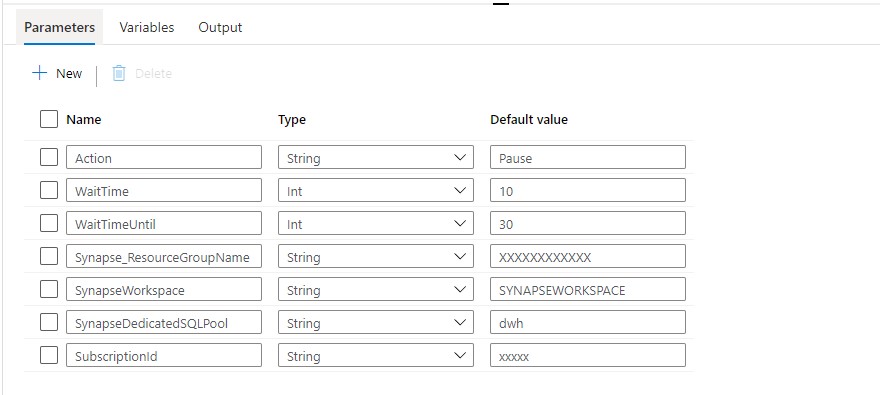
Azure Synapse Dedicated SQL Pool Parameter

Above are the generic Parameters used within the Pipeline.

Action:   PAUSE or RESUME

WaitTime: Wait time in seconds before the Pipeline will finish

WaitTimeUntil: Wait time in seconds for the retry process

Synapse_ResourceGroupName: Name of the ResourceGroup of the used Synapse Workspace

SynapseWorkspace: SynapseWorkspace

SynapseDedicatedSQLPool: Name of the dedicated SQL Pool

SubsriptionId: SubscriptionId of Synapse Workspace

Until Activity

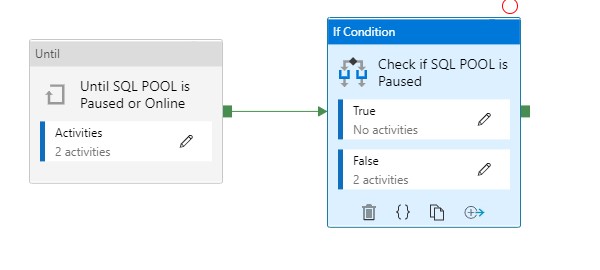
We can only change the status when the SQL Pool is Paused or Online That’s why we need to add  an Until activity to start the Pipeline. It executes a set of activities in a loop until the condition associated with the activity evaluates to true.
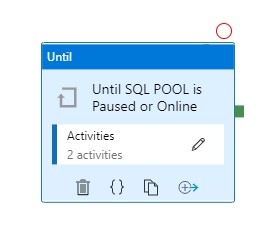
Azure Synapse Until

With this activity we can check the status of the SQL Pool and wait until it becomes Paused or Online. Let me explain how this works.

Web Activity

Within the Until Activity we need to create a new Web Activity. A Web Activity can be used to call a custom REST API endpoint from a Synapse Data pipeline.

Name = Check for changed SQLPool Status

URL= https://management.azure.com/subscriptions/XXX/resourceGroups/XXX/providers/Microsoft.Synapse/workspaces/XXX/sqlPools/XXX/?api-version=2019-06-01-preview

The  <xxx> we need to replace with the Pipeline Parameters. The final Result will be:

https://management.azure.com/subscriptions/@{pipeline().parameters.SubscriptionID}/resourceGroups/@{pipeline().parameters.Synapse_ResourceGroupName}/providers/Microsoft.Synapse/workspaces/@{pipeline().parameters.SynapseWorkspace}/sqlPools/@{pipeline().parameters.SynapseDedicatedSQLPool}/?api-version=2019-06-01-preview

Method = GET

Resource =https://management.azure.com/
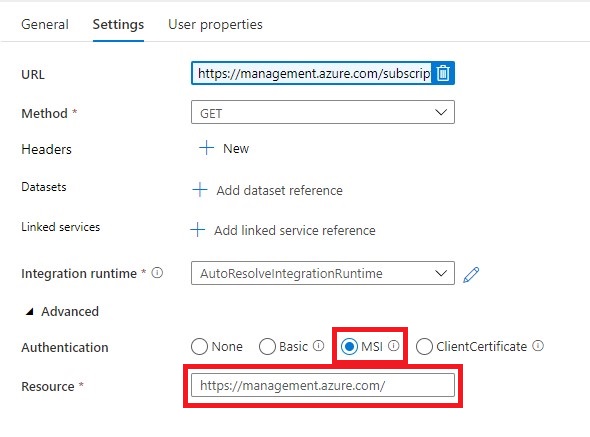
Azure Synapse Web Activity

Once we have created the Web Activity, we can define the expression for the Until Activity.
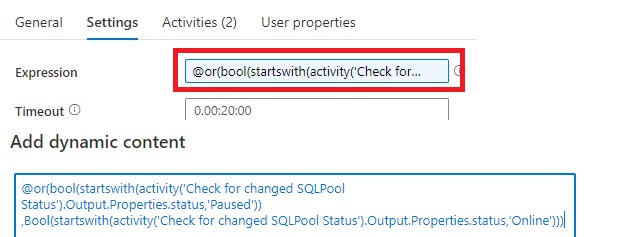
Azure Synapse Until expresssion

The Pipeline can only continue when the status is Paused or Online and not one of the other statuses. That’s the reason we need to add these 2 two statuses to check for.

Expression: @or(bool(startswith(activity(‘Check for changed SQLPool Status’).Output.Properties.status,’Paused’)),Bool(startswith(activity(‘Check for changed SQLPool Status’).Output.Properties.status,’Online’)))

Time out: 0.00:20:00

The Until Activity will only continue, when the status from the above Web Activity output is Paused or Online, this can take a while and we don’t want to execute the Web Activity every time. That’s why we add a Wait Activity.

Wait Activity

A Wait Activity  waits for the specified period of time before continuing with execution of subsequent activities. Within the Wait Activity add an expression from above parameters for Wait time seconds.

Azure Synapse Wait Activity

After the Web Activity, Azure Synapse waits in this case 30 seconds to check if the status has changed before it will check again.
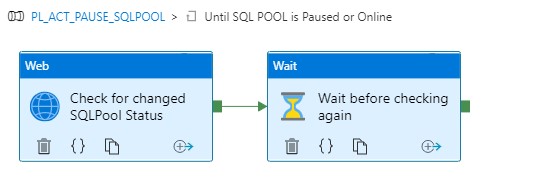
Azure Synapse Until inside

Check for the SQL Pool Status

To check if the SQL Pool is paused, we’re adding an If Condition Activity (Name: Check if SQL POOL is Paused)

Azure Synapse Paused

Add an Expression on the If Condition Activity @bool(startswith(activity(‘Check for changed SQLPool Status’).Output.Properties.status,’Paused’))

This expression will check if the SQL Pool is Paused or not. In this situation we want to Pause our SQL Pool, to Pause the SQL Pool we need to add as  Activity for pausing(see below) to False. In case the SQL Pool is already Paused we do nothing(True).
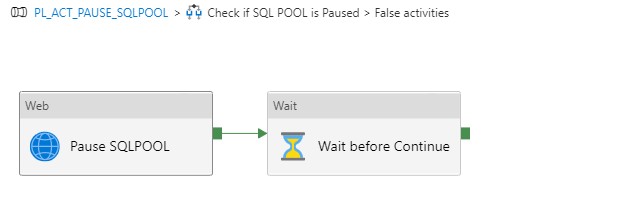
Azure Synapse If inside

The following settings are set for the Web Activity:

URL: https://management.azure.com/subscriptions/XXX/resourceGroups/XXX/providers/Microsoft.Synapse/workspaces/XXX/sqlPools/XXX/{Action}?api-version=2019-06-01-preview

The  <xxx> we need to replace with the Pipeline Parameters. The final Result will be:

https://management.azure.com/subscriptions/{pipeline().parameters.SubscriptionID}/resourceGroups/{pipeline().parameters.Synapse_ResourceGroupName}/providers/Microsoft.Synapse/workspaces/{pipeline().parameters.SynapseWorkspace}/sqlPools/{pipeline().parameters.SynapseDedicatedSQLPool}/@{pipeline().parameters.Action}?api-version=2019-06-01-preview

It is almost the same URL but we have to add the action option @{pipeline().parameters.Action} 

Method = Post

Header = {“Nothing”:”Nothing”}

Resource =https://management.azure.com/

Add a Wait Activity but this time with a different parameter @pipeline().parameters.WaitTime, the purpose of this activity is to wait a period before we start ingestion data(just to be sure the SQL Pool in online)

Create Pipeline to Resume your SQL Pool

Clone your PL_ACT_PAUSE_SQLPOOL and rename it to PL_ACT_RESUME_SQLPOOL. Change your action Parameter to “Online”.

Within the IF Condition move the Web Activity Pause SQL Pool and the Wait Activity  from False to True and rename to Resume SQL Pool.

You have now learned how to Pause and Resume your SQL Pool Dynamically with the use of Parameters. Both Pipelines can be easily transferred to different customers.

Please feel free to download the Pipeline code here

MetaData

If you’re already using a database where you store your Meta Data, then you have also the possibility to store the necessary parameters in the database. The only thing you need to do is adding a Lookup Activity to get the parameters from your database(and replace the parameters with the output from the lookup activity)
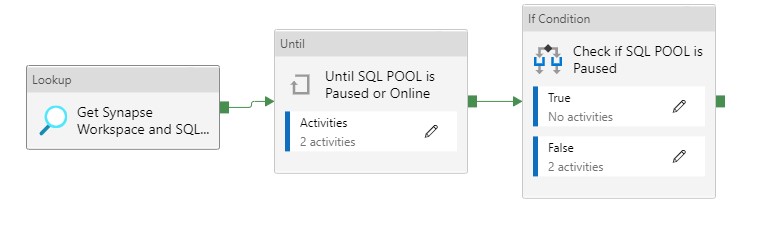
Azure Synapse MetaData

A SQL Pool(Former SQL DW)

A SQL Pool(Former SQL DW) linked to a SQL (Logical) Server has a slightly different approach, use the settings below to create a Pipeline to Pause or Resume.

Action:   PAUSE or RESUME

WaitTime: Wait time in seconds before the Pipeline will finish

WaitTimeUntil: Wait time in seconds for the retry process

SQLServer_ResourceGroupName: Name of the ResourceGroup of the used SQL(Logical) Server

SQLServer: SQL(Logical) Server name

SQLServerDedicatedSQLPool: Name of the dedicated SQL Pool

SubsriptionId: SubscriptionId of Synapse Workspace

Pause: https://management.azure.com/subscriptions/XXX/resourceGroups/XXX/providers/Microsoft.Sql/servers/XXX/databases/XXX/Pause?api-version=2020-08-01-preview

Resume: https://management.azure.com/subscriptions/XXX/resourceGroups/XXX/providers/Microsoft.Sql/servers/XXX/databases/XXX/Resume?api-version=2020-08-01-preview

Status: https://management.azure.com/subscriptions/XXX/resourceGroups/XXX/providers/Microsoft.Sql/servers/XXX/databases/XXX/?api-version=2020-08-01-preview

To allow the Synapse workspace to call the REST API we need to give the Synapse workspace access to the SQL(Logical) Server. In the Access control (IAM) of the SQL(Logical) Server assign the SQL DB Contributor role to your Synapse Workspace.

Hopefully this article has helped you a step further. As always, if you have any questions, leave them in the comments.

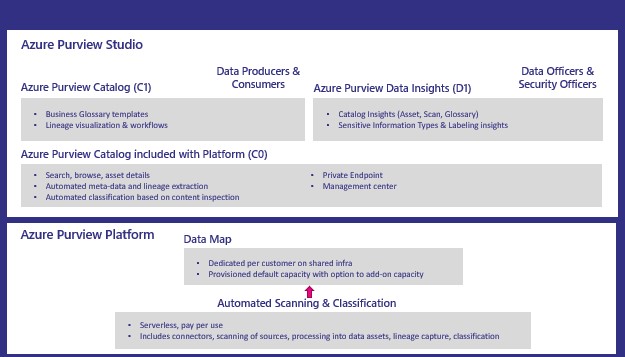
Azure Purview Public Preview Starts billing

Azure Purview Public Preview Starts billing

Azure Synapse Analytics

by Erwin | Jan 18, 2021

Billing for Azure Purview(Public Preview)

As of January 20th 2021 0:00 UTC Azure Purview will starts billing.

Preview

From January 20 ,2021 Azure Purview will start billing. During the Public Preview, you will only be billed if you exceed the 4 capacity units for Azure Data Map and 16 vCore hours for scanning. These 4 capacity units and vCore hours are free until February 28, 2021.
So keep an eye on this so that you will not be faced with surprises after February 28th. What the prices will look like after February 28 is not yet known.

Update on pricing as of 27 februari,2021 can be found here 

Below an overview

Azure Purview Data Map

  Price
Capacity Unit €0.289 per 1 Capacity Unit Hour
Provisioned API throughput. 1 capacity unit = 1 API/sec
Includes 4 capacity units for free until February 28, 2021*.
Metadata Storage Free


Scanning and Classification

  Price
Power BI online Free in preview
SQL Server on-prem Free in preview
Other data sources €0.532 per 1 vCore Hour
Includes 16 vCore-hours for Free every month until February 28, 2021**.

Please find below the updated detail for pricing, which has been updated on Azure Purview pricing page on 1st of February 2021

*The 4 free capacity units are only available for customers on the Pay-As-You-Go (MS-AZR-0003P), Microsoft Azure Enterprise (MS-AZR-0017P), Microsoft Azure Plan (MS-AZR-0017G), Azure in CSP (MS-AZR-0145P), and Enterprise Dev/Test (MS-AZR-0148P) offer types. Free quantities are applied at the enrollment level for enterprise customers. Free quantities are applied at the subscription level for pay-as-you-go customers.
**The 16 vCore-hours of free scanning are only available for customers on the Pay-As-You-Go (MS-AZR-0003P), Microsoft Azure Enterprise (MS-AZR-0017P), Microsoft Azure Plan (MS-AZR-0017G), Azure in CSP (MS-AZR-0145P), and Enterprise Dev/Test (MS-AZR-0148P) offer types. Free quantities are applied at the enrollment level for enterprise customers. Free quantities are applied at the subscription level for pay-as-you-go customers. Note: Azure Purview provisions a storage account and an Azure Event Hubs account as managed resources. This may incur separate charges that in most cases will not exceed 2% of charges for scanning. Refer to the Managed Resources section in the Azure portal within Azure Purview Resource JSON.

Note:

Be aware if you add a lot of Azure Data Sources and scan them every day, you will quickly reach the number of hours. Choose for weekly or manual scans will be my advice.

Azure Purview vCore overview

Azure Purview Data Catalog

  Price
C0 Included with the Data Map
Search and browse of data assets
C1 Free in preview
Business glossary, lineage visualization and catalog insights
D0 Free in preview
Sensitive data identification insights


Azure Purview Pricing Overview

More details on pricing Pricing - Azure Purview

Azure Purview Documentation  Documentation - Azure Purview

Azure Purview Q&A Q&A -Azure Purview


In case you have unanswered questions please do not hesitate to contact me.

Feel free to leave a comment

10 Days of Azure Synapse Analytics

10 Days of Azure Synapse Analytics

Azure Synapse Analytics

by Erwin | Dec 9, 2020

10 Days of Azure Synapse Analytics

For the next 10 days, every day a different topic is explained about Azure Synapse Analytics. The shortest and easiest way to see how Azure Synapse Analytics can help you, to make decisions within your data landscape.

Day 1

👉 Unleash the power of predictive analytics in Azure Synapse with machine learning and AI

Day 2

👉 Quickly Get Started with Azure Synapse Studio

Day 3

👉Access and analyze all data from the Data Hub in Azure Synapse Analytics

Day 4

👉Using the Develop Hub with Knowledge Center to accelerate development with Azure Synapse Analytics

Day 5

👉Ingest and Transform Data with Azure Synapse Analytics With Ease

Day 6

👉Explore the Monitor Hub in Synapse Studio to keep track of all activities in your Synapse workspace

Day 7

👉Explore the Manage Hub in Synapse Studio to provision and secure resources

Day 8

👉Analyze and explore data with T-SQL in Azure Synapse Analytics

Day 9

👉Kickstart your Apache Spark learning in Azure Synapse with immediately available samples

Day 10

👉Integrate Power BI with Azure Synapse Analytics

Hopefully it will save you some time this collection of different blogs and will you get that much excited about Azure Synapse Analytics as I am. And like always, in case you have some questions feel free to ask them, I'm more then happy to answer them.

Get started with Azure Synapse Analytics

Do you want to know more on how to get started with Azure Synapse Analytics please read my blog series.

Feel free to leave a comment

Azure Synapse Analytics Code Repository has arrived

Azure Synapse Analytics Code Repository has arrived

Azure Synapse Analytics Code repository

‎I just opened my Azure Synapse Analytics Workspace and got a great surprise, the option Git Configuration is available as of today‎.


After a long wait, today the Git Configuration option became available in Azure Synapse Analytics.

The setup isn't much different from Azure Data Factory, which can be found in this link.

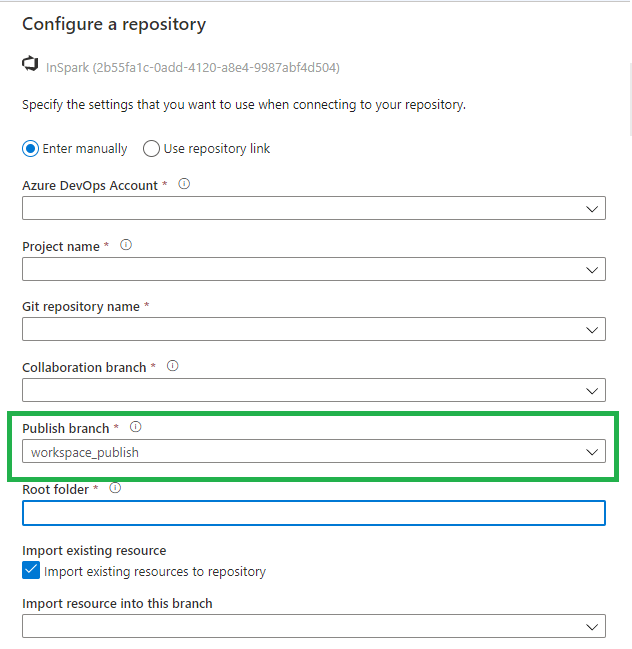
The difference is that we no longer use an adf_publish branch but a workspace_publish branch. Which makes sense if you want to use both Azure Services side by side. In this blog I do quick walkthrough with the Azure Dev Ops Configuration enabled.

Azure Synapse GIT Config

Once we have configured everything, we can walk through the Git Configuration options within Azure Synapse Analytics. I'm sure there will be a lot of them, but below is a list of the ones I noticed first.

Synapse live

After you published your code, it will be available in Synapse Live, like in Azure Data Factory you develop everything in Azure DevOps branches.

Synapse Live

Notebooks

After creating a Notebook, we have the option Commit, after you have committed it will be directly saved within your current working branch.

Azure Synapse Notebooks  Azure Synapse Notebooks

SQL Scripts

Like Notebooks,  After creating a SQL Script, we can Commit, after you have committed it will be directly saved within your current working branch.

Azure Synapse SQL Script

Azure Synapse SQL Scripts

Pipelines

Also here we have now a Commit option.

Azure Synapse Pipelines

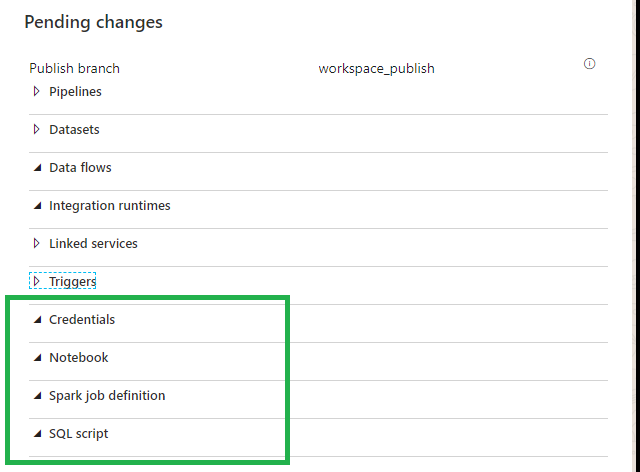
Workspace_publish

Beside the Notebooks and the SQL Scripts we can also store the Credentials and Spark Job definitions in Azure Dev Ops

Azure Synapse Publish

Differences

So as we can see the main differences between Azure Data Factory and Azure Synapse Analytics are:

Workspace_publish branch instead of adf_publish branch.

Commit instead of Save.

Azure Data Factory Pipelines

By moving your code from Azure Data Factory to Azure Synapse Analytics in Azure Dev Ops your Azure Data Factory Configuration will be available in Azure Synapse Analytics.

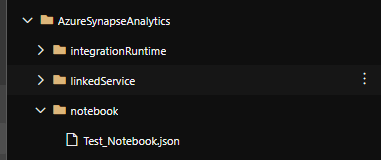
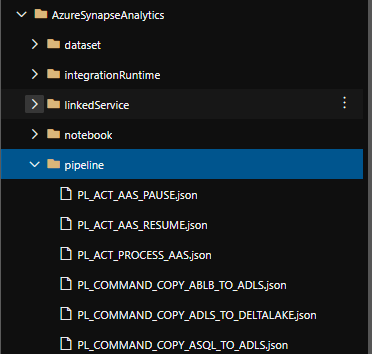
I added my ADF code to Azure Synapse in Azure Dev Ops and it looks the same.

Azure Synapse Dev Ops Example

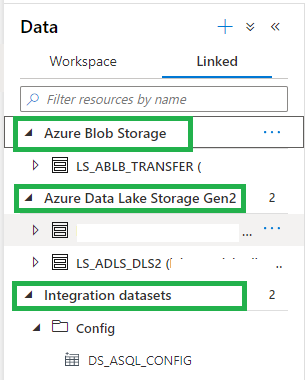
After Refreshing the Azure Synapse Analytics Workspace, in the Data Hub we see the Integration Datasets(ADF DataSets) and the Linked Storage accounts.

Azure Synapse Data Example

And in the Integrate Hub, we see all our Pipelines. And the same is working for our triggers

Azure Synapse PipeLine Example

It looks like that we can reuse our code quite easily. I haven't tested everything yet but I wanted to share this with you as quick as possible. I'm sure a easier way to migrate from Azure Data Factory to Azure Synapse will be on his way, you can use above as a start.

Integration Runtimes

Does everything work as in Azure Data Factory, NO at this moment you can't use the Azure SSIS Integration Runtime and the shared Self Hosted Integration Runtime? But hopefully this will take not that long before it will arrive.

Thank you for reading, this was a quick overview of the first changes I discovered. Please feel free to leave comment if you have discovered more.

Do you want to become more familiar with the various possibilities of Azure Synapse Analytics, please read the following articles which I published a while ago:

✅ Creating your Azure Synapse Analytics Workspace

✅ Exploring the new Azure Synapse Analytics Studio

Creating an Apache Spark Pool

Creating a SQL Pool

Integration with Power BI

Azure Data Factory and Azure Synapse Analytics Naming Conventions

Naming ConventionsAzure Naming Conventions

More and more projects are using Azure Data Factory and Azure Synapse Analytics, the more important it is to apply a correct and standard naming convention. When using standard naming conventions you create recognizable results across different projects, but you also create clarity for your colleagues. In addition to that, it is easier to add these projects to other services such as Managed Services, Azure DevOps,  etc etc,  because standards are used.

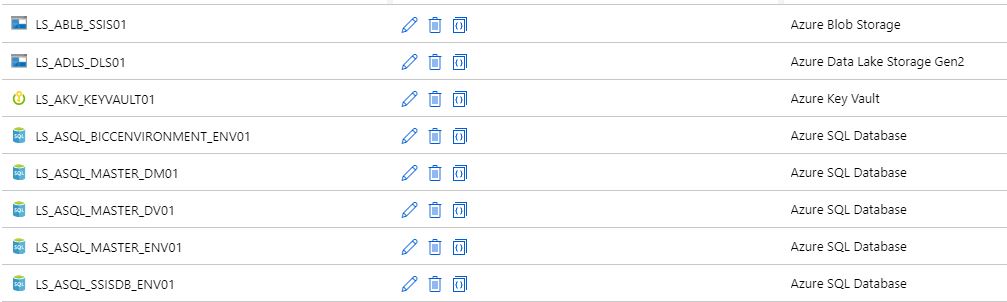
To start with these naming conventions, I have made a list of suggestions with most common Linked Services. The list is not exhaustive, but it does provide guidance for new Linked Services.

There are a few standard naming conventions that apply to all elements in Azure Data Factory and in Azure Synapse Analytics.

  • *Names are case insensitive (not case sensitive).  For that reason I’m only using CAPITALS.
  • *Maximum number of characters in a table name: 260.
  • All object names must begin with a letter, number or underscore (_).
  • Following characters are not allowed: “.”, “+”, “?”, “/”, “<”, ”>”,”*”,”%”,”&”,”:”,””

These rules are also defined on the following link

This post has been updated on Feb 2nd, 2023 with the latest connectors.

Azure

Abbreviation Linked Service Dataset
Azure Blob Storage ABLB_ LS_ABLB_ DS_ABLB_
Azure Cosmos DB SQL API ACSA_ LS_ACSA_ DS_ACSA_
Azure Cosmos DB MongDB API ACMA_ LS_ACMA_ DS_ACMA_
Azure Data Explorer ADEX_ LS_ADEX_ DS_ADEX_
Azure Data Lake Storage Gen1 ADLS_ LS_ADLS_ DS_ADLS_
Azure Data Lake Storage Gen2 ADLS_ LS_ADLS_ DS_ADLS_
Azure Database for MariaDB AMDB_ LS_AMDB_ DS_AMDB_
Azure Database for MySQL AMYS_ LS_AMYS_ DS_AMYS_
Azure Database for PostgreSQL APOS_ LS_APOS_ DS_APOS_
Azure File Storage AFIL_ LS_AFIL_ DS_AFIL_
Azure Search ASER_ LS_ASER_ DS_ASER_
Azure SQL Database ASQL_ LS_ASQL_ DS_ASQL_
Azure SQL Database Managed Instance ASQM_ LS_ASQM_ DS_ASQM_
Azure Synapse Analytics (formerly Azure SQL DW) ASDW_ LS_ASDW_ DS_ASDW_
Azure Table Storage ATBL_ LS_ATBL_ DS_ATBL_
Azure DataBricks ADBR_ LS_ADBR_ DS_ADBR_
Azure Cognitive Search ACGS_ LS_ACGS DS_ACGS_
Azure Synapse Analytics  ASA_ LS_ASA DS_ASA
Azure Cognitive Service ACG_ LS_ACG_ N/A


Database

     
  Abbreviation Linked Service Dataset
SQL Server  MSQL_ LS_SQL_ DS_SQL_
Oracle ORAC_ LS_ORAC_ DS_ORAC_
Oracle Eloqua ORAE_ LS_ORAE_ DS_ORAE_
Oracle Responsys ORAR_ LS_ORAR_ DS_ORAR_
Oracle Service Cloud ORSC_ LS_ORSC_ DS_ORSC_
MySQL MYSQ_ LS_MYSQ_ DS_MYSQ_
DB2 DB2_ LS_DB2_ DS_DB2_
Teradata  TDAT_ LS_TDAT_ DS_TDAT_
PostgreSQL POST_ LS_POST_ DS_POST_
Sybase SYBA_ LS_SYBA_ DS_SYBA_
Cassandra CASS_ LS_CASS_ DS_CASS_
MongoDB MONG_ LS_MONG_ DS_MONG_
Amazon Redshift ARED_ LS_ARED_ DS_ARED_
SAP Business Warehouse SAPW_ LS_SAPW_ DS_SAPW_
SAP Cloud for Customer (C4C) SAPC_ LS_SAPC_ DS_SAPC_
SAP Table SAPT_ LS_SAPT DS_SAPT_
SAP HANA HANA_ LS_HANA_ DS_HANA_
Drill DRILL_ LS_DRILL_ DS_DRILL_
Google BigQuery GBQ_ LS_GBQ_ DS_GBQ_
Greenplum GRPL_ LS_GRPL_ DS_GRPL_
HBase HBAS_ LS_HBAS_ DS_HBAS_
Hive HIVE_ LS_HIVE_ DS_HIVE_
Apache Impala IMPA_ LS_IMPA_ DS_IMPA_
Informix INMI_ LS_INMI_ DS_INMI_
MariaDB MDB_ LS_MDB_ DS_MDB_
Microsoft Access MACS_ LS_MACS_ DS_MACS_
Netezza NETZ_ LS_NETZ_ DS_NETZ_
Phoenix PHNX_ LS_PHNX_ DS_PHNX_
Presto (Preview) PRST_ LS_PRST_ DS_PRST_
Spark SPRK_ LS_SPRK_ DS_SPRK_
Vertica VERT_ LS_VERT_ DS_VERT_
Snowflake SNWF_ LS_SNWF_ DS_SNWF_
MongoDB Atlas MONG_ATLAS_ LS_MONG_ATLAS_ DS_MONG_ATLAS_
Amazon RDS for Oracle RDSORAC_ LS_RDSORAC_ DS_RDSORAC_
Amazon RDS for SQL Server RDSSQL_ LS_RDSSQL_ DS_RDSSQL_


Files

     
  Abbreviation Linked Service Dataset
File System FILE_ LS_FILE_ DS_FILE_
HDFS HDFS_ LS_HDFS_ DS_HDFS_
Amazon S3  AMS3_ LS_AMS3_ DS_AMS3_
FTP FTP_ LS_FTP_ DS_FTP_
SFTP SFTP_ LS_SFTP_ DS_SFTP_
Google Cloud Storage GCS_ LS_GCS_ DS_GCS_
Oracle Cloud Storage OCS_ LS_OCS_ DS_OCS_
Amazon S3 Compatible Storage SMS3C_ LS_SMS3C_ DS_SMS3C_


Generic

     
  Abbreviation Linked Service Dataset
Generic ODBC ODBC_ LS_ODBC_ DS_ODBC_
Generic OData  ODAT_ LS_ODAT_ DS_ODAT_
Generic REST REST_ LS_REST_ DS_REST_
Generic HTTP HTTP_ LS_HTTP_ DS_HTTP_


Services and Apps

Abbreviation Linked Service Dataset
Salesforce SAFC_ LS_SAFC_ DS_SAFC_
Salesforce Service Cloud SAFCSC_ LS_SAFCSC_ DS_SAFCSC_
Salesforce Marketing Cloud SAFOMC_ LS_SAFOMC_ DS_SAFOMC_
GitHub GITH_ LS_GITH_ DS_GITH_
Jira JIRA_ LS_JIRA_ DS_JIRA_
Web Table (table from HTML)  WEBT_ LS_WEBT_ DS_WEBT_
Amazon Marketplace Web Service AMSMWS_ LS_AMSMWS_ DS_AMSMWS_
Xero XERO_ LS_XERO_ DS_XERO_
SharePoint Online List SHAREPOINT_ LS_SHAREPOINT_ DS_SHAREPOINT_
ServiceNow SERVICENOW_ LS_SERVICENOW_ DS_SERVICENOW_
Dynamics (Microsoft Dataverse) DATAVERSE_ LS_DATAVERSE_ DS_DATAVERSE__
Dynamics 365 D365_ LS_D365_ DS_D365_
Dynamics AX DAX_ LS_DAX_ DS_DAX_
Dynamics CRM DCRM_ LS_DCRM_ DS_DCRM_
Microsoft 365 M365_ LS_M365_ Ds_M365__
SAP Cloud for Customer (C4C) SAPC4C_ LS_SAPC4C_ DS_LS_SAPC4C_
SAP ECC SAPE_ LS_SAPE_ DS_SAPE_

If your connector is not described(mostly connectors which are in Preview), please let me know. For more details for all the different connectors, check the connector overview

Pipeline

Even for Pipeline you can define naming conventions. I think the most important thing is that you always start your pipeline with PL_ followed by a Logic Name for you. You can for example use:

TRANS: Pipeline with transformations

SSIS: Pipeline with SSIS Packages

DATA: Pipeline with DataMovements

COPY: Pipeline with Copy Activities

Divers

NB: Notebook 

DF: Mapping Dataflows

SQL: SQL Scripts

KQL: KQL Scripts

JOB: Spark job definition

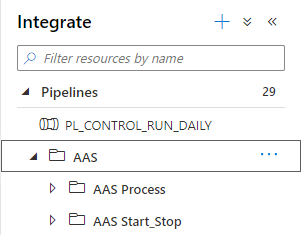
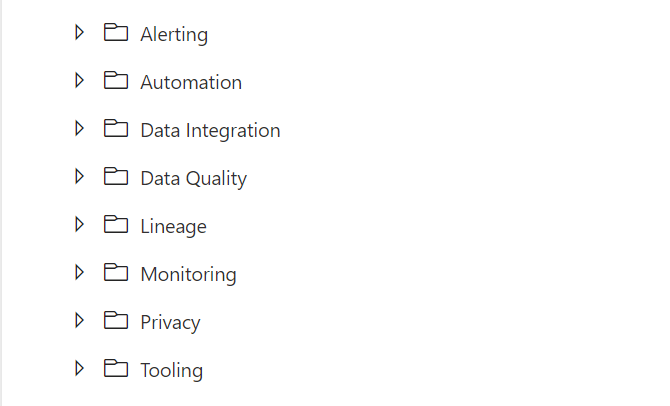
Once again these naming conventions are just suggestions. The most important thing is that you start using naming conventions and that you use the folder structure within the Pipelines (categories). Like the picture below as an example.

FolderStructure

If you have suggestions just let me know by leaving a comment below.