Connect Azure Databricks to Microsoft Purview

Connect Azure Databricks to Microsoft Purview

Azure

by Erwin | Jan 16, 2023

Connect and Manage Azure Databricks in Microsoft Purview

This week the Purview team released a new feature, you’re now able to Connect and manage Azure Databricks in Microsoft Purview.

This new functionality is almost the same as the Hive Metastore connector which you could use earlier to scan an Azure Databricks Workspace. This new connector is an easier way to setup scanning for your Azure Databricks Workspace.

Note that this feature is currently in Public Preview.

The connector supports or will support:

  • Extracting technical metadata including:
    • Azure Databricks workspace.
    • Hive server.
    • Databases.
    • Tables including the columns, foreign keys, unique constraints, and storage description.
    • Views including the columns and storage description.
  • Fetching relationship between external tables and Azure Data Lake Storage Gen2/Azure Blob assets.
  • Fetching static lineage on assets relationships among tables and views.

Let’s have a look how to setup this connector, before you can start make sure you have the following Prerequisites in place:

  • Microsoft Purview account with Data Source Administrator and Data Reader permissions.
  • Self-Hosted Integration Runtime.
  • Personal access token in Azure Data Bricks.
  • Cluster in Azure Data Bricks.

Register the Azure Databricks Workspace

  • Select Data Map on the left pane and select Sources.
  • Select Register.
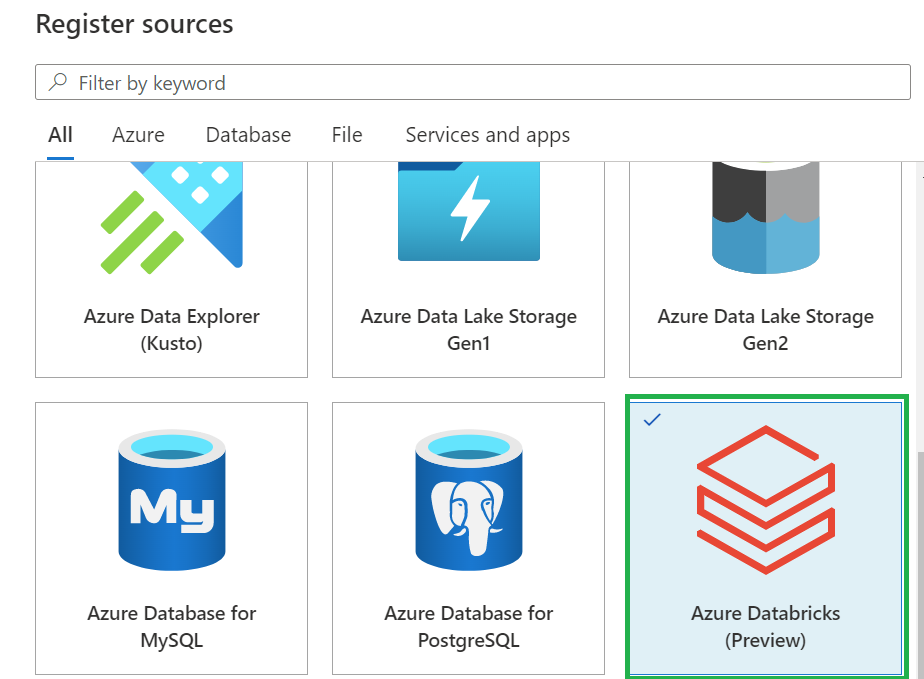
  • In Register sources, select Azure Databricks and click on  Continue.
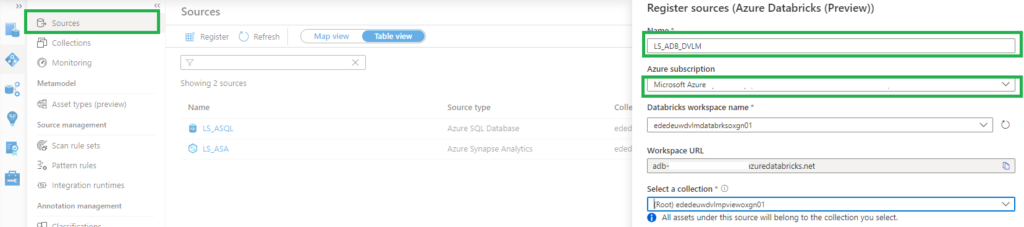
  • On the Register sources (Azure Databricks) screen, do the following:
    • Enter a name that Microsoft Purview will list as the data source.
    • Select the subscription and workspace that you want to scan from the dropdown list.
  • Select a collection. 
    • Azure Databricks setup in Microsoft Purview


 Setup the Integration Runtime

  • Select Data Map on the left pane and select Integration Runtime.
  • Click on New.
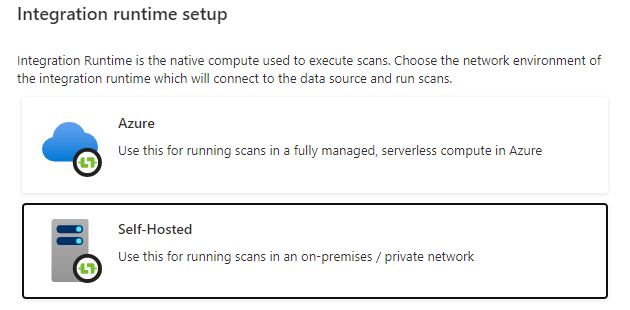
  • Select the Self-Hosted.

Self-Hosted IR Setup in Microsoft Purview

  • Enter a name and description, click on create.
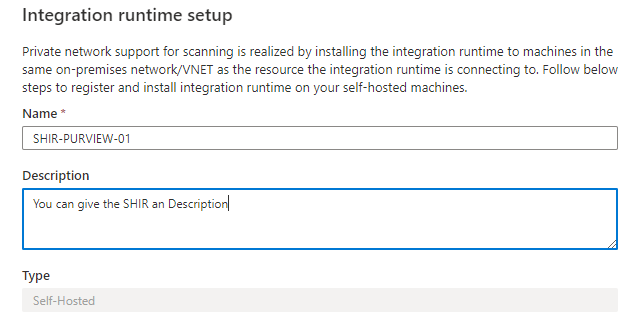
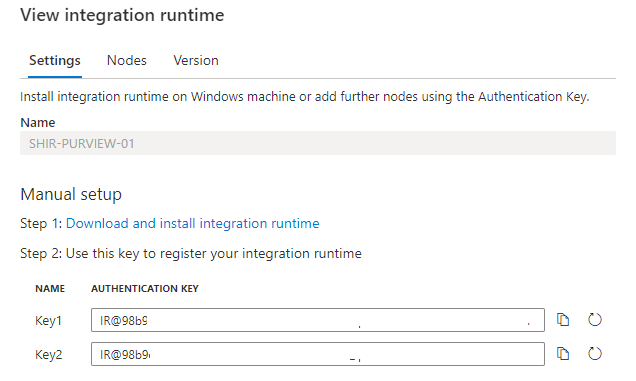
SHIR configuration in Microsoft Purview

  • Copy the authentication key.

SHIR Authentication Key

Configure the Self-Hosted Integration Runtime

On an Virtual Machine in Azure:

After rebooting, Select Data Map on the left pane and select Integration Runtime and check if the SHIR is running.

Databricks-shir-running

Setup the Scan

The last step to configure is the scan.

  • Select Data Map on the left pane and select Sources and select the Azure Databricks you just created.
  • Select New Scan.
    • Name, create a logical name for your scan. Weekly, Monthly, Once or a different name. TIP, add your clustername or id to the scanname. You need to create a scan for every cluster in an Azure Databricks workspace. This way you can see the difference between the clusters.
    • Connect via IR, select the SHIR you just created.
    • Credential, select the Personal Acces token, which is stored in de Azure KeyVault.
    • Cluster ID, Specify the cluster ID that Microsoft Purview need to connect to, to perform the scan.
    • Mount Point, if you have external storage manually mounted to Databricks, you provide the locations here. Use the following format /mnt/<path>=abfss://<container>@<adls_gen2_storage_account>.dfs.core.windows.net/.
    • Maximum memory available: Specify the maximum memory available in GB to be used by scanning processes. If the field is left blank, 1 GB will be considered as a default value.
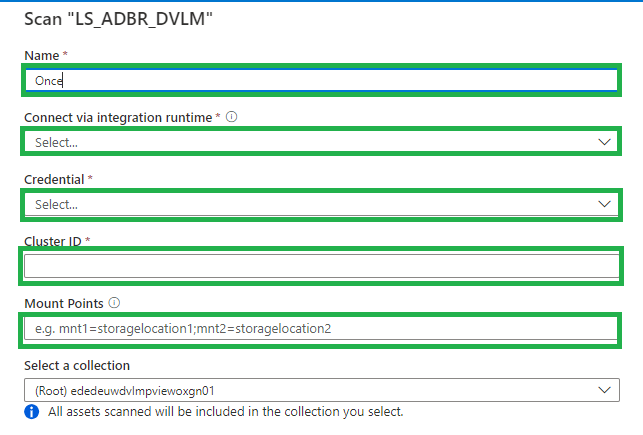
Setup Databricks scan

The default location of the cache in your VM is C:WindowsServiceProfilesDIAHostServiceAppDataLocalMicrosoftAzureDataCatalogCache. Unselect the checkbox if you want cache to be stored in a different location.

Click on continue.

Select the trigger you want. Click on save and run.

Check if the scan starts, be aware that the scan will trigger your Azure Databricks cluster to start.

Browse and search assets

Once the data is scanned you can browse and search the Metadata.

  • Select Data Catalog on the left pane and select Browse Assets.
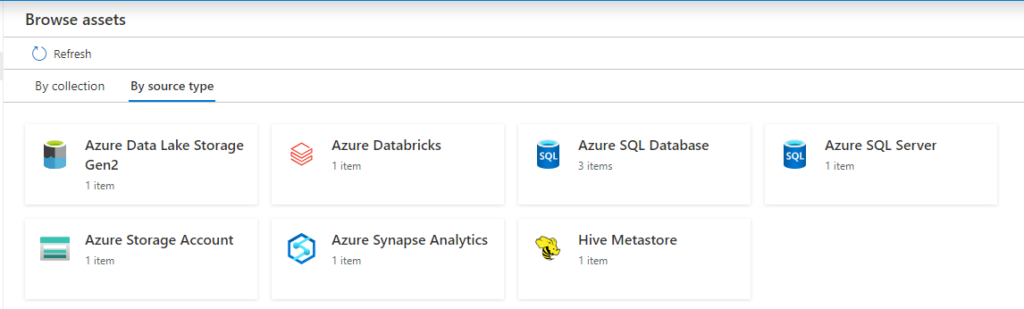
Data Catalog with Databricks overview

From the Databricks workspace asset, you can find the associated Hive Metastore.

Select the Azure Databricks and click on edit details on the right side.
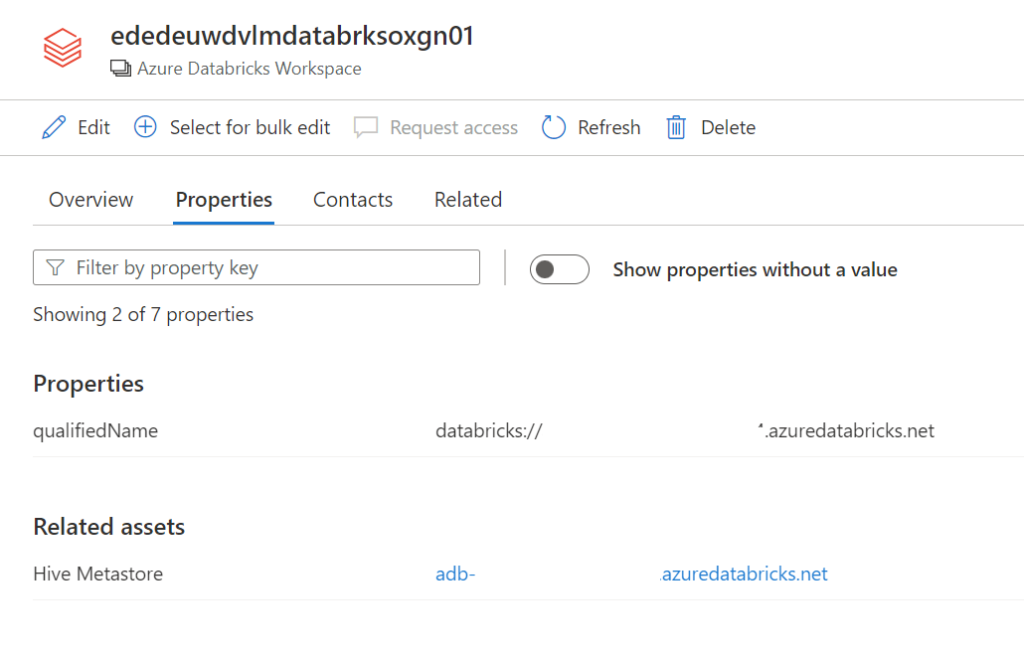
Databricks details

Click on Hive Metastore, on the Related tab you can see the Hive DB and the assets. Click on one of the assets to see the lineage when applicable.
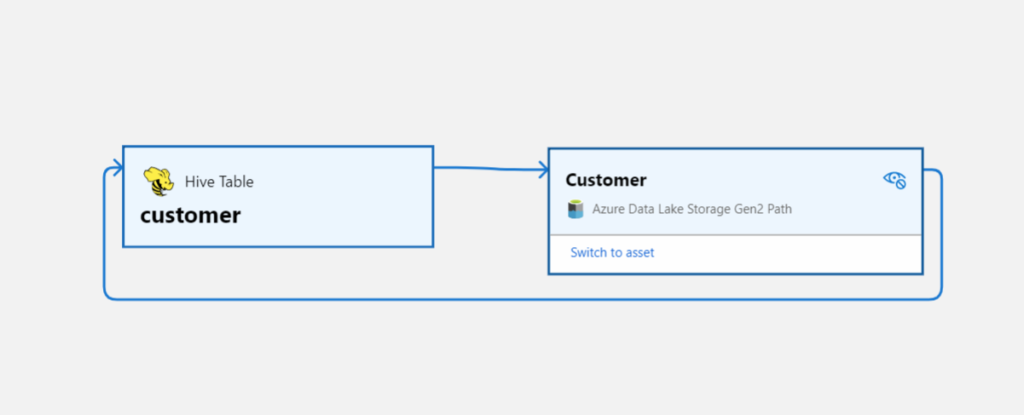
databricks lineage

Conclusion

The first steps towards a Native integration of Azure Databricks is now available in Microsoft Purview, but we're not there yet.
If you want to have a more extensive lineage and can read more details from the Notebooks execution including Delta Lake than, I advise you to use the
Azure Databricks to Purview Lineage Connector.

In the notes of this Solution Accelerators, is noted "With native models in Microsoft Purview for Azure Databricks, customers will get enriched experiences in lineage such as detailed transformations." So hopefully we can expect more in the future.

Be aware that lineage is available at the asset level not at column level, hopefully that will arrive soon.

In the notes of the above Solution Accelerators, is noted "With native models in Microsoft Purview for Azure Databricks, customers will get enriched experiences in lineage such as detailed transformations." So hopefully we can expect more in the future.

Like always in case you have questions, do not hesitate to contact me.

More details on above topic can be found here:

Connect to and manage Azure Databricks

Microsoft Purview Data Map supported data sources and file types

Microsoft Purview data governance documentation

Feel free to leave a comment

SQL BITS 2022 Session recordings

SQL BITS 2022 Session recordings

Recordings SQL Bits 2022

All sessions of SQLBits 2022 have been made available to everyone and can now be viewed via their Youtube channel. Microsoft asked me to present me this session during SQL Bits in the Cloud Scale Analytics solution area.

Session Title:

Lake Database with Database Template and Mapping Data with Azure Synapse Analytics

Description:

Database templates in Azure Synapse Analytics are blueprints which can be used by organizations to plan, architect and design solutions.

How can we use these Database Templates in a day-to-day business, in order to speed up to automate this process? Map data tool can help us with that. The map data tool can generate a mapping data flow without having to start from a blank canvas. In this presentation, you will see how this all works in a step-by-step demo-based session.

During SQL Bits the Mapping Data tool was still in Preview, the great news is that this functionality is now GA.

SAVE THE DATE

SQLBits 2023 will back next year 14 – 18 March 2023, so mark you calendars.

Data:Scotland

Data:Scotland

Data: Scotland 2022

Microsoft Purview

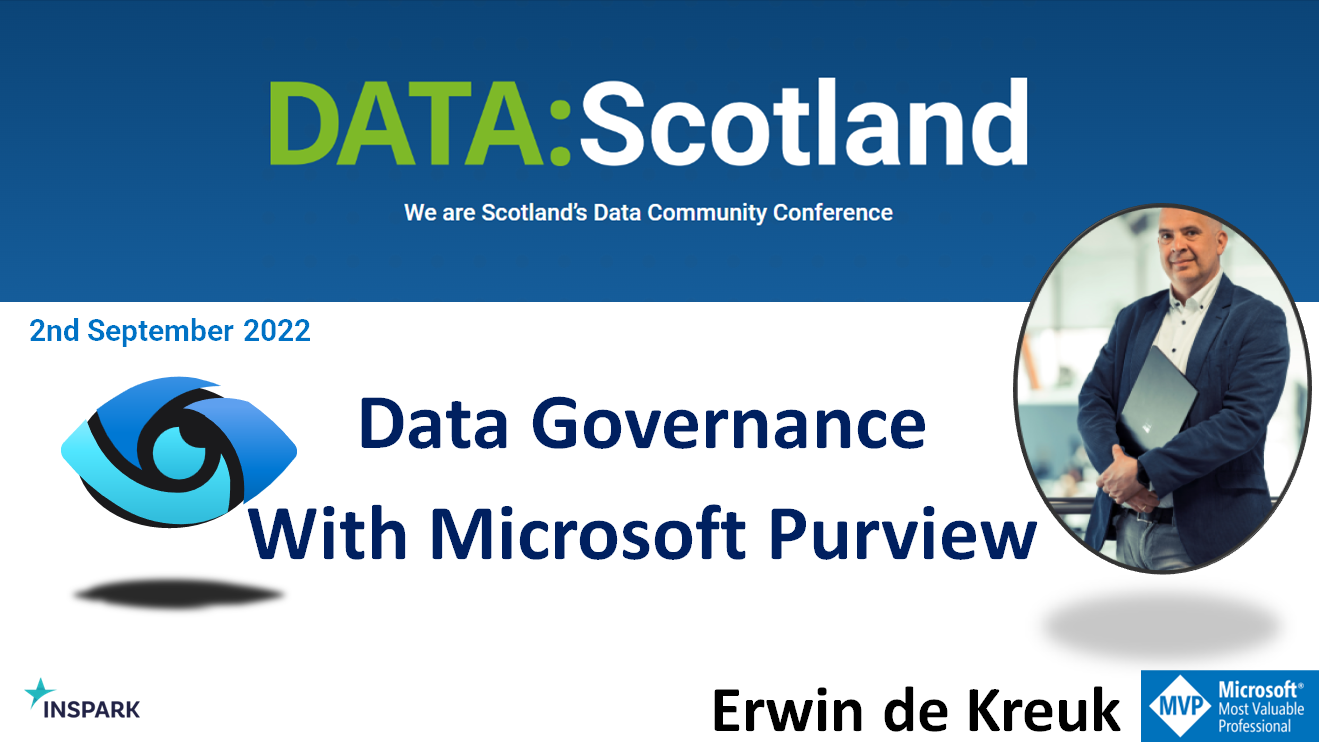
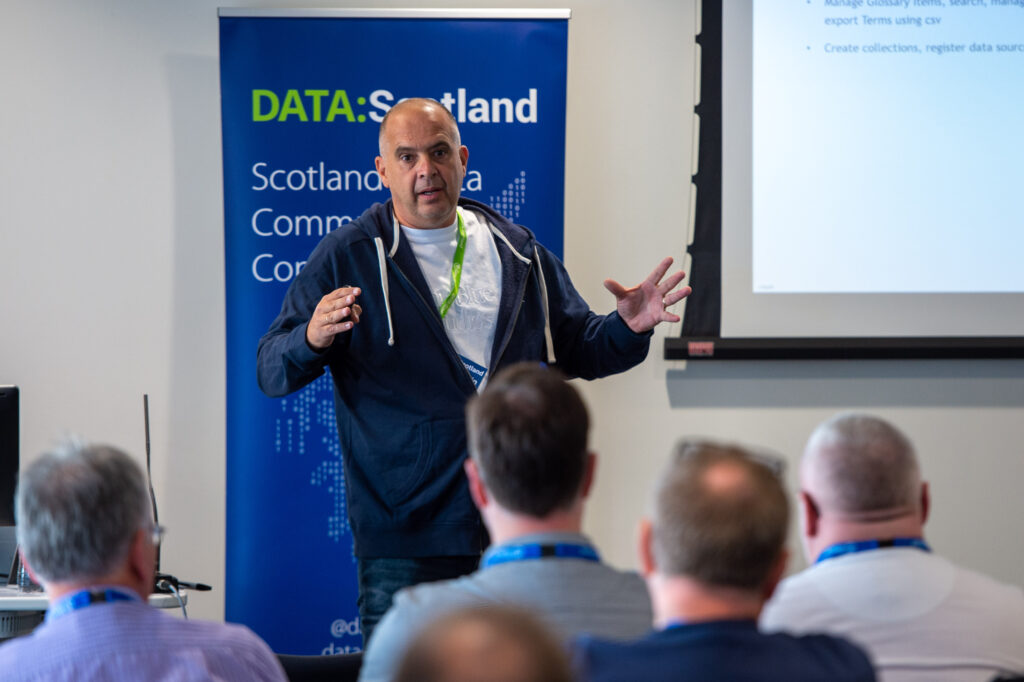
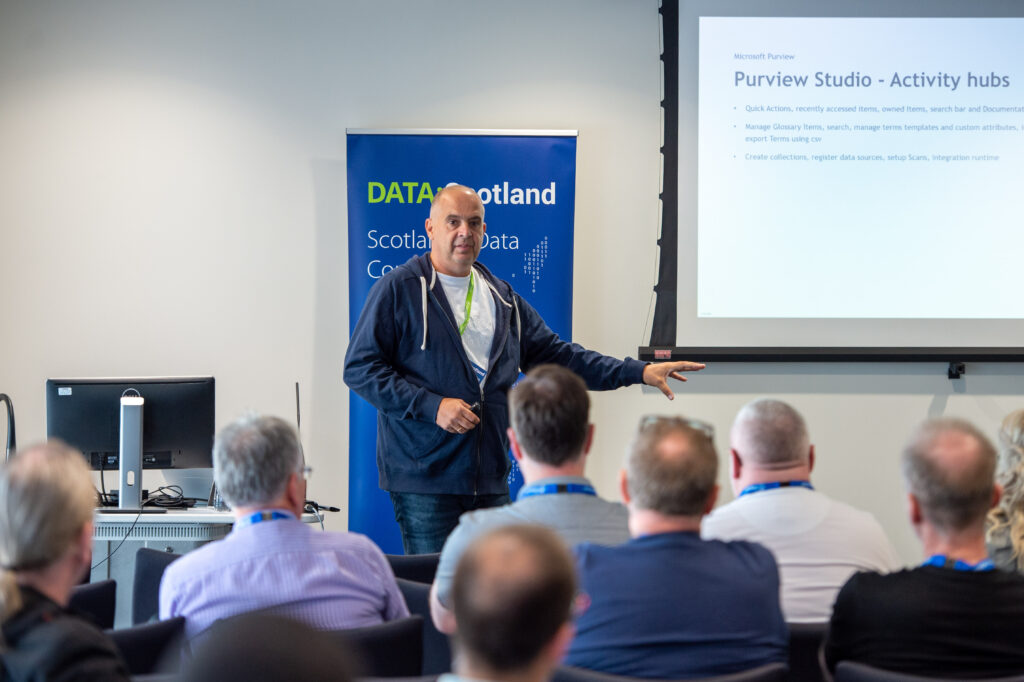
Scotland’s Data Community Conference happened this year again in Glasgow. This years event was happening in  a sunny Glasgow, more then 400 attendees and more then 50 sessions.

It was great to see so many people live again. I presented a session on one of my favorite subjects Microsoft Purview. My session was well attended, the slides can be found in the link below.

My sessions at Pass Data Community Summit

My sessions at Pass Data Community Summit

A hybrid conference in Seattle and online

This year's PASS Data Community Summit is more than a conference – it's a homecoming. Reconnect with old friends, build new relationships, gain new skills, and get the world-class training you need to take that next step in your data career. With 3 different themes, 6 different tracks and 9 Learning Path ways it promises to be a great Summit.

InSpark

When the Call for Speakers on March 10 was announced, I immediately called my CTO of InSpark, my employer, whether he thought it was okay to send in a number of sessions and whether InSpark could pay for the travel and accommodation costs. The answer was immediatly, awesome. great, do it. It's very nice to have an employer who facilitates you in this. And the good news is that my colleague Marco is joining me to Seattle.

InSpark_Logo_FC

My Sessions?

First of all, I was pleasantly surprised when I received an email stating that my session had been selected by an independent volunteer Program Committee. But that 3 of my sessions were directly selected is of course absolutely great. I've always wanted to speak at the Pass Data Community Summit and it's a dream come true and definitely one of my bucket list items.

How to use Data Lineage in Azure Purview?

Category: General Session

Location: In-Person

Type: Live Stream

Length: 60-minutes + 15-minute Q&A

Abstract:

The use of data Lineage is a hot topic for many organizations who struggle with answers to the following questions:

  • I want to adjust a measure, but where do I have to adjust it and where does the data come from?
  • What will be the effect on my data if I rename this column in the source?
  • Can I visually overview my Data Estate including how the data has been transformed?

As you can see, data lineage is used for different kinds of backward-looking scenarios, such as troubleshooting, root cause discovery in data pipelines, and debugging. Lineage is also used for data quality analysis, compliance, and 'what if' scenarios, often referred to as impact analysis. How can Azure Purview helps us to create these visual overviews to better understand our Data Estate? During this session, I will show you how to enable Data Lineage with Azure Purview, Azure Synapse Analytics, and how to use Custom Lineage components for unsupported data sources.

DataLineage-Purview

How to Integrate Azure Purview in Azure Synapse Analytics

Category: Lightning Talk

Location: Online

Type: On-Demand

Length: 10-minutes

Abstract:

In this short talk I'll show you how to integrate Azure Purview with Azure Synapse Analytics and what extra possibilities you will have of using both Azure Data Services

Data Governance with Azure Purview - Ask the Experts

Category: Panel Session

Location: In-Person

Length: 60-minutes + 15-minute Q&A

Abstract:

This is going to be another very nice session, together with Victoria, Wolfgang and Richard. The first time we did this session was during SQL Bits, we got a lot of interesting and diverse types. Ask the question live during the session or submit your questions in advance here https://forms.office.com/r/dTP38LnmsJ

Pass Data Community Summit

You can still register for the In-person or Online event, just cilck here.

And have a look into all the sessions and pre cons this year

Session Catalog

Pre Cons

In the meantime my flights and hotels are booked and I started the preparation of my sessions. But first things first, it is first time to celebrate holidays with family and friends.

Hopefully I will see you in Seatlle and otherwise online.

Azure Data Factory updates June

Azure Data Factory updates June

Azure

by Erwin | Jun 30, 2022

Azure Data Factory updates

There have been quite a few updates in Azure Data Factory and Azure Synapse Analytics in the last few days.
Below is a summary of these updates:


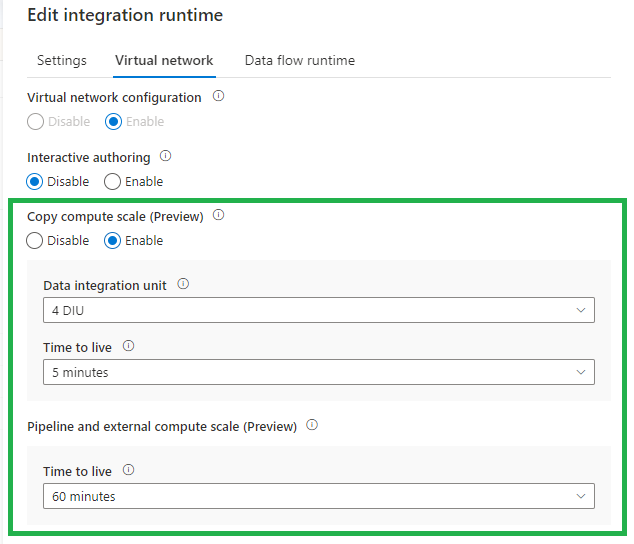
Time-To-Live (TTL) on Integration Runtime with managed virtual network enabled

The new TTL functionality, currently in Preview, will save you a lot of time. Instead of provision compute for every copy activity execution, with this new option the provisioned compute will be reserved. You can set this new option on every Integration Runtime with Managed Virtual Network enabled. Very handy and will advise you to do this direclty. This option is also available in Azure Synapse Analytics.

adf-ttl

More can be found on the blog below:

Time-To-Live (TTL)

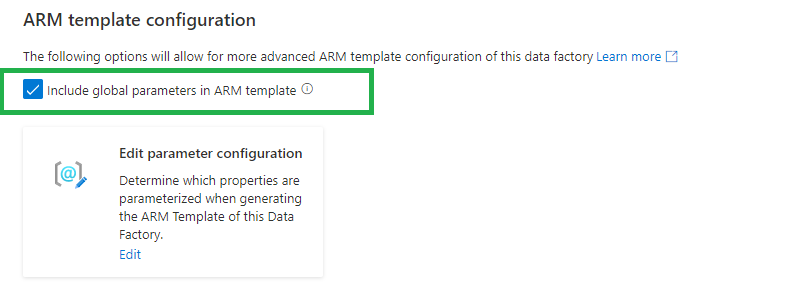
CI/CD improvement using Global Parameters in Azure Data Factory

We used to have a PowerShell script to add the Global parameters to our CI/CD pipelines. Now we can include these as Override Parameters in our Deployment/Release Pipeline. Very handy and easy.

Deprecated:

adf-gloabal-parameters-depr

New:

adf-gloabal-parameters-new

If you are using the arm-template-parameters-definition.json file to customize your parameters make sure you add the global parameters to this file. Otherwise you cannot override the parameters in the Deployment/Release Pipeline.

adf-gloabal-parameters-template

When we have created a Global Parameters Environment, we have now have the option to override this parameter option during the release:

-default_properties_Environment_value "Development"

More can be found on the blog below:

CI/CD improvement using Global Parameters in Azure Data Factory

Public Preview of the SAP CDC solution in Azure Data Factory

The new SAP ODP connector leverages SAP Operational Data Provisioning (ODP) framework, which is an established best practice for data integration within SAP landscapes. ODP provides access to a wide range of sources across all major SAP applications and comes with built-in CDC capabilities. In combination with the predefined data flow templates to process and update the changed records to any sink, this makes SAP data integration into Azure very much straight forward.

More can be found on the blog below:

Public Preview of the SAP CDC solution in Azure Data Factory

Azure Data Factory studio preview experience

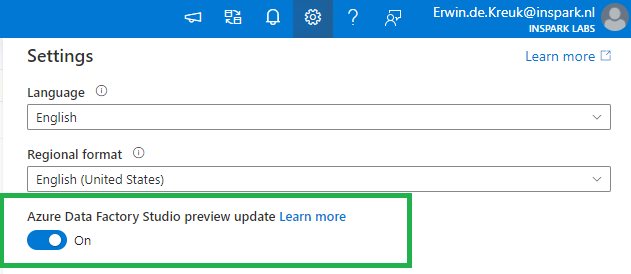
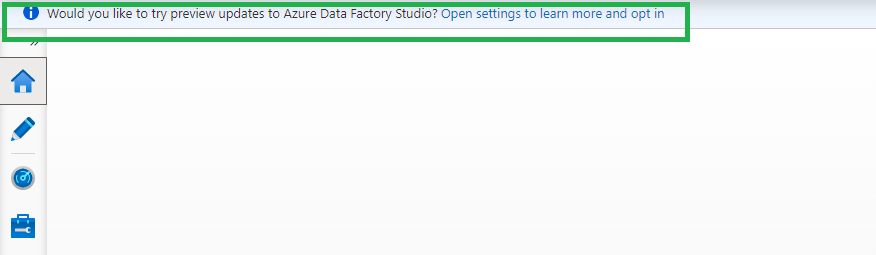
You can now choose whether to enable preview experiences/functionality in your Azure Data Factory.

There are 2 ways how you can enable this preview experience:

When opening the portal you will see banner, just click on the Open settings to learn more and opt in. link

adf-preview-update-portal

Or open the setting pane on the right top and enable the toggle Azure Data Factory Studio preview update.

Current Preview Updates

Currenlty the following options are available as preview features:

Dataflow data experimental view

Configuration panel

The configuration panel will only have Data Preview that will automatically refresh when changes are made to transformations.

Before:

adf-preview-before

After:

adf-preview-after
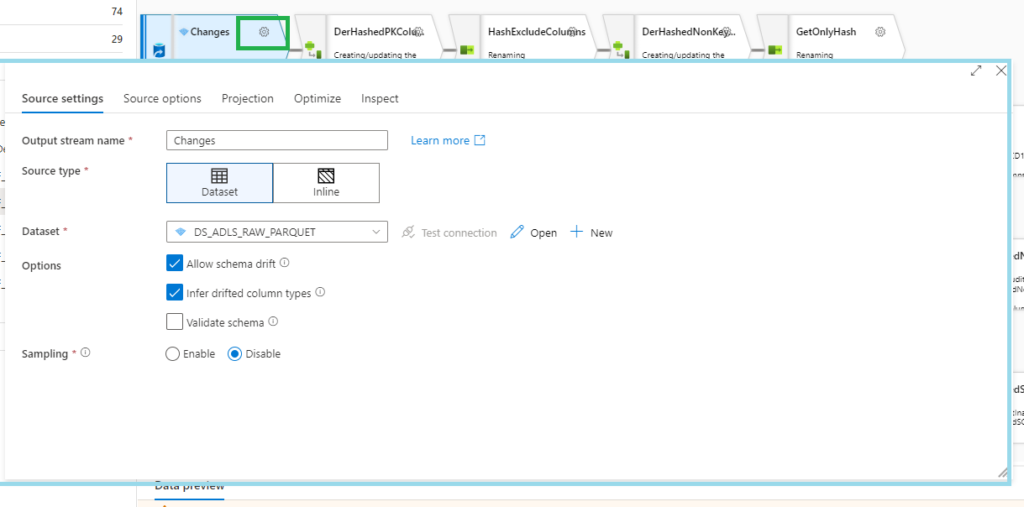
Transformation settings

A pop-up will now appear when you want to change your settings

adf-preview-transformation-settings
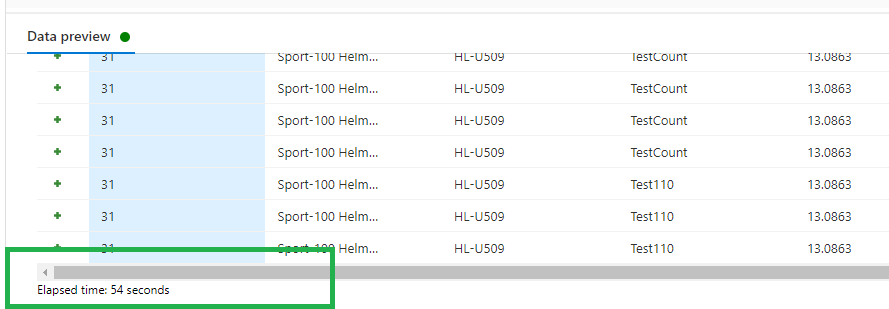
Data preview

Data preview now includes Elapsed time (seconds) to show how long your data preview took to load.

adf-preview-update-data-preview

Pipeline experimental view

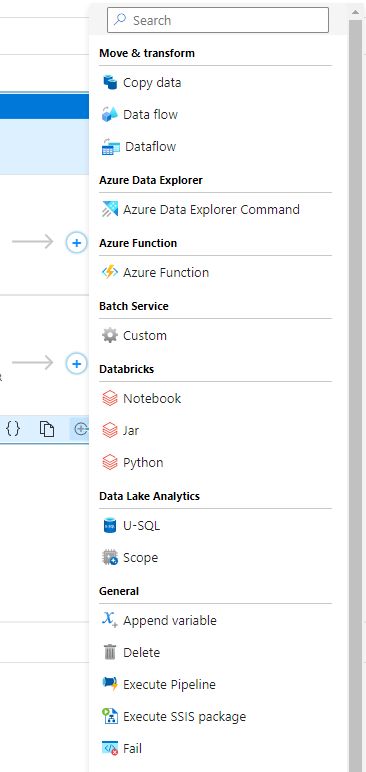
Adding activities

You now have the option to add an activity using the Add button in the bottom right corner of an activity in the pipeline editor canvas. Clicking the button will open a drop-down list of all activities that you can add.

 adf-preview-adding-activitities
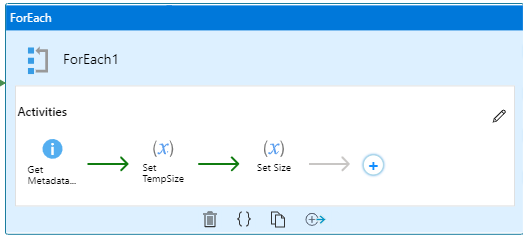
Iteration & conditionals container view

And the last one is really awesome, you now view the activities in the contained iteration and conditional activities like For each, Switch, Until and Switch

adf-preview-activitities

More can be found on the detailed page below:

Azure Data Factory studio preview experience

Please visit the blog below for all the latest update on Synapse Analytics in June 2022:

Azure Synapse Analytics June Update 2022


If you have any questions left, please leave them in the comments below.

Feel free to leave a comment