
Speaking at SQL BITS 2022

Speaking at SQL BITS 2022

SQL BITS 2022

We’re Hitting the Arcade

SQL Bits is back this year in London from March 8-12 2022. SQLBits is the largest data conference in the world and this year's theme is to bring us back to our incandescent youth, so prepare to level up your data skills and reach a new high score at the arcade-themed 2022 conference!

Not 1 but 2 sessions

This year I will not present 1 session but 2 sessions.

Data Governance with Azure Purview - Ask the Experts

In this session you have to chance to ask any question on data governance for your business using Azure Purview.

We have a panel of 3 MVPs, Victoria, Wolfgang and myself. Richard we help us out with moderating the session.
If you have an urgent question, feel free to ask it via this form https://forms.office.com/r/dTP38LnmsJ
Of course you can also ask your question live during our session on Friday 11 March from 14:10-15:00. You will find us in room 04.

Looking forward to you all

Lake Database with Database Template and Mapping Data with Azure Synapse Analytics

Microsoft asked me to present a session during SQL Bits in the Cloud Scale Analytics solution area.
Of course I wanted to do that, it is an honor to be asked to do so. Once again thank you Tony and Wee Hyong for inviting me.

In this session I will take a closer look at Database Template in Azure Synapse Analytics

Database templates in Azure Synapse Analytics are blueprints which can be used by organizations to plan, architect and design solutions.

How can we use these Database Templates in a day-to-day business, in order to speed up to automate this process? Map data tool can help us with that. The map data tool can generate a mapping data flow without having to start from a blank canvas. In this presentation, you will see how this all works in a step-by-step demo-based session.

The session is on Friday 11 March from 12:00-12:50 and will be like the above session in Room 04

Do you want to know more which sessions Microsoft is delivering:  Ready for SQLBits 2022? - Microsoft Tech Community

Oh yeah, Thursday 10 March, 9:00 am, the keynote will start, which is being led by Bob Ward, along with Buck Woody, Anna Hoffman, Patrick LeBlanc, Evangeline White, and Pedro Lopes, to show you, from SQL Server on-prem to Azure Data in the cloud, the latest and greatest data platform on earth! You better not miss this one, promises to be a nice keynote.

 

My virtual session at Data Toboggan

My virtual session at Data Toboggan

Data Toboggan

This Saturday I've joined the Data Toboggan to talk about Azure Synapse Analytics.


Azure Synapse Analytics

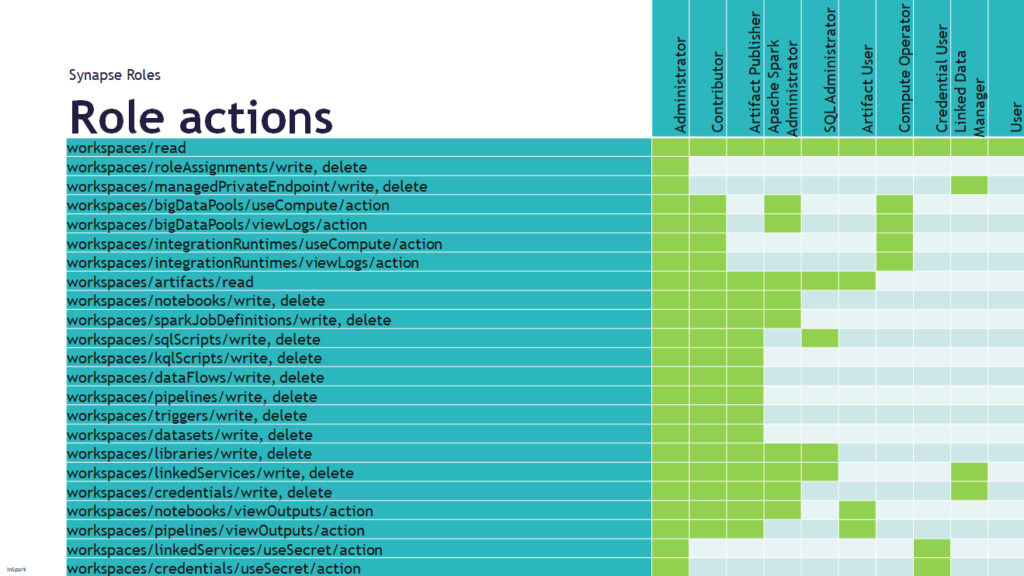
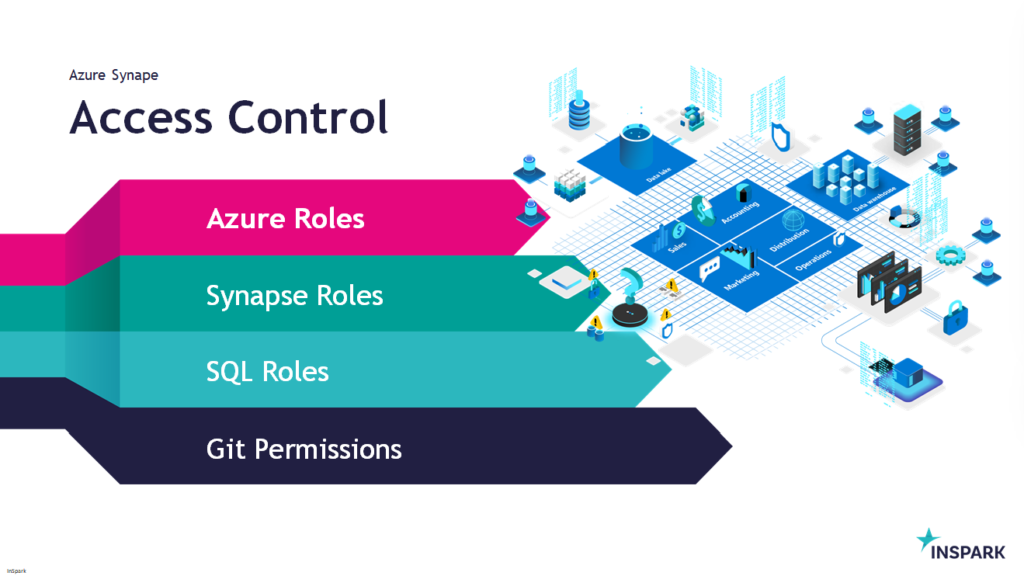
Today I've been talking on how to deal with all the different roles in Azure Synapse Analytics during Data Toboggan. An event 100% focussed on Azure Synapse Analytics.

Synapse-Access-Control

You can find my slides below on Slideshare:

Some useful links:
 
Azure-Synapse-Role-Actions


In case you have any questions left please feel free to ask them via the comment or Socials

How to use concurrency in Azure Synapse pipelines?

How to use concurrency in Azure Synapse pipelines?

How to prevent concurrent pipeline execution?

Concurrency

This week I had a discussion with a colleague about how we can now make sure that a Pipeline does not start when it's already started.

He then indicated, have you ever thought of the concurrency option?  I've seen this option before but never paid attention to it.

How does the concurrency work?

If you read the Microsoft documentation it says the following:
The maximum number of concurrent runs the pipeline can have. By default, there is no maximum. If the concurrency limit is reached, additional pipeline runs are queued until earlier ones complete.

The concurrency option is working in Azure Synapse Analytics and in Azure Data Factory.

I started to test this functionality and there are certainly some nice use cases for that:

  • If the Pipeline was started via a Schedule and someone else triggers this Pipeline Manually, the Pipeline is placed in a queue.
  • Sometimes it happens that there is a delay in the processing of data or that more data is delivered. If you process this data every 30 minutes and the 1st run is not yet ready and the 2nd starts again, this could result in incorrect data. Also in this case the to be executed run is placed in a queue and only starts when the previous one is ready.

It is a fairly simple process but can be quite useful especially in the case of short loading windows.

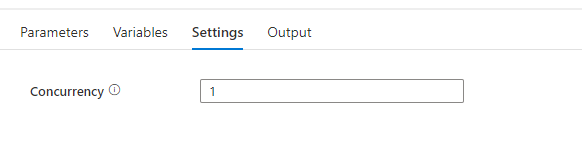
Azure-Synapse-Concurrency

Please pay attention, running the pipeline in a Debug modus has no effect on this and will run directly.
Check the monitoring regularly to check if this situation is not happening all the time, if so,  you better change the recurrence ​of your Triggered Pipeline. You still have the option to cancelled a queued pipeline.

How to enable concurrency?


To enable concurrency in an Azure Synapse pipeline, you can use the Concurrency property in the pipeline settings. The default value is 1, which means that only one copy of the pipeline will run at a time. By default, there is no maximum. If the concurrency limit is reached, additional pipeline runs are queued until earlier ones complete. Setting the concurrency level to a higher value will cause multiple copies of the pipeline to run concurrently, which can improve performance if the pipeline is CPU-bound or if the data source can handle the increased load. If you leave the property blank the pipeline will not be queued. 

Enable-concurrency-Azure-Synapse

When you have any questions regarding concurrency, please let me know.

Azure Synapse Analyics costs analyis for Integration Runtime

Azure Synapse Analyics costs analyis for Integration Runtime

AutoResolveIntegrationRuntime!

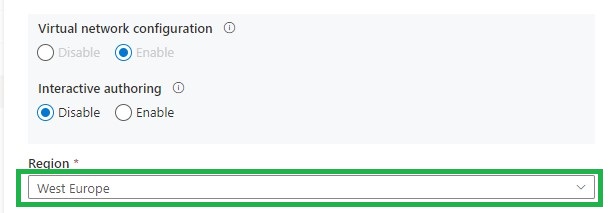
The last few days I've been following some discussions on Twitter on using a separate Integration Runtime in Azure Synapse Analytics running in the selected region instead of auto-resolve. The AutoResolveIntegrationRuntime is automatically deployed with Auto Resolve and cannot be changed. If you create a separate Integration Runtime you can set the Region.

Azure_Synapse_IntegrationRuntime


The blog  from Asanka Padmakumara has a good explanation why should you choose for a new Integration Runtime with a dedicated Region so I'm not going in detail of that.

I was more interested what this will do with the costs when Managed Virtual Network is enabled and run a certain Pipeline with AutoResolveIntegrationRuntime enabled or with a manual created Integration Runtime. The final result was quite surprising for me.

Case:

Azure Synapse Analytics deployed with Managed Virtual Network and Private Links in West-Europe region.

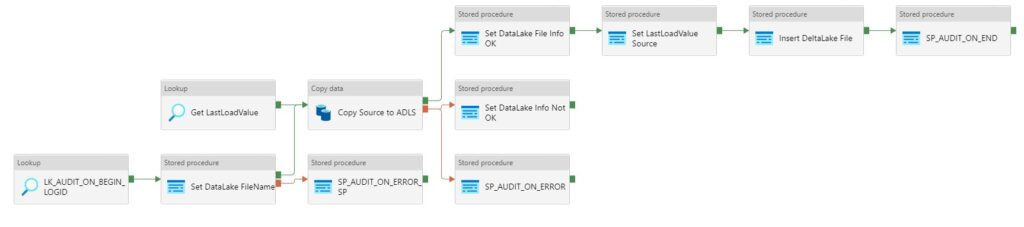
Copy data from a Azure SQL server to Datalake.

Azure_Synapse_Pipeline

Result:

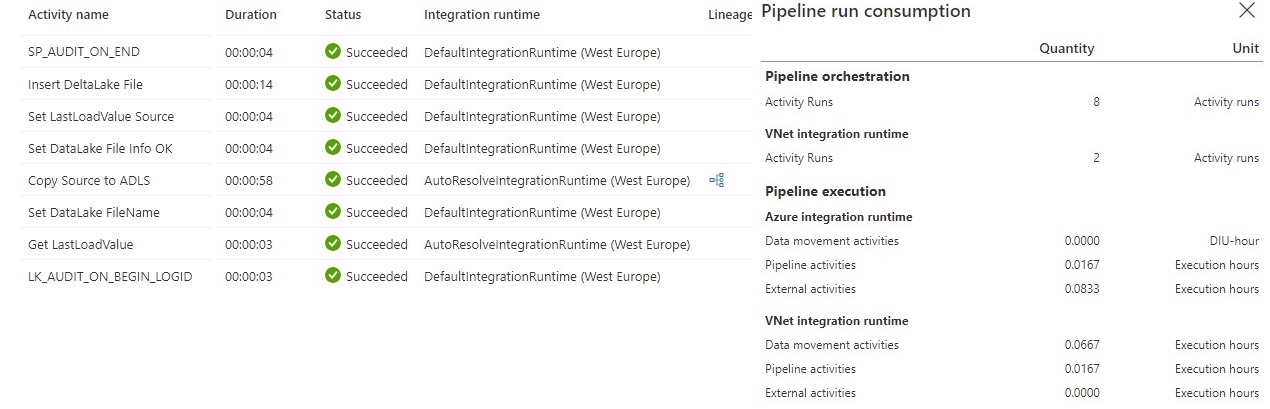
Pipeline Consumption with AutoResolveIntegrationRuntime

Azure Synapse Pipeline AutoResolve

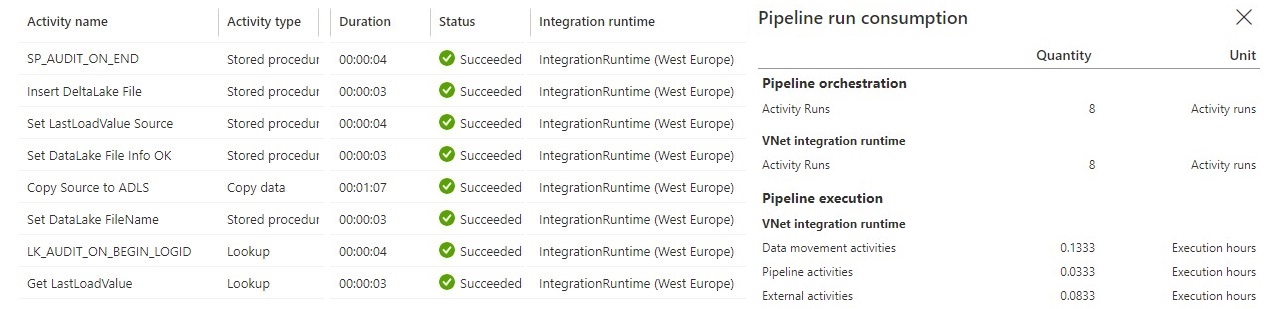
Pipeline Consumption with Integration Runtime created in West-Europe

Azure Synapse Pipeline West Europe


I didn't expect the consumption of these 2 Integration Runtimes to be different.

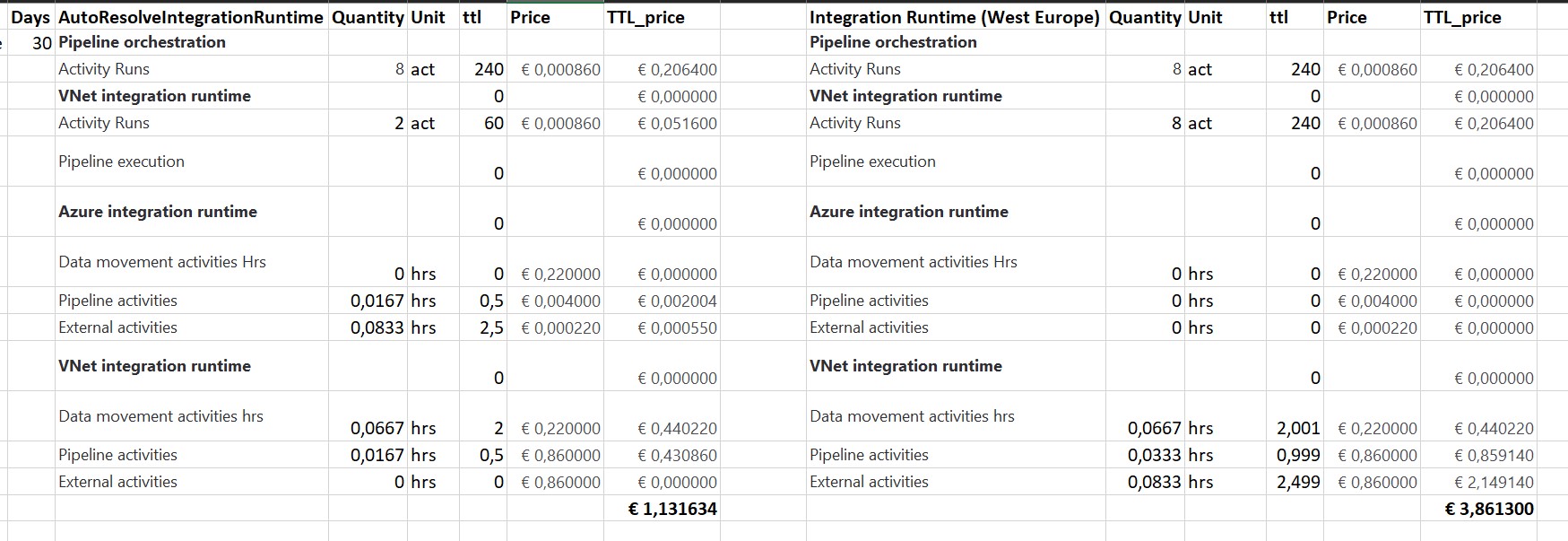
The next step is how does that compare in terms of costs based on the Azure Price Calculator. In the example below,  I did the calculation based on above pipelines and that the pipeline has run 1 month every day(30days).

Azure_Synapse_Cost_Calculation


Conclusion:

When running all my Linked Services on the AutoResolveIntegrationRuntime it looks to be a little bit faster compared to an Integration Runtime created in West-Europe. But there was a huge difference in costs, you have to pay 350% more if you run on an Integration Runtime. That is quite a lot, especially if you run 100 of these Pipelines per day, which is almost € 270 on a monthly basis. These differences probably won't be there if you don't use the Managed Virtual Network. 

Remarks:

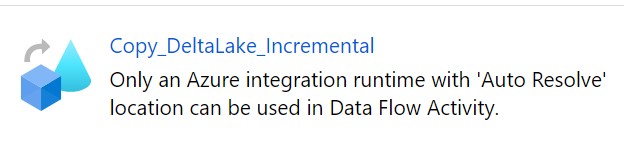
During my test of the Integration Runtime I also found out that you cannot change a DataFlow in Azure Synapse Analytics to an Integration Runtime without auto resolve.

Azure_Synapse_Dataflow_IR


If you enable Managed Virtual Network for auto-resolve Azure IR, the IR in the Data Factory or Synapse Workspace region is used.

=> Integration runtime - Azure Data Factory & Azure Synapse | Microsoft Docs


As always, if you have any questions, let me know.

Azure Synapse Analytics overwrite live mode

Azure Synapse Analytics overwrite live mode

Data Factory

by Erwin | Sep 23, 2021

Stale publish branch

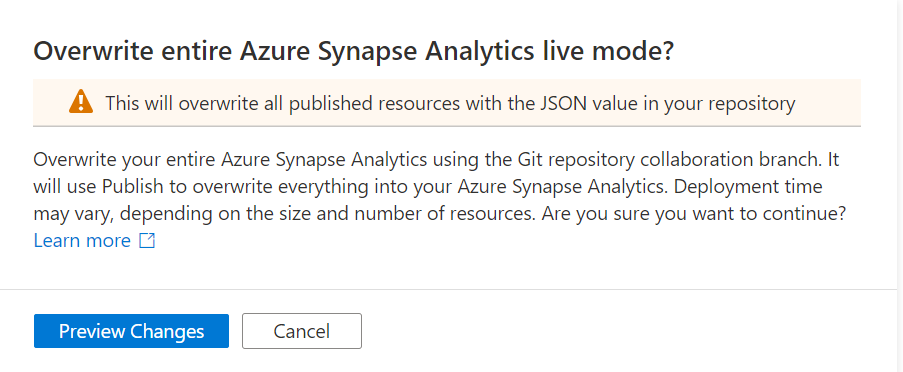
In Azure Synapse Analytics and Azure Data Factory is an new option available "Overwrite Live Mode", which can be found in the Management Hub-Git Configuration.

With this new option your can directly overwrite your Azure Synapse Analytics or Azure Data Factory Live mode code with the current Branch from your Azure Dev Ops.

It will use the Publish option to overwrite everything into your Azure Synapse Analytics or Azure Data Factory, so be careful with doing this. If you have a lot of code, the deployment time can take a while based on the size  of the branch and the number of resources.

Synapse_overwritemode

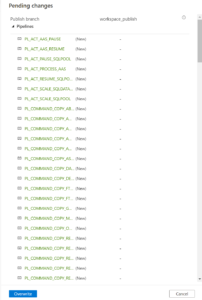
Once you click on Preview Changes you will see that all your code will be published. You need to confirm by clicking the Overwrite button.

Synapse_overwritemode_Publish

After you clicked on overwrite, it will start publishing.

Why?

Sometimes your Live Mode has a different code than your current Git Branch, especially when it comes to Linked Services, Managed Vnets and when using multiple Feature Branches. Incidentally, this is also the case if you link your code (Solution Templates) to your Azure Synapse Workspace from Dev Ops for the first time. Then it is possible that you will not get this code published because there are still dependencies, what I've seen mostly because the use of Azure Key Vault or different Integration Runtime setup. According to the documentation from Microsoft which you can find here they add the following examples:

  • A user has multiple branches. In one feature branch, they deleted a linked service that isn't AKV associated (non-AKV linked services are published immediately regardless if they are in Git or not) and never merged the feature branch into the collaboration branch.
  • A user modified the Synapse or data factory using the SDK or PowerShell
  • A user moved all resources to a new branch and tried to publish for the first time. Linked services should be created manually when importing resources.
  • A user uploads a non-AKV linked service or an Integration Runtime JSON file manually. They reference that resource from another resource such as a dataset, linked service, or pipeline. A non-AKV linked service created through the UX is published immediately because the credentials need to be encrypted. If you upload a dataset referencing that linked service and try to publish, the UX will allow it because it exists in the git environment. It will be rejected at publish time since it does not exist in the Synapse or data factory service.

If the publish branch is out of sync with your collaboration branch and contains out-of-date resources despite a recent publish, you can use the solution above.

Conclusion

I used to disconnect my Git configuration, make the changes in Live Mode, and reconnect Azure Dev Ops again and imported the resource to my current Branch. This solution makes it much easier and will safe you definitely a lot of time.

If you haven't yet linked your Azure Synapse Workspace to Azure Dev Ops, read how to do this in a previous Blog.

Hopefully this article has helped you a step further. As always, if you have any questions, leave them in the comments.

Feel free to leave a comment