Speaking(Virtual) at SQL Saturday #963 Denmark

Speaking(Virtual) at SQL Saturday #963 Denmark

SQL Saturday 963 Denmark

PASS SQLSaturday is a free training event for professionals who use the Microsoft data platform. These community events offer content across data management, cloud and hybrid architecture, analytics, business intelligence, AI, and more.

My first virtual event

I like to interact during my session, so I’m curious if that will work. Last week I recorded my session for SQL Bits and that is quite strange when you look back. I am really looking forward to it, my session starts at 14:30.

The complete schedule can be found here. Are there is still time to register!!

My Session

Session Title:

Azure Key Vault, Azure Dev Ops and Data Factory how do these Azure Services work perfectly together!

Session Details

Can we store our Connectionstrings or BlobStorageKeys or other Secretvalues somewhere else then in Azure Data Factory(ADF)? Yes you can! You can store these valuable secrets in Azure Key Vault(AKV). But how can we achieve this in ADF? And finally how do we deploy our DataFactories in Azure Dev Ops to Test, Acceptance and Production environments with these Secrets ? Can this be setup dynamically? During this session I will give answers on all of these questions. You will learn how to setup your Azure Key Vault, connect these secrets in ADF and finally deploy these secrets dynamically in Azure Dev Ops. As you can see a lot to talk about during this session.

Do I see you on Saturday 26th of September?


Speaking at SQL Server Konferenz 2020

SQL Server Konferenz  SQL Server Konferenz 2020 is a international Conference which is held each year in Darmstadt, Germany. Trilled to be speaking This year I will speak and attend SQL Server Konferenz 2020 from March 3th until March 5th. I was very happy when I…

Watch the MS Ignite sessions on-demand

MS Ignite Sessions MS Ignite 2020 was this year a virtual event. Most of the sessions were live in the evenings and the other sessions were available at different times in different time zones. Compliments to the MS Ignite team for organizing such a great event Most…

Data Saturday Stockholm

Data Saturday Stockholm Bra så alla tillbaka personligen This means great so everyone back in person. Last weekend I had the honor to speak at Data Saturday in Stockholm. About one of my favourite topics Azure Synapse Analytics. It was nice to see everyone in person…

My Session at TechoramaNL 2019

TechoramaNL 2019 Date: 2 th October Location: Pathé Ede From September 30 th to October 2 nd TechoramaNL was held in the Netherlands for the 2nd time. TechoramaNL is the largest deep knowledge IT conference in the Netherlands with 1500 participants and 120 sessions in…

My Virtual Session DataSaturday #1 Pordenone

DATA SATURDAY #1 PORDENONE This Saturday I’ve been speaking during DataSaturday #1 Pordenono. The first ever DataSaturday after Pass has retired. If you want to visit more Datasaturday events please visit the Data Saturdays event page. Azure Purview I presented a…

SQLBits session: Microsoft Purview Data Policy App

SQLBits 2023 Thanks everyone for visiting my session during SQLBits. It’s great to see such a full room and that so many people have started using Microsoft Purview.   SLIDES The slides can be downloaded via the link below, so that you can view them again at…

My Virtual session at Data Toboggan

An inaugural event specializing on Azure Synapse Analytics Data Toboggan This Saturday I’ve been speaking during Data Toboggan an inaugural event specializing on Azure Synapse Analytics. 12 Hours of sessions with amazing speakers. Azure Purview I presented a session…

My Virtual Session at SQLBits 2020

SQL BITS 2020, the greatest data show  Last week was SQL BITS week. After the event was moved from April to September, it eventually became a Virtual event. Setting up a Virtual event requires a lot of adjustments in the Organization. Recording All regular sessions…

Speaking at SQL BITS 2022

SQL BITS 2022 We’re Hitting the Arcade SQL Bits is back this year in London from March 8-12 2022. SQLBits is the largest data conference in the world and this year’s theme is to bring us back to our incandescent youth, so prepare to level up your data skills and reach…

Speaking(Virtual) at SQL Saturday #963 Denmark

SQL Saturday 963 Denmark PASS SQLSaturday is a free training event for professionals who use the Microsoft data platform. These community events offer content across data management, cloud and hybrid architecture, analytics, business intelligence, AI, and more. My…

Parameterize Linked Services in ADF

Parameterize Linked Services in ADF

Erwin

by Erwin | Jul 9, 2020

Parameterize Linked Services 

For my Azure Data Factory solution I wanted to Parameterize properties in my Linked Services. Not all properties are Parameterized by default through the UI. But there's another way to achieve this.


Linked Service

Open your existing Linked Services.

Linked Services ADF

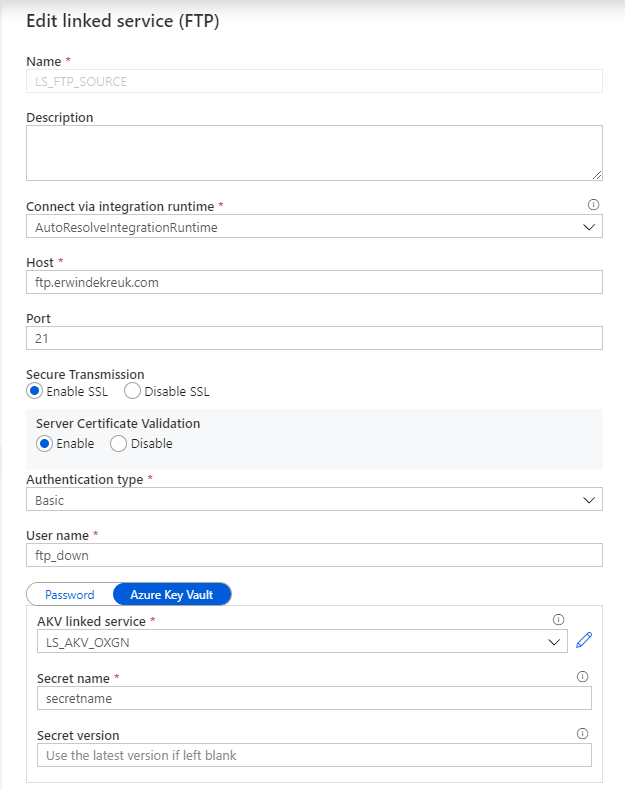
In this situation I want to Parameterize my FTP connection so that I can change the Host name based on a Azure Key Vault Secret.

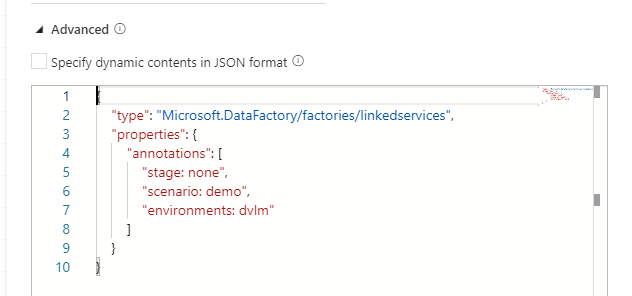
By default is this not possible through the UI but in the Bottom of your Linked Service there is a Advanced box

Linked Services Advanced


If you enable this box you can start building your own connection, but also create your own Parameters for this connection.

How to start:

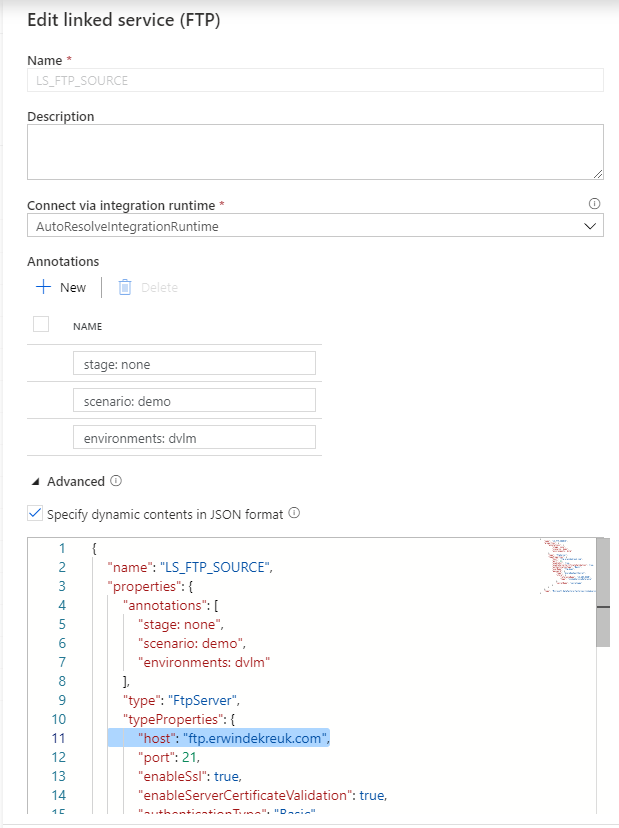
As a base we will use the default code or our connection

Linked Services Code

{
    "name": "LS_FTP_SOURCE",
    "properties": {
        "annotations": [
            "stage: none",
            "scenario: demo",
            "environments: dvlm"
        ],
        "type": "FtpServer",
        "typeProperties": {
            "host": "ftp.erwindekreuk.com",
            "port": 21,
            "enableSsl": true,
            "enableServerCertificateValidation": true,
            "authenticationType": "Basic",
            "userName": "ftp_down",
            "password": {
                "type": "AzureKeyVaultSecret",
                "store": {
                    "referenceName": "LS_AKV_OXGN",
                    "type": "LinkedServiceReference"
                },
                "secretName": "secretname"
            }
        }
    },
    "type": "Microsoft.DataFactory/factories/linkedservices"
}
Copy this code to your advanced box and enable the option Specify dynamic contents in JSON format/

Now you can start adding new parameters.

Linked Services Advanced

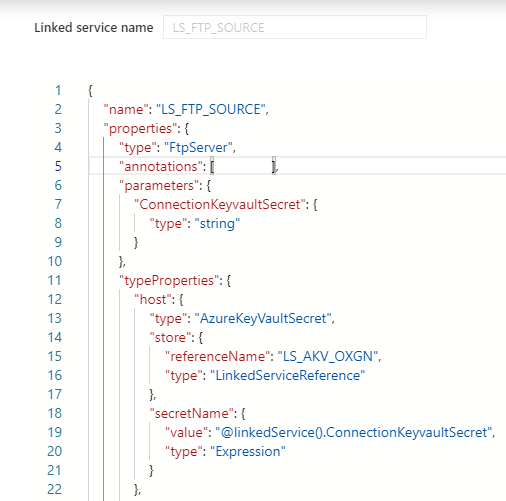
If you want to Parameterize your HOST name  connection you have to add in the top of the code a new Parameter, under the type of your connection

    "properties": {
        "type": "FtpServer",
        "parameters": {
            "ConnectionKeyvaultSecret": {
                "type": "string"
            }

After you have done this, you need to specify for which properties you want to use this parameter. In my case I want to read the parameter form my Azure Key Vault for my HOST propertie.

The JSON code below will now use above parameter as an input.

        "typeProperties": {
            "host": {
                "type": "AzureKeyVaultSecret",
                "store": {
                    "referenceName": "LS_AKV_OXGN",
                    "type": "LinkedServiceReference"
                },
                "secretName": {
                    "value": "@linkedService().ConnectionKeyvaultSecret",
                    "type": "Expression"
                }
            }

Save your connection and you will see that your UI is changed and that you have to define all your setting through the Advanced Editor.

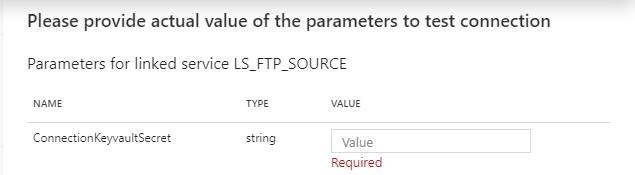
If you test your connection you will now see that you have to fill in a parameter.

Linked Service Test Connection

And now you can create parameters of every TypeProperties within your connection.

The code below will create Parameters for your Host, Username and Password entries with Azure Key Vault enabled. For the authenticationType you have to choose between Basic and Anonymous. But can also at this to your Azure Key Vault.

{
    "name": "LS_FTP_SOURCE",
    "properties": {
        "type": "FtpServer",
        "parameters": {
            "ConnectionKeyvaultSecret": {
                "type": "string"
            },
            "UsernameKeyvaultSecret": {
                "type": "string"
            },
            "PasswordKeyvaultSecret": {
                "type": "string"
            },
            "authenticationType": {
                "type": "string"
            }
        },
        "annotations": [ ],
        "typeProperties": {
            "host": {
                "type": "AzureKeyVaultSecret",
                "store": {
                    "referenceName": "LS_AKV_OXGN",
                    "type": "LinkedServiceReference"
                },
                "secretName": {
                    "value": "@linkedService().ConnectionKeyvaultSecret",
                    "type": "Expression"
                }
            },
            "port": 21,
            "enableSsl": false,
            "enableServerCertificateValidation": false,
            "authenticationType": "@linkedService().authenticationType",
            "userName": {
                "type": "AzureKeyVaultSecret",
                "store": {
                    "referenceName": "LS_AKV_OXGN",
                    "type": "LinkedServiceReference"
                },
                "secretName": {
                    "value": "@linkedService().UsernameKeyvaultSecret",
                    "type": "Expression"
                }
            },
            "password": {
                "type": "AzureKeyVaultSecret",
                "store": {
                    "referenceName": "LS_AKV_OXGN",
                    "type": "LinkedServiceReference"
                },
                "secretName": {
                    "value": "@linkedService().PasswordKeyvaultSecret",
                    "type": "Expression"
                }
            }
        }
    }
}

Thanks for reading my blog post and have fun with Parameterization of your Linked Services in ADF.

Feel free to leave a comment

Azure Data Factory and Azure Synapse Analytics Naming Conventions

Naming ConventionsAzure Naming Conventions

More and more projects are using Azure Data Factory and Azure Synapse Analytics, the more important it is to apply a correct and standard naming convention. When using standard naming conventions you create recognizable results across different projects, but you also create clarity for your colleagues. In addition to that, it is easier to add these projects to other services such as Managed Services, Azure DevOps,  etc etc,  because standards are used.

To start with these naming conventions, I have made a list of suggestions with most common Linked Services. The list is not exhaustive, but it does provide guidance for new Linked Services.

There are a few standard naming conventions that apply to all elements in Azure Data Factory and in Azure Synapse Analytics.

  • *Names are case insensitive (not case sensitive).  For that reason I’m only using CAPITALS.
  • *Maximum number of characters in a table name: 260.
  • All object names must begin with a letter, number or underscore (_).
  • Following characters are not allowed: “.”, “+”, “?”, “/”, “<”, ”>”,”*”,”%”,”&”,”:”,””

These rules are also defined on the following link

This post has been updated on Feb 2nd, 2023 with the latest connectors.

Azure

Abbreviation Linked Service Dataset
Azure Blob Storage ABLB_ LS_ABLB_ DS_ABLB_
Azure Cosmos DB SQL API ACSA_ LS_ACSA_ DS_ACSA_
Azure Cosmos DB MongDB API ACMA_ LS_ACMA_ DS_ACMA_
Azure Data Explorer ADEX_ LS_ADEX_ DS_ADEX_
Azure Data Lake Storage Gen1 ADLS_ LS_ADLS_ DS_ADLS_
Azure Data Lake Storage Gen2 ADLS_ LS_ADLS_ DS_ADLS_
Azure Database for MariaDB AMDB_ LS_AMDB_ DS_AMDB_
Azure Database for MySQL AMYS_ LS_AMYS_ DS_AMYS_
Azure Database for PostgreSQL APOS_ LS_APOS_ DS_APOS_
Azure File Storage AFIL_ LS_AFIL_ DS_AFIL_
Azure Search ASER_ LS_ASER_ DS_ASER_
Azure SQL Database ASQL_ LS_ASQL_ DS_ASQL_
Azure SQL Database Managed Instance ASQM_ LS_ASQM_ DS_ASQM_
Azure Synapse Analytics (formerly Azure SQL DW) ASDW_ LS_ASDW_ DS_ASDW_
Azure Table Storage ATBL_ LS_ATBL_ DS_ATBL_
Azure DataBricks ADBR_ LS_ADBR_ DS_ADBR_
Azure Cognitive Search ACGS_ LS_ACGS DS_ACGS_
Azure Synapse Analytics  ASA_ LS_ASA DS_ASA
Azure Cognitive Service ACG_ LS_ACG_ N/A


Database

     
  Abbreviation Linked Service Dataset
SQL Server  MSQL_ LS_SQL_ DS_SQL_
Oracle ORAC_ LS_ORAC_ DS_ORAC_
Oracle Eloqua ORAE_ LS_ORAE_ DS_ORAE_
Oracle Responsys ORAR_ LS_ORAR_ DS_ORAR_
Oracle Service Cloud ORSC_ LS_ORSC_ DS_ORSC_
MySQL MYSQ_ LS_MYSQ_ DS_MYSQ_
DB2 DB2_ LS_DB2_ DS_DB2_
Teradata  TDAT_ LS_TDAT_ DS_TDAT_
PostgreSQL POST_ LS_POST_ DS_POST_
Sybase SYBA_ LS_SYBA_ DS_SYBA_
Cassandra CASS_ LS_CASS_ DS_CASS_
MongoDB MONG_ LS_MONG_ DS_MONG_
Amazon Redshift ARED_ LS_ARED_ DS_ARED_
SAP Business Warehouse SAPW_ LS_SAPW_ DS_SAPW_
SAP Cloud for Customer (C4C) SAPC_ LS_SAPC_ DS_SAPC_
SAP Table SAPT_ LS_SAPT DS_SAPT_
SAP HANA HANA_ LS_HANA_ DS_HANA_
Drill DRILL_ LS_DRILL_ DS_DRILL_
Google BigQuery GBQ_ LS_GBQ_ DS_GBQ_
Greenplum GRPL_ LS_GRPL_ DS_GRPL_
HBase HBAS_ LS_HBAS_ DS_HBAS_
Hive HIVE_ LS_HIVE_ DS_HIVE_
Apache Impala IMPA_ LS_IMPA_ DS_IMPA_
Informix INMI_ LS_INMI_ DS_INMI_
MariaDB MDB_ LS_MDB_ DS_MDB_
Microsoft Access MACS_ LS_MACS_ DS_MACS_
Netezza NETZ_ LS_NETZ_ DS_NETZ_
Phoenix PHNX_ LS_PHNX_ DS_PHNX_
Presto (Preview) PRST_ LS_PRST_ DS_PRST_
Spark SPRK_ LS_SPRK_ DS_SPRK_
Vertica VERT_ LS_VERT_ DS_VERT_
Snowflake SNWF_ LS_SNWF_ DS_SNWF_
MongoDB Atlas MONG_ATLAS_ LS_MONG_ATLAS_ DS_MONG_ATLAS_
Amazon RDS for Oracle RDSORAC_ LS_RDSORAC_ DS_RDSORAC_
Amazon RDS for SQL Server RDSSQL_ LS_RDSSQL_ DS_RDSSQL_


Files

     
  Abbreviation Linked Service Dataset
File System FILE_ LS_FILE_ DS_FILE_
HDFS HDFS_ LS_HDFS_ DS_HDFS_
Amazon S3  AMS3_ LS_AMS3_ DS_AMS3_
FTP FTP_ LS_FTP_ DS_FTP_
SFTP SFTP_ LS_SFTP_ DS_SFTP_
Google Cloud Storage GCS_ LS_GCS_ DS_GCS_
Oracle Cloud Storage OCS_ LS_OCS_ DS_OCS_
Amazon S3 Compatible Storage SMS3C_ LS_SMS3C_ DS_SMS3C_


Generic

     
  Abbreviation Linked Service Dataset
Generic ODBC ODBC_ LS_ODBC_ DS_ODBC_
Generic OData  ODAT_ LS_ODAT_ DS_ODAT_
Generic REST REST_ LS_REST_ DS_REST_
Generic HTTP HTTP_ LS_HTTP_ DS_HTTP_


Services and Apps

Abbreviation Linked Service Dataset
Salesforce SAFC_ LS_SAFC_ DS_SAFC_
Salesforce Service Cloud SAFCSC_ LS_SAFCSC_ DS_SAFCSC_
Salesforce Marketing Cloud SAFOMC_ LS_SAFOMC_ DS_SAFOMC_
GitHub GITH_ LS_GITH_ DS_GITH_
Jira JIRA_ LS_JIRA_ DS_JIRA_
Web Table (table from HTML)  WEBT_ LS_WEBT_ DS_WEBT_
Amazon Marketplace Web Service AMSMWS_ LS_AMSMWS_ DS_AMSMWS_
Xero XERO_ LS_XERO_ DS_XERO_
SharePoint Online List SHAREPOINT_ LS_SHAREPOINT_ DS_SHAREPOINT_
ServiceNow SERVICENOW_ LS_SERVICENOW_ DS_SERVICENOW_
Dynamics (Microsoft Dataverse) DATAVERSE_ LS_DATAVERSE_ DS_DATAVERSE__
Dynamics 365 D365_ LS_D365_ DS_D365_
Dynamics AX DAX_ LS_DAX_ DS_DAX_
Dynamics CRM DCRM_ LS_DCRM_ DS_DCRM_
Microsoft 365 M365_ LS_M365_ Ds_M365__
SAP Cloud for Customer (C4C) SAPC4C_ LS_SAPC4C_ DS_LS_SAPC4C_
SAP ECC SAPE_ LS_SAPE_ DS_SAPE_

If your connector is not described(mostly connectors which are in Preview), please let me know. For more details for all the different connectors, check the connector overview

Pipeline

Even for Pipeline you can define naming conventions. I think the most important thing is that you always start your pipeline with PL_ followed by a Logic Name for you. You can for example use:

TRANS: Pipeline with transformations

SSIS: Pipeline with SSIS Packages

DATA: Pipeline with DataMovements

COPY: Pipeline with Copy Activities

Divers

NB: Notebook 

DF: Mapping Dataflows

SQL: SQL Scripts

KQL: KQL Scripts

JOB: Spark job definition

Once again these naming conventions are just suggestions. The most important thing is that you start using naming conventions and that you use the folder structure within the Pipelines (categories). Like the picture below as an example.

FolderStructure

If you have suggestions just let me know by leaving a comment below.

Azure Synapse Analytics Power BI Integration

Azure Synapse Analytics Power BI Integration

Creating a Linked Service for Power BI

Open your Synapse Studio and select the Management Hub.

Azure Synapse PowerBI Linked Service

Add a new Linked Service

Create Synapse Studio PowerBI Connection

If you haven’t connect to Power BI before, you will see the screen above. If you want to add another Power BI Linked Service(Workspace).

Search for Power BI in the available Linked Services.

Connect or Select the Power BI Icon.

Azure Synapse PowerBI Linked Service Existing

New Linked Service Power BI

Select the correct Power BI Workspace Name. You can only selected a Power BI Workspace which is connect to the same Azure tenant as your Azure Synapse Analytics Workspace. So both Services needs to be in the same Azure Tenant.

Once you have connected to your Workspace, you can see all the existing Reports from that Workspace.

Browse in your Synapse Studio to the Develop Tab.

Create a new Power BI dataset

From the same develop tab , you can also create a new dataset for Power BI. Click on the New Power BI dataset.

Azure Synapse PowerBI Create New DataSets

The following screen will open on the right site of your Synapse Studio.

Azure Synapse PowerBI Create DataSet

Make sure you have Power BI Desktop installed. If not you should do in now.

Azure Synapse PowerBI Server

Select a Data Source. You will find here your SQL Pool and if you have created Databases as SQL on Demand as well. How to create a SQL on Demand database I will explain in another article.

Download the created .pbids file.

Power BI Integration

Open Power BI Desktop. Sign in with the correct credentials

Azure Synapse DataBase On-Demand

Now you can start building your report. Once you’re ready, upload the report to your Workspace and the DataSet and the Report will be visible in your Synapse Studio.

Power BI report Integration

You can now use your report, create new reports or change the reports.

Currently you can not download the report. So once you have changed the report, you have to go back to the Power BI Service to download the pbix file. Same for all other Power BI settings, like scheduling.

In 1 of my next articles I will go deeper into the various possibilities such as import, direct query or the use of Azure Analysis Services in combination with Power BI.

Thanks for reading and like always, feel to free send questions.


Create an Azure Synapse Analytics SQL Pool

Create an Azure Synapse Analytics SQL Pool

Adding a new SQL Pool

There are 2 options to create a SQL Pool. Go to your Synapse Workspace in de Azure Portal and add a new SQL Pool.

Create SQL Pool

Or go to the Management Tab in your Azure Synapse Workspace and add a new Pool.

SQL Pool Azure Synapse Studio

Creating a new SQL Pool

Create Azure Synapse SQL Pool

SQL Pool Name (SQL pool name should not be greater than 15 characters) and select the correct Performance Level. Be careful in selecting the Performance Level. DW 1000c will cost you  € 12,73 per hour excluding storage. My advice is to start small and scale up when necessary. More about DWc units can be found here.

Additional settingsAzure Synapse SQL Pool

If you want to use Data from an existing pool, select Backup or Restore Point. Otherwise select none

Use existing data-Backup

SQL Pool Backup

Use existing data-Restore Point

SQL Pool Restore Point 

Use existing data-None

Review Azure Synapse SQL Pool

Review your settings and your SQL Pool will be created.

Remarks

Be aware that if you already have another Azure SQL DW running, you cannot select or add it to your Azure Synapse Workspace.
Adding an SQL pool is only possible via the Azure Synapse Workspace(Azure Portal or Studio).

If you install it as a standalone component through the Azure portal, the SQL Pool cannot be added to the Azure Synapse Workspace.

Pause SQL Pool

And if you don’t use your SQL pool please PAUSE it. It will save you a lot of money.