Create an Azure Synapse Analytics Apache Spark Pool

Create an Azure Synapse Analytics Apache Spark Pool

Erwin

Adding a new Apache Spark Pool

There are 2 options to create an Apache Spark Pool.
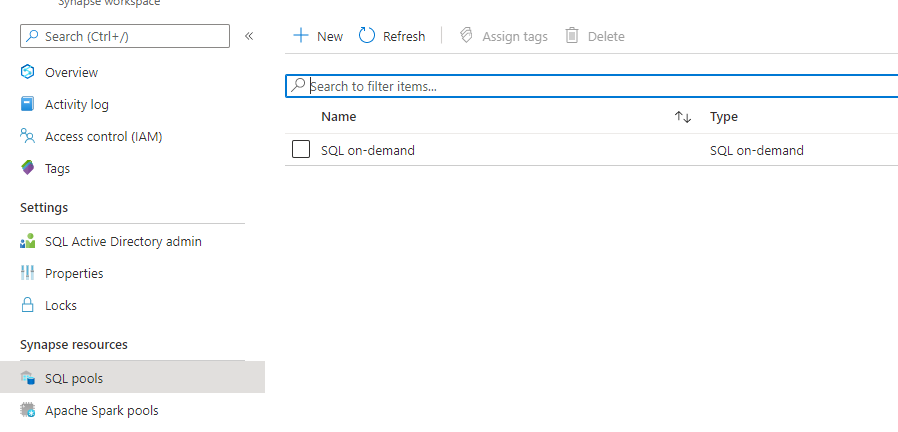
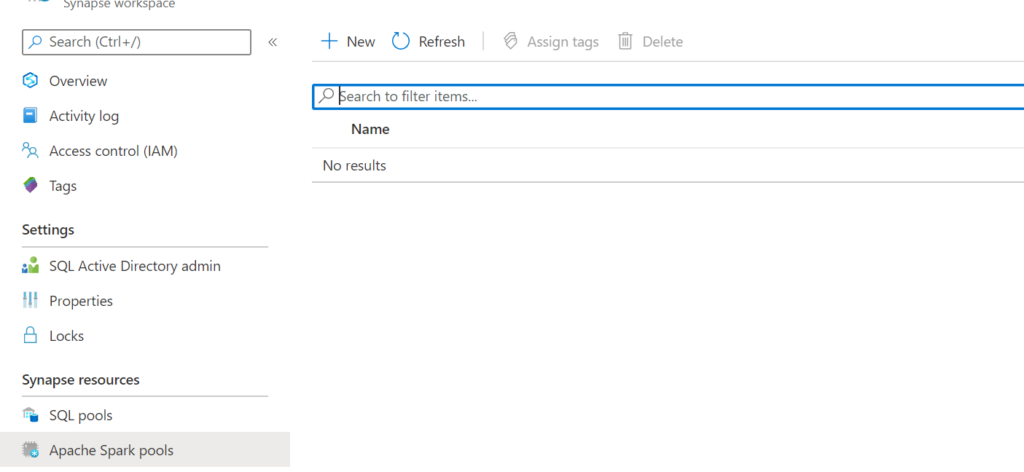
Go to your Azure Synapse Analytics Workspace in de Azure Portal and add a new Apache Spark Pool.

Azure Portal Apache Spark Pool

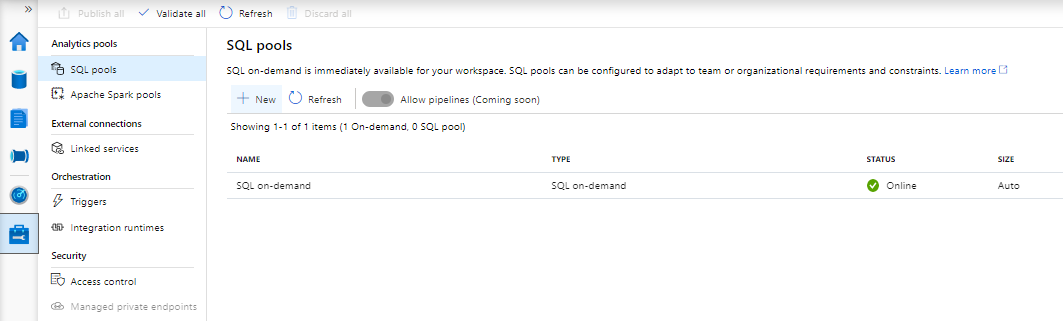
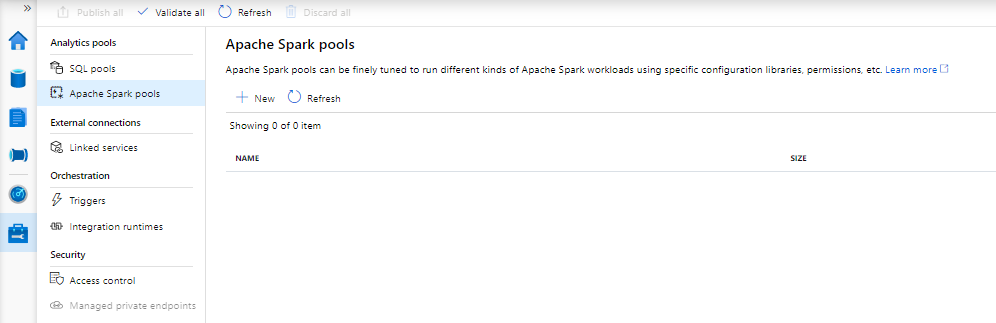
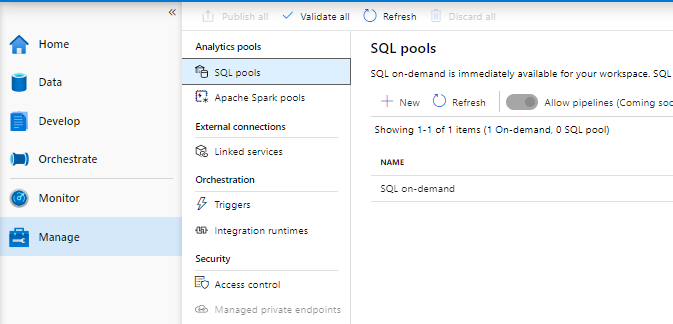
Or go to the Management Tab in your Azure Synapse Analytics Workspace and add a new Apache Spark Pool.

Azure Synapse Apache Spark Pool

Create an Apache Spark Pool

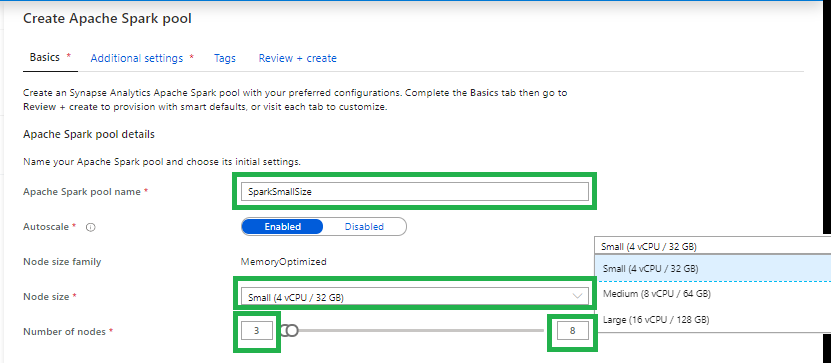
Creating a new Apache Spark Pool

Apache Spark pool name

Note that there are specific limitations for the names that Apache Spark Pools can use. Names must contain letters or numbers only, must be 15 or less characters, must start with a letter, not contain reserved words, and be unique in the workspace.

Node size

Small(4vCPU)

Medium(8vCPU)

Large(16vCPU)

Autoscale

Enabled:   Based on your workloads the Spark Pool will scale up or down.

Disabled:   You have to define a fix number of nodes.

Number of nodes.

You can select 3 up to 200 nodes

Make sure that

Contact an Owner of the storage account, and verify that the following role assignments have been made:

  • Assign the workspace MSI to the Storage Blob Data Contributor role on the storage account
  • Assign you and other users to the Storage Blob Data Contributor role on the storage account

Once those assignments are made, the following Spark features can be used: (1) Spark Library Management, (2) Read and Write data to SQL pool databases via the Spark SQL connector, and (3) Create Spark databases and tables.

If you haven’t assign the Storage Blob Data Contributor role to your user, you will get the following error when you want to browse the date in your Linked Workspace.

Error Storage Synapse Studio


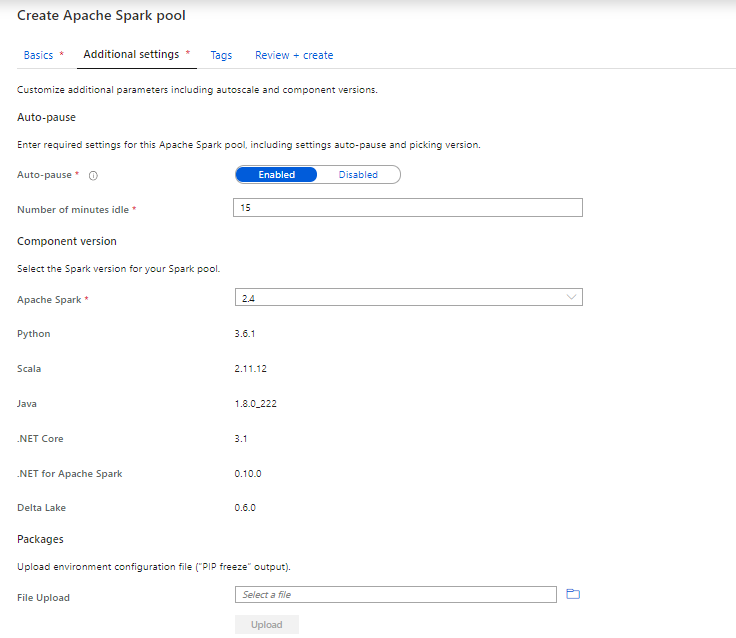
Apache Spark Pool Details

Currently you can only select Apache Spark version 2.4.

Make sure you enable the Auto Pause settings. If will save you a lot of money. Your cluster will turn off after the configured Idle minutes.

Python packages can be added at the Spark pool level and .jar based packages can be added at the Spark job definition level.

  • If the package you are installing is large or takes a long time to install, this affects the Spark instance start up time.
  • Packages which require compiler support at install time, such as GCC, are not supported.
  • Packages can not be downgraded, only added or upgraded.

How to install these packages can be found here.

Review your settings and your Apache Spark Pool will be created.

You have now created your Apache Spark Pool.

Thanks for reading, in my next article I will explain how to create a SQL Pool, the formerly Azure SQL DW Instance


Exploring Azure Synapse Analytics Studio

Exploring Azure Synapse Analytics Studio

Erwin

Azure Synapse Workspace Settings

In my previous article, I walked you through “how to create your Azure Synapse Analytics Workspace”. It’s now time to explore the brand new Synapse Studio.

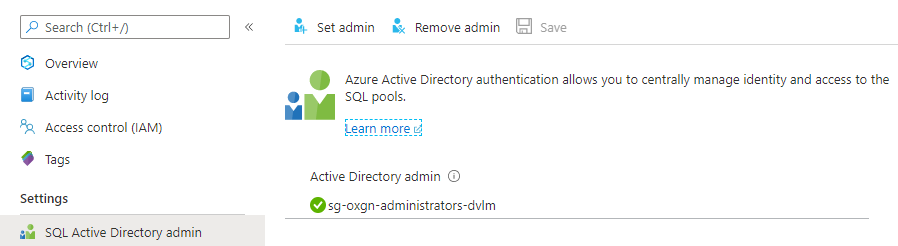
Most configuration and settings can be done through the Synapse Studio. In your Workspace you need to set the SQL Active Directory Admin, like you have to do for a Logical Server.

SQL Active Directory Admin

SQL Active Directory admin

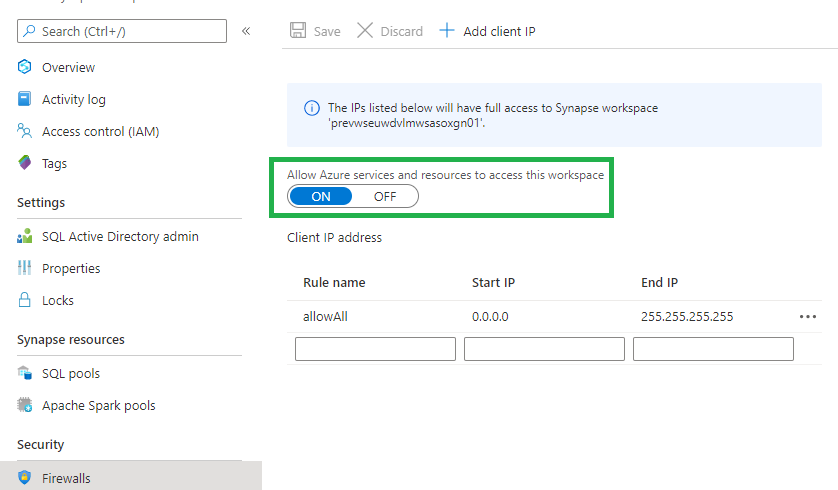
Firewall

Azure Synapse FIrewall

Change the IP-address to you own IP-address or to one of your employer if you work from the office. Make sure that you enable the option “Allow Azure service and Resources to access this Workspace” is enabled. Every trusted Azure Service or Resource can connect to this Workspace. Not all Public Preview Azure Services or Resources are Trusted yet.

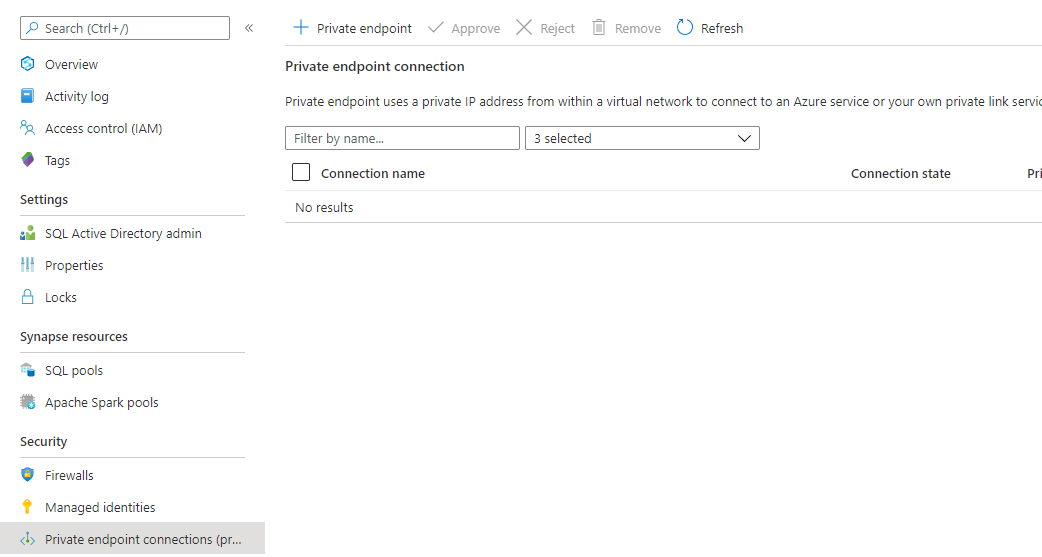
Private Endpoint Connections

Private Endpoint Connections

Define your Private Endpoint Connections to your Services to use a Private IP-address form your Virtual Network. More details on how to setup a Private Endpoint Connection can be found here.

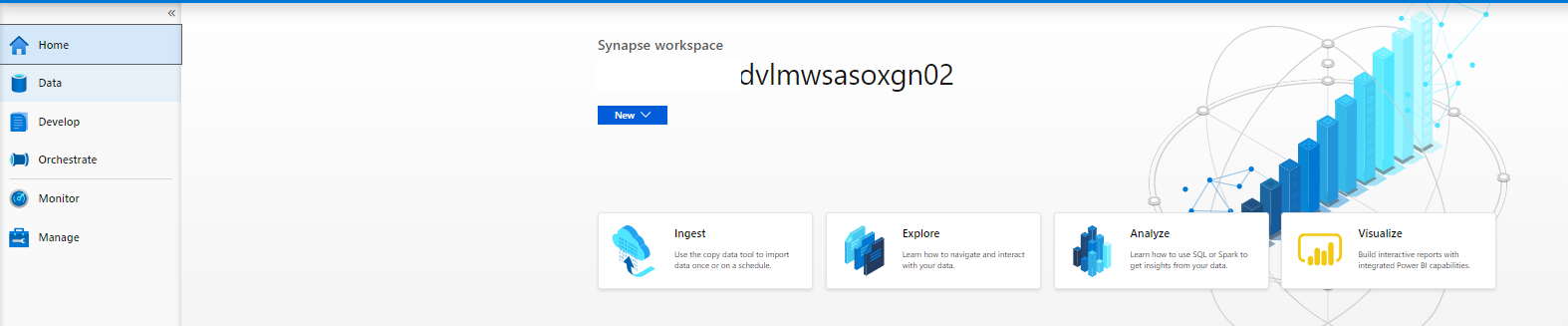
Launch Azure Synapse Analytics Studio

After you have opened the portal, the following screen will appear. Personally I am very charmed of this brand new Portal, you now get 1 place where you can access all your data. But also an integration with your Power BI reporting. But more about that later. Let’s walk through each tab below.
Azure Synapse Analytics Studio

Data

Azure Synapse Analytics Data Tab

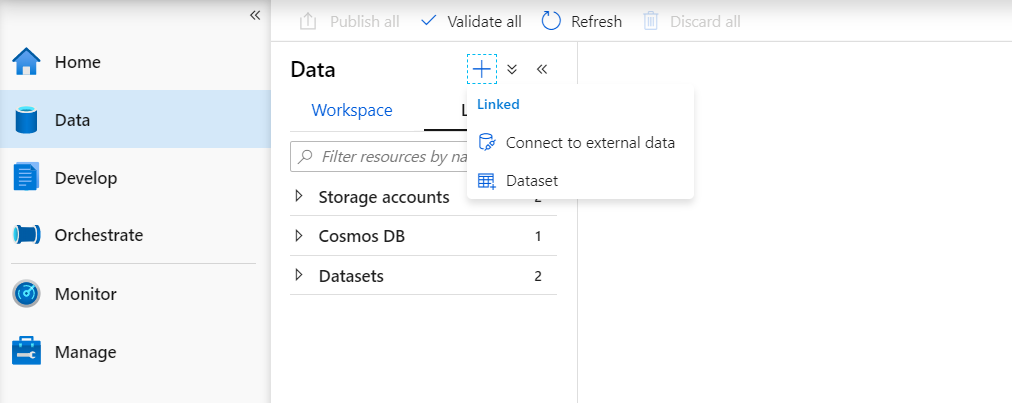
The data Tab is Divided into 2 different parts Linked and Workspace

Linked

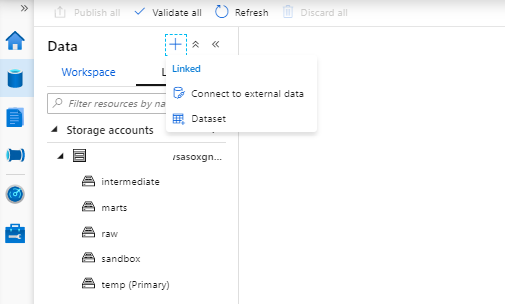
All Dataset likes you’re used to create in Azure Data Factory are stored here.

Azure Synapse Analytics Data Tab LInked

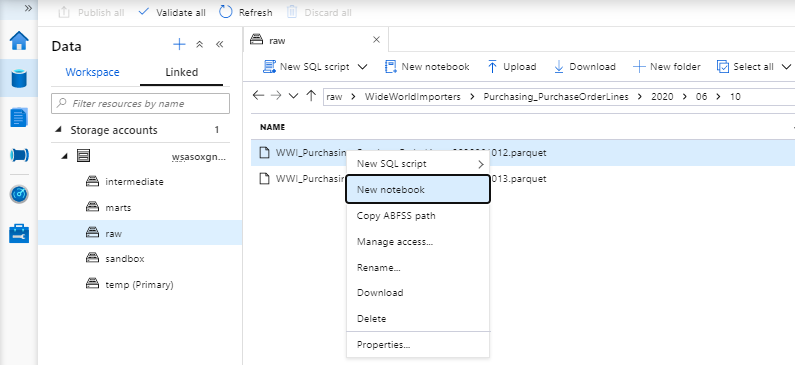
Your can now directly browse files within your Azure Data Lake Storage.

Azure Synapse Analytics Data Tab Linked to Browse Files

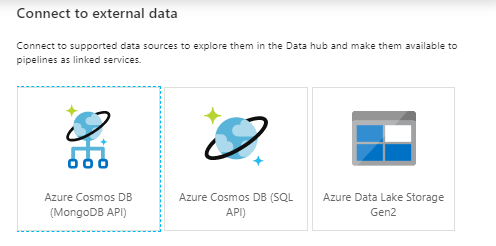
But you can also connect to External Data.

Connect to External Data

Workspace

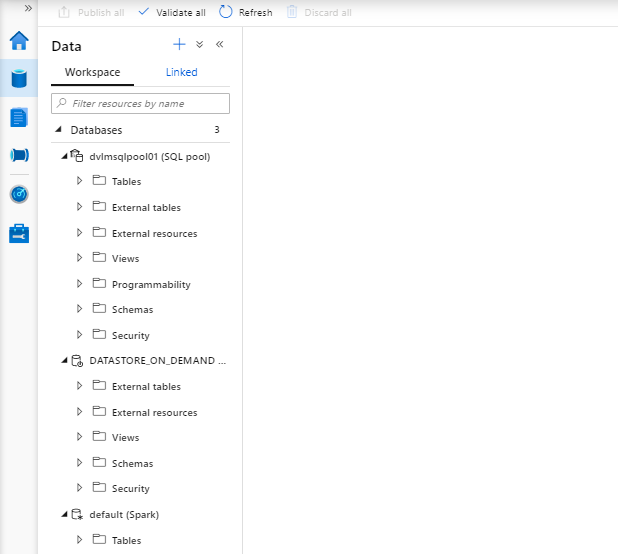
Here you will find all your databases which you have created with Sparks, SQL on Demand or SQL Pools. How to create these database I will explain later in another article.

Synapse Studio Data Workspace

Develop

Azure Synapse Analytics Develop

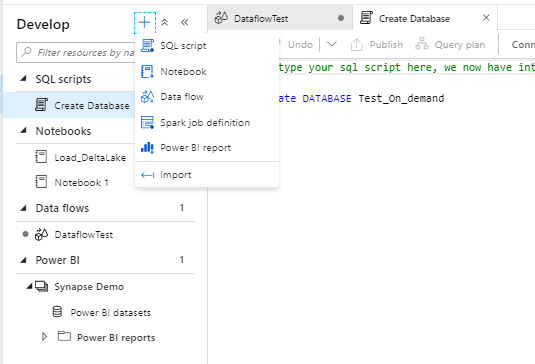
The Develop tab, is the location, where your SQL Scripts, Notebooks, Dataflows, Spark Job Definitions and Power BI Reports are stored. In a later stage you can commit your work to Azure Dev Ops or GitHub.

Orchestrate

Azure Synapse Analytics Orchestrate

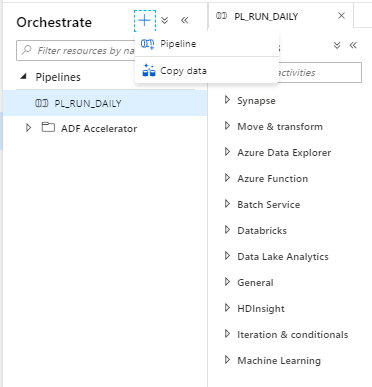
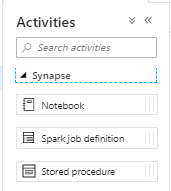
What do we see here , nothing more then you were used to see in Azure Data Factory except the addition of the Synapse Activities.

Azure Synapse Analytics Orchestrate Notebooks

Monitor

In the monitor tab you will find similar things to ADF except for the SQL requests and the Apache Spark Applications

Orchestration: Pipeline runs Overview of all Executed Pipelines
  Trigger Runs Overview of all Executed Trigger Runs
  Integration runtimes Overview of all created Integration Runtimes
Activities: Apache Spark applications Monitor your Apache Spark Executions
  SQL requests Monitor your SQL on Demand or SQL Pool queries

SQL request

All running(currently) SQl request for your SQL on Demand and your SQL Pools

Azure Synpase SQL Monitoring

Apache Spark Applications

All Apache Spark request.

Azure Synpase Apache Spark Monitoring

A detailed explanation of the Apache Spark Application monitor can be found here.

Management HUB

Azure Synapse Analytics Management Hub

The Synapse Analytics Management HUB offers the following options:

Analytic Pools: SQL pools Here  you can manage(Scale up or Down) your previously created SQL pools or create new ones.
  Apache Spark pools Create multiple instances of Spark pools depending on the workload requirements. Once you have your Instance created you also change Auto Scaling, Node Size and Number of Nodes from here.
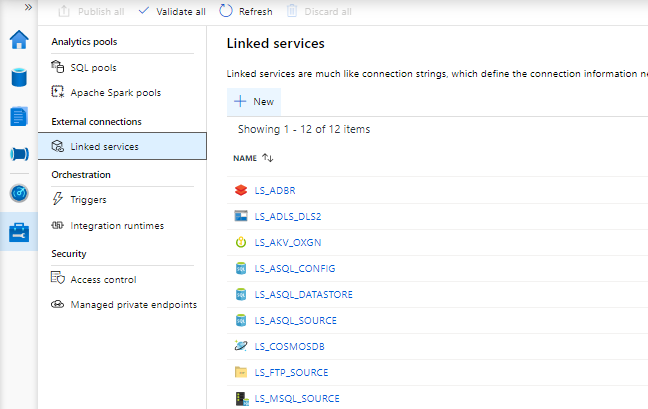
External Connections: Linked Services Create and manage connections to different services, same as in Azure Data Factory
Orchestration: Triggers Create and manage Triggers for your Pipelines, same as in Azure Data Factory
  Integration runtimes Create and manage your different types of Integration Runtime:
Azure: execute workloads between Azure services or Azure Data Factory Mapping Data Flows.
Self-Hosted: execute workloads between on-premises environments and Azure.
Azure-SSIS: execute SQL Server Integration Services packages in Azure Data Factory.
Security: Access control Azure Synapse Analytics comes with role-based access control.
The available roles:
Workspace admin
Apache Spark admin
SQL admin
  Managed Private Endpoint Private link enables you to access Azure services from your Azure VNet securely.
More details on Managed Private Endpoints can be found here 


At the beginning of this article, I indicated that I was very charmed of this new Portal. Microsoft has ensured that we can now approach almost all our services seamlessly from 1 Portal and there will be much more to come in the future. And as you can see you don’t have to use the SQL Pools which is a reasonably expensive solution for customers who use a lot of data. But you can use Azure Synapse Analytics for almost every customer. I would say if you haven’t started trying Azure Synapse Analytics yet, start today and see how you can help your customers with this. If there are any questions I would like to hear them.

Thank you for reading.

How to create a Azure Synapse Analytics Workspace

How to create a Azure Synapse Analytics Workspace

Creating your Azure Synapse Analytics Workspace

In the article below I would like to take you through,  how you can configure an Azure Synapse Workspace and not the already existing Azure Synapse Analytics SQL Pool(formerly Azure SQL DW):

In de Azure Portal search for Azure Synapse Analytics. Make sure you select Workspaces Preview.
Select Azure Synpase Analytics Workspace


Create Azure Synpase Analytics Workspace

Click on Create to start the configuration of your Workspace.
Configure Azure Synpase Analytics Workspace

Make sure you select the correct:

Subscription

Resource Group

The seconds part of this configuration is to setup your Workspace:

Workspace Name I’m using <customername><environment><wsas><department>  wsas=WorkSpace Azure Synapse prevwsdvlmwsasoxgn01
Region The desired Region <West Europe>
Data Lake Storage Gen 2 Select an existing Data Lake Storage Gen 2
Data Lake Storage Gen 2 File System I’m creating a new container here temp. This directory is used to store temporary files and workspace settings and I don’t want to mix this temporary data in 1 of my other containers.

Assign Workspace Managed Identity


The above option will assign the managed identity of the workspace the Storaqe Blob Data Contributor role with full access on the selected Data Lake Storage Gen2 file system. Leave the option to on unless you want to grant access manualy.

Assign sql admin user

You can set the sqladmin user. But it can set be in a later stage as well.

Managed Virtual Network

Leave this option empty, I will explain in a later article how this will work.

ip-address Connection

Normally you do not want to allow all IP addresses, for our initially setup we leave is as is. We can also adjust these settings in a later stage.

Overview Azure Synapse Analytics Workspace

Review all your settings and click on create. And you deployment is underway.

After the deployment is finalized, the workspace will be available in your selected Resource Group.

Azure Synapse Analytics Workspace Studio

You have now created your Azure Synapse Analytics Workspace and you can start using the new functionalities which are currently in Public Preview

Public Preview Features

Azure Synapse studio
Unified Security Model
Private endpoints
Power BI integration
Azure Machine Learning integration
Data lake exploration
Apache Spark integration
Data Movement
Pipeline Orchestration
On-demand query
Notebooks
SQL Script editor

In my next article I will walk you through the new Azure Synapse Studio. Stay tuned!

Azure Synapse Analytics

Azure Synapse Analytics

Erwin

by Erwin | Jun 15, 2020

Azure Synapse Analytics


Insights for all

Azure Synapse provides a breathtaking view of your data across data warehouses and big data analytics systems. Bringing these two worlds together into a single service is challenging as it requires unifying similar concepts that operate differently in each world such as security, privacy, and performance. With Azure Synapse, this seamless unification of data warehousing and big data not only simplifies a business’s analytics platform, but also breaks down silos that exist today because of teams, data, and skills. (source Azure blog)

Azure Synapse Analytics Workspace

During Ignite 2019 we already saw the first announcement about Azure Synapse Analytics. The first Public Preview was announced during Build 2020.

Immediately after Build 2020, I started playing and exploring with Azure Synapse Analytics Workspace.
Fortunately, I was off for a few days and was able to use this free time to dive a little bit into Azure Synapse.

A few days later during the Analytics in a Day workshops that I gave for my employer InSpark in collaboration with Microsoft, I immediately took the time to give a Live demo. I found the inspiration for this Live demo during a YouTube session presented by Simon Whiteley.

For many participants it is more imaginative,  to walk through the product Live than to tell a story via PowerPoint Slides.

Upcoming Articles

In the coming days I will try to write a number of articles so that you become more familiar with the various possibilities of Azure Synapse Analytics.

I have the following articles in mind:

✅ Creating your Azure Synapse Analytics Workspace

✅ Exploring the new Azure Synapse Analytics Studio

Creating an Apache Spark Pool

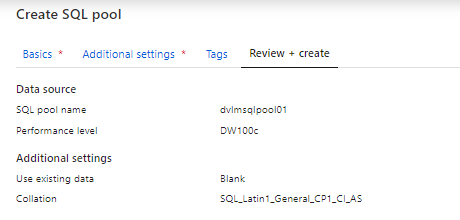
Creating a SQL Pool

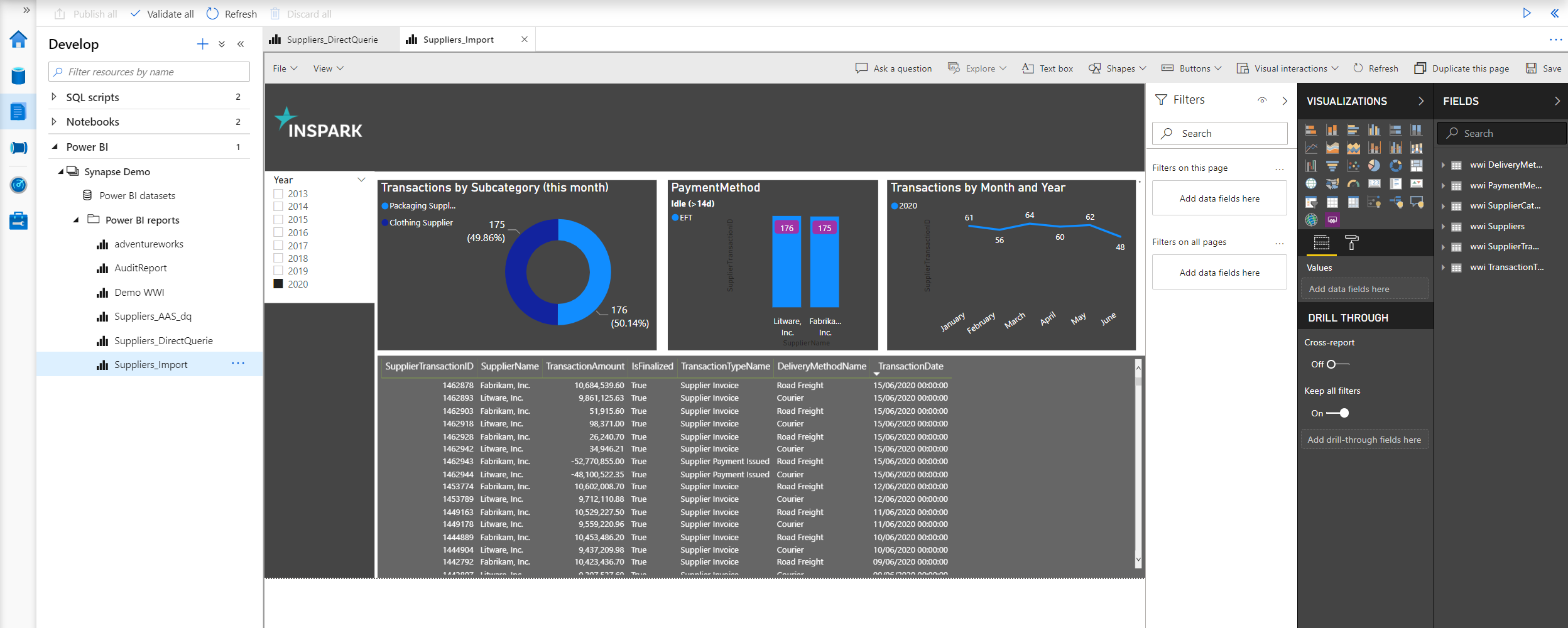
Integration with Power BI

And if you have more subject which needs to be explained feel free to leave them in the comments.

Happy reading!


Feel free to leave a comment

Azure Data Factory: New functionalities and features

Azure Data Factory: New functionalities and features

Erwin

by Erwin | May 22, 2020

New functionalities and features

Last week, a number of great new functionalities and features were added within Azure Data Factory. I would like to take you in some details in the blog below:

Customer key

With this new functionality you can add extra security to your Azure Data Factory environment. Where the data was first encrypted with a randomly generated key from Microsoft, you can now use the customer-managed key feature. With this Bring Your Own Key (BYOK) you can add extra security to your Azure Data Factory environment. If you use the customer-managed key functionality, the data will be encrypted in combination with the ADF system key. You can create your own key or have it generated by the Azure Key Vault API.

You can read more in this Article which I wrote.

Pipeline Consumption Report

Last week the Azure Data Factory added the Pipeline Consumption Report.

The report can be used for your Triggered runs, just go to your Triggered runs and click on the new Icon.

ADFMonitor

The consumption of the selected Pipeline will be displayed. The data shown is only from this Pipeline and not from other Pipelines fired by this Pipeline. Would be a nice addition if the report shows the aggregation of the complete Triggered Run.

For your debug run, click on right site of your Output pane:

ADF DEBUG button

ADF DEBUG Report

The ADF consumption report is only surfacing Azure Data Factory related units. There may be additional units billed from other services that you are using and accessing which are not accounted for here including Azure SQL Database, Synapse Analytics, CosmosDB, ADLS, etc. More detailed can be found here.

Parameters from Execute Pipeline Activity

When calling a Pipeline you first had to add the parameters yourself, now they are automatically taken over from the Pipeline you select. Very handy and saves time again if you use a lot of parameters.

Define a Parameter in one of your Pipelines:

ADF Parameter


Create another Pipeline and add the Execute Pipeline activity. On the settings tab where you have to select the Pipeline you want to execute, you will discover that the option to add Manually the parameters is not there anymore. But, all the Parameters you had defined in your Pipeline are directly shown. Very handy and it reduces errors.

Old Situation:

ADF Parameter 3

New Situation:

ADF Parameter Pipeline

General Tab moved to new Properties Pane

Your General tab is now moved to the right site of the Canvas.

ADF Pane General

To edit it your properties, click on the pane icon located in the top-right corner of the canvas.

ADF Pane Properties

So these were some nice and useful addition to Azure Data Factory. I am very happy with it and what do you think?

Feel free to leave a comment