Azure Data Factory: New functionalities and features

Azure Data Factory: New functionalities and features

ADF

by Erwin | May 22, 2020

New functionalities and features

Last week, a number of great new functionalities and features were added within Azure Data Factory. I would like to take you in some details in the blog below:

Customer key

With this new functionality you can add extra security to your Azure Data Factory environment. Where the data was first encrypted with a randomly generated key from Microsoft, you can now use the customer-managed key feature. With this Bring Your Own Key (BYOK) you can add extra security to your Azure Data Factory environment. If you use the customer-managed key functionality, the data will be encrypted in combination with the ADF system key. You can create your own key or have it generated by the Azure Key Vault API.

You can read more in this Article which I wrote.

Pipeline Consumption Report

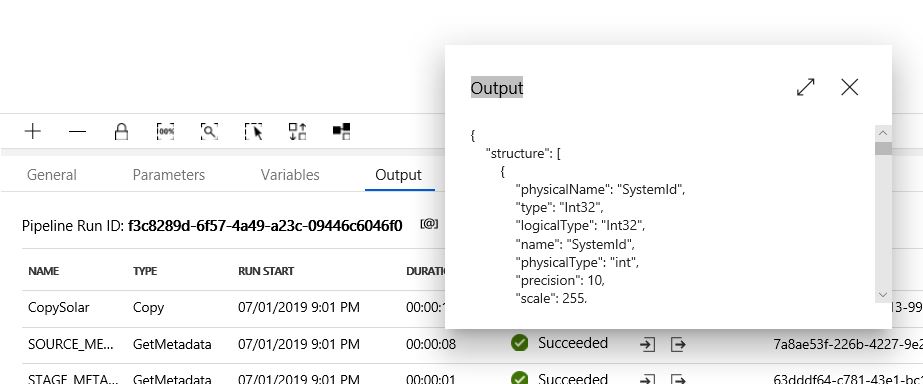
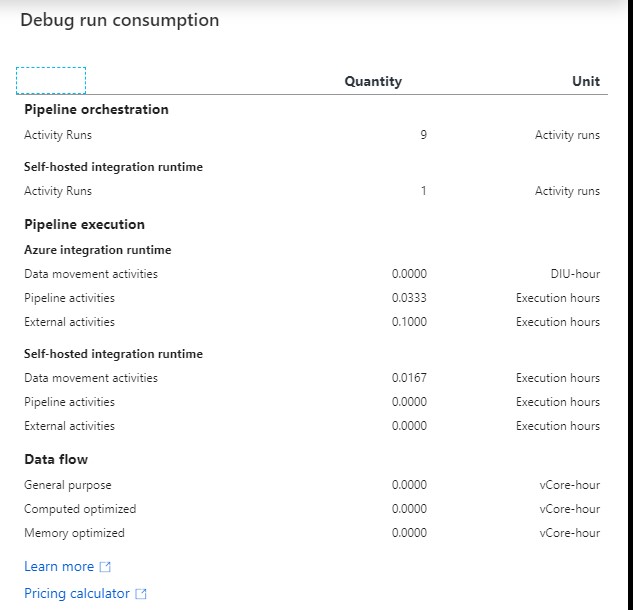
Last week the Azure Data Factory added the Pipeline Consumption Report.

The report can be used for your Triggered runs, just go to your Triggered runs and click on the new Icon.
ADFMonitor

The consumption of the selected Pipeline will be displayed. The data shown is only from this Pipeline and not from other Pipelines fired by this Pipeline. Would be a nice addition if the report shows the aggregation of the complete Triggered Run.

For your debug run, click on right site of your Output pane:
ADF DEBUG button

ADF DEBUG Report

The ADF consumption report is only surfacing Azure Data Factory related units. There may be additional units billed from other services that you are using and accessing which are not accounted for here including Azure SQL Database, Synapse Analytics, CosmosDB, ADLS, etc. More detailed can be found here.

Parameters from Execute Pipeline Activity

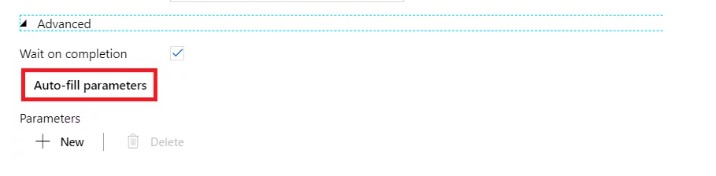
When calling a Pipeline you first had to add the parameters yourself, now they are automatically taken over from the Pipeline you select. Very handy and saves time again if you use a lot of parameters.

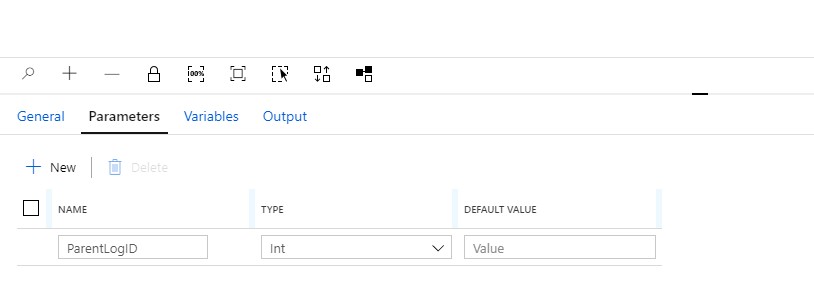
Define a Parameter in one of your Pipelines:

ADF Parameter


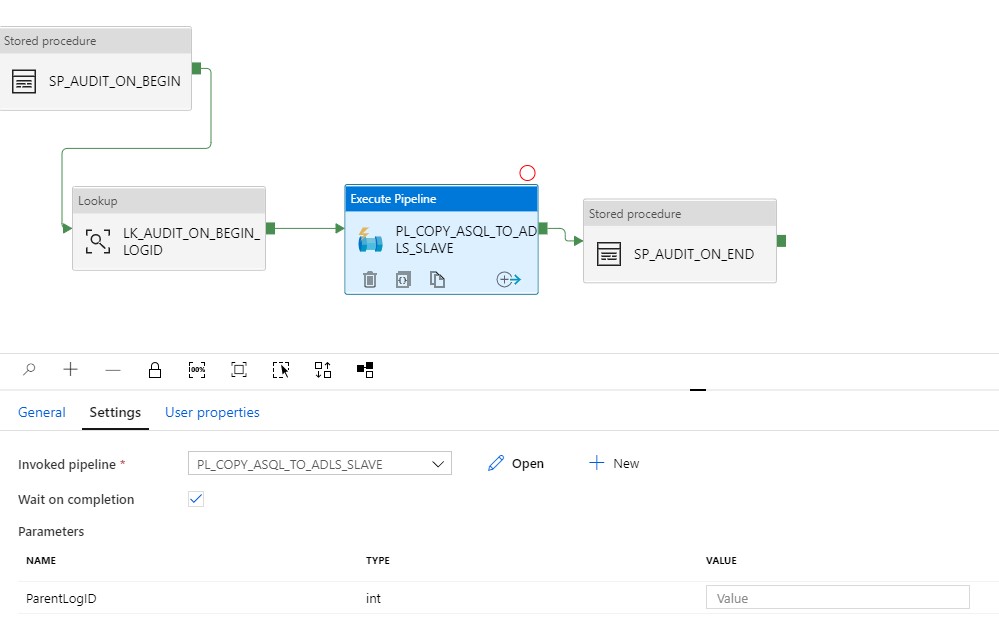
Create another Pipeline and add the Execute Pipeline activity. On the settings tab where you have to select the Pipeline you want to execute, you will discover that the option to add Manually the parameters is not there anymore. But, all the Parameters you had defined in your Pipeline are directly shown. Very handy and it reduces errors.

Old Situation:
ADF Parameter 3

New Situation:

ADF Parameter Pipeline

General Tab moved to new Properties Pane

Your General tab is now moved to the right site of the Canvas.

ADF Pane General

To edit it your properties, click on the pane icon located in the top-right corner of the canvas.
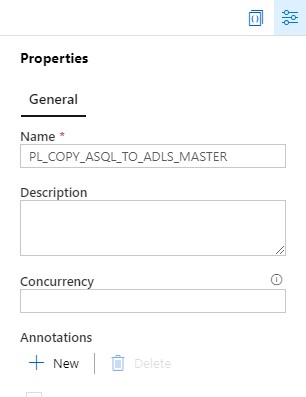
ADF Pane Properties

So these were some nice and useful addition to Azure Data Factory. I am very happy with it and what do you think?

Feel free to leave a comment

Azure Data Factory: How to assign a Customer Managed Key

Azure Data Factory: How to assign a Customer Managed Key

Customer key

With this new functionality you can add extra security to your Azure Data Factory environment. Where the data was first encrypted with a randomly generated key from Microsoft, you can now use the customer-managed key feature. With this Bring Your Own Key (BYOK) you can add extra security to your Azure Data Factory environment. If you use the customer-managed key functionality, the data will be encrypted in combination with the ADF system key. You can create your own key or have it generated by the Azure Key Vault API

Be careful,  this new feature can only be enabled on an empty Azure Data Factory environment.  Make sure your Azure Active Directory, Azure Data Factory and Azure KeyVault are all in the same region. If you use an Azure Landing Zone consisting of different subscriptions, this is also possible, as long as the services exist in the same region.

Please follow the steps below how to enable this new feature:

I assume that you already have an existing Azure KeyVault. If not, you will have to create one first. You can read how to do that here.
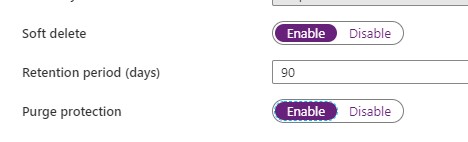
With an existing Azure KeyVault, it is important that you enable the options Soft Deletes and Purge protection.

Enable Soft Deletes and Purge protection

Purge option

If you want to enable this via Powershell use the following command:

[code lang="ps"] ($resource = Get-AzResource -ResourceId (Get-AzKeyVault -VaultName 'YOURKEYVAULTNAME').ResourceId).Properties | Add-Member -MemberType 'NoteProperty' -Name 'enableSoftDelete' -Value 'true'

Set-AzResource -resourceid $resource.ResourceId -Properties $resource.Properties

($resource = Get-AzResource -ResourceId (Get-AzKeyVault -VaultName 'YOURKEYVAULTNAME').ResourceId).Properties | Add-Member -MemberType 'NoteProperty' -Name 'enablePurgeProtection' -Value 'true'

Set-AzResource -resourceid $resource.ResourceId -Properties $resource.Properties

Define Access policy

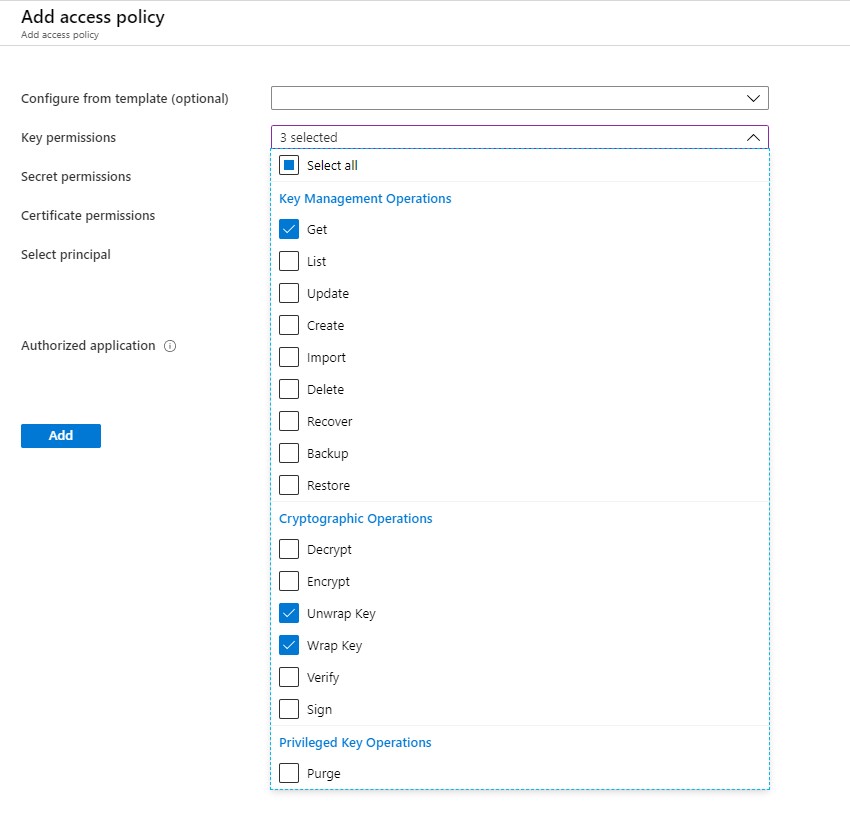
The next step is to enable your Grant Data Factory access to Azure Key Vault, you have to enable  the following permissions: Get, Unwrap Key, and Wrap Key

ADF Policy

Search for Data Factory Instance and Select the correct one:

ADF Principal

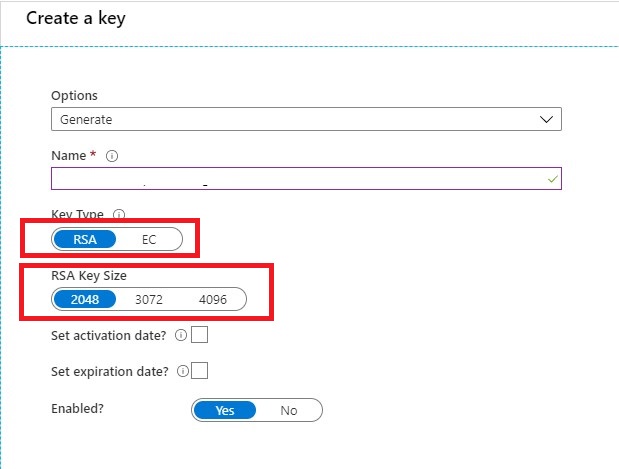
Create KEY

Once you have done that it’s time to create your Keys. Keep in mind that only RSA 2048-bit keys are supported by Azure Data Factory encryption.

Create Keys

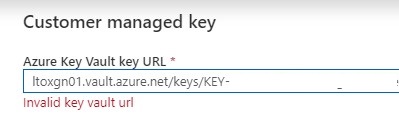
Very important step your key name must be in only letters. KEYADFNAMECUSTOMER will work, but KEY-ADFNAME-CUSTOMER isn’t and you will get an error in your Azure Data Factory Instance. It took me a while to figure this out. So it can saves you a lot of time.

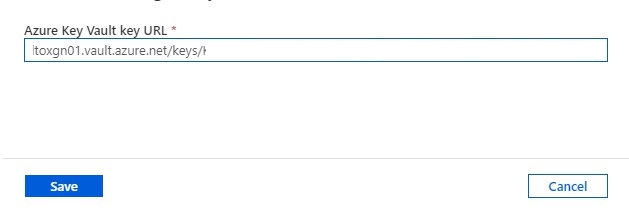
After your KEY is created, copy the Key Identifier.

Assign Customer Key

The last step in this article is to assign the key to your Azure Data Factory Instance.

CMK

Customer key ADF

Paste the selected key in your Azure Data Factory Instance and save.

Errors

If your get an error “Invalid key Vault URL”

-Check if the Soft Deletes and Purge protection on your Key Vault is set.

-Check if your Key consists only of letters.

-Check if you enabled your Grant Data Factory access to Azure Key Vault.

-Check if Azure DataFactory, Azure KeyVault and your Azure Active Directory are in the same region.


If you still have errors, please send me a message and I will try to help you out.

Hopefully, this article has helped you to secure your environment.

Rerun Pipeline activities in Azure Data Factory

Rerun Pipeline activities in Azure Data Factory

ADF

by Erwin | Mar 7, 2019

Rerun Pipeline activities in ADF!

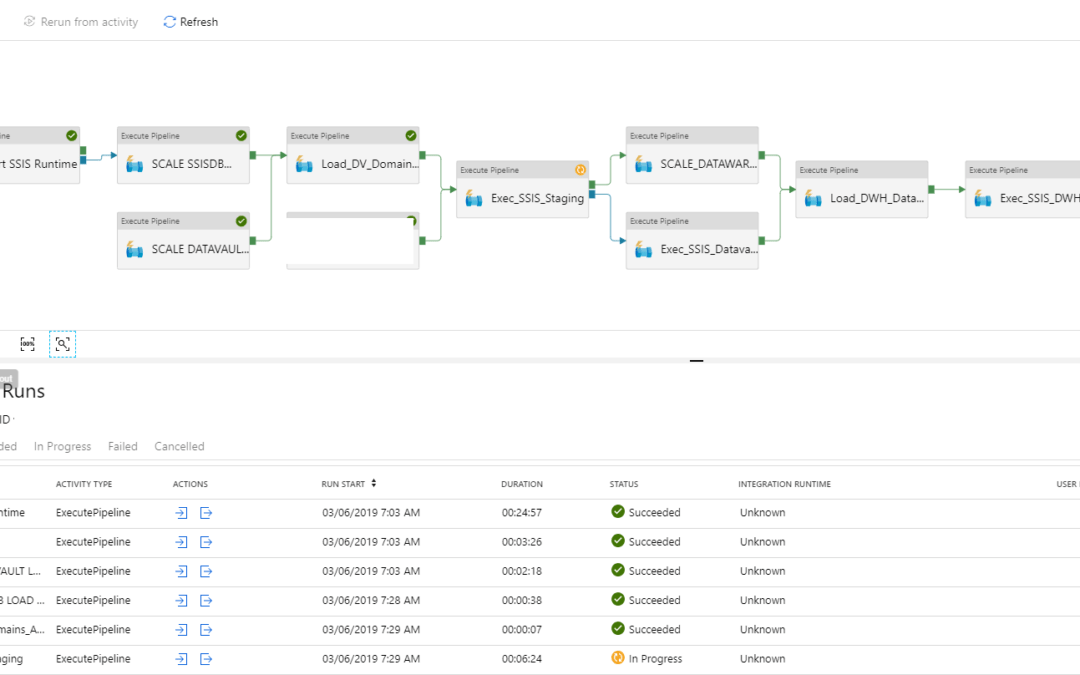
As of today you can rerun or partially, yes you’re reading it correct partially, rerun you Azure Data Factory pipeline.
Where you previously had to run the entire Pipeline again, you can now run a part of the Pipeline. This can save a lot of time if many different activities are created within one pipeline. Another nice step forward, I'm curious what else is coming in the next months.


Visualized

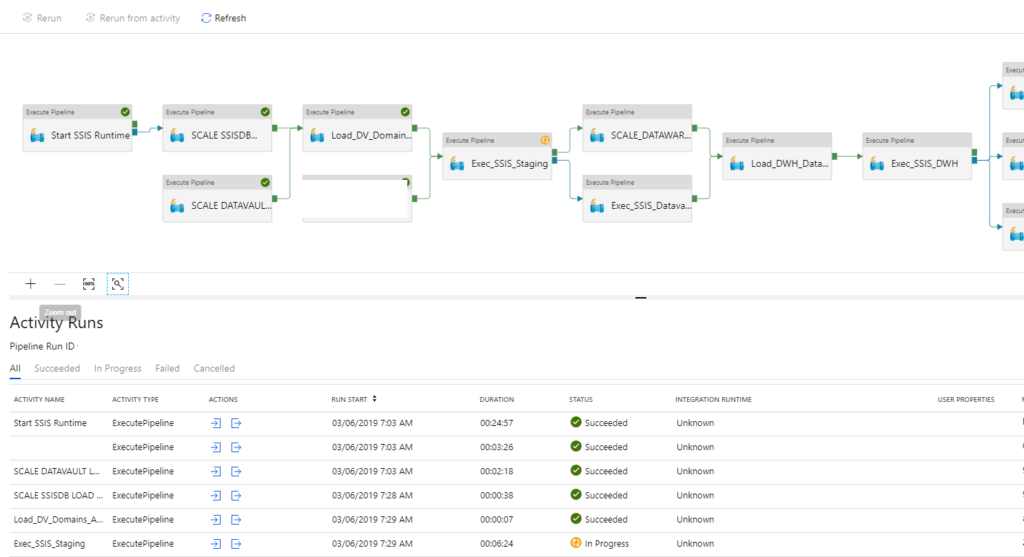
Besides that you can rerun your Pipeline in Azure Data Factory in a easy way, you also have the possibilities to see your run,  visualized in the Azure Data Factory Monitoring. This is a big improvement in my opinion.

Rerun a Pipeline

If you want to partially rerun a Pipeline, follow the steps below:
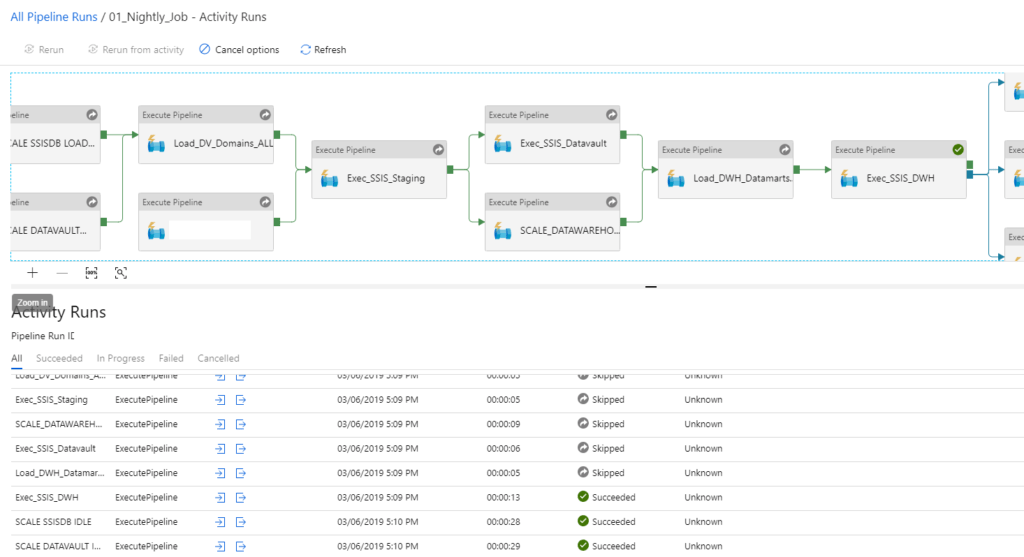
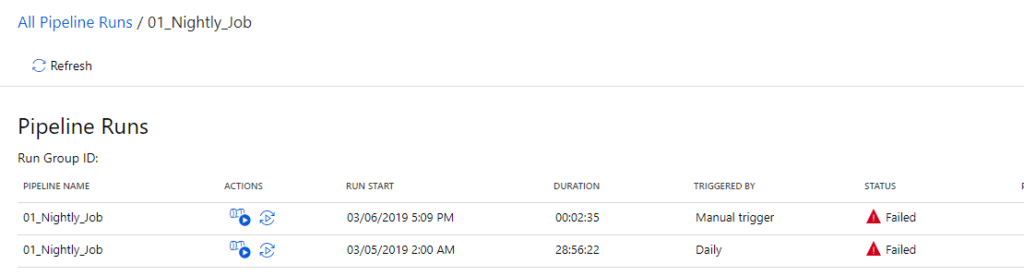
Select the Pipeline which has failed, go to the view activity runs and select the activity which failed.

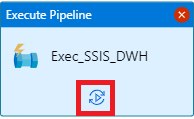
Click on the Rerun Icon


You need to confirm that you want to rerun this activity.

The Pipeline will start and will first skip all the activities(the grey new icons in the upper right corner of each activity) in the Pipeline before your selected Activity.
Your Pipeline will now finalize all the activities from your newly defined starting point.


What else is new?

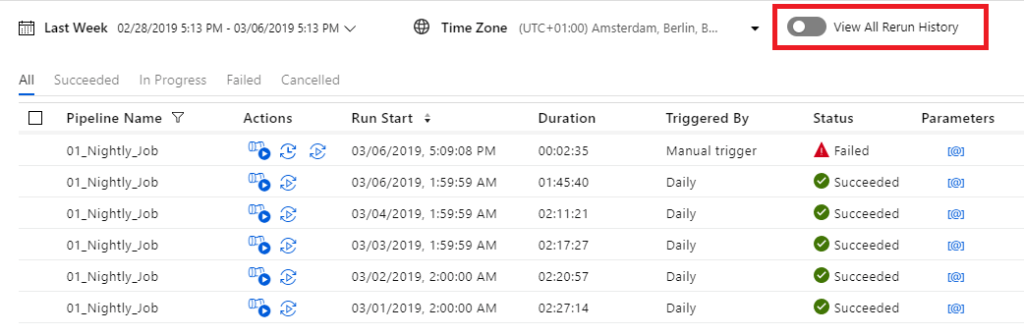
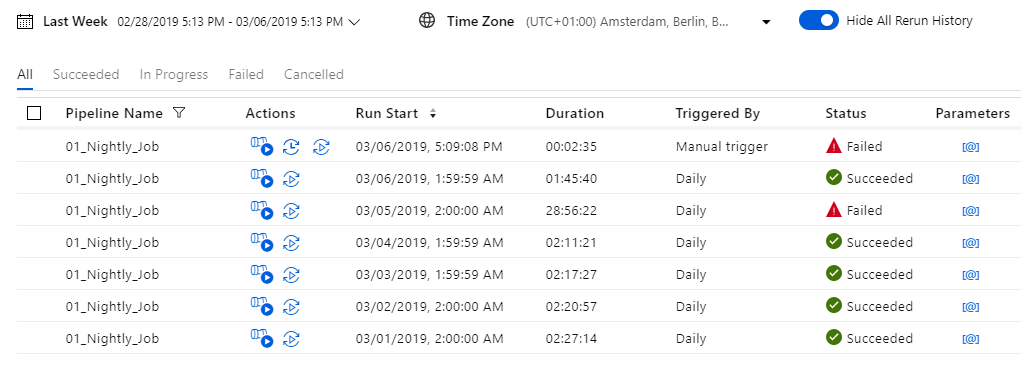
Monitor Rerun History

You can now view all the history reruns by clicking on the toggle to ‘View All Rerun History’.

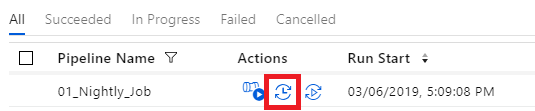
By clicking on the red marked action, you can see all the History from an particular Pipeline run.


Thanks for reading.


Updated 10th of March:


Found a video on Channel9 which explains how to  "Rerun activities inside your Azure Data Factory pipelines"

https://channel9.msdn.com/Shows/Azure-Friday/Rerun-activities-inside-your-Azure-Data-Factory-pipelines?ocid=player

Feel free to leave a comment

Azure DevOps and Azure Feature Pack for Integration Services

Azure Feature Pack for Integration Services

Azure Blob Storage

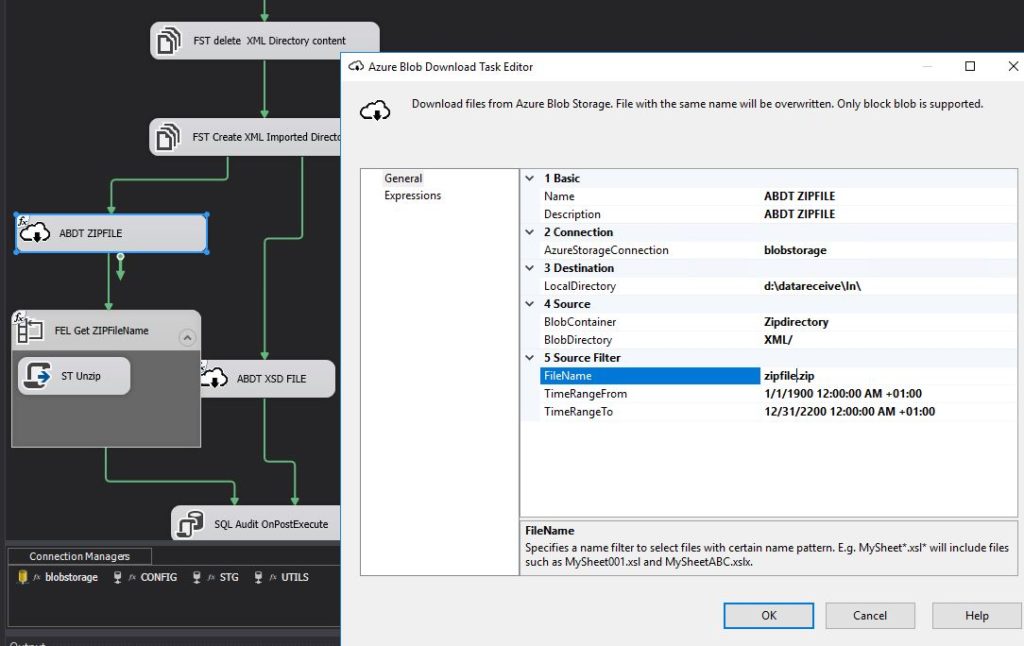
A great addition for SSIS is using extra connectors like  Azure Blob Storage or Azure Data Lake Store which are added by the Azure Feature Pack. This Pack needs to be installed on your local machine. Are you running your SSIS packages in Azure?  You don’t have to install anything, this pack is installed by default.

SSIS Package


Building your SSIS Packages in Azure DevOps

After I started to use Azure Dev Ops to build my SSIS packages on a hosted VS2017, I got some strange error messages running these packages.

SSIS error

Microsoft Support

After contacting support we found out that the Azure Feature Pack is not installed on a Hosted VS2017 instance and that you need to add this installation to your build processes.


Install Azure Feature Pack on your Hosted VS2017 machine

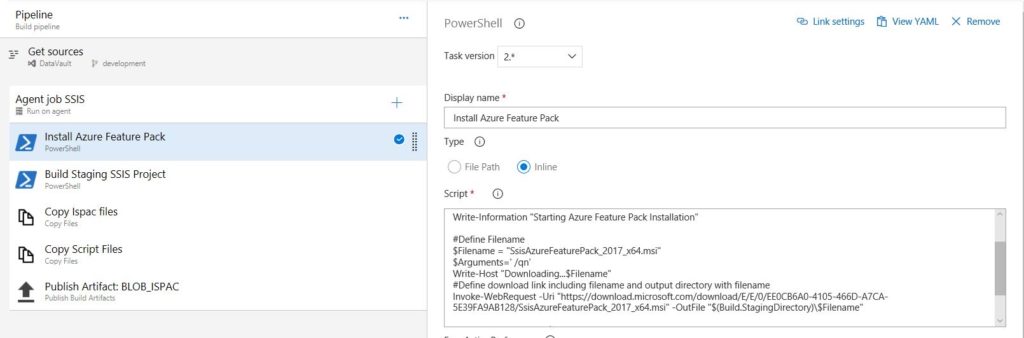
Follow the steps to download and install the Azure Feature Pack:

  • Open  your dev.azure.com/instance.
  • Create a new Build Pipeline or use an existing one.
  • Select the correct Sources and after that you can add a new build task.
  • Add a Powershell Task.
    • This task needs to be added before the build process of your SSIS project.
  • Define the Display name “Install Azure Feature Pack”.Azure Dev Ops Pipeline Install Feature Pack
  • Type => Inline.
  • Add the script which you can find below.
  • Save and Queue the Pipeline.
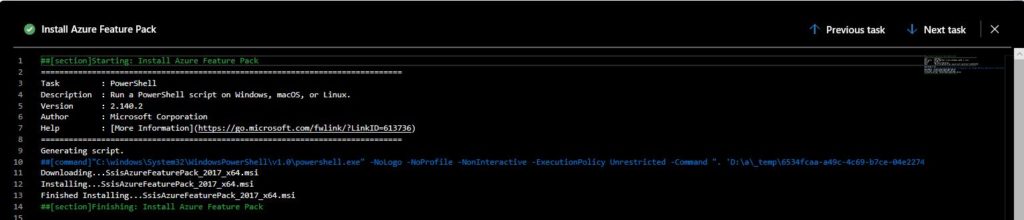
  • Check the Results.


Powershell script

The script will take care of downloading and installing the Azure Feature Pack for SSIS2017 on your hosted 2017 machine.

The File SsisAzureFeaturePack_2017_x64.msi will be downloaded to the system variable Build.StagingDirectory.

Inline script:

[code lang="ps"]
# Erwin de Kreuk
# February 2019
# PURPOSE: Install Azure Feature pack on Hosted VS2017 machine in Azure DevOps

Write-Information 'Starting ADF ARM Transform'

#Define Filename
$Filename = 'SsisAzureFeaturePack_2017_x64.msi'
$Arguments=' /qn'
Write-Host 'Downloading...$Filename'
#Define download link including filename and output directory with filename
Invoke-WebRequest -Uri 'https://download.microsoft.com/download/E/E/0/EE0CB6A0-4105-466D-A7CA-5E39FA9AB128/SsisAzureFeaturePack_2017_x64.msi' -OutFile '$(Build.StagingDirectory)$Filename'

Write-Host 'Installing...$Filename'
Invoke-Expression -Command '$(Build.StagingDirectory)$Filename $Arguments'
Write-Host 'Finished Installing...$Filename'

[/code]

Azure Dev Ops Build

The next time you build your SSIS Packages with the Azure Components, these packages are build correctly. Create a Release Pipeline to Deploy the SSIS Packages to the SSIS server and to test your Package.

Thanks for reading today and if there’re some questions left do not hesitate to ask them.