Azure Data Factory: New functionalities and features

Azure Data Factory: New functionalities and features

Azure

by Erwin | May 22, 2020

New functionalities and features

Last week, a number of great new functionalities and features were added within Azure Data Factory. I would like to take you in some details in the blog below:

Customer key

With this new functionality you can add extra security to your Azure Data Factory environment. Where the data was first encrypted with a randomly generated key from Microsoft, you can now use the customer-managed key feature. With this Bring Your Own Key (BYOK) you can add extra security to your Azure Data Factory environment. If you use the customer-managed key functionality, the data will be encrypted in combination with the ADF system key. You can create your own key or have it generated by the Azure Key Vault API.

You can read more in this Article which I wrote.

Pipeline Consumption Report

Last week the Azure Data Factory added the Pipeline Consumption Report.

The report can be used for your Triggered runs, just go to your Triggered runs and click on the new Icon.
ADFMonitor

The consumption of the selected Pipeline will be displayed. The data shown is only from this Pipeline and not from other Pipelines fired by this Pipeline. Would be a nice addition if the report shows the aggregation of the complete Triggered Run.

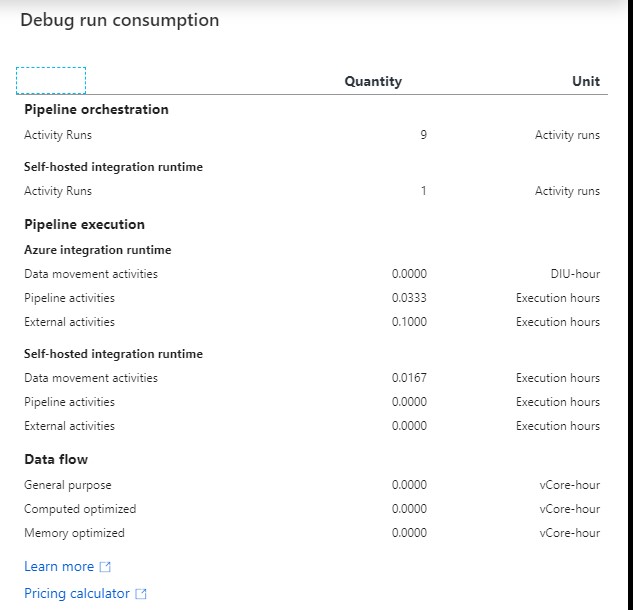
For your debug run, click on right site of your Output pane:
ADF DEBUG button

ADF DEBUG Report

The ADF consumption report is only surfacing Azure Data Factory related units. There may be additional units billed from other services that you are using and accessing which are not accounted for here including Azure SQL Database, Synapse Analytics, CosmosDB, ADLS, etc. More detailed can be found here.

Parameters from Execute Pipeline Activity

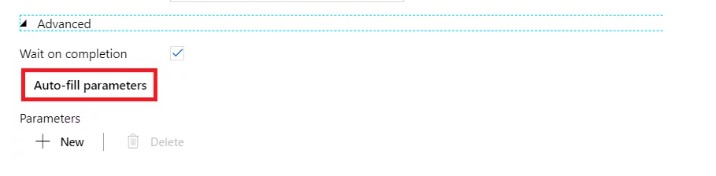
When calling a Pipeline you first had to add the parameters yourself, now they are automatically taken over from the Pipeline you select. Very handy and saves time again if you use a lot of parameters.

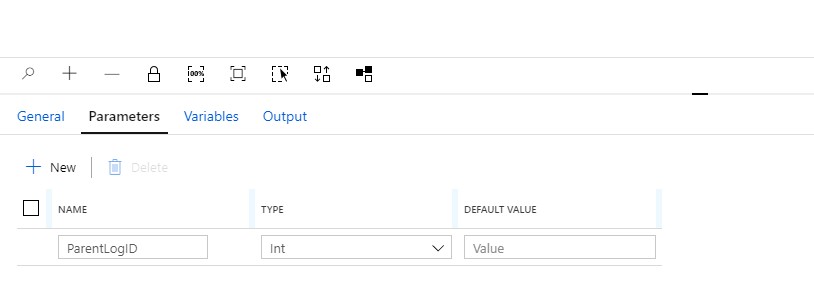
Define a Parameter in one of your Pipelines:

ADF Parameter


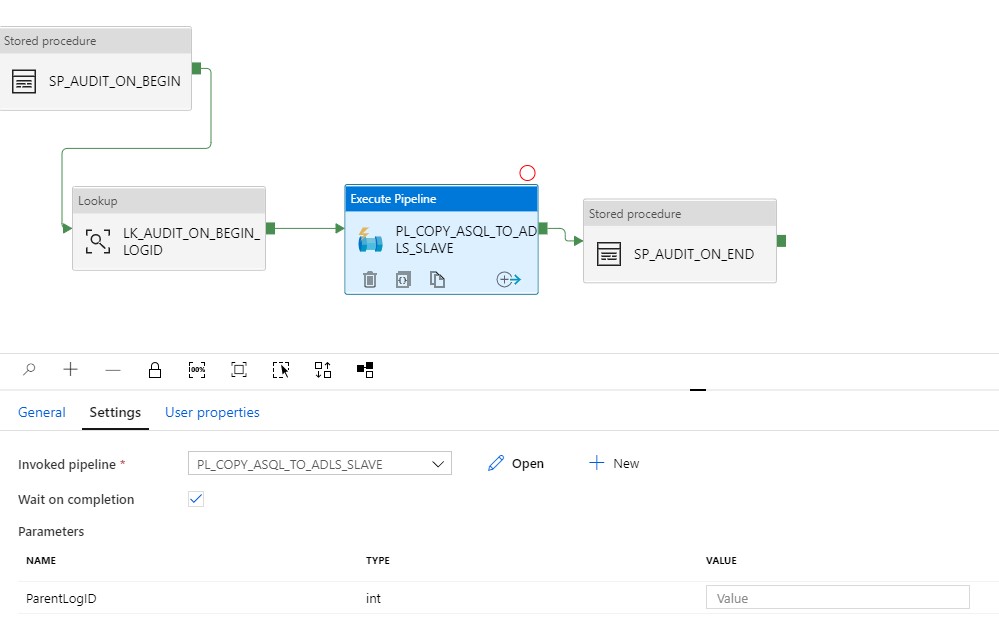
Create another Pipeline and add the Execute Pipeline activity. On the settings tab where you have to select the Pipeline you want to execute, you will discover that the option to add Manually the parameters is not there anymore. But, all the Parameters you had defined in your Pipeline are directly shown. Very handy and it reduces errors.

Old Situation:
ADF Parameter 3

New Situation:

ADF Parameter Pipeline

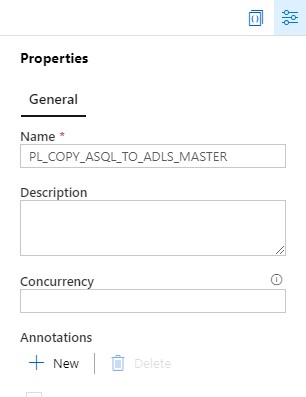
General Tab moved to new Properties Pane

Your General tab is now moved to the right site of the Canvas.

ADF Pane General

To edit it your properties, click on the pane icon located in the top-right corner of the canvas.
ADF Pane Properties

So these were some nice and useful addition to Azure Data Factory. I am very happy with it and what do you think?

Feel free to leave a comment

Azure Data Factory: How to assign a Customer Managed Key

Azure Data Factory: How to assign a Customer Managed Key

Customer key

With this new functionality you can add extra security to your Azure Data Factory environment. Where the data was first encrypted with a randomly generated key from Microsoft, you can now use the customer-managed key feature. With this Bring Your Own Key (BYOK) you can add extra security to your Azure Data Factory environment. If you use the customer-managed key functionality, the data will be encrypted in combination with the ADF system key. You can create your own key or have it generated by the Azure Key Vault API

Be careful,  this new feature can only be enabled on an empty Azure Data Factory environment.  Make sure your Azure Active Directory, Azure Data Factory and Azure KeyVault are all in the same region. If you use an Azure Landing Zone consisting of different subscriptions, this is also possible, as long as the services exist in the same region.

Please follow the steps below how to enable this new feature:

I assume that you already have an existing Azure KeyVault. If not, you will have to create one first. You can read how to do that here.
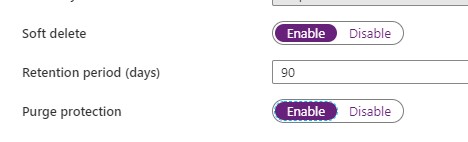
With an existing Azure KeyVault, it is important that you enable the options Soft Deletes and Purge protection.

Enable Soft Deletes and Purge protection

Purge option

If you want to enable this via Powershell use the following command:

[code lang="ps"] ($resource = Get-AzResource -ResourceId (Get-AzKeyVault -VaultName 'YOURKEYVAULTNAME').ResourceId).Properties | Add-Member -MemberType 'NoteProperty' -Name 'enableSoftDelete' -Value 'true'

Set-AzResource -resourceid $resource.ResourceId -Properties $resource.Properties

($resource = Get-AzResource -ResourceId (Get-AzKeyVault -VaultName 'YOURKEYVAULTNAME').ResourceId).Properties | Add-Member -MemberType 'NoteProperty' -Name 'enablePurgeProtection' -Value 'true'

Set-AzResource -resourceid $resource.ResourceId -Properties $resource.Properties

Define Access policy

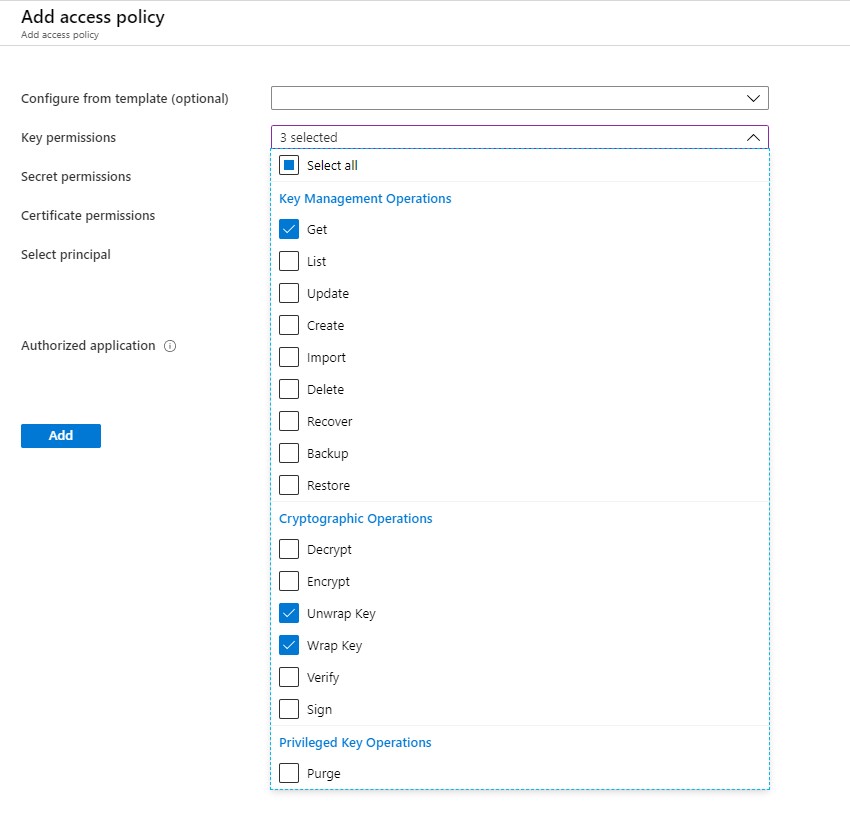
The next step is to enable your Grant Data Factory access to Azure Key Vault, you have to enable  the following permissions: Get, Unwrap Key, and Wrap Key

ADF Policy

Search for Data Factory Instance and Select the correct one:

ADF Principal

Create KEY

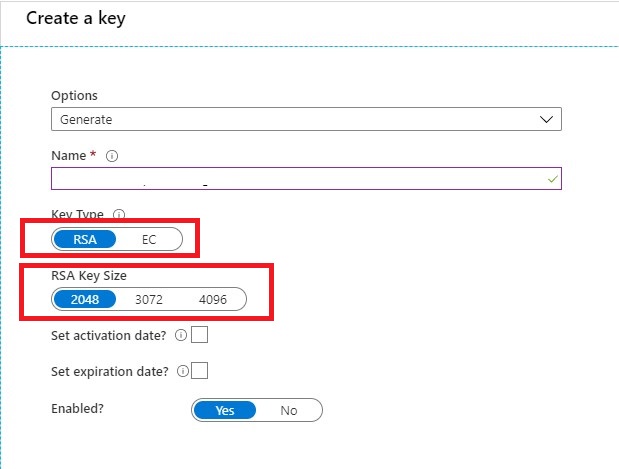
Once you have done that it’s time to create your Keys. Keep in mind that only RSA 2048-bit keys are supported by Azure Data Factory encryption.

Create Keys

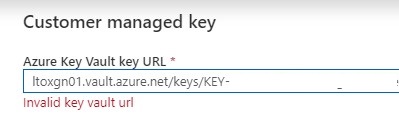
Very important step your key name must be in only letters. KEYADFNAMECUSTOMER will work, but KEY-ADFNAME-CUSTOMER isn’t and you will get an error in your Azure Data Factory Instance. It took me a while to figure this out. So it can saves you a lot of time.

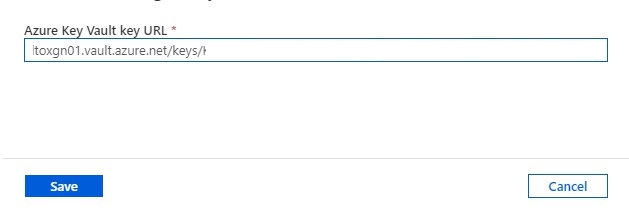
After your KEY is created, copy the Key Identifier.

Assign Customer Key

The last step in this article is to assign the key to your Azure Data Factory Instance.

CMK

Customer key ADF

Paste the selected key in your Azure Data Factory Instance and save.

Errors

If your get an error “Invalid key Vault URL”

-Check if the Soft Deletes and Purge protection on your Key Vault is set.

-Check if your Key consists only of letters.

-Check if you enabled your Grant Data Factory access to Azure Key Vault.

-Check if Azure DataFactory, Azure KeyVault and your Azure Active Directory are in the same region.


If you still have errors, please send me a message and I will try to help you out.

Hopefully, this article has helped you to secure your environment.

Using Azure Automation to generate data in your WideWorldImporters database

CASE:

For my test environment I want to load every day new increments into the WideWorldImporters Azure SQL Database with Azure Automation. The following Stored Procedure is available to achieve this.

 EXECUTE DataLoadSimulation.PopulateDataToCurrentDate

@AverageNumberOfCustomerOrdersPerDay = 60,

@SaturdayPercentageOfNormalWorkDay = 50,

@SundayPercentageOfNormalWorkDay = 0,

@IsSilentMode = 1,

@AreDatesPrinted = 1;

For this case I’m going to use Azure Automation to Execute this Stored Procedure on a daily base.

More details on above Stored Procedure can be found here.

In case you don’t have a WideWorldImporters database in your Azure environment you can download it from GitHub.

  1. Create an Azure Automation Account
  2. Add module to Azure Automation Account
  3. Adding a SQL Server Credential 
  4. Create a Runbook
  5. Create a Schedule

Create an Azure Automation Account

First of all we need to create an Azure Automation Account in our Azure Environment.

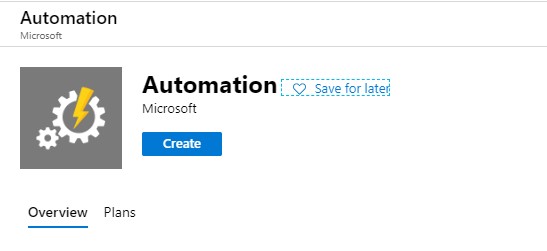
Go to the portal and search for Automation and click op Create

Create Azure Automation

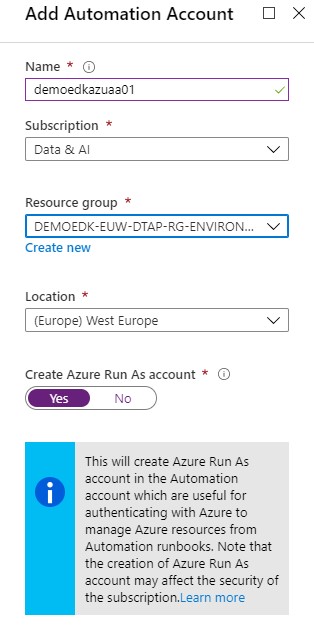
Fill in the details and select the correct subscription and Resource Group.

Create Azure Automation

Click on create and wait for the account to be created. The new Automation Account configuration blade will be opened once the provision is completed.

Add module to Azure Automation Account

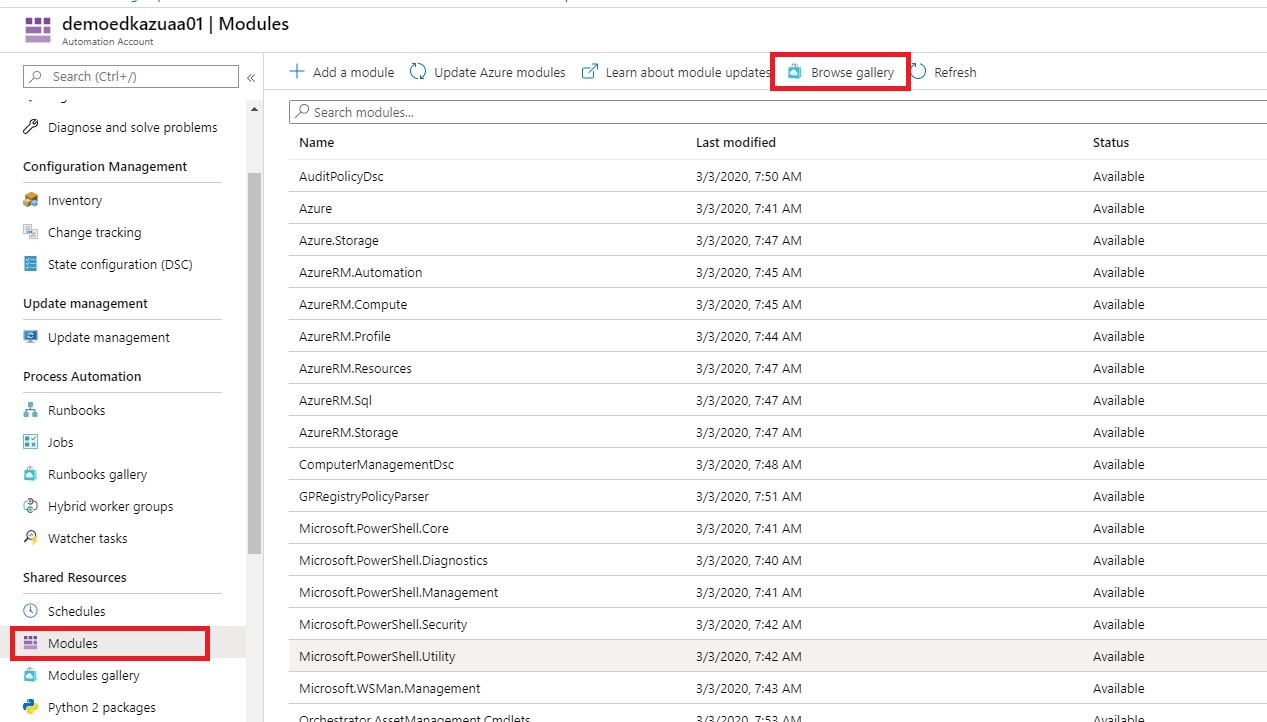
The next step is that we need to add the “SQLSERVER” module to our Automation Account.

Select Modules and Browse Galery.

Create Azure Automation

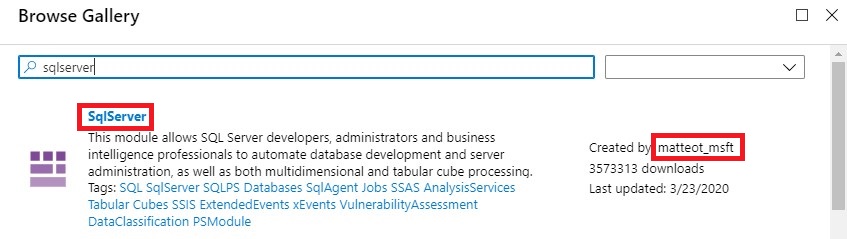
Search for sqlserver Created by matteot_msft.

Create Azure Automation

Then click on Import and OK and wait for the import to complete.

Add SQL Server Credentials

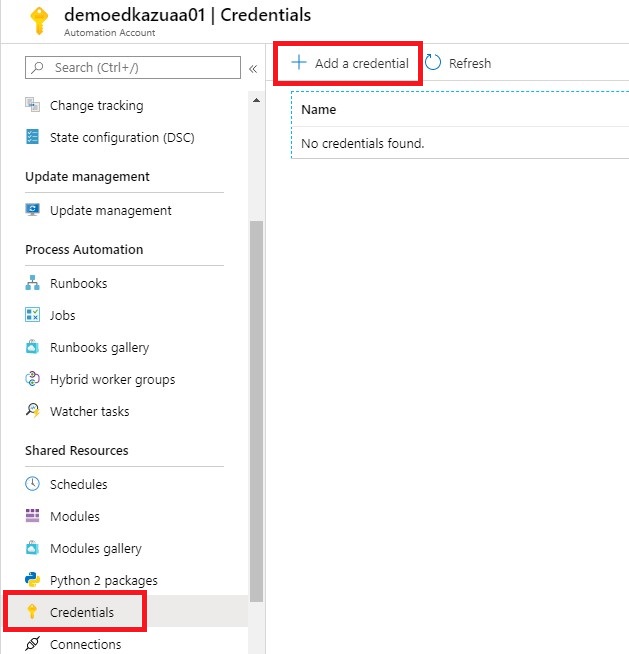
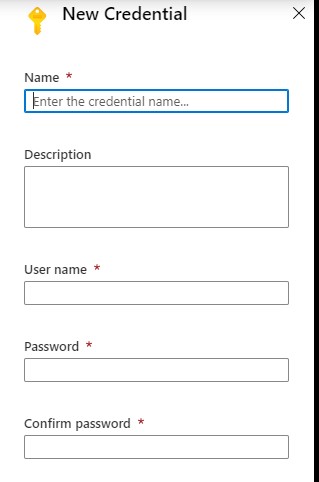
Click on add a Credential, this is a secure way to hold your login name and password that will be used to access the Azure SQL Database.

Create Azure Automation

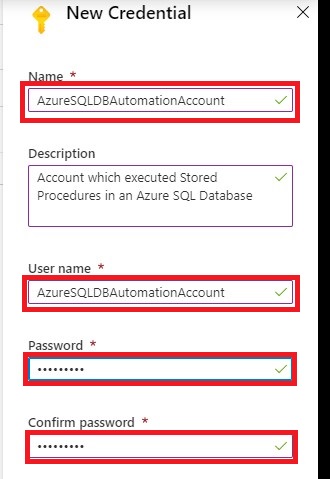
Add a Credential name AzureSQLDBAutomationAccount and define a password.

Create Azure Automation

If this account is not created in your Azure SQL Database, then you need to add this account as well:

[sql]

–Execute in Master Database

create login AzureSQLDBAutomationAccount with password=’Your defined Password’           

–Execute in WideworldImporters Database

create user AzureSQLDBAutomationAccount

for login AzureSQLDBAutomationAccount

with default_schema= dbo

–add user to the dabase role

exec sp_addrolemember  N’db_owner’ , N’AzureSQLDBAutomationAccount’
[/sql]

Create a Runbook

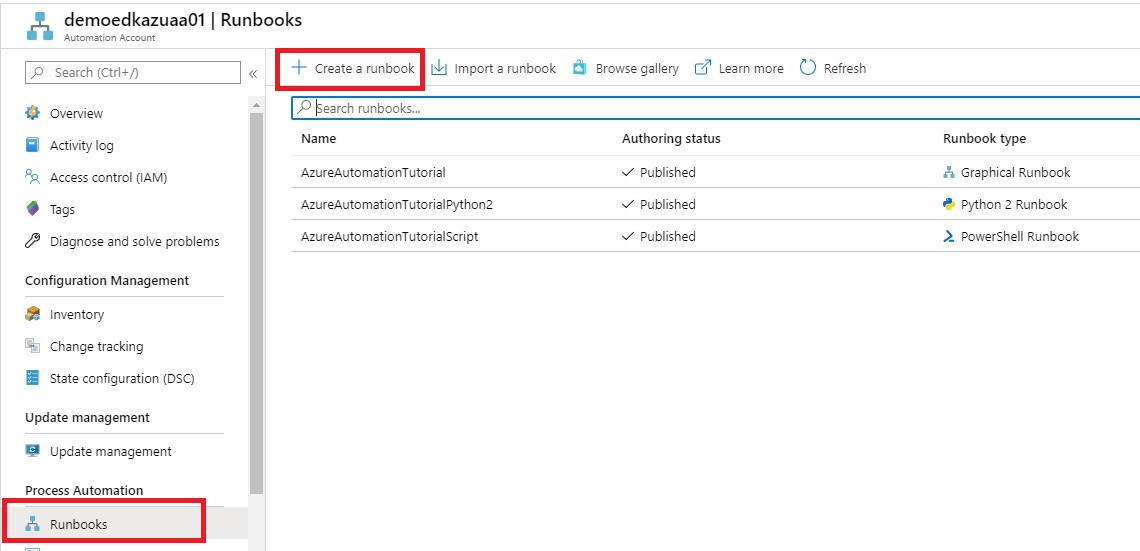
The next step is to create a Runbook.

You can Import an existing Runbook or Create a new Runbook.

For now we will Create a new RunBook.

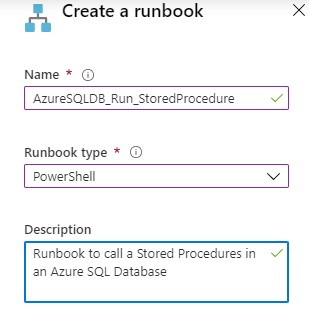
Create Azure Automation

Name = “AzureSQLDB_Run_StoredProcedure”

Runbook Type =”Powershell”

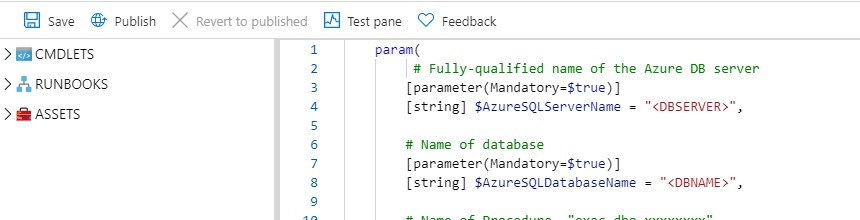
Create Azure Automation

[ps]
param(
# Fully-qualified name of the Azure DB server
[parameter(Mandatory=$true)]

[string] $AzureSQLServerName = ‘DBSERVER’,

# Name of database
[parameter(Mandatory=$true)]

[string] $AzureSQLDatabaseName = ‘DBNAME’,

# Name of Procedure ‘exec dbo.xxxxxxxx’
[parameter(Mandatory=$true)]

[string] $ProcedureName = ‘exec name’,

# Credentials for $SqlServerLogin stored as an Azure Automation credential asset
[parameter(Mandatory=$true)]

[string] $SqlCredential
)
$Credential = Get-AutomationPSCredential -Name $SqlCredential
$AzureSQLServerName = $AzureSQLServerName + ‘.database.windows.net’

$SQLOutput = $(Invoke-Sqlcmd -ServerInstance $AzureSQLServerName -Username $Credential.UserName -Password $Credential.GetNetworkCredential().Password -Database $AzureSQLDatabaseName -Query $ProcedureName -QueryTimeout 65535 -ConnectionTimeout 60 -Verbose) 4>&1

Write-Output $SQLOutput
[/ps]

This a simple Powershell script which can execute a Stored Procedure. More details about the PS Invoke-Sqlcmd can be found here.  You can download the Powershell script from my Github

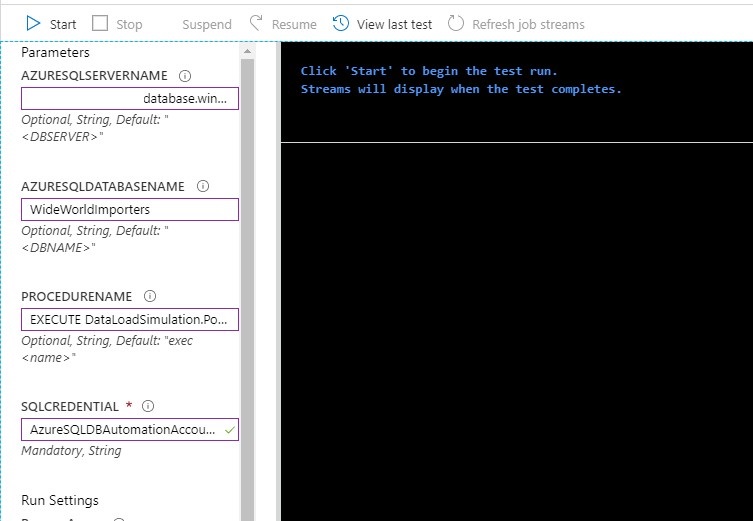
Save the Runbook and then test the runbook. After you tested your Runbook you can Publish the Runbook

Create Azure Automation

Fill in the requested Parameters as showed in the picture above and click on Start. The requested procedure will be executed.


Create A Schedule

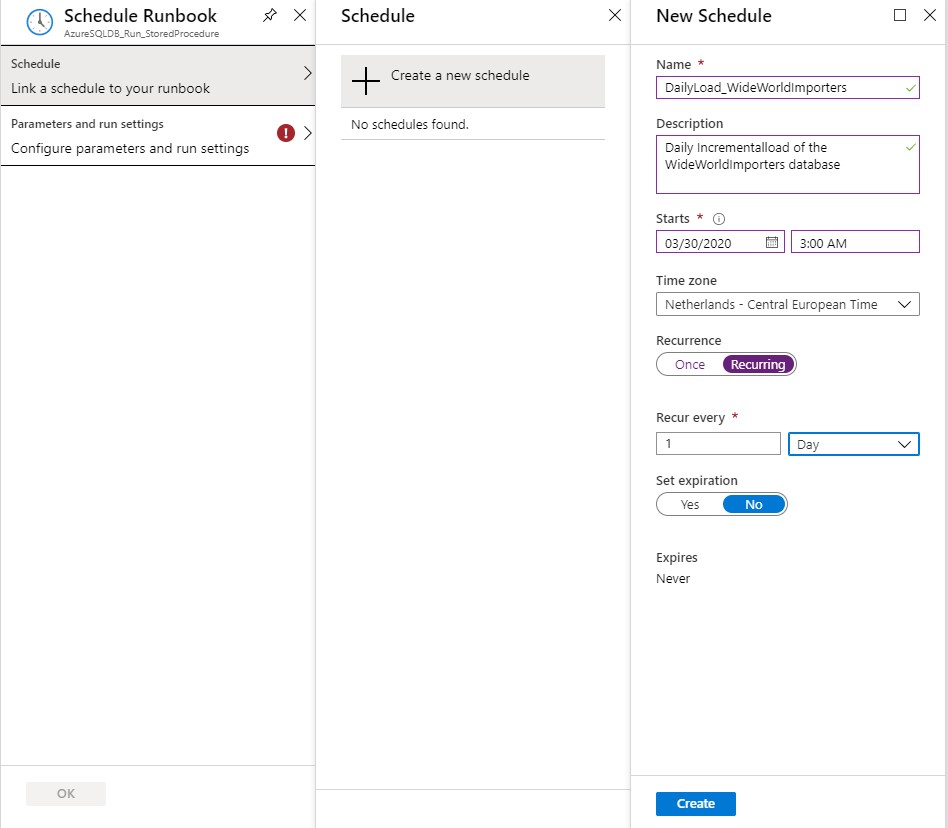
That last step is create a Schedule which will run every day to incremental load your data.

Create Azure Automation


Create Azure Automation

Define a Name, Schedule Start Time and the Recurrence for the Schedule and click on Create

Create Azure Automation


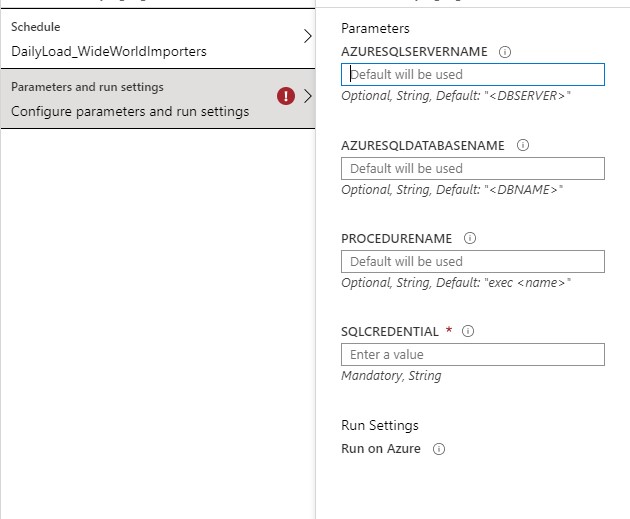
Fill in the requested Parameters and click on Save.

I assume that you have now succeeded in creating an Azure Automation Account with these steps and that you could execute a Stored Procedure in an Azure SQL Database. If you have any questions, leave a message in the comments below. Thanks for reading.

TIP:

To update your database to the current date you have to run this procedure quit  lot of times so create a query where you execute the Procedure 100x times in  a row. The downloaded database has data up to may 2016.

In case you get error regarding the Temporal Tables, check your errors in this blog post. I helped me a lot.


I my next blog I will describe how you easily can extract data(full and Incremental) from your WideWorldImporters Database to Azure Data Lake Gen2 with Azure Data Factory.

Updated competency exams and certifications Data Platform and Data Analytics for 2020

Azure

by Erwin | Mar 20, 2020

Retiring and new exams and certifications as of June 30 2020

A lot of Exams and certifications for Data Platform and Data Analytics are retiring on June 30 2020. All retired Exams and certifications will remain eligible for competency attainment and renewal until June 30 2021, if taken before they are retired. What does that mean for Data Platform and Data Analytics competencies ?

Data Analytics

Competency Option(s) Level Exams retiring June 30 2020 New qualifying exams Remarks
 
Data Analytics Specialist option

AND

Learning Partner option

Silver/Gold Exam 70-767: Implementing a SQL Data Warehouse

Exam 70-768: Developing SQL Data Models

Microsoft Certified: Azure Data Scientist Associate

Microsoft Certified: Azure Data Engineer Associate

Other new exams will be made available to partners before June 30 2020. Please continue to check Partner Center.
Power BI option Silver/Gold Exam 70-778: Analyzing and Visualizing Data with Microsoft Power BI New exams will be made available to partners before June 30 2020. Please continue to check Partner Center


Data Platform


Competency Option(s) Level Exams retiring June 30 2020 New qualifying exams Remarks
SQL Server Specialist option

AND

Learning Partner option

Silver/Gold Exam 70-761: Querying Data with Transact-SQL

Exam 70-762: Developing SQL Databases Exam 70-764: Administering a SQL Database Infrastructure

Exam 70-765: Provisioning SQL Databases

Microsoft Certified: Azure Data Engineer Associate New exams will be made available to partners before June 30 2020. Please continue to check Partner Center

Feel free to leave a comment

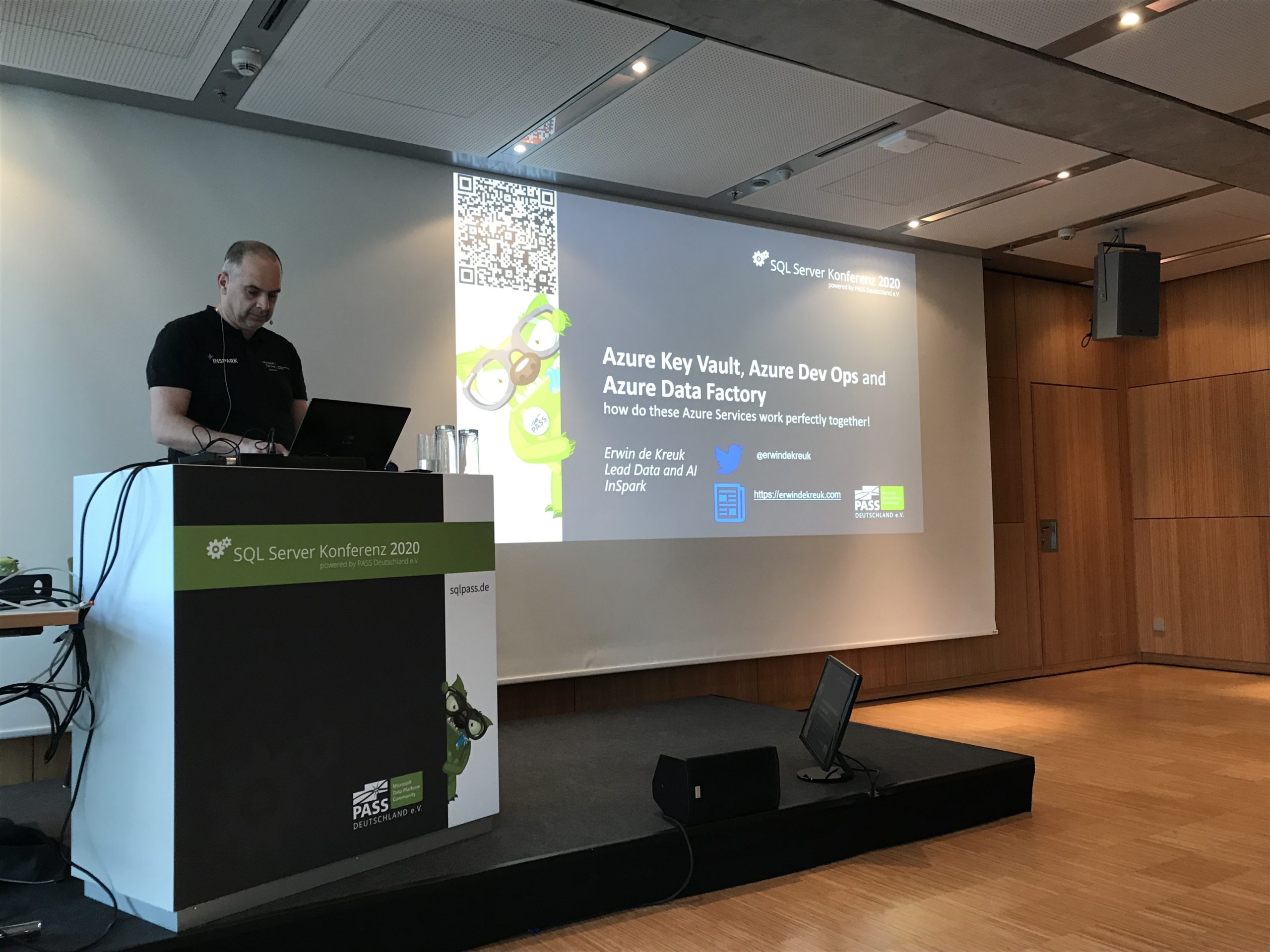
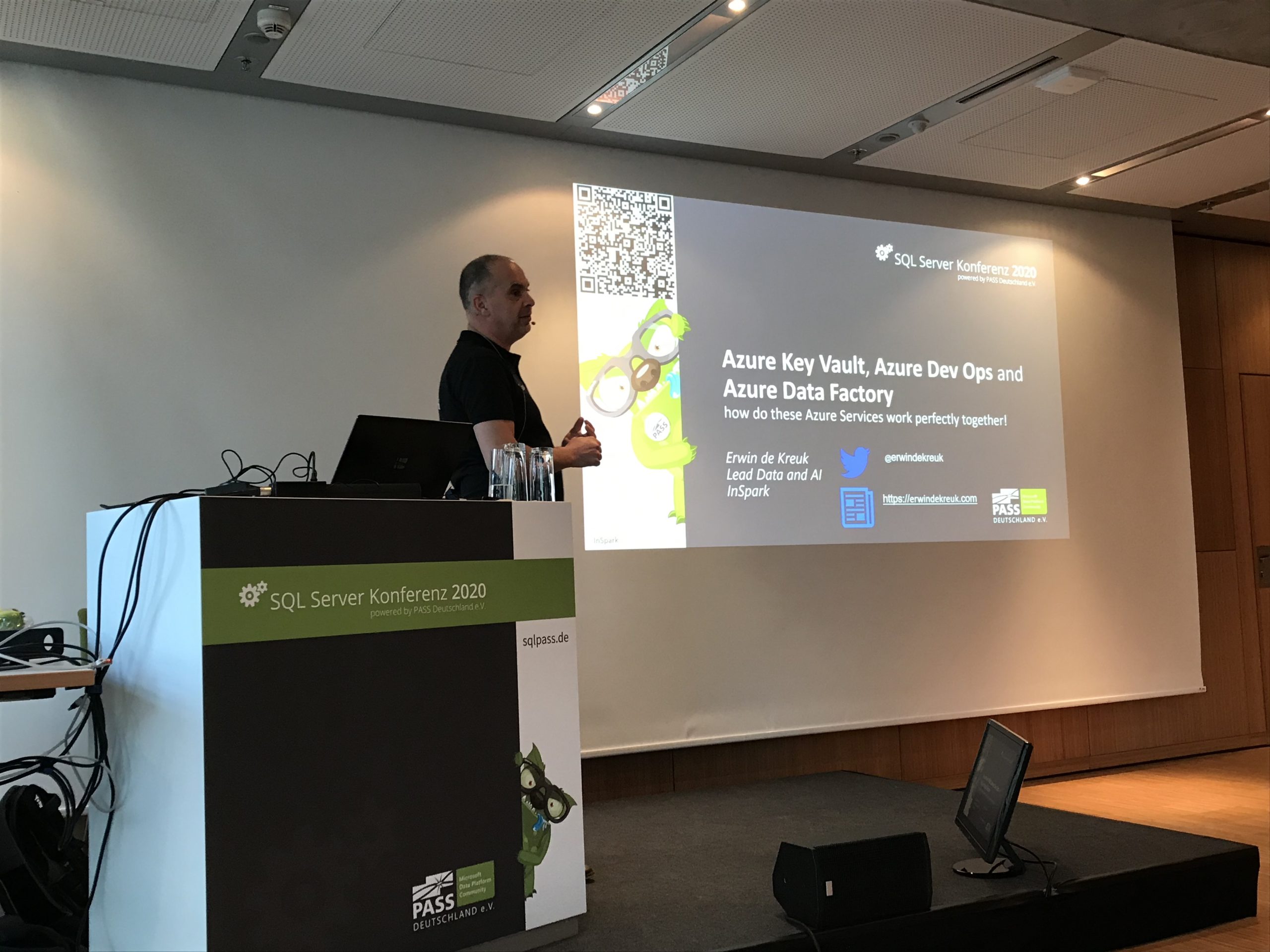
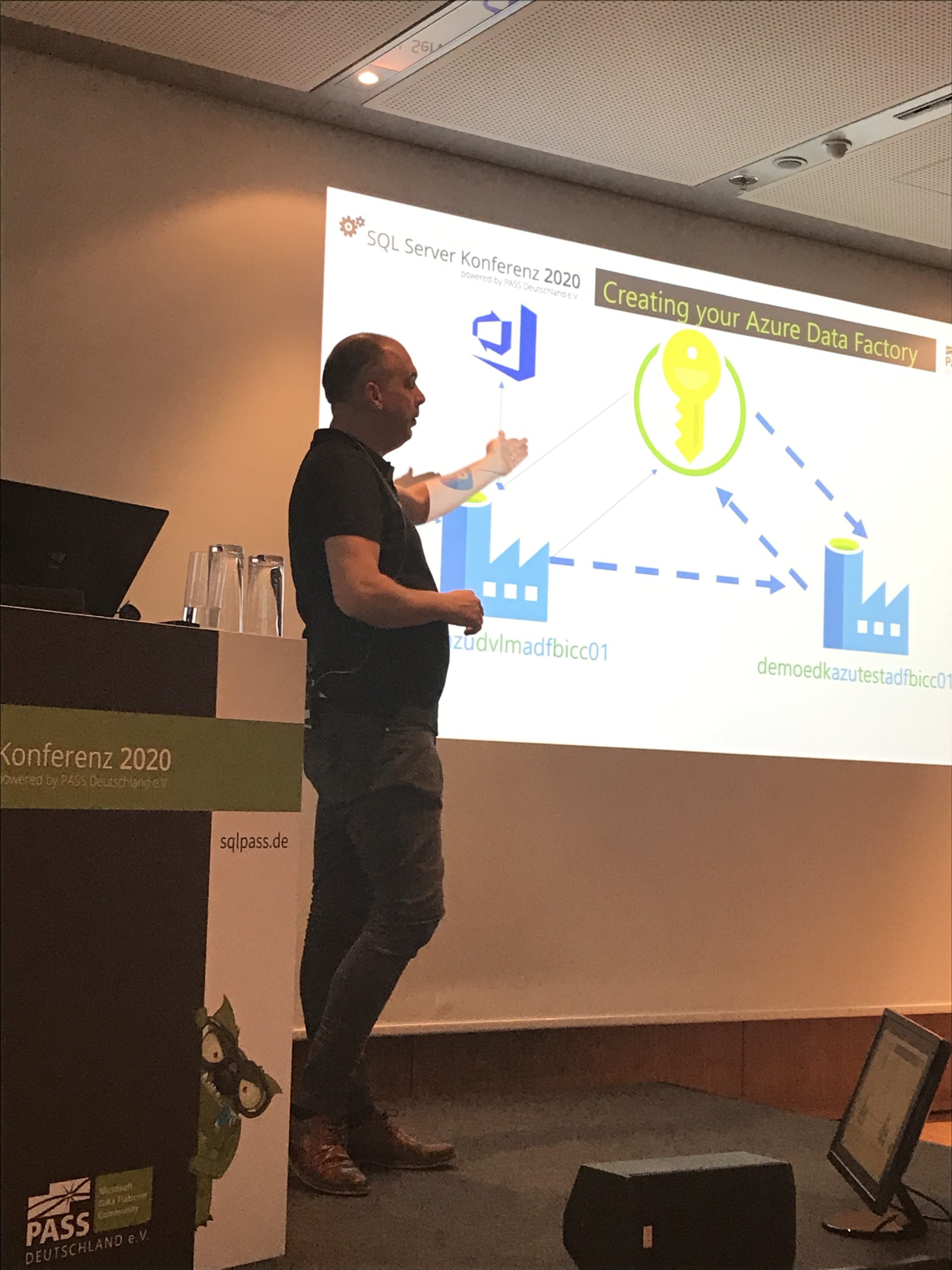
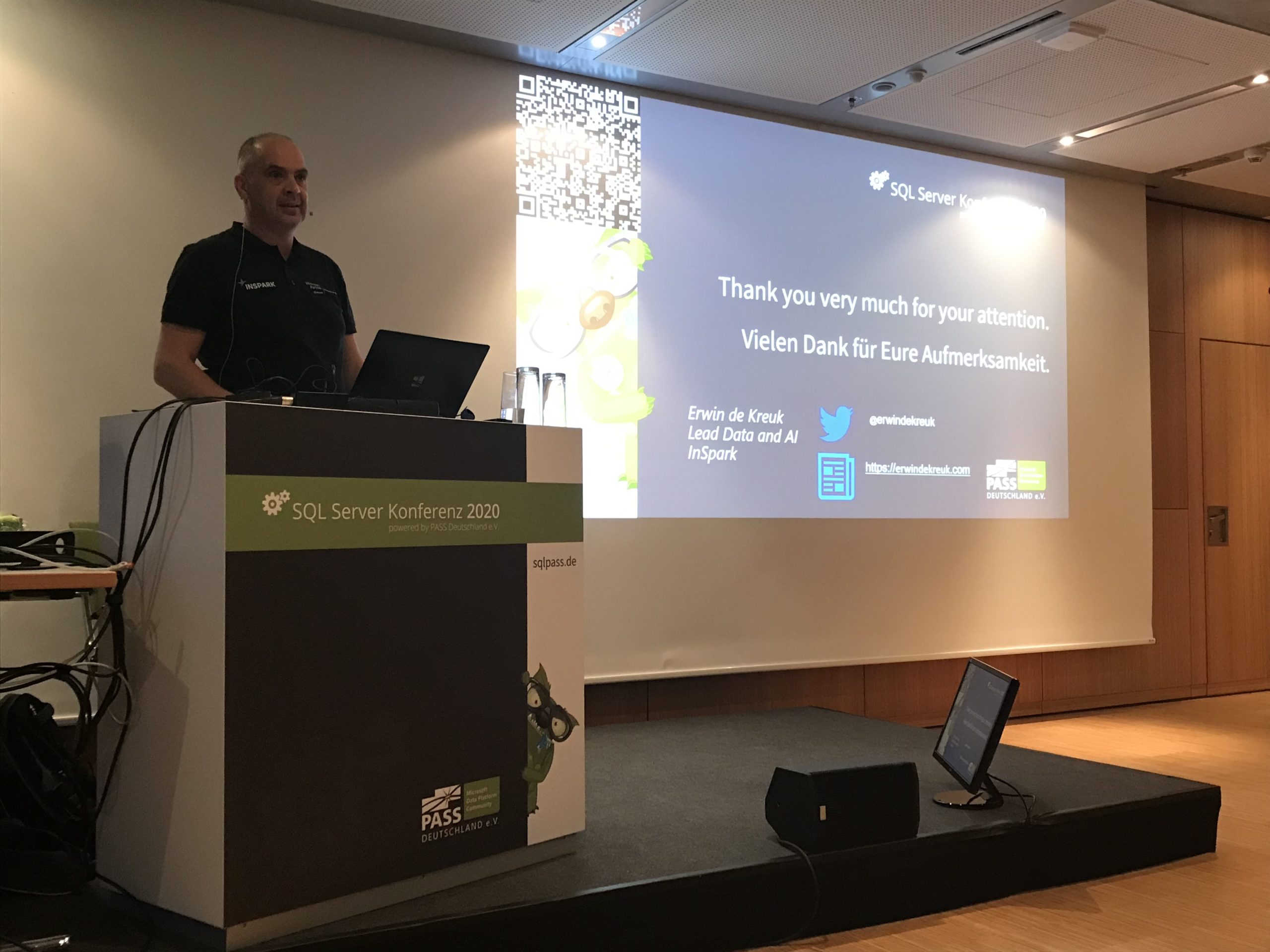
SQL SERVER KONFERENZ 2020

SQL SERVER KONFERENZ 2020

SQL SERVER KONFERENZ 2020

Date: 4-5 March

Location: KongressCenter Darmstadt


Speaking Dinner

The speaker dinner on Tuesday evening was held in Restaurant Sitte. And yes what do you eat when you are in Germany a delicious Schnitzel with baked potatoes. It was a nice evening that we closed in the bar of the Hotel.

Event

The event started on Wednesday with a Keynote in which many speakers participated. After the Keynote it was time for the sessions. The agenda was very well filled with 30 sessions on Wednesday and 36 sessions on Thursday, 6 tracks at the same time and a high diversity of different topics (mix of English and German sessions). Both days lunch was taken care of to perfection. The evening ended on Wednesday with a Monster Party.

Thank you

Thanks again to the organisation and the crew, and of course all sponsors because without sponsors it is almost impossible to organise such a big event. As usual, it was another top event and I am already looking forward to next year.

The presentations of SQL SERVER KONFERENZ 2020 and sample code can be found here.

October=Speaking Month

DataSaturday Holland and DataMinds in Belgium Like last year I have been selected again this year for both events to speak. Cool to be able to speak at 3 different events within 7 days, but also to see many known people and to met new people. Data Saturday Data…

My Virtual Session Cloud Lunch and Learn Marathon

Cloud Lunch and Learn Marathon 2021 This Thursday May 13th 2021 I’ve been speaking during Cloud Lunch and Learn Marathon 2021. It was the first Cloud Lunch and Learn Marathon conference, more then 1200 registered attendees, 24hours Live and pre recorded sessions….

My virtual session at Data Toboggan

Data Toboggan This Saturday I’ve joined the Data Toboggan to talk about Azure Synapse Analytics.   Azure Synapse Analytics Today I’ve been talking on how to deal with all the different roles in Azure Synapse Analytics during Data Toboggan. An event 100% focussed…

Video: Learn Live Use Data Factory pipelines in Microsoft Fabric

Below you find the recording form the session for Learn Live which I did together with Javier. Use Data Factory pipelines in Microsoft Fabric Use Data Factory pipelines in Microsoft Fabric – Training | Microsoft Learn     After you have followed above learning…

Data Saturday Stockholm

Data Saturday Stockholm Bra så alla tillbaka personligen This means great so everyone back in person. Last weekend I had the honor to speak at Data Saturday in Stockholm. About one of my favourite topics Azure Synapse Analytics. It was nice to see everyone in person…

Data Community Austria

Unleashing the Potential of Metadata-Driven ELT Framework in Synapse Analytics and Microsoft Fabric Today, I had the opportunity to speak at the Data Community Austria Day 2024, a full day of sessions dedicated to data enthusiasts and professionals. The event was held…

Data Toboggan January 2022 (Video)

Recording of my session during the Data Toboggan January 2022 conference. Dealing with different roles in Azure Synapse Analytics

Datatoboggan 2021(Video)

Recording of my session during Data Toboggan 2021 Azure Purview Microsoft’s answer to Data Governance and Data Lineage

Data:Scotland

Data: Scotland 2022 Microsoft Purview Scotland’s Data Community Conference happened this year again in Glasgow. This years event was happening in  a sunny Glasgow, more then 400 attendees and more then 50 sessions. It was great to see so many people live again. I…

DataGrillen 2022

DataGrillen 2022 Microsoft Purview When we say: Data, bratwurst and beer, we are of course talking about DataGrillen. After more than 2 years of absence, it was time again in recent days, with speakers from all over the world with almost 50 sessions, good weather and…