Erwin | Data & Intelligence
  • Home
  • FMD Framework
  • Speaker Profile
  • About
  • Contact
Select Page
Provision users and groups from AAD to Azure Databricks (part 2)

Provision users and groups from AAD to Azure Databricks (part 2)

by Erwin | Jan 18, 2023 | Azure Databricks

provisioning

by Erwin | Jan 18, 2023

Assign and Provision users and groups in the Enterprise Application

In the previous blog you learned how to configure the Enterprise Application. In this blog, you will learn how to assign and Provision Users and Groups.

Once the Users and groups are assigned to the Enterprise application you can provision the Users and groups to your Azure Databricks account or Azure Databricks Workspace.

Add users and groups

Click on the Add user/group in the Enterprise application on the left pane to add the required users and groups.
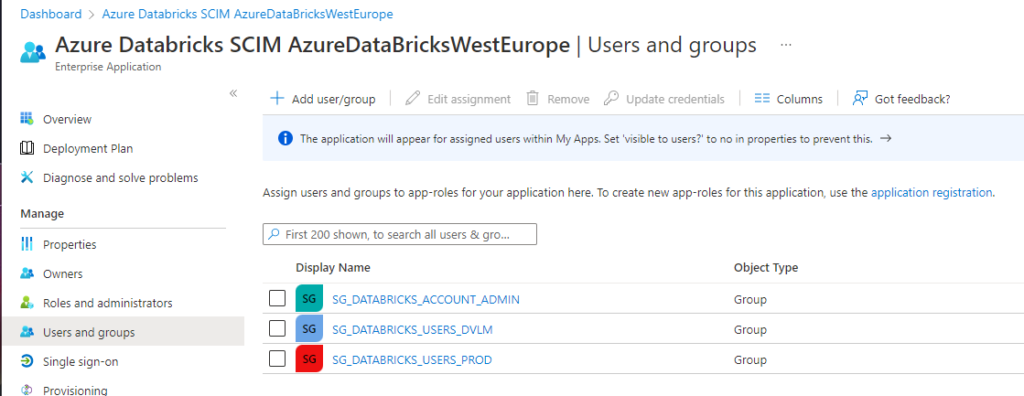

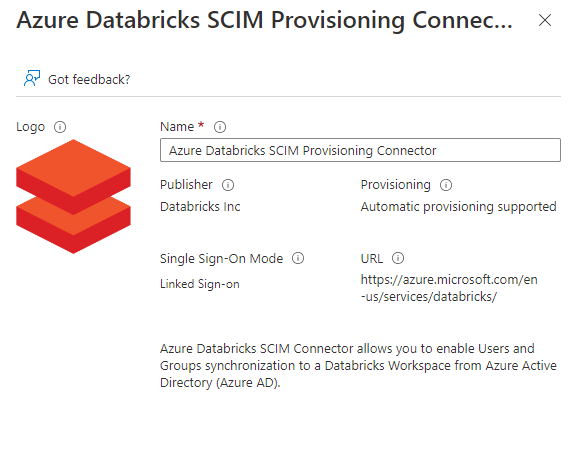
Azure Databricks SCIM Users and Groups

License warning Enterprise Application

When you see above message, that means that you don't have a Premium Azure Active Directory edition account. Don't worry, you can still provision users, for Groups you to need a Premium edition.

Note: If you have existing Azure Databricks workspaces, in case you sync on Account Level, make sure that you add all existing users and groups in those workspaces to the above Enterprise application.

Start the provisioning

The last step is to provision the users and the groups. The provision will automatically sync the assigned users and groups to your Azure Databricks account.

Go back to the provisioning option on the left pane.

Mappings

Enable the user and group sync option in the mappings section.
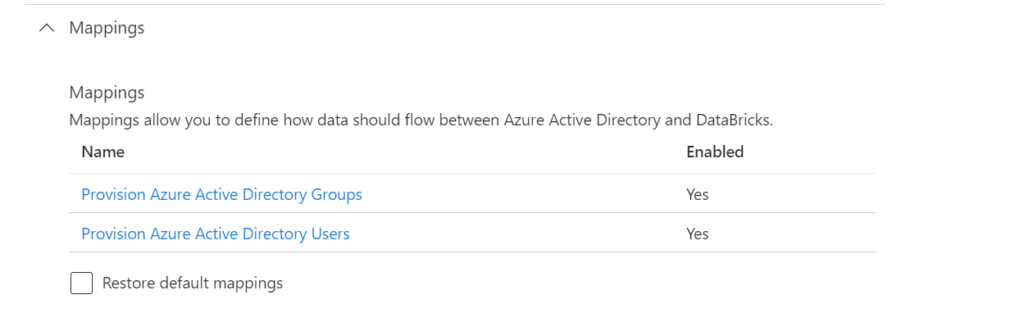
Mapping detail to Provision users and groups in the Enterprise Application

Settings

Set the scope to Sync only assigned users and groups, otherwise all your users in your Azure Active Directory will be synced, which is not necessary

The next step is, set the Provisioning Status toggle to on.
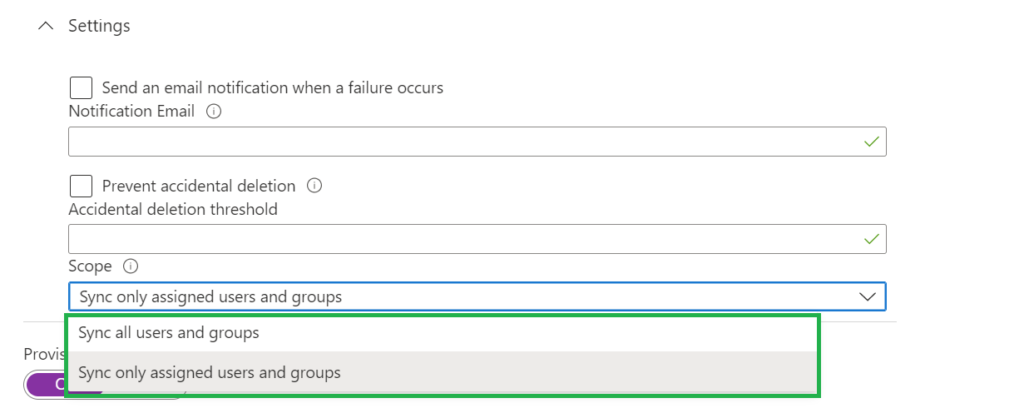
Setting details to Provision users and groups in the Enterprise Application

After a few minutes your users will be synced.

There are 2 more options which we can set:

Notification Email: Send an email notification when a failure occurs

Prevent accidental deletion: Set a threshold for Accidental deletion more on how this works can be found here.

Checking the Provisioning Logs
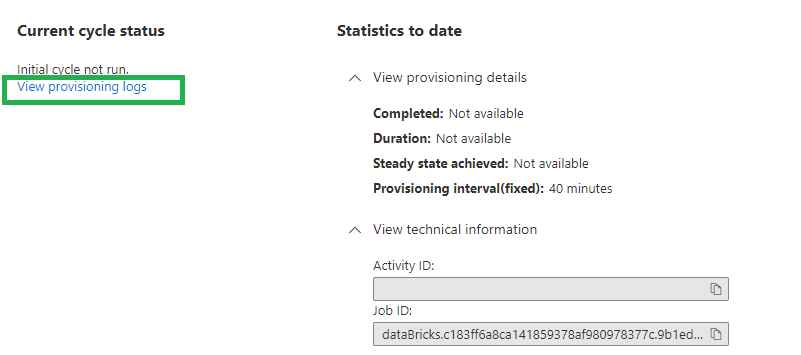
Once the provision of the users and groups has been done, you can check the details in the provision logs.
Click on the left side provisioning:
Log details in the Enterprise Application
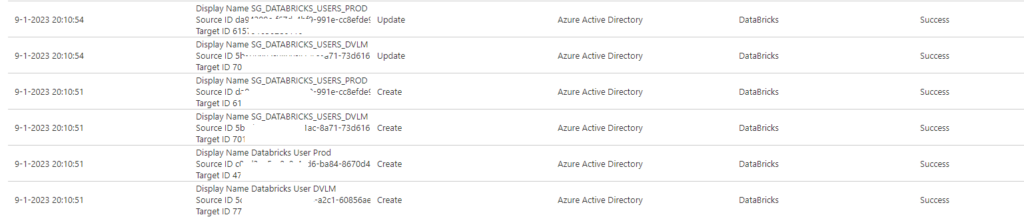
The details of the provisioning should be visible now, good to know that the interval of syncing is fixed to 40 minutes.
 
Click on the View provisioning logs to see a detailed overview of the sync.
Log overview in the Enterprise Application

Tips and tricks for Provisioning

  • The interval of syncing is fixed and set to 40 minutes, the initial one is directly started.
  • The username or email address of an Azure Databricks workspace user cannot be updated.
  • The admin group cannot be used as Group name.
  • Groups cannot be renamed in Azure Databricks or in the Azure Active Directory.
  • Nested groups or service principals cannot be synced.
  • More tips and tricks can be found here.

In my next blog I will explain how to Create a metastore in your Azure Databricks account to assign an Azure Databricks Workspace.

Other Blog post in this serie:

  1. Configure the Enterprise Application(SCIM) for Azure Databricks Account Level provisioning
  2. Assign and Provision users and groups in the Enterprise Application(SCIM)
  3. Creating a metastore in your Azure Databricks account to assign an Azure Databricks Workspace
  4. Assign Users and groups to an Azure Databricks Workspace and define the correct entitlements
  5. Add Service Principals to your Azure Databricks account using the account console
  6. Configure the Enterprise Application(SCIM) for Azure Databricks Workspace provisioning

Latest Posts

  • Rayfin
    My first experience: Building a Fabric App
  • Fabric Metadata‑Driven Framework (FMD)
    Fabric Metadata Driven Framework update May 2026

  • Fabric Metadata‑Driven Framework (FMD)
    FMD Framework Update April 2026: Identity Improvements, SCD2 Fixes & Stability Enhancements
  • Fabric Enterprise ready
    Microsoft Fabric Enterprise‑Grade: The Foundation for AI‑Ready Data Platforms
  • Fabric Metadata‑Driven Framework (FMD)
    FMD Framework March 2026 Update: Data Lineage, Notebook Automation & Ingestion Improvements

Categories

  • Azure (49)
  • Azure Databricks (9)
  • Divers (9)
  • Domoticz (1)
  • Events (38)
  • FMD Framework (9)
  • Microsoft Fabric (16)
  • Microsoft Fabric Content HUB (9)
  • Microsoft Purview (19)
  • Power BI (1)
  • SQL Server (3)
  • Sql Server Management Studio (2)

Feel free to leave a comment

Provision users and groups from AAD to Azure Databricks (part 1)

Provision users and groups from AAD to Azure Databricks (part 1)

by Erwin | Jan 17, 2023 | Azure Databricks

provisioning

by Erwin | Jan 17, 2023

Blog Serie: Provisioning identities from Azure Active Directory to Azure Databricks.

Instead of adding users and groups manual to your Azure Databricks environment, you can also sync them automatically from your Azure Active Directory to your Azure Databricks account with SCIM. This is one of the recommendations from Databricks.

Other advantages are:

  • Stream less onboarding of new employees or teams in Azure Databricks.
  • Users can be easily deleted from the Azure Databricks workspaces through the Azure Active Directory. This ensures a consistent offboarding process and prevents unauthorized users from accessing sensitive data.

Their are a couple of important requirements to have in place before we can start, you need to have or be:

  • Azure Databricks account with a Premium Plan.
  • Azure Databricks account admin to provision users to your Azure Databricks account using SCIM.
  • Azure Databricks workspace admin to provision users to an Azure Databricks workspace using SCIM.
  • Azure Active Directory account must be a Premium edition account to be able to provision groups.
  • Provisioning of users is available for all Azure Active Directory editions (including the Azure AD Free)

Blog Serie

This blog post series contains the following topics, which I will post in the next few days:

  1. Configure the Enterprise Application(SCIM) for Azure Databricks Account Level provisioning
  2. Assign and Provision users and groups in the Enterprise Application(SCIM)
  3. Creating a metastore in your Azure Databricks account to assign an Azure Databricks Workspace
  4. Assign Users and groups to an Azure Databricks Workspace and define the correct entitlements
  5. Add Service Principals to your Azure Databricks account using the account console
  6. Configure the Enterprise Application(SCIM) for Azure Databricks Workspace provisioning

There are 2 different options to provision users and groups to Azure Databricks using Azure Active Directory (AAD) at the Azure Databricks account level or at the Azure Databricks workspace level. This post is related to the Azure Databricks Account Level.

Configure the Enterprise Application(SCIM) for Azure Databricks Account Level provisioning

Azure Databricks account level

Before you start login to the Azure Databricks account console.

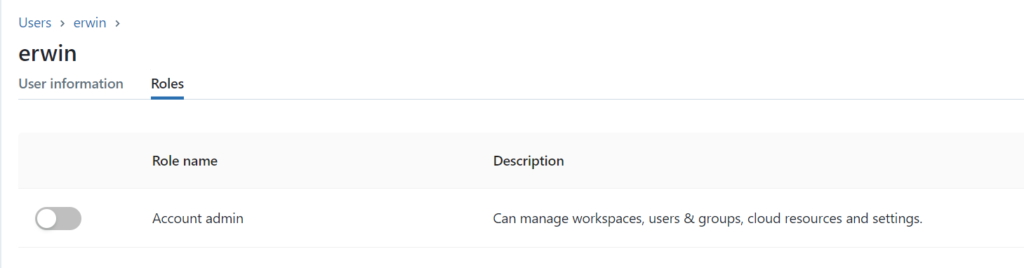
Make sure that you're an Azure Databricks account admin. If you're not an account admin, check who is an account admin( you see this on the main page of the user Management option). Ask the Account admin to grant you access, they can do this by clicking on the account name.

Once you're Account Admin, click on the left side, click on the user setting icon(red).

adb-user-settings


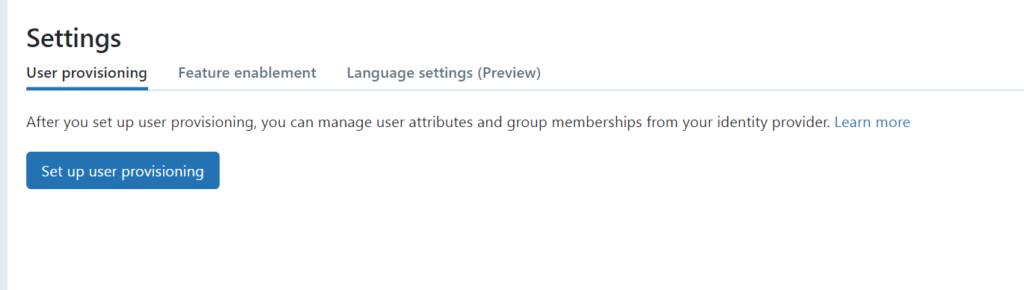
Click on User Provisioning and click on set-up user provisioning.

Enable-user-prv-add-adb

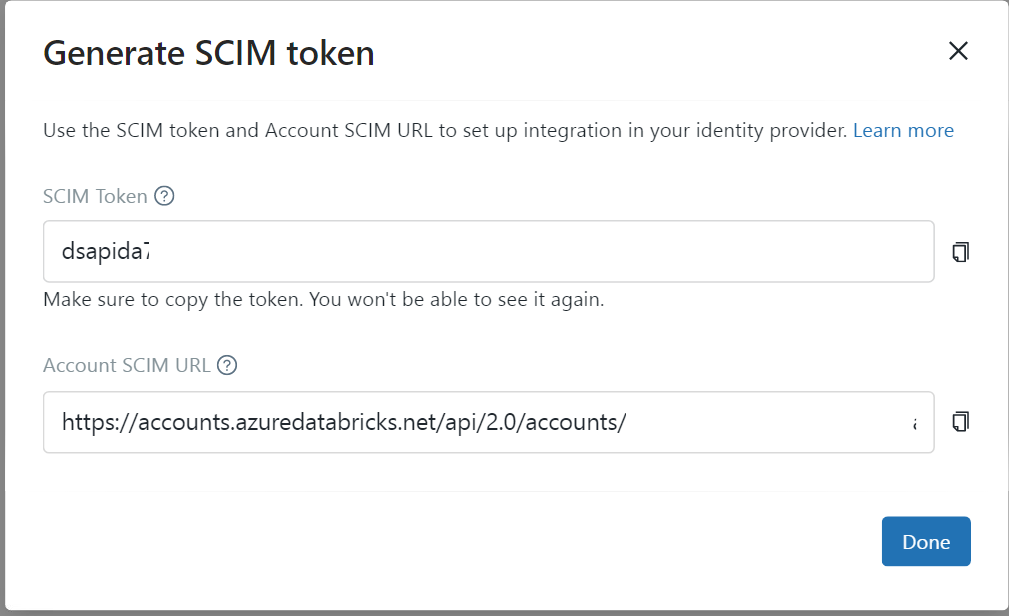
Create-token-scim

Copy the SCIM token and the Account SCIM URL and store them in an Azure Key Vault. We need these settings later to configure the Enterprise Application.

Configure the Enterprise Application

In the Azure portal, go to Azure Active Directory > Enterprise Applications.

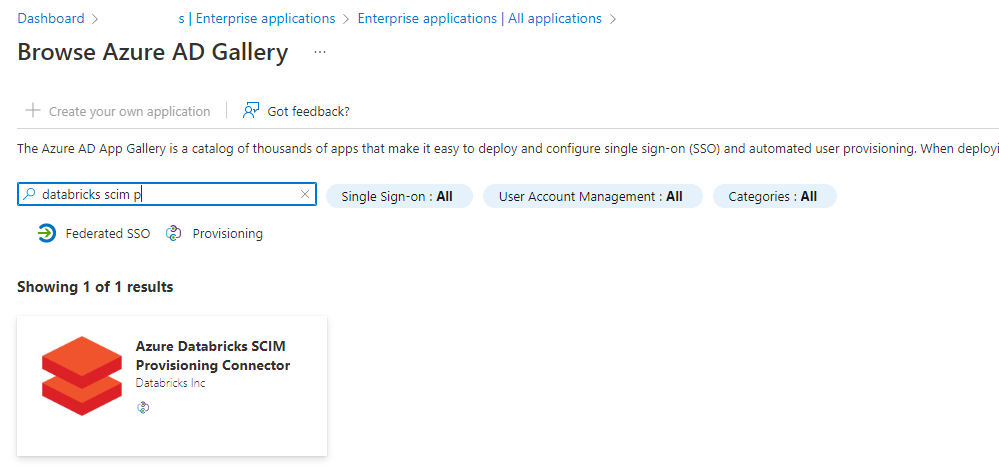
Click on new application and search for the "Azure Databricks SCIM Provisioning Connector"

app-scim-adb

Click on the app:

app-scim-adb-create

Enter a Name for the application, I used Azure Databricks SCIM AzureDataBricksWestEurope

Click on Create and wait until the application is created.

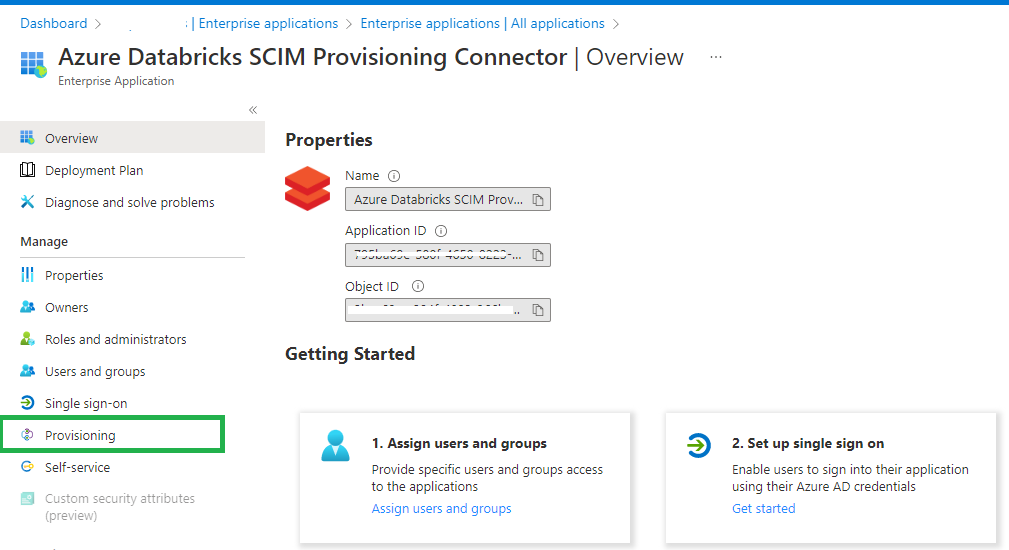
app-scim-adb-configure

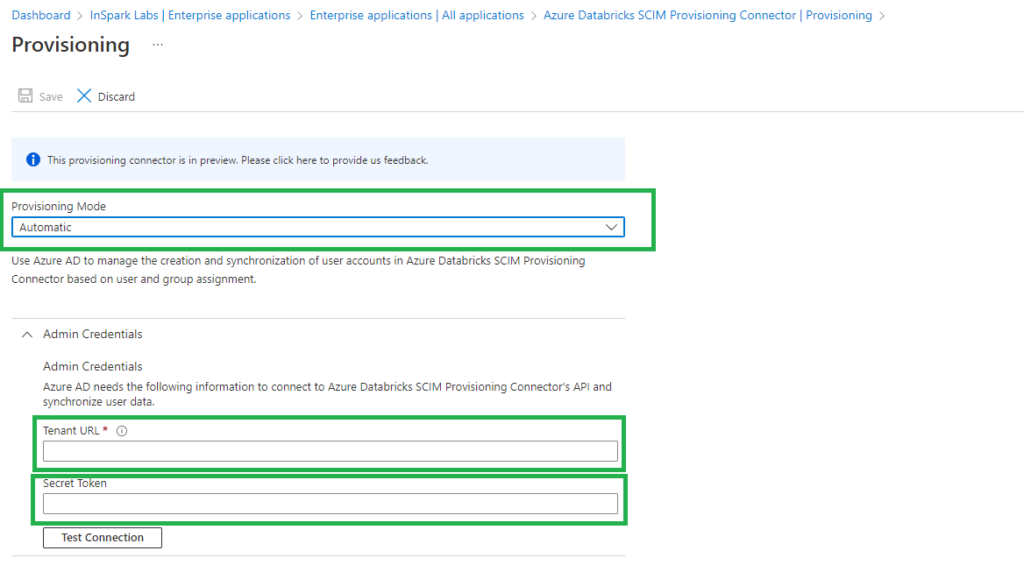
Click on Provisioning and set Provisioning Mode to Automatic.

app-scim-adb-configure-automatics

Set the Tenant URL to the Account SCIM URL that we saved earlier in our Key Vault.

Set Secret Token to the Azure Databricks SCIM token that we generated and saved earlier in our Key Vault.

Click on Test Connection so see if everything is configured correctly.

In my next blog I will explain how to Assign and Provision users and groups in the Enterprise Application(SCIM).

Latest Posts

  • Rayfin
    My first experience: Building a Fabric App
  • Fabric Metadata‑Driven Framework (FMD)
    Fabric Metadata Driven Framework update May 2026

  • Fabric Metadata‑Driven Framework (FMD)
    FMD Framework Update April 2026: Identity Improvements, SCD2 Fixes & Stability Enhancements
  • Fabric Enterprise ready
    Microsoft Fabric Enterprise‑Grade: The Foundation for AI‑Ready Data Platforms
  • Fabric Metadata‑Driven Framework (FMD)
    FMD Framework March 2026 Update: Data Lineage, Notebook Automation & Ingestion Improvements

Categories

  • Azure (49)
  • Azure Databricks (9)
  • Divers (9)
  • Domoticz (1)
  • Events (38)
  • FMD Framework (9)
  • Microsoft Fabric (16)
  • Microsoft Fabric Content HUB (9)
  • Microsoft Purview (19)
  • Power BI (1)
  • SQL Server (3)
  • Sql Server Management Studio (2)

Feel free to leave a comment

Next Entries »

Categories

  • Azure (49)
  • Azure Databricks (9)
  • Divers (9)
  • Domoticz (1)
  • Events (38)
  • FMD Framework (9)
  • Microsoft Fabric (16)
  • Microsoft Fabric Content HUB (9)
  • Microsoft Purview (19)
  • Power BI (1)
  • SQL Server (3)
  • Sql Server Management Studio (2)
Adding an RSS feed to this site’s homepage is not supported, as it could lead to a loop that slows down your site. Try using another block, like the Latest Posts block, to list posts from the site.
  • RSS

Designed by Elegant Themes | Powered by WordPress