Speaking at Techorama NL

Speaking at Techorama NL

Techorama = Deep Knowledge IT Conference

Techorama is a yearly international technology conference which takes place at Pathé Ede, Netherlands from September 30th until October 2nd. This will be the second year the event will be in held in the Netherlands. Last year more then 1100 people attend the Conference. This year the organisation expect around 1500 attendees.

Proud to be speaking

This year I will also speak at Techorama. I was very happy when I received a message at the end of April that my session was selected. Something to be very proud of.

Session Title:

Azure Key Vault, Azure Dev Ops and Data Factory how do these Azure Services work perfectly together!

Session Details

Can we store our Connectionstrings or BlobStorageKeys or other Secretvalues somewhere else then in Azure Data Factory(ADF)? Yes you can! You can store these valuable secrets in Azure Key Vault(AKV). But how can we achieve this in ADF? And finally how do we deploy our DataFactories in Azure Dev Ops to Test, Acceptance and Production environments with these Secrets ? Can this be setup dynamically? During this session I will give answers on all of these questions. You will learn how to setup your Azure Key Vault, connect these secrets in ADF and finally deploy these secrets dynamically in Azure Dev Ops. As you can see a lot to talk about during this session.

Wednesday October 2, 2019 10:00am – 11:00am

Room 5


Complete agenda

September 30th:

Workshops

October 1st and 2nd:

Sessions


No tickets yet, click here to reserve your spot. Hope to see you all at Techorama.


October=Speaking Month

DataSaturday Holland and DataMinds in Belgium Like last year I have been selected again this year for both events to speak. Cool to be able to speak at 3 different events within 7 days, but also to see many known people and to met new people. Data Saturday Data…

Speaking(Virtual) at SQL Saturday #963 Denmark

SQL Saturday 963 Denmark PASS SQLSaturday is a free training event for professionals who use the Microsoft data platform. These community events offer content across data management, cloud and hybrid architecture, analytics, business intelligence, AI, and more. My…

SQLBITS 2022

SQL BITS 2022 What a great time I had Wednesday 9th of March the time had finally come, at 1830 my plane would leave for London City. After all the preparations over the past few weeks, the time was there. After arriving in London City and checking in at the hotel, I…

My virtual session at Data Toboggan

Data Toboggan This Saturday I’ve joined the Data Toboggan to talk about Azure Synapse Analytics.   Azure Synapse Analytics Today I’ve been talking on how to deal with all the different roles in Azure Synapse Analytics during Data Toboggan. An event 100% focussed…

My Virtual Session Scottish Summit 2021

Scottisch Summit 2021 This Saturday I’ve been speaking during Scottisch Summit 2021. It was my first Summit, but is was a great event, with more than  400 sessions covering the full Microsoft Stack in 7 different language English, Spanish, German, French, Italian,…

My sessions at Pass Data Community Summit

A hybrid conference in Seattle and online This year’s PASS Data Community Summit is more than a conference – it’s a homecoming. Reconnect with old friends, build new relationships, gain new skills, and get the world-class training you need to take that next step in…

Data Community Austria

Unleashing the Potential of Metadata-Driven ELT Framework in Synapse Analytics and Microsoft Fabric Today, I had the opportunity to speak at the Data Community Austria Day 2024, a full day of sessions dedicated to data enthusiasts and professionals. The event was held…

DataGrillen 2022

DataGrillen 2022 Microsoft Purview When we say: Data, bratwurst and beer, we are of course talking about DataGrillen. After more than 2 years of absence, it was time again in recent days, with speakers from all over the world with almost 50 sessions, good weather and…

SQLBits session: Microsoft Purview Data Policy App

SQLBits 2023 Thanks everyone for visiting my session during SQLBits. It’s great to see such a full room and that so many people have started using Microsoft Purview.   SLIDES The slides can be downloaded via the link below, so that you can view them again at…

SQL SERVER KONFERENZ 2020

SQL SERVER KONFERENZ 2020 Date: 4-5 March Location: KongressCenter Darmstadt   Speaking Dinner The speaker dinner on Tuesday evening was held in Restaurant Sitte. And yes what do you eat when you are in Germany a delicious Schnitzel with baked potatoes. It was a…

SSMS 18.xx: Creating your Azure Data Factory SSIS IR directly in SSMS

Creating your Azure Data Factory(ADF) SSIS IR in SSMS

Since  version 18.0 we could see our Integration Catalog on Azure Instances directly.

Yesterday I wrote an article how to Schedule your SSIS Packages in ADF, during writing that article I found out that you can also created your SSIS IR(Integration Runtime) directly in SSMS.

I never saw the option before, it was always grayed out(because the SSISDB was already in Azure). But if you connect to an On Premise system it will not be grayed out.

An easy scenario to lift and shift your SSIS Packages to Azure, with a couple of steps you can create your SSIS IR.

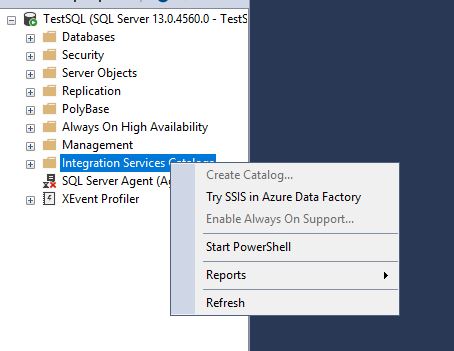
Go to your Integration Services Catalog on your On Premise Server. Right Click and select the option “Try SSIS in Azure Data Factory” and click on Next.

Create ADF


Prerequisites

As Prerequisites you will need:

An Azure account.

An Azure SQL Database server or Managed Instance.


Configuration of your SSIS IR

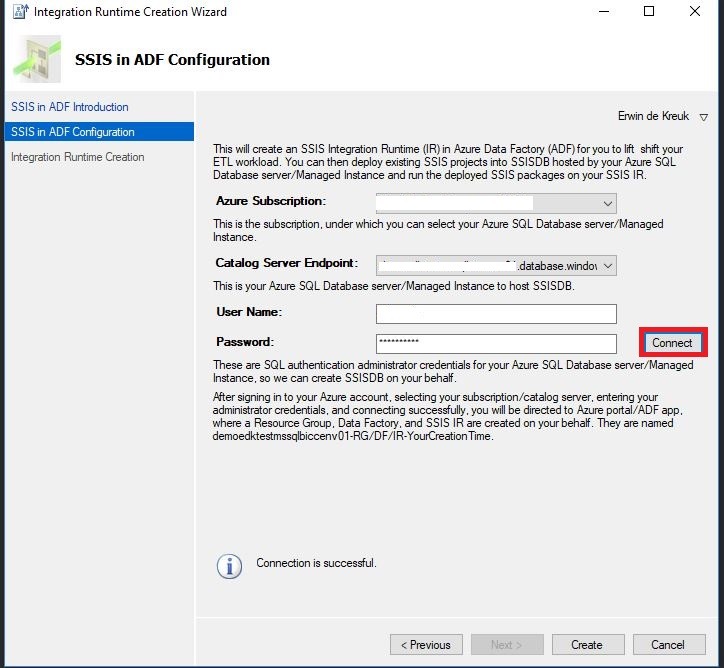
Create SSIS IR in Azure wizard.

Creating ADF SSIS SSMS

On the right upper corner you can log in to your Azure Subscription.

Select the correction Subscription, in case your have more subscription assigned to this account.

Select the Catalog Server where you want to install your SSIS IR on. This server cannot have an existing SSISDB.

Provide the necessary log in details and click on connect.


Creating ADF SSIS SSMS Validation


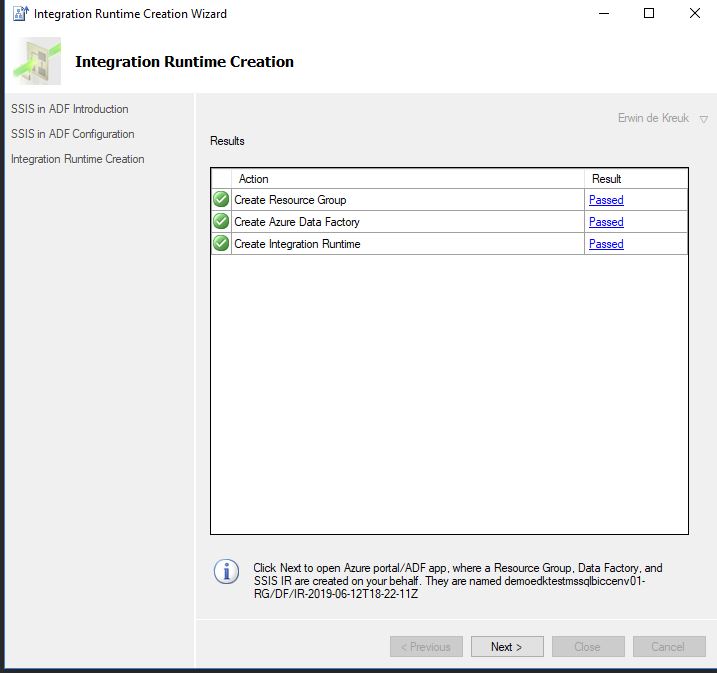
The last step is to Create your SSIS IR.

After you have clicked on Create,  SSMS will do some validations and after these validations you will be asked to open the ADF Portal.


Azure Data Factory Portal

Creating ADF SSIS


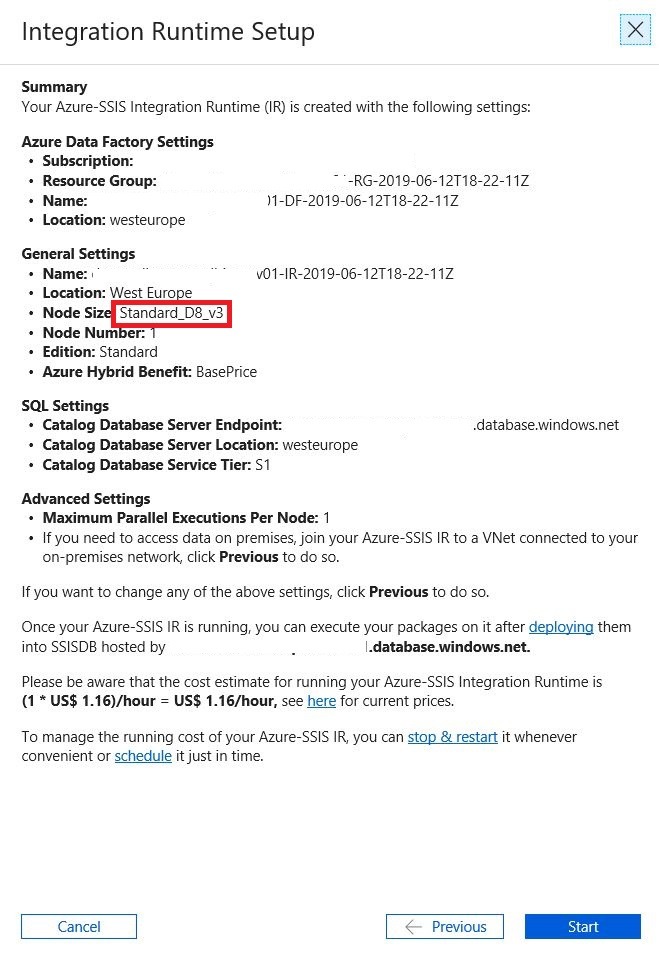
After you logged into the portal you will see a summary of the detail how your SSIS IR will be setup.

If you click on next your SSIS IR will be started.


Change Settings

To change any of the Parameters above you need to use the previous button. You can change:

Number of Parallel Executions Per Node

Custom Setup Container SAS URI

VNET

Node Size

License

The name of your SSIS IR and Resource Group are create by the setup and cannot be changed.

The Resource Group for example is created in the Region US-East.


ADF Pipeline


Conclusion

It is a simple way to setup your SSIS IR in Azure, but I do prefer do this my self trough the Azure Portal or automated with a PowerShell script.

SSMS 18.1: Schedule your SSIS Packages in Azure Data Factory

Schedule your SSIS Packages with SSMS in Azure Data Factory(ADF)

This week SQL Server Management Studio version 18.1 was released, which can be downloaded from here.

In version 18.1 the Database diagrams are back and from now on we can also schedule SSIS Packages in ADF via SSMS.


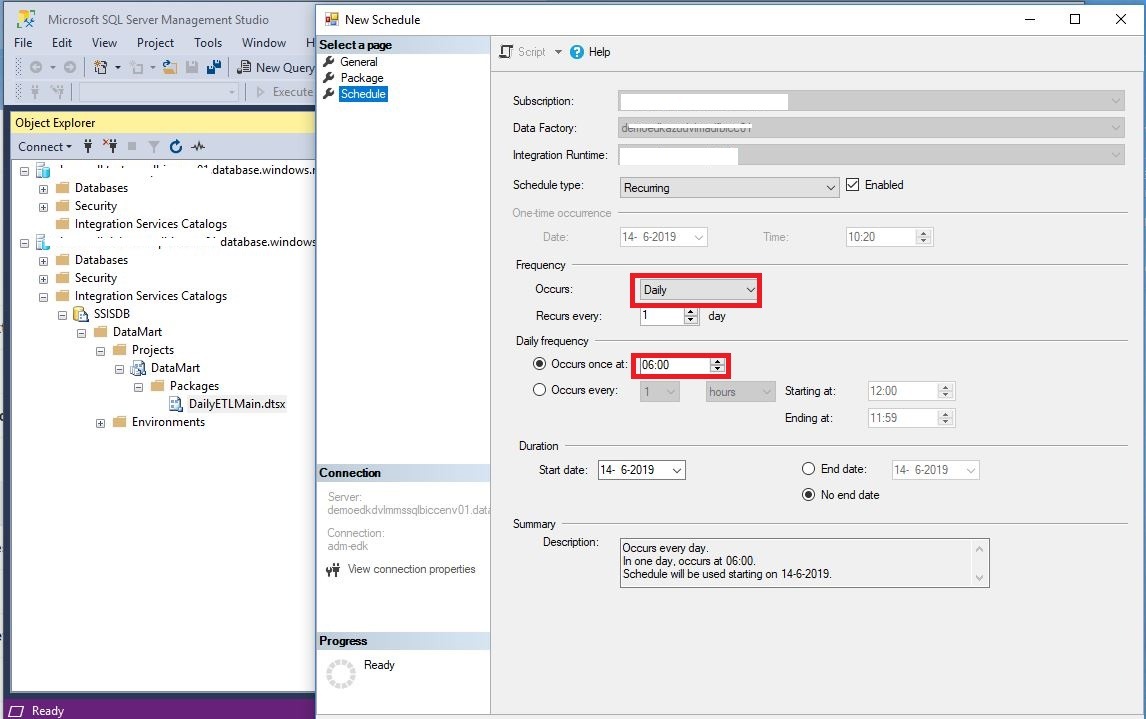
Select the package you want to schedule in your Integration Services Catalog,

Schedule SSIS Packages


Create the schedule you want to create and click on OK.

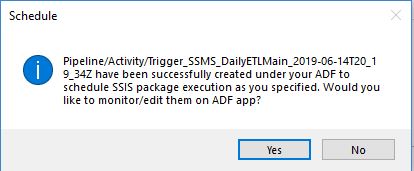
 Your schedule will be created in Azure Data Factory.

SSMS Schedule


Azure Data Factory

In Azure Data Factory a pipeline and trigger are created automatically

SSIS Packages Azure Data Factory Pipeline


Azure Dev Ops

Scheduling your SISS packages is not working fine when you have Azure Dev Ops Enabled. Pipeline and Trigger are published to the Data Factory instead of Azure DevOps GIT as you can see below.

My advice will be to build your schedule/trigger directly in Azure Data Factory when you ‘re using Azure Dev Ops.

SSMS Azure Dev Ops


In case you have any questions left, do not hesitate to ask them. I’m more then happy to answer them.

Rerun Pipeline activities in Azure Data Factory

Rerun Pipeline activities in Azure Data Factory

Data Factory

by Erwin | Mar 7, 2019

Rerun Pipeline activities in ADF!

As of today you can rerun or partially, yes you’re reading it correct partially, rerun you Azure Data Factory pipeline.
Where you previously had to run the entire Pipeline again, you can now run a part of the Pipeline. This can save a lot of time if many different activities are created within one pipeline. Another nice step forward, I'm curious what else is coming in the next months.


Visualized

Besides that you can rerun your Pipeline in Azure Data Factory in a easy way, you also have the possibilities to see your run,  visualized in the Azure Data Factory Monitoring. This is a big improvement in my opinion.

Rerun a Pipeline

If you want to partially rerun a Pipeline, follow the steps below:
Select the Pipeline which has failed, go to the view activity runs and select the activity which failed.

Click on the Rerun Icon


You need to confirm that you want to rerun this activity.

The Pipeline will start and will first skip all the activities(the grey new icons in the upper right corner of each activity) in the Pipeline before your selected Activity.
Your Pipeline will now finalize all the activities from your newly defined starting point.


What else is new?

Monitor Rerun History

You can now view all the history reruns by clicking on the toggle to ‘View All Rerun History’.

By clicking on the red marked action, you can see all the History from an particular Pipeline run.


Thanks for reading.


Updated 10th of March:


Found a video on Channel9 which explains how to  "Rerun activities inside your Azure Data Factory pipelines"

https://channel9.msdn.com/Shows/Azure-Friday/Rerun-activities-inside-your-Azure-Data-Factory-pipelines?ocid=player

Feel free to leave a comment