Speaking at SQL Server Konferenz 2020

Speaking at SQL Server Konferenz 2020

SQL Server Konferenz 

SQL Server Konferenz 2020 is a international Conference which is held each year in Darmstadt, Germany.

Trilled to be speaking

This year I will speak and attend SQL Server Konferenz 2020 from March 3th until March 5th. I was very happy when I received a message that my session was selected. It's going to be my first time that I will be speaking in Germany, it's definitely going to be fun. A lot of great speakers with a lot great session are selected. Are you curious which sessions are on the schedule please follow this link.

My Session

Session Title:

Azure Key Vault, Azure Dev Ops and Data Factory how do these Azure Services work perfectly together!

Session Details

Can we store our Connectionstrings or BlobStorageKeys or other Secretvalues somewhere else then in Azure Data Factory(ADF)? Yes you can! You can store these valuable secrets in Azure Key Vault(AKV). But how can we achieve this in ADF? And finally how do we deploy our DataFactories in Azure Dev Ops to Test, Acceptance and Production environments with these Secrets ? Can this be setup dynamically? During this session I will give answers on all of these questions. You will learn how to setup your Azure Key Vault, connect these secrets in ADF and finally deploy these secrets dynamically in Azure Dev Ops. As you can see a lot to talk about during this session.

Wednesday March 4th, 2020 17:15pm - 18:15pm

Tickets

No yet tickets yet, they are still available for sale

Do I see you in Darmstadt?
 

Speaking at SQL Server Konferenz 2020

SQL Server Konferenz  SQL Server Konferenz 2020 is a international Conference which is held each year in Darmstadt, Germany. Trilled to be speaking This year I will speak and attend SQL Server Konferenz 2020 from March 3th until March 5th. I was very happy when I...

SQLBits session: Microsoft Purview Data Policy App

SQLBits 2023 Thanks everyone for visiting my session during SQLBits. It's great to see such a full room and that so many people have started using Microsoft Purview.   SLIDES The slides can be downloaded via the link below, so that you can view them again at...

My Virtual Session Scottish Summit 2021

Scottisch Summit 2021 This Saturday I've been speaking during Scottisch Summit 2021. It was my first Summit, but is was a great event, with more than  400 sessions covering the full Microsoft Stack in 7 different language English, Spanish, German, French, Italian,...

DataMinds 2018

An event in the Footbal Arena from Gent! Two days after SQLSatholland it was time for DataMinds Connects, which was held in beautiful Belgian Ghent. The location for this event was in the stadium of KAA Gent. Because the organization of SQLSatHolland and DataMinds...

Data Saturday Stockholm

Data Saturday Stockholm Bra så alla tillbaka personligen This means great so everyone back in person. Last weekend I had the honor to speak at Data Saturday in Stockholm. About one of my favourite topics Azure Synapse Analytics. It was nice to see everyone in person...

October=Speaking Month

$variable({"type":"content","value":{"name":"post_title","settings":{"before":"","after":""}}})$ DataSaturday Holland and DataMinds in Belgium Like last year I have been selected again this year for both events to speak. Cool to be able to speak at 3 different events...

Datagrillen: Data, Bratwurst und Beer

Data, Bratwurst and Beer An event that started 5 years ago as a small event, that has grown into an event with 200 participants, 50+ sessions, 5 tracks, 2 days and a BBQ in a small place in Germany, called Lingen. William Durkin and Ben Weissman are the main...

My sessions at Pass Data Community Summit

A hybrid conference in Seattle and online This year's PASS Data Community Summit is more than a conference – it's a homecoming. Reconnect with old friends, build new relationships, gain new skills, and get the world-class training you need to take that next step in...

My Virtual Session DataSaturday #14 Oslo

DATA SATURDAY #14 OSLO This Saturday I've been speaking during DataSaturday #4 Oslo. If you want to visit more Datasaturday events please visit the Data Saturdays event page. Azure Purview I presented a session on Azure Purview Microsoft's answer to Data Governance...

Scottisch Summit 2021(Video)

$variable({"type":"content","value":{"name":"post_title","settings":{"before":"","after":""}}})$ Recording of my session during Scottisch Summit 2021 Is there a way that we can build our Azure DataFactory all with parameters based on MetaData?

Create Virtual Machines with Azure DevTest Lab

A while ago I had to give a training. Normally I would roll out a number of virtual machines in Azure. Until someone brought my attention to an Azure Service, Azure DevTest Labs. With this Azure service you can easily create a basic image and use this image to roll out a series of virtual machines with even the option to automatically clean them up after a training or test period. This way you can also optimally save costs. You have to go through a number of steps and I thought it would be useful to share these steps with you.

Table of Content

  1. Configuration in Azure
  2. Create Master Virtual Machine
  3. Starting the Virtual Machine
  4. Creating Base Image
  5. Create Training Virtual Machines

Configuration in Azure

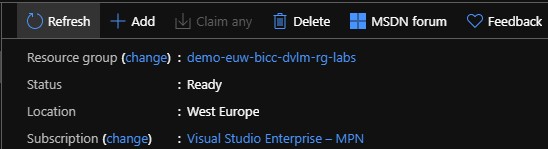
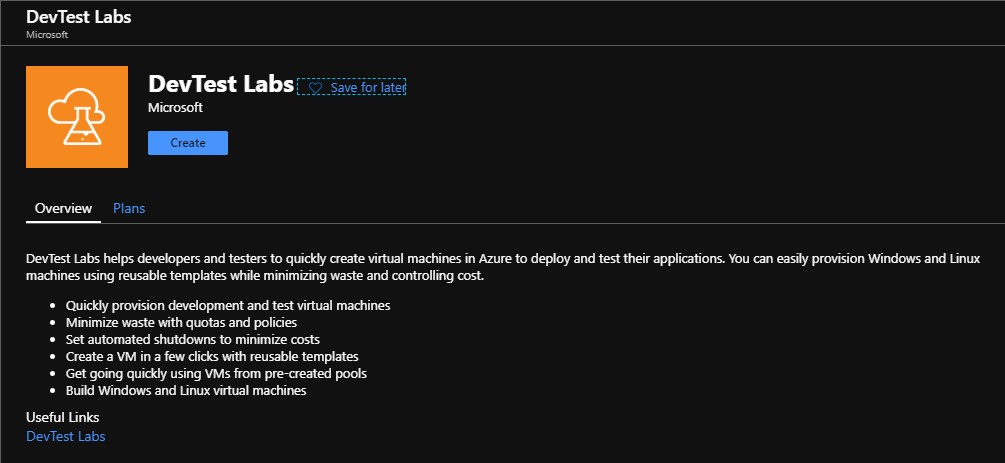
Create a Resource Group in which you want to install the Azure DevTest lab. Search for the Azure Service DevTest Labs and click Create.

Lab name:
The DevTest Lab name

Location:
Western Europe or other desired Region

Tags:
Indicate who the Owner is. 

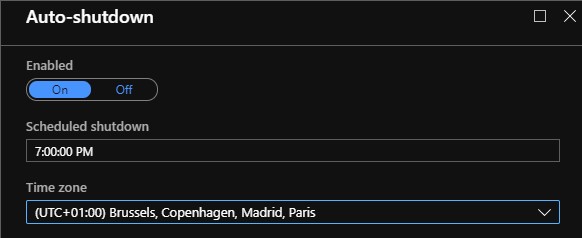
Shut down the machine automatically every day to save costs. Don't forget to select the correct time zone.
Then click Create to start building the DevTest lab.

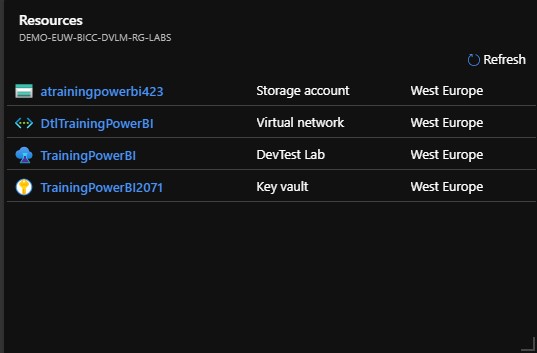
After the DevTest lab has been created, the following resources are also created. 

StorageAccount: Storage location for your Artifacts

KeyVault: Securely store your DevTest Lab passwords

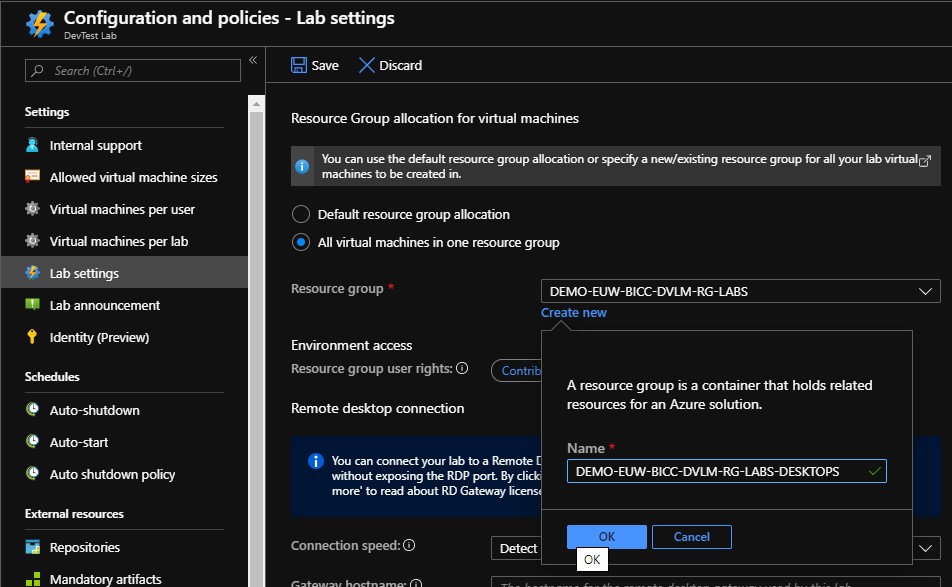
An important step before we create these Virtual machines is that we must indicate in which Resource Group these Virtual machines will be created later. If we don't do this, a Resource Group will be created automatically with a name that most likely does not comply with various naming conventions in your company.

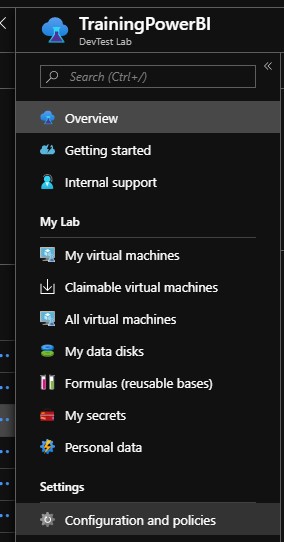
To do this, go to Configuration and Policies.

Click on Lab settings and check the box next to "All Virtual machines in one Resource group", create a new Resource Group as in the example above. Finally save these settings.


Create Master Virtual Machine

If we want to make in a later stadium several training machines, we will first have to make a Base Image. For this we first have to create a Virtual machine.
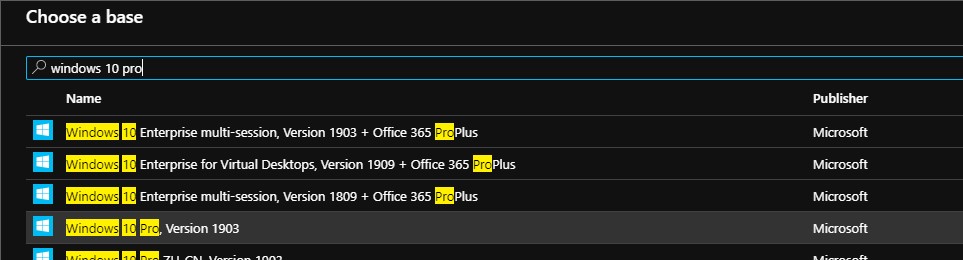
Go to the newly created DevTest Lab environment and click Add.

Select a basic Image that you want to use. In this case I have selected a Windows 10 Image.

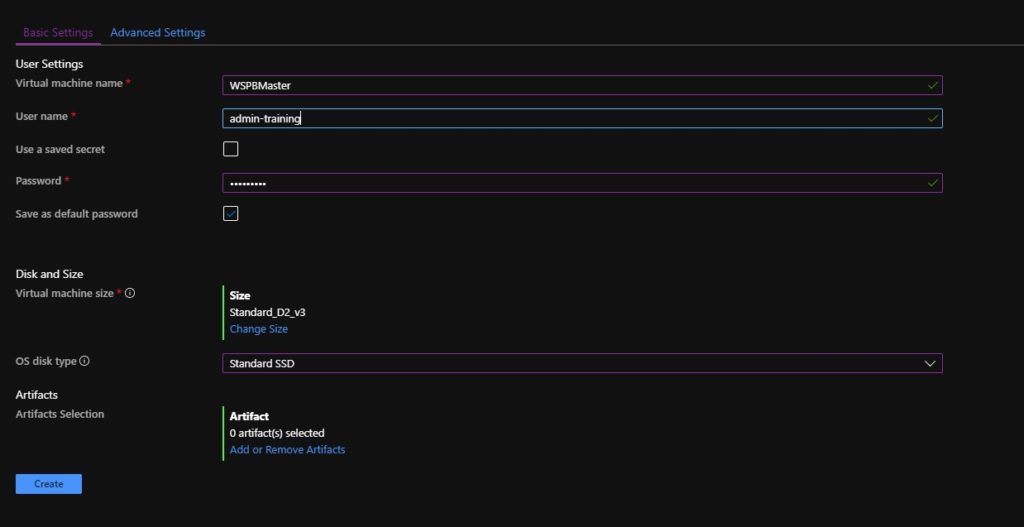
Virtual machine name:
Give the Virtual Machine a name, the 001 is not necessary for the Master. Note that the name may not be longer than 15 characters.

User Name:
Admin account to log in to the Virtual machine

Password:
A default password, check the box next to Save as default Password. The Password is now stored in the Azure Keyvault that was created

Disk and Size:
Select the Size of the Virtual machine here and choose from a Premium SSD, Standard SSD or Standard HDD disk type

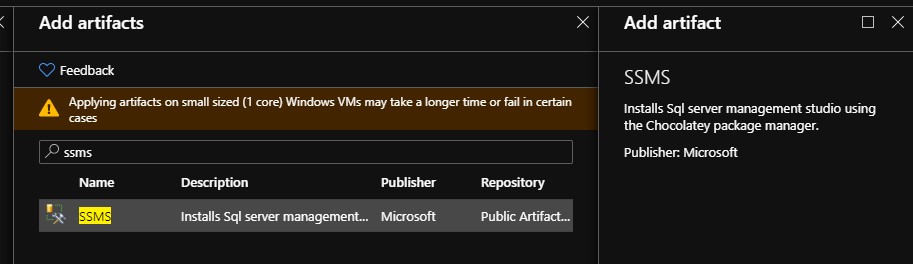
Artifacts:
During the creation of the Virtual Machine, we can immediately perform a number of installations so that they are available in the default Image to be created. Below I have selected to add SSMS.

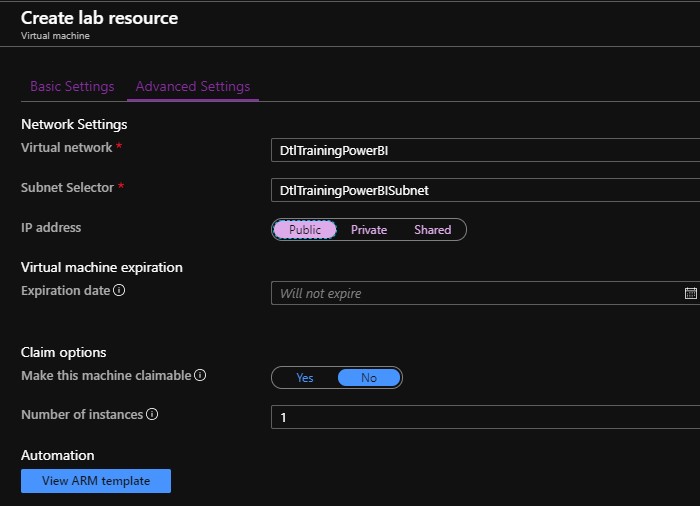
Then click on Advanced settings.

Set the ip-address to Public. 

Go back to Basic Settings and click on Create to create the Virtual Machine

Starting the Virtual Machine

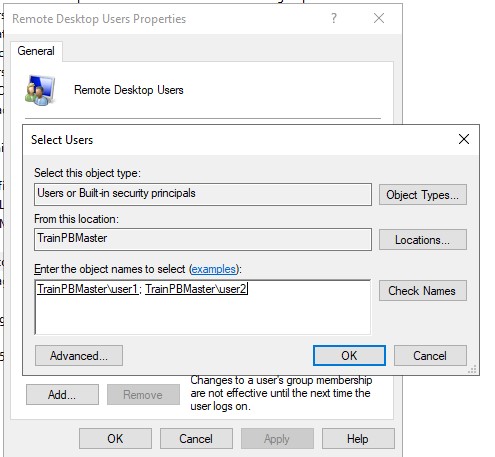
After the machine is started up, create 2 users which can be used during the training. Add this to the Remote Desktop user group, you can also add them to the Administrator group so that the student has all rights to this machine.


Install the Software that you want to use.

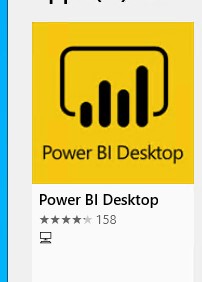
In this situation I have installed Power Desktop from the Windows Store, so that it always stays up to date.

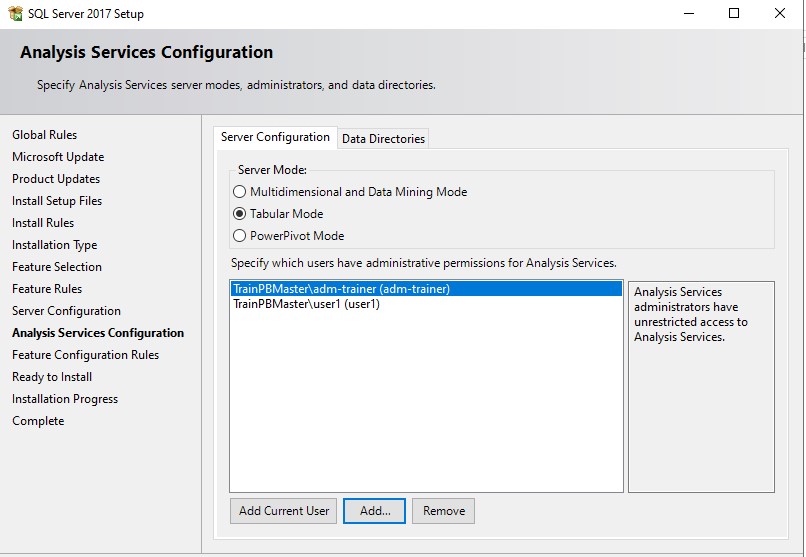
In addition, I have installed SQL Server 2017 Developer Edition with a WorldWIdeImporters database.


It is important that you add the above created users as Admin users during the installation of eg Analysis services so that a student has sufficient rights to follow his training.

Then log in with 1 of the created users and check if everything works.

Then shutdown the Virtual Machine.


Creating Base Image

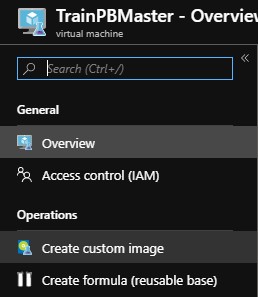
Select the Master Virtual Machine:

Click Create custom Image:

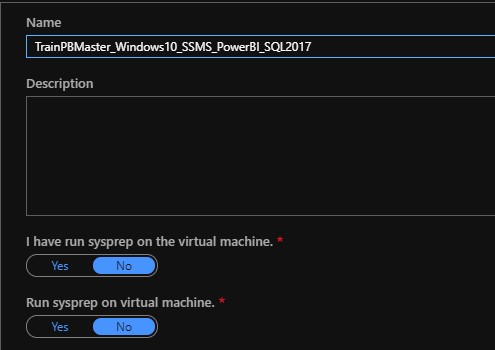
Give the image a name that you recognize it later and click on Create.


Create Training Virtual Machines

To create the Training Virtual Machines, we do actually the same as with the master.

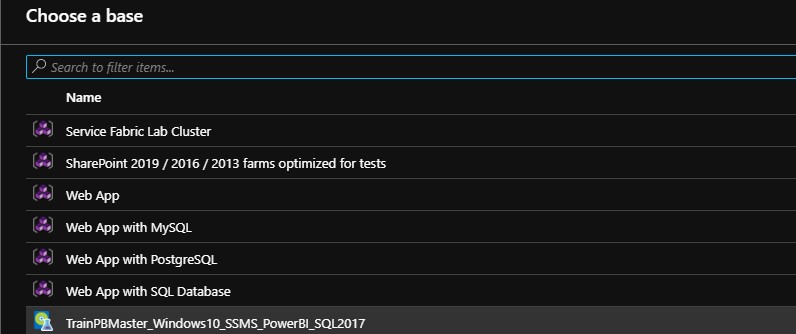
We are adding a new one, only now we select as Base the Image we just made.

Give the machine a name, do not use numbers at the end as specified by default. These numbers will be added automatically when creating multiple machines.

Disk and Size:
Select the Size of the Virtual machine here and choose from a disk type Premium SSD, Standard SSD or Standard HDD. Useful here is to use the same Disk Type that you used with the Master.

Artifacts:
If you want to add another Artifact, you can do that here, but in principle we already have it in our Base Image.

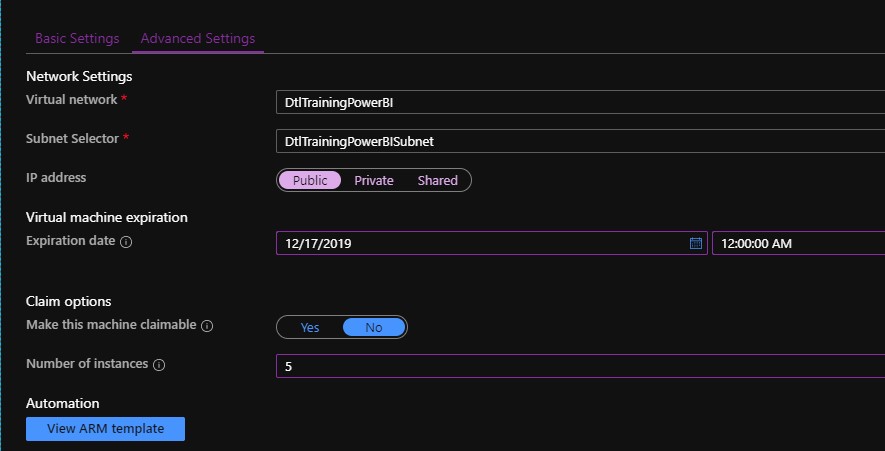
Virtual Machine expiration:
As it concerns training machines, we also want them to be removed automatically after the training.
Then go back to the Basic Settings and click on Create.

Number of instances:
Define how many training machines you would like to create.

Go back to the Tab Basic Settings and click on Create.

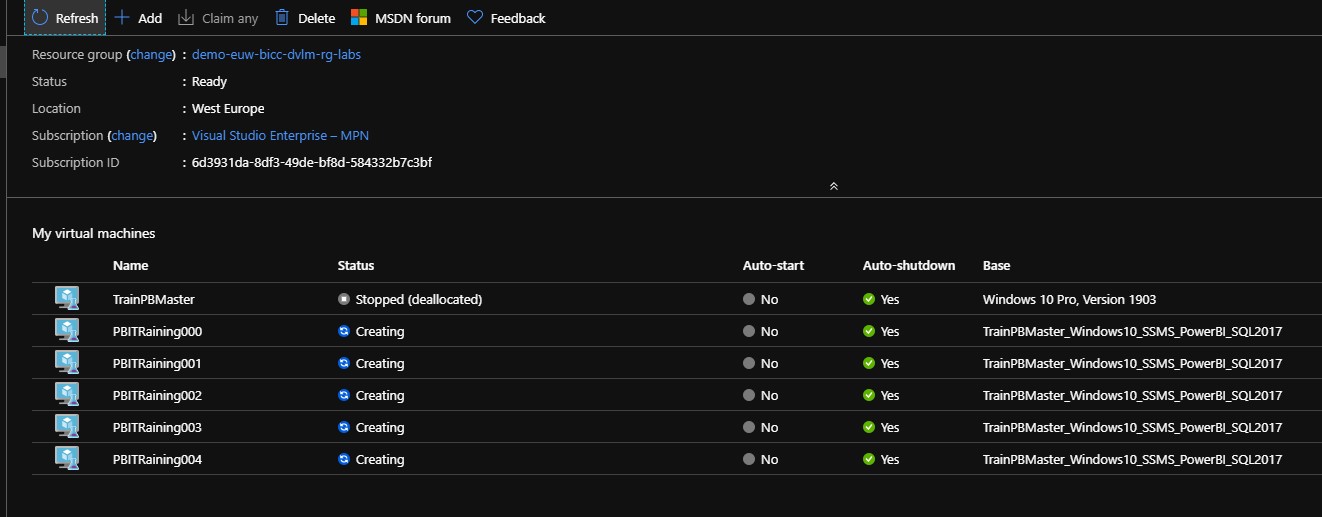
The number of machines you have selected are immediately created with an increasing number. After the creation is complete, Students can now log into this Virtual Machines from their own laptop or desktop at PBITraining001.westeurope.cloudapp.azure.com with the User1 account, which we created in an earlier stage.

A new year with a new job

A new year with a new job

Erwin

by Erwin | Dec 11, 2019

Changing jobs

After almost 11 years and 4 months I have decided to leave Axians and to start a new adventure in the new year.

On January 2, 2020 I will start my day as Lead Data and AI at Inspark

The past years have flown by. I started at Eniac BI, which was subsequently taken over by Imtech ICT and finally Imtech ICT was again taken over by Axians.
The last acquisition was an exciting period, but we have all become stronger.
Together with my colleagues we have set up a nice Business Unit in Zaltbommel. We have had many wonderful moments together, in both good times but also in the more difficult(bad) times.
Beautiful moments also include the less beautiful moments, the sudden death of my former Director.
Again when writing this message I think of him, he was the person who hired and believed in me and that is always a special moment.

Within Axians I have been able to follow a good career path, where I started as a Medior BI Consultant at Eniac, with help from my network, my clients and of course my colleagues to my current role as Microsoft Solution Architect.

All those years I have worked with great pleasure at Axians, thanks to everyone who contributed to that.

Feel free to leave a comment

Calculate Workingdays including Holidays with T-SQL

Calculate Workingdays including Holidays with T-SQL

Erwin

by Erwin | Dec 10, 2019

Calculate Workingdays between 2 Date columns

Recently I have been getting some questions from my customers, can I calculate the number of workdays between 2 dates? Of course my answer was, yes you can. But I do want certain closing dates and holidays of our company not to be included either. That became a little bit more difficult. Eventually I was able to solve this and would like to share that with you.

What do you need as a minimum.

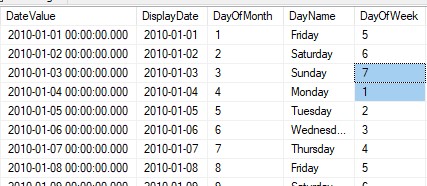
A Date Dimension that includes the day of the week and a fact in which you want to calculate the number of workdays between 2 dates.

WeekendDay

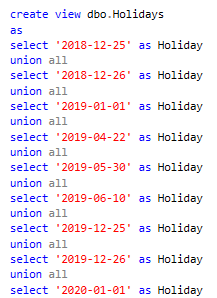
First of all we need to create a table or view where we define our Holidays and Closing Days.

In my case I just created a simple view where I've defined my Holidays, there are more ways to achieve this functionality, but this works as well.

Holidays

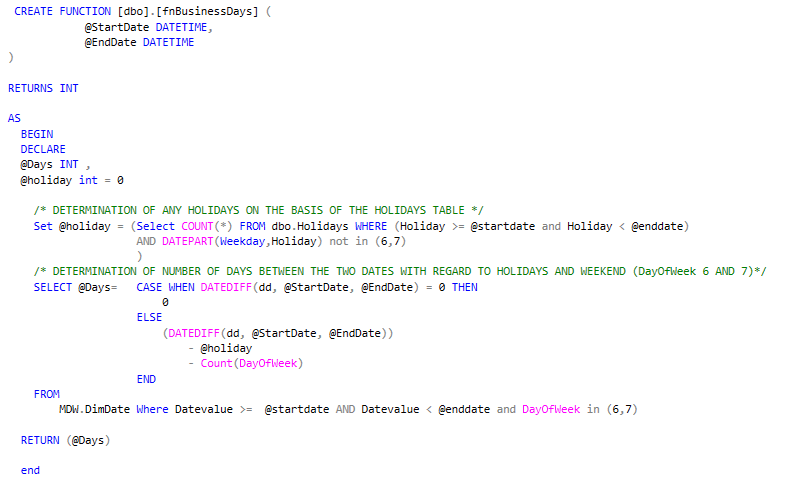
After we've created our Holidays we need to create the the following Function:

Businessdays

Finally include this function in your Query.

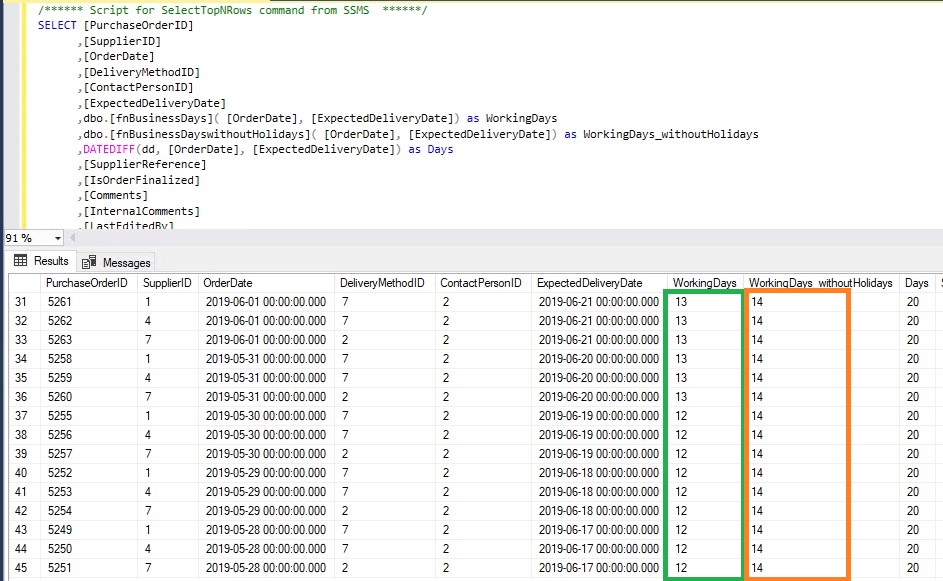
If we want to know how many workingdays there are between OrderDate 2019-05-29 and ExpectedDeliverydate 2019-06-18 we call the function dbo.fnBusinessday(OrderDate , ExpectedDeliverydate ), the result will be 12.

This is because we have defined 2019-05-30 and 2019-06-10 as Holidays and in between we have 3 weekends.

WorkingDays

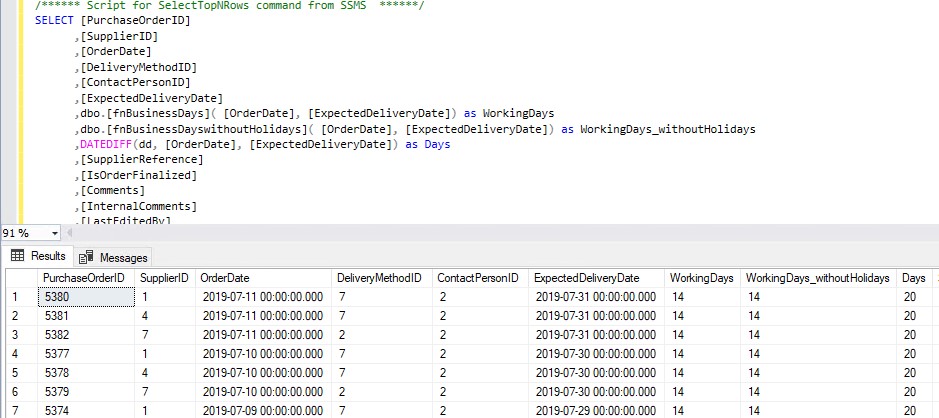
If there are no holidays then only the weekend days are not included.

WorkingDaysNoHolidays

With the above method you can use the calculation dynamically every time.

If there are any questions, please leave them in the comments below.

The sample code can be found here.

Feel free to leave a comment

Book of News Microsoft Ignite 2019

Erwin

by Erwin | Nov 7, 2019

Microsoft Ignite 2019

MSIgnite 2019 has almost come to an end. A lot of new Annoucement have been released and presented.  Would you also like to know which announcements have been made?

Microsoft has released during MSIgnite a "Book of News". This book contains all new announcements made on MSIgnite and with all different subjects such as Dataplatform, PowerBI, Power Automate(new name for Microsoft Flow), Power Virtual Agents, Azure ARC, Azure Security. Azure Synapse Analytics(former Azure SQL DW) and much more.

Sam Cogan wrote a short blog post of all the new features:

https://samcogan.com/azure-announcements-from-microsoft-ignite/

https://erwindekreuk.com/wp-content/uploads/2019/11/Ignite_2019_1573153923.pdf

Feel free to leave a comment